
Pro blocks
Woo Product CategoriesPro
How to add category thumbnails in WooCommerce, choose which categories appear and in what order, set the columns and display options, and style the category cards.
This feature needs the Pro version of WPMozo Blocks and Addons.
See the Woo Product Categories block live on the demo site (opens in a new tab)
Requires: WooCommerce.
Adding the block#
- Make sure your product categories have thumbnails (Products → Categories → Edit → Thumbnail).
- Click “+”, search for “Woo Product Categories”, and select it.
General tab#
Content#
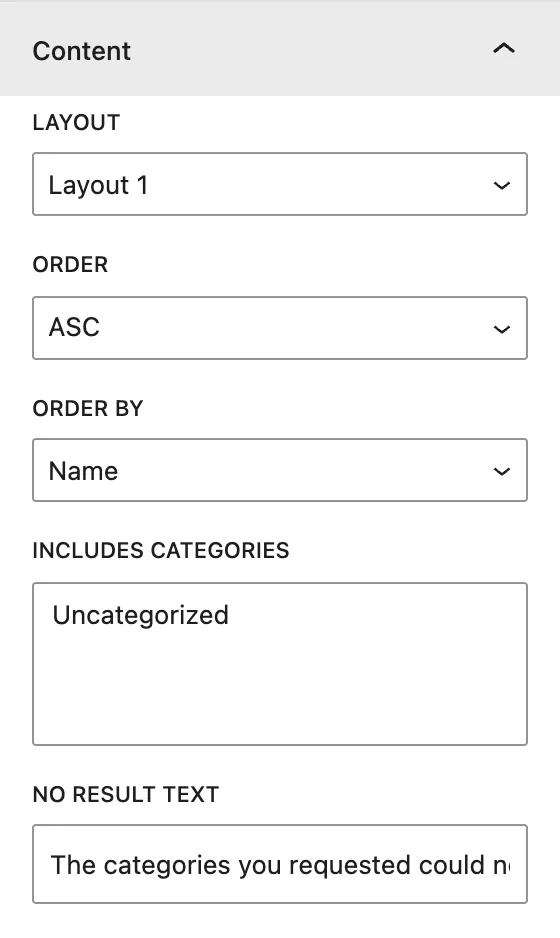
| Setting | Description |
|---|---|
| Layout | Layout 1 or Layout 2. |
| Order / Order by | DESC/ASC by Name, Slug, Term Id, Count (number of products), or Menu Order (the drag-and-drop order in WooCommerce). |
| Includes Categories | Choose specific categories, or leave empty for all. |
| No Result Text | Message shown when no categories are found. |
Display#
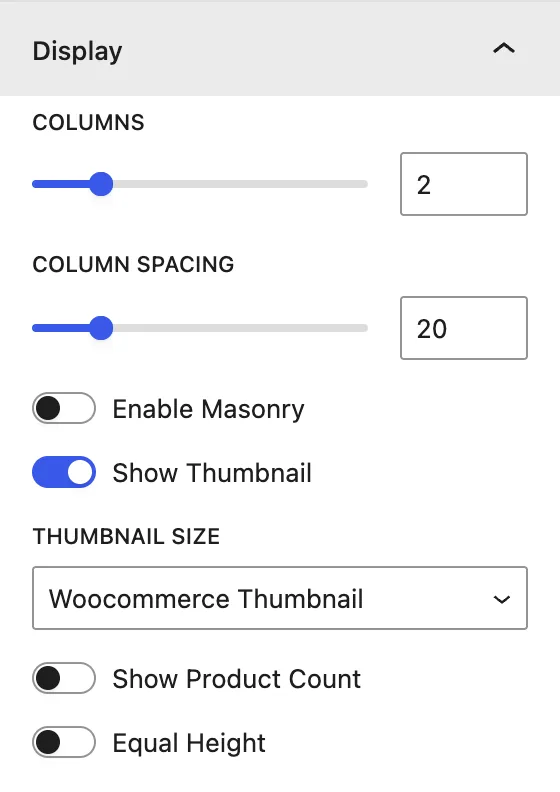
| Setting | Description |
|---|---|
| Columns | Categories per row. |
| Column Spacing | Gap between cards. |
| Enable Masonry | Cards keep their natural height. |
| Show Thumbnail / Thumbnail Size | Category image, at Woocommerce Thumbnail or Woocommerce Single size. |
| Show Product Count | Shows how many products each category has. |
| Equal Height | Makes all cards the same height. |
Design tab#
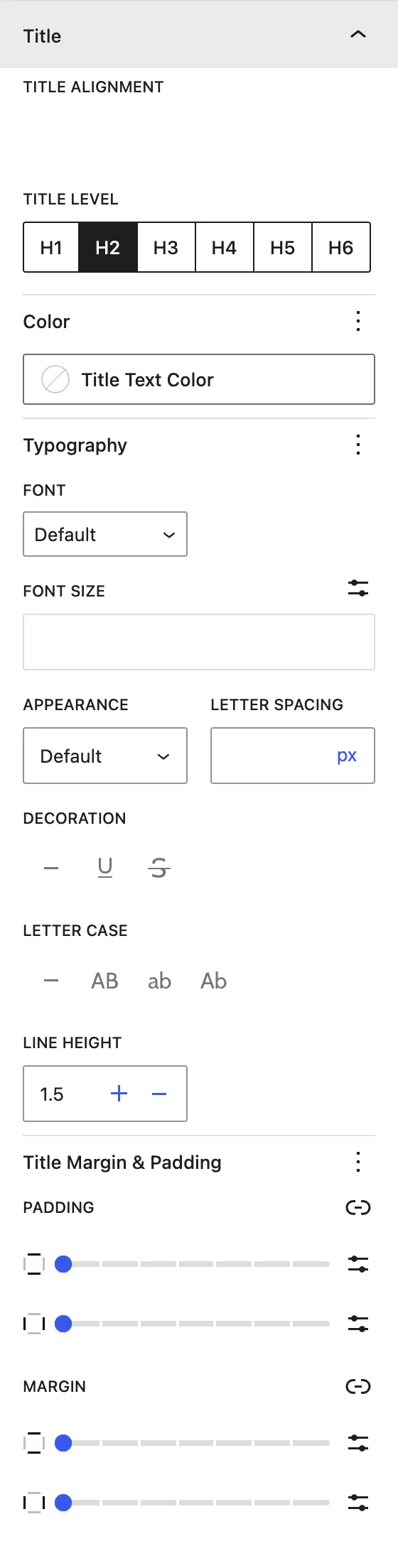
| Panel | What it controls |
|---|---|
| Category Content Background | Background and padding of the text area. |
| Category Item | Card border and radius. |
| Thumbnail | Image Height, border, and radius. |
| Title | Alignment, Title Level (H1–H6), color, typography, and spacing. |
| Product Count | Alignment, color, and typography. |
Advanced tab#
Tips#
- Use Order by → Menu Order to control the order by dragging categories in Products → Categories.
- Use images with the same aspect ratio for a tidy grid.
Was this article helpful?
Thanks for the feedback. Need more help? Contact support.