
Blocks
Fancy HeadingFree
On this page
The free Fancy Heading block lets you create eye-catching headings with advanced styling options, helping you enhance your content’s design and grab visitor attention.
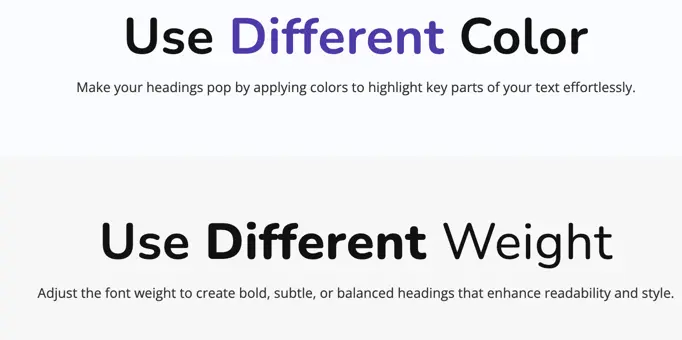
Adding the block#
To add the Fancy Heading block:
- Click the “+” button to add a new block.
- Search for “Fancy Heading” and select it.
- For detailed instructions on how to add blocks in Gutenberg, please refer to the official WordPress Block Editor documentation (opens in a new tab).
Heading content options#
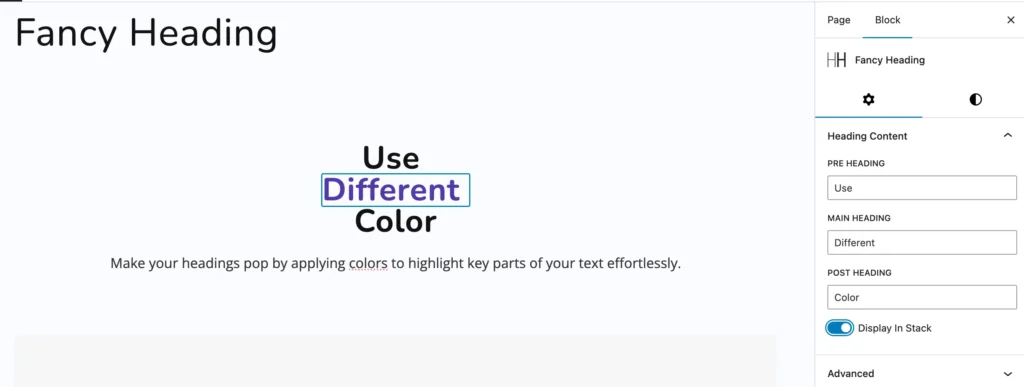
Pre Heading – Text that appears before the main heading.
Main Heading – Primary text, usually the focus.
Post Heading – Text that appears after the main heading.
Display in Stack – Toggle to display each part on a separate line.
Design options#
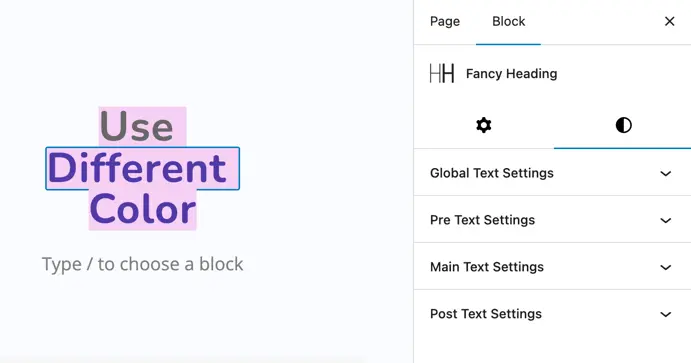
In the Fancy Heading block, you can assign different styles to each part of your heading—Pre, Main, and Post—using the dedicated styling sections available.
Global text settings#
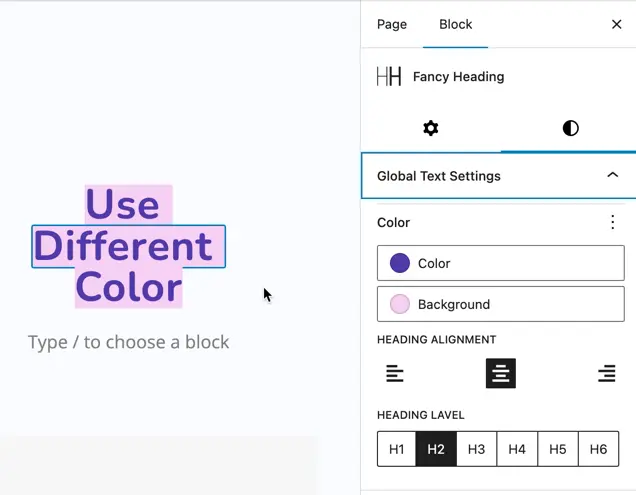
This section controls common styling that applies to the entire heading block (Pre + Main + Post), unless overridden by individual settings.
- Color
- Text Color: Choose the default font color for your entire heading.
- Background Color: Set a background color behind the entire heading.
- Heading Alignment
- Align your heading text Left, Center, or Right using alignment icons.
- Heading Level
- Choose the semantic HTML heading tag:
- H1, H2, H3, H4, H5, or H6
- This helps define heading structure for SEO and accessibility.
- Choose the semantic HTML heading tag:
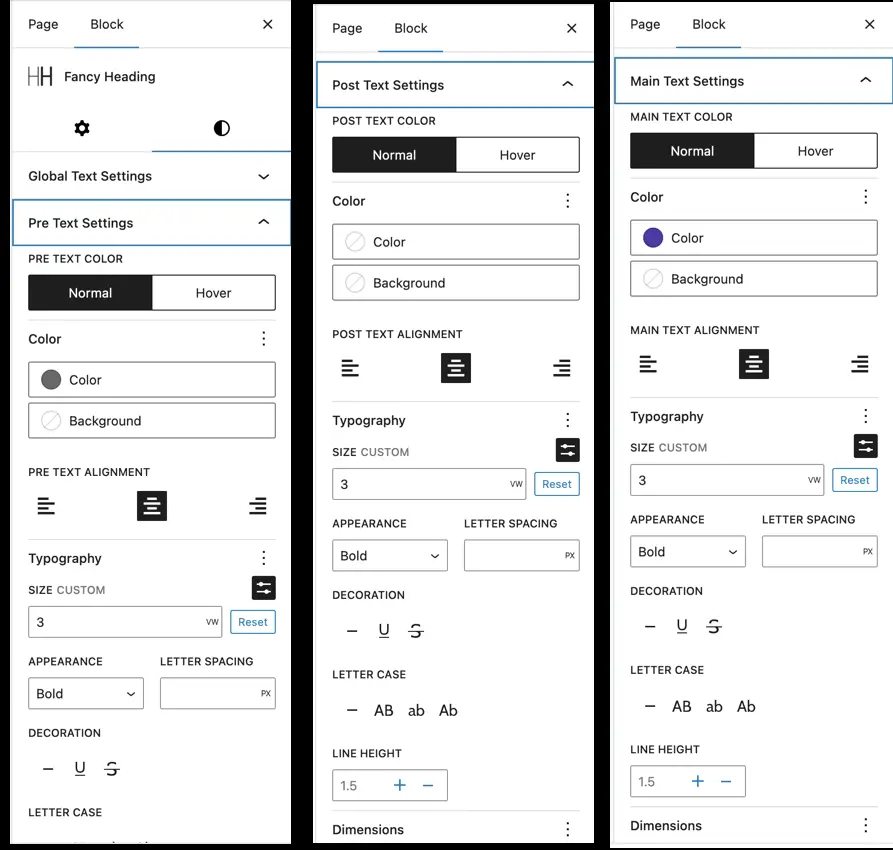
Pre text settings#
This section controls styling for the optional introductory part of the heading (e.g., “Use” in “Use Different Color”).
- Pre Text Color
- Customize Normal and Hover text and background colors.
- Pre Text Alignment
- Align left, center, or right independently of the block’s global alignment.
- Typography
- Size (Custom) – Adjust size using VW (viewport width) or PX.
- Appearance – Choose font weight like Normal, Bold, etc.
- Letter Spacing – Add spacing between characters.
- Decoration – Add Underline, Strikethrough, or Italic styles.
- Letter Case – Convert text to UPPERCASE, lowercase, or Capitalized.
- Line Height – Adjust vertical spacing between lines of pre-text.
Post text settings#
This section styles the ending part of the heading (e.g., “Color” in “Use Different Color”).
- Post Text Color
- Separate color settings for Normal and Hover states.
- Post Text Alignment
- Independent alignment control for just the post text.
- Typography
- Same detailed controls as in Pre Text:
- Font size, weight, spacing, decorations, case, and line height.
- Same detailed controls as in Pre Text:
Main text settings#
This section is for styling the core part of your heading (e.g., “Different” in “Use Different Color”) and is often the most visually prominent.
- Main Text Color
- Full control over Normal and Hover states for both text and background.
- Main Text Alignment
- Align the main word differently if needed.
- Typography
- All advanced options like:
- Font size (customizable in VW), bold/italic/underline, letter spacing, text case, and line height.
- All advanced options like:
Was this article helpful?
Thanks for the feedback. Need more help? Contact support.