
Pro blocks
Facebook PagePro
How to connect your Facebook Page URL, show the Timeline, Events, and Messages tabs, set the cover photo and size options, and align the embed.
This feature needs the Pro version of WPMozo Blocks and Addons.
See the Facebook Page block live on the demo site (opens in a new tab)
Adding the block#
- Click the “+” (Block Inserter) button.
- Search for “Facebook Page” and select it.
- Paste your page link (for example
https://www.facebook.com/yourpage) into Facebook Page URL.
General tab#
Configuration#
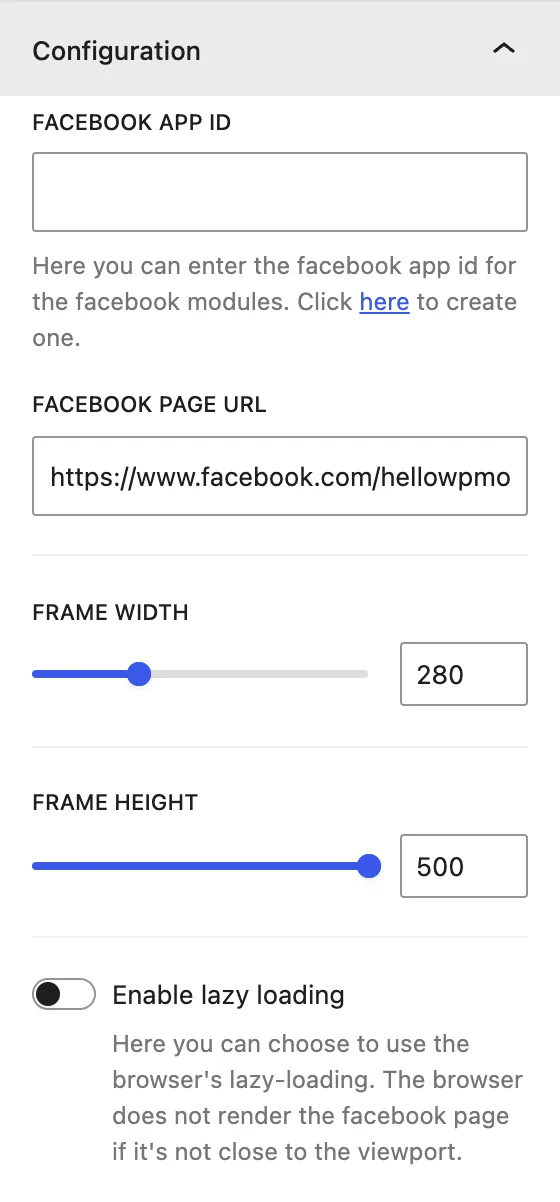
| Setting | Description |
|---|---|
| Facebook APP ID | Your Facebook App ID (optional for most embeds). |
| Facebook Page URL | Link to the public Facebook Page. |
| Frame Width | Width of the embed, in px (Facebook allows 180–500px). |
| Frame Height | Height of the embed, in px. Needed when tabs are shown. |
| Enable lazy loading | Loads the embed only when it comes close to the visible screen. |
Display#
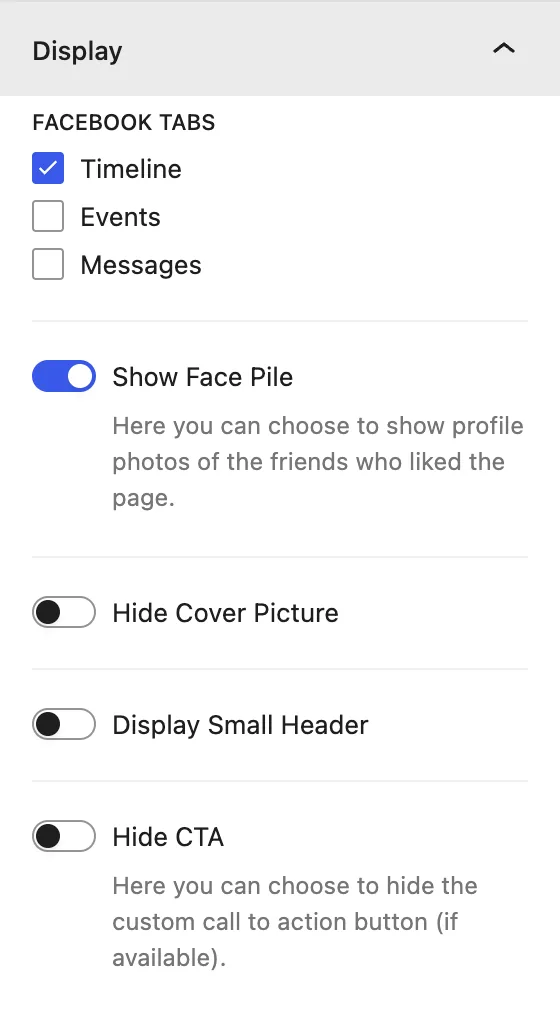
| Setting | Description |
|---|---|
| Facebook Tabs | Which tabs to show: Timeline (recent posts), Events, and/or Messages (visitors can message your page). |
| Show Face Pile | Shows profile photos of friends who like the page. |
| Hide Cover Picture | Hides the page’s cover photo. |
| Display Small Header | Uses a smaller, compact header. |
| Hide CTA | Hides the page’s custom call-to-action button (for example “Book Now”). |
Design tab#
Facebook Page#
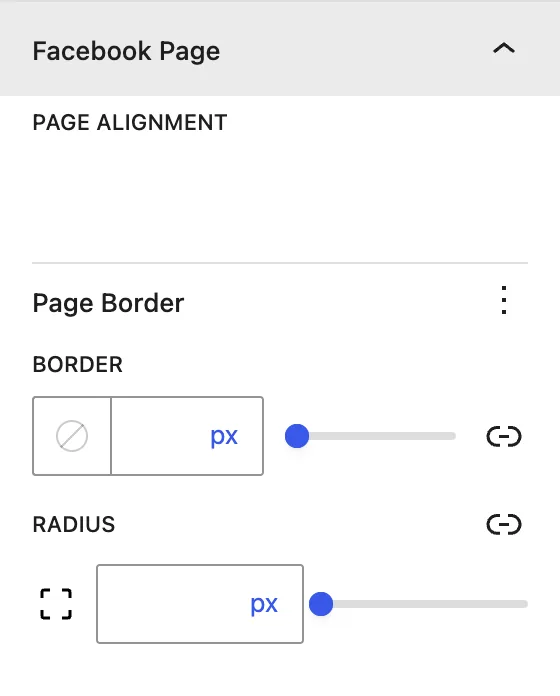
| Setting | Description |
|---|---|
| Page Alignment | Left, center, or right. |
| Page Border / Radius | Border and rounded corners around the embed. |
Advanced tab#
Tips#
- With the Timeline tab on, set Frame Height to 500px or more so several posts are visible.
- The Facebook plugin limits its width to 500px. Center it in wide layouts with Page Alignment → Center.
Was this article helpful?
Thanks for the feedback. Need more help? Contact support.