
Pro blocks
TimelinePro
How to add timeline items with a title, text, date, and icon or image, set the layout and the scroll-fill line color, and style each part of the timeline.
This feature needs the Pro version of WPMozo Blocks and Addons.
On this page
See the Timeline block live on the demo site (opens in a new tab)
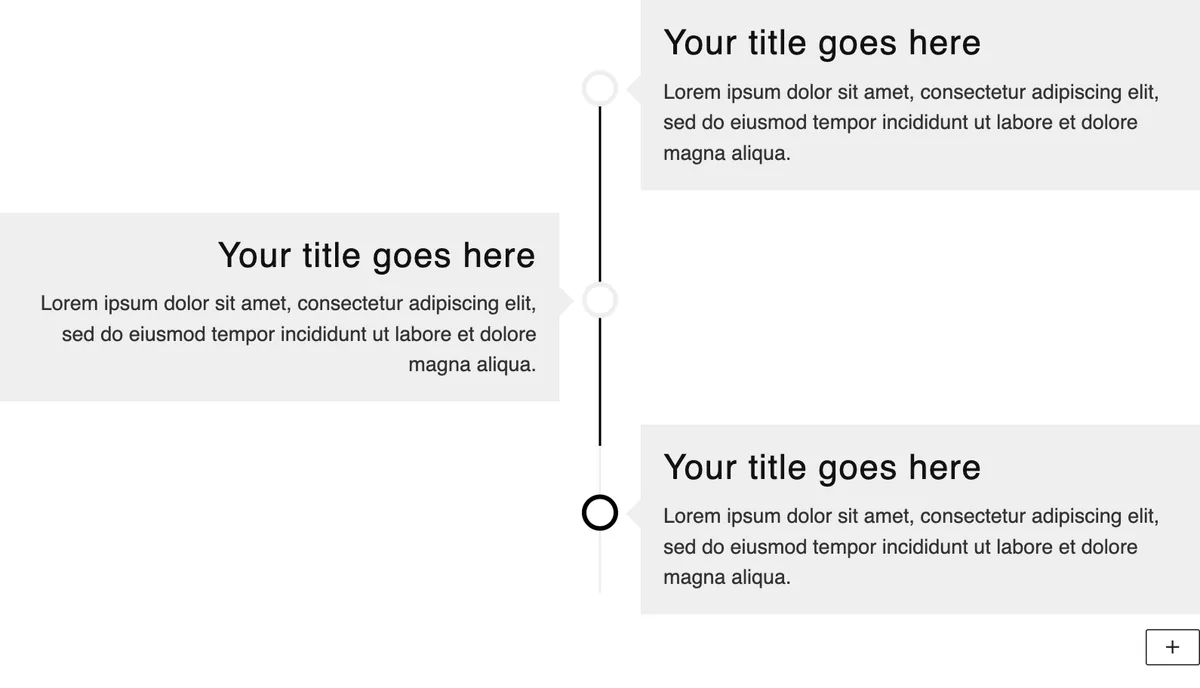
Adding the block#
- Click the “+” (Block Inserter) button.
- Search for “Timeline” and select it. It is added with three events.
- Select an event (a Timeline Item) to edit its content. Use the “+” appender on the parent to add more.
Parent block: Timeline#
General tab#
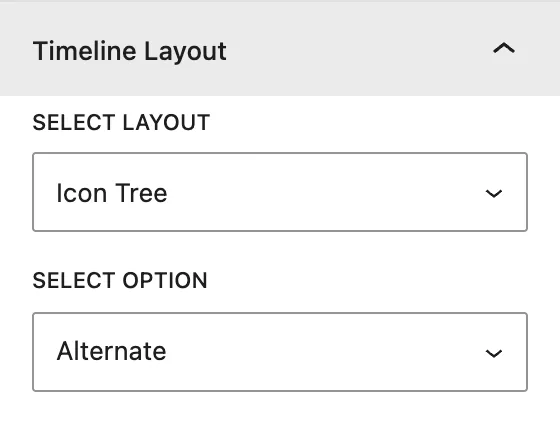
Timeline Layout
| Setting | Description |
|---|---|
| Select Layout | Icon Tree puts an icon or image on the line for each event. Date Tree puts the date on the line. |
| Select Option | Alternate (events left and right of the line), Content Right, or Content Left. |
Design tab#
| Panel | What it controls |
|---|---|
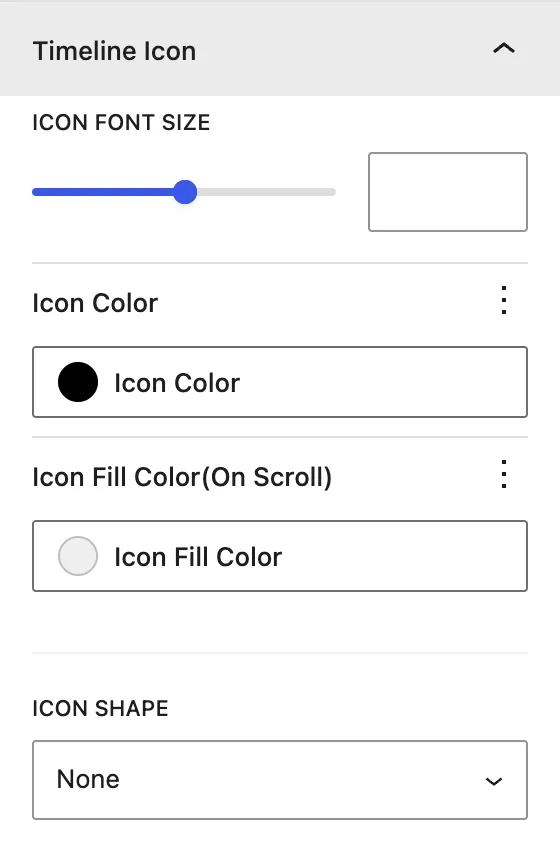
| Timeline Icon | Icon Font Size, Icon Color, Icon Fill Color (On Scroll) (the color once the visitor scrolls past), and Icon Shape (None, Square, Circle). |
| Timeline Image | Image Size when events use images. |
| Timeline Stem Styling | Timeline Stem Width (px) and Stem Color of the line. |
| Timeline Item Styling | Background and padding of all event cards. |
| Timeline Heading | Alignment, color, and typography of event titles. |
| Timeline Date | Alignment, color, and typography of dates. |
| Timeline Text | Alignment, color, and typography of event text. |
Child block: Timeline Item#
General tab#
Timeline Content
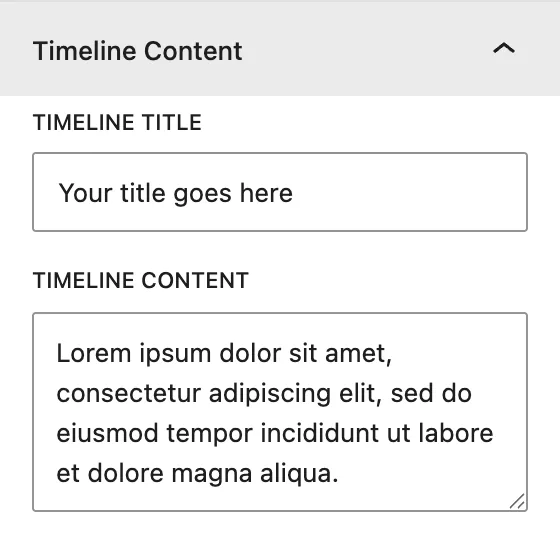
Timeline Title and Timeline Content of the event.
Timeline Time
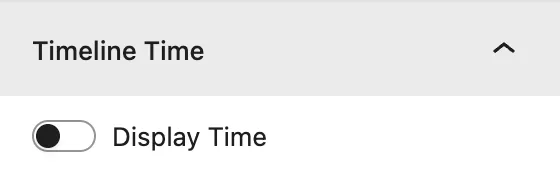
| Setting | Description |
|---|---|
| Display Time | Shows a date or time label for the event. |
| Time Input Method | Custom Time (any text, for example “Q3 2025” or “Step 1”) or Datepicker. |
| Enter Custom Time | The custom label. |
| Date Format | (Datepicker)Month DD, YYYY, Day, Month DD, YYYY, MM DD, YYYY, YYYY/MM/DD, MM/DD/YYYY, DD/MM/YYYY, YYYY-MM-DD. |
Timeline Icon/Image
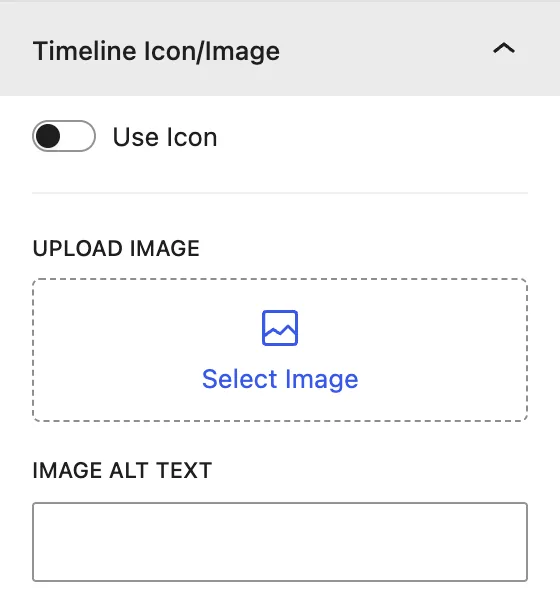
| Setting | Description |
|---|---|
| Use Icon | Uses an icon (Select Icon) on the line. Turn it off to use an image. |
| Upload Image / Image Alt Text | Image shown on the line for this event. |
Design tab#
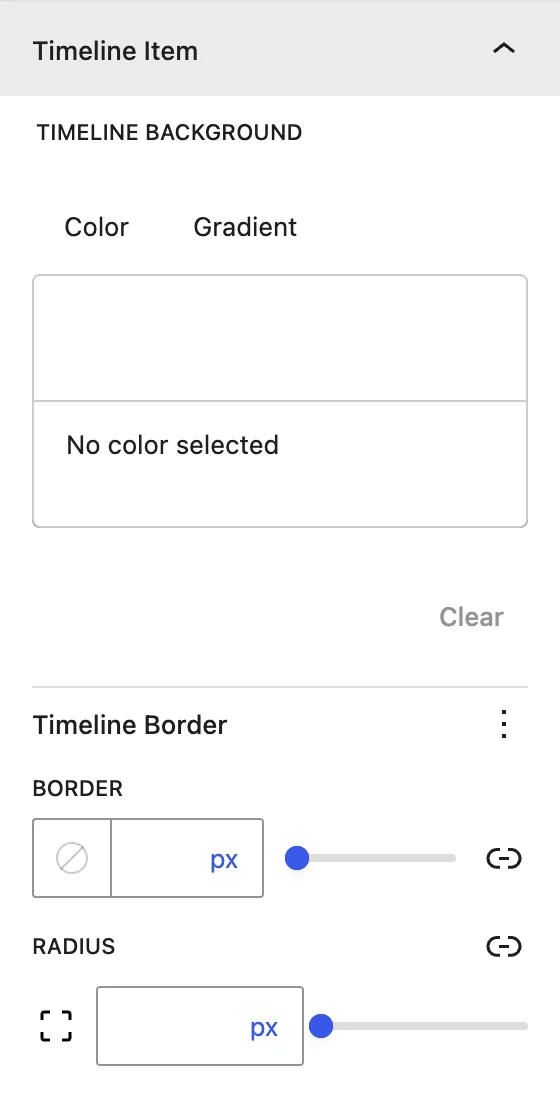
| Panel | What it controls |
|---|---|
| Timeline Heading | Title Level (H1–H6), alignment, color, and typography for this event. |
| Timeline Item | Background, border, and radius of this event card, for example to highlight a milestone. |
Advanced tab#
Tips#
- Use Date Tree for history pages and Icon Tree for processes or roadmaps.
- Give the current or most important milestone its own background color in the child Timeline Item panel.
Was this article helpful?
Thanks for the feedback. Need more help? Contact support.