
Blocks
Blog TimelineFree
How to select which posts appear, choose the timeline layout, show or hide the featured image, excerpt, author, date, categories, and Read More button, and style the timeline icon, stem, and post cards.
On this page
See the Blog Timeline block live on the demo site (opens in a new tab)

Adding the block#
- Click the “+” (Block Inserter) button.
- Search for “Blog Timeline” and select it.
- Your latest posts appear automatically. Filter and style them from the sidebar.
Settings overview#
| Tab | What you control there |
|---|---|
| General | Which posts to show, the layout, and which post details appear |
| Design | Timeline icon, stem, post card, title, excerpt, date, meta, and button styles |
| Advanced | See Common Advanced Settings |
General tab#
Content#
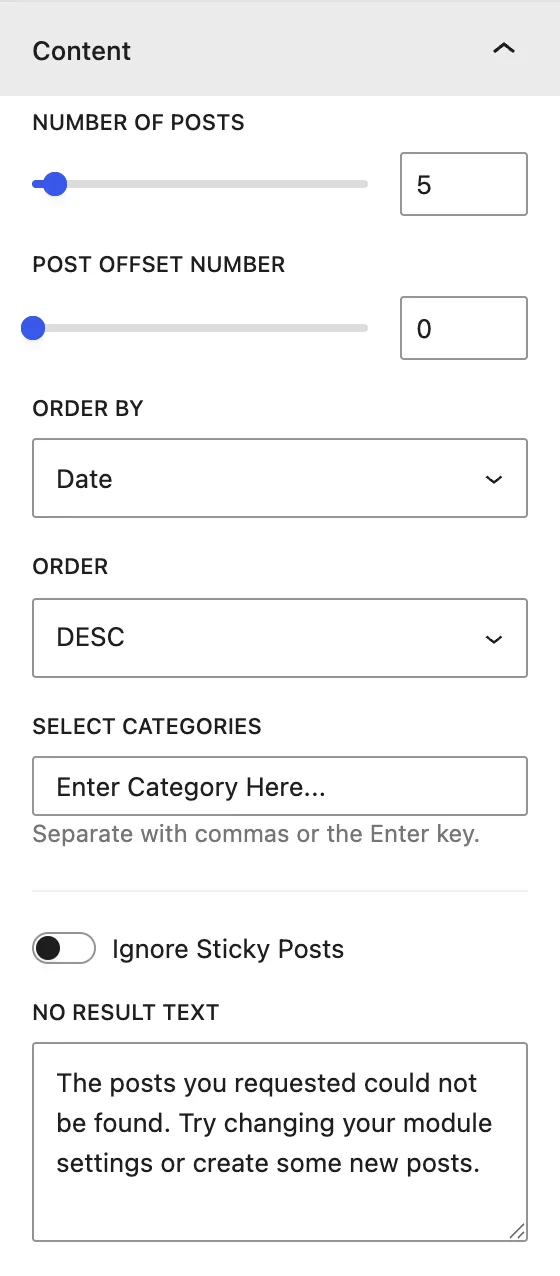
| Setting | Description |
|---|---|
| Number of Posts | How many posts to show. |
| Post Offset Number | Skips this many of the newest posts. Useful when the newest post is already featured elsewhere. |
| Order by | Date, Modified Date, Title, Slug, ID, Random, Relevance, or None. |
| Order | DESC or ASC. |
| Select Categories | Shows only posts from the chosen categories. Leave empty for all. |
| Ignore Sticky Posts | Lists sticky posts in normal order. |
| No Result Text | Message shown when no posts match. |
Display#
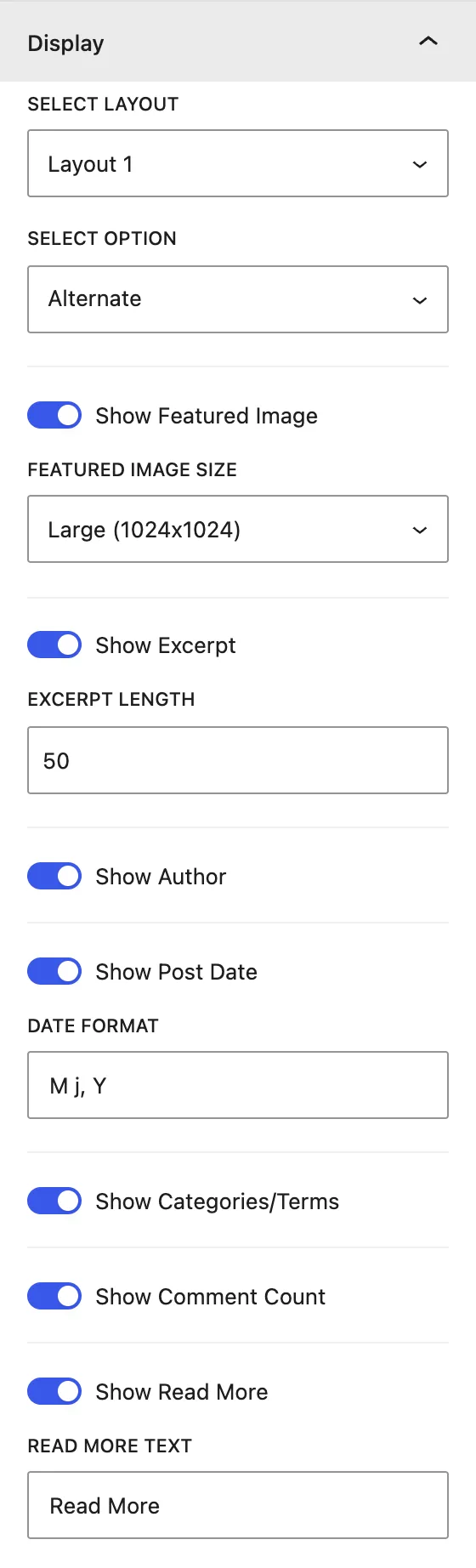
| Setting | Description |
|---|---|
| Select Layout | Layout 1 or Layout 2, two timeline card designs. |
| Select Option | Alternate (posts left and right of the line), Content Right, or Content Left. |
| Show Featured Image | Shows each post’s featured image. Choose a Featured Image Size (Thumbnail, Medium, Large, Full…). |
| Show Excerpt / Excerpt Length | Shows a short summary, with a limit on the number of words. |
| Show Author | Shows the author name. |
| Show Post Date / Date Format | Shows the publish date in a PHP date format (for example F j, Y). |
| Show Categories/Terms | Shows the post categories. |
| Show Comment Count | Shows the number of comments. |
| Show Read More / Read More Text | Adds a button that links to the full post. |
Design tab#
Timeline Icon#
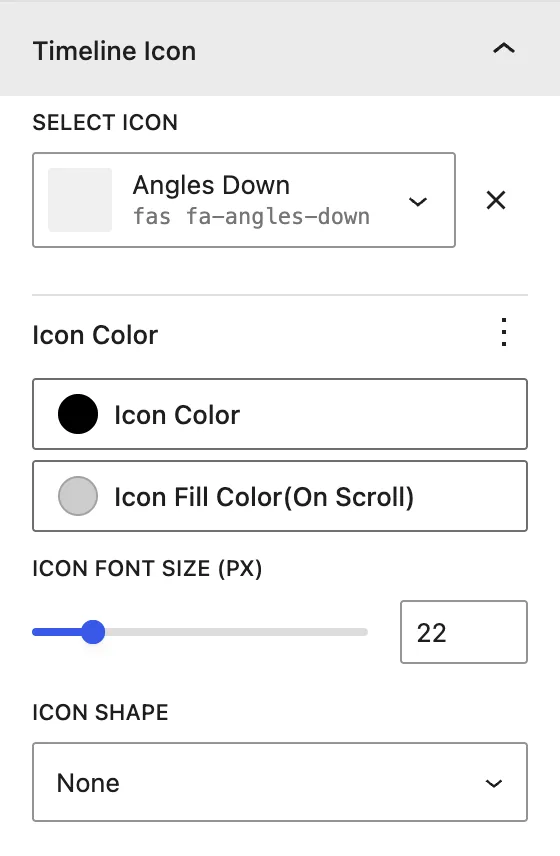
| Setting | Description |
|---|---|
| Select Icon | Icon shown on the timeline next to each post. |
| Icon Color / Icon Font Size (px) | Color and size of the icon. |
| Icon Shape | None, Square, or Circle background behind the icon. |
Timeline Stem#
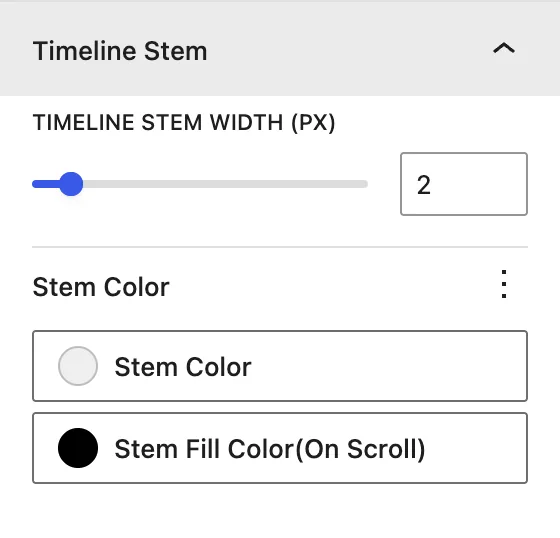
Timeline Stem Width (px) and Stem Color for the vertical line.
Timeline Post#
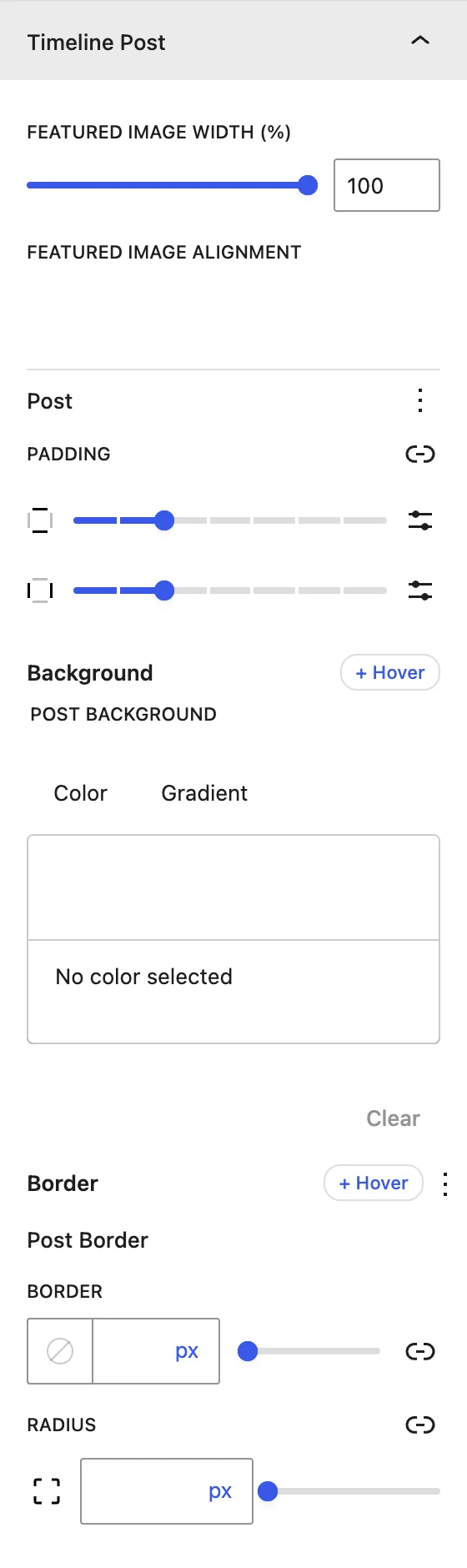
| Setting | Description |
|---|---|
| Featured Image Width (%) | Width of the image inside the card. |
| Featured Image Alignment | Position of the image in the card. |
| Post Padding | Space inside each card. |
| Post Background | Card background color. |
| Post Border / Radius | Card border and rounded corners. |
Post Title · Post Excerpt · Post Date · Post Meta#
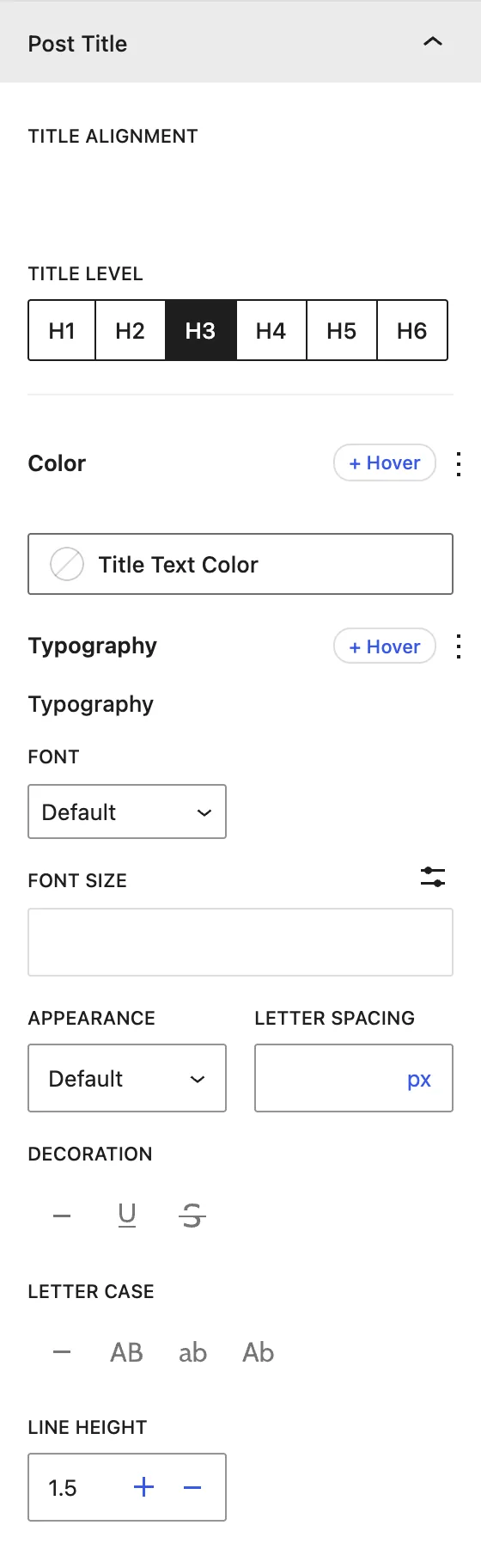
Each panel controls alignment, color, and typography for that part of the card. Post Title also has Title Level (H1–H6).
Read More Button#

| Setting | Description |
|---|---|
| Button Background / Button Text Color | Button colors. |
| Show Button Icon | Adds an icon, with Icon Position (Before or After) and Show Icon On Hover. |
| Typography | Font settings for the button label. |
| Button Dimensions / Button Border | Padding, margin, border, and radius. |
Advanced tab#
Tips#
- On screens narrower than 768px, the Alternate layout automatically puts all posts on one side of the line so they are easier to read.
- Set Order by → Date, Order → ASC to tell a story from oldest to newest, for example a company history.
Was this article helpful?
Thanks for the feedback. Need more help? Contact support.