Pro blocks
Ajax SearchPro How to choose which post types are searched, which details appear in the live results dropdown (title, excerpt, featured image, product price), and how to style the search field, button, and results.
This feature needs the Pro version of WPMozo Blocks and Addons.
On this page
See the Ajax Search block live on the demo site (opens in a new tab)
Adding the block#
Click the “+” (Block Inserter) button. You can also use the Site Editor to place it in your header.
Search for “Ajax Search” and select it.
Choose what to search and what to show in the results.
Settings overview#
Tab What you control there General Placeholder, number of results, sources, and displayed fields Design Search field, icon, loader, and result styles Advanced See Common Advanced Settings
General tab#
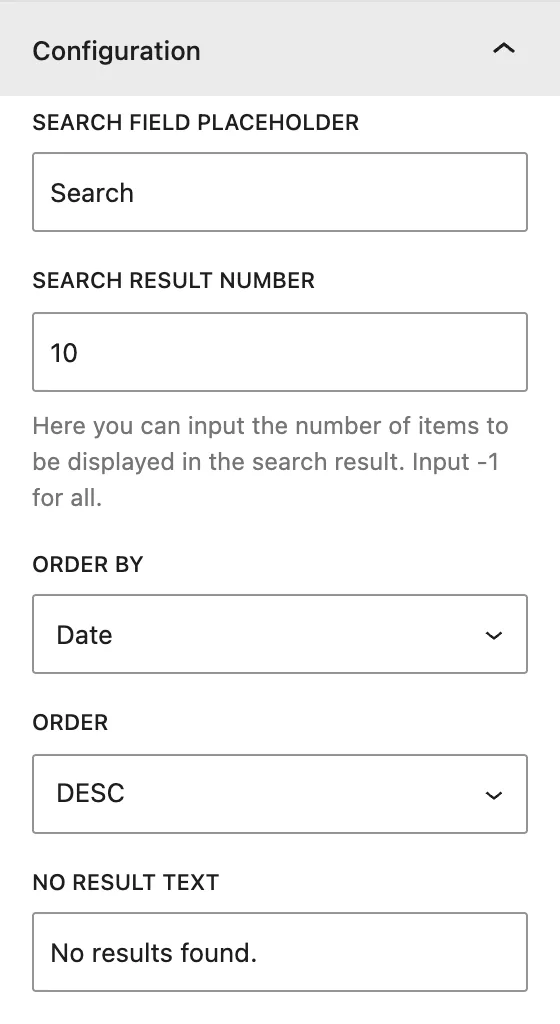
Configuration#
Setting Description Search Field Placeholder Hint text inside the empty field, for example “Search products…”. Search Result Number How many results to show. Enter -1 to show all. Order by Date, Modified Date, Title, Slug, ID, or Random .Order DESC or ASC .No Result Text Message shown when nothing matches.
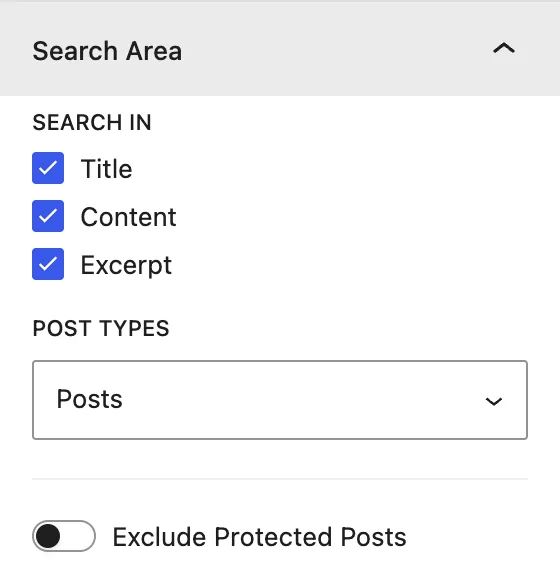
Search Area#
Setting Description Search In Where to look for the search term: Title , Content , and/or Excerpt . Post Types Which content to search: Posts, Pages, Products , WPMozo custom types, or All of the above . Exclude Protected Posts Leaves password-protected posts out of the results.
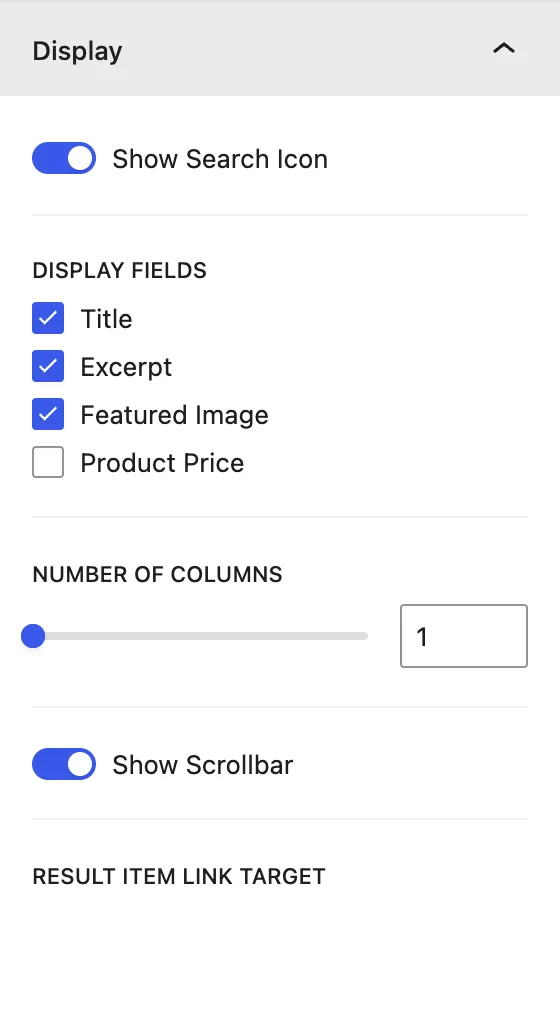
Display#
Setting Description Show Search Icon Shows a magnifying-glass icon in the field. Display Fields What each result shows: Title , Excerpt , Featured Image , Product Price . Number Of Columns Shows results in 1 or more columns. Show Scrollbar Adds a scrollbar when the list is taller than the dropdown. Result Item Link Target Opens results in the Same Window or a New Window .
Design tab#
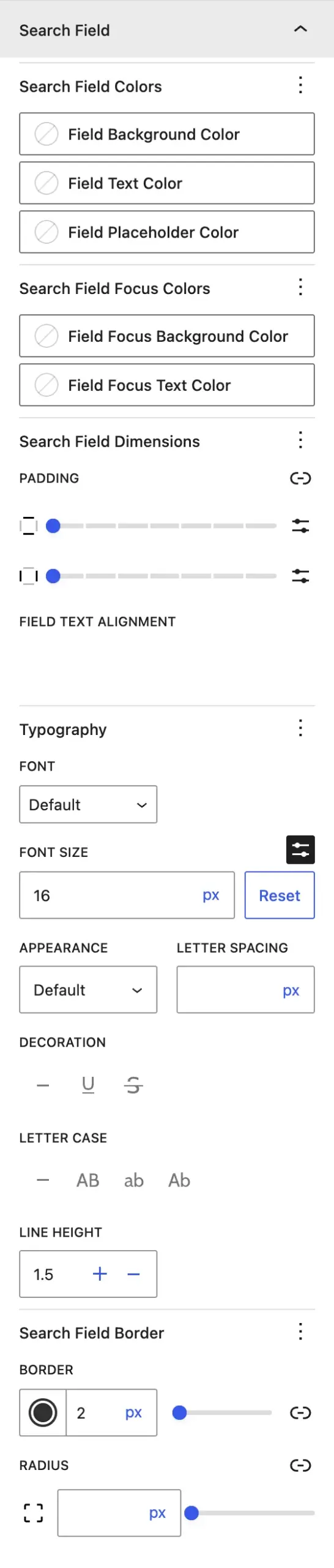
Search Field#
Setting Description Search Field Colors Background, text, and placeholder colors. Search Field Focus Colors Colors while the visitor is typing. Search Field Dimensions Padding inside the field. Field Text Alignment Left, center, or right. Typography Font settings for the typed text. Search Field Border Border and radius.
Search Icon · Loader#
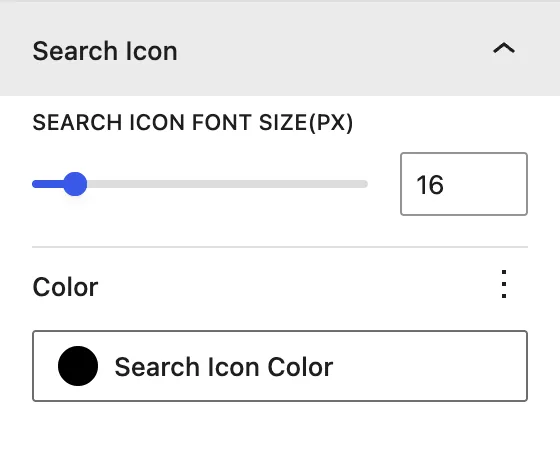
Search Icon: Font Size (px) and Color .Loader: Loader Size (px) and Loader Color of the spinner shown while results load.
Result styles#
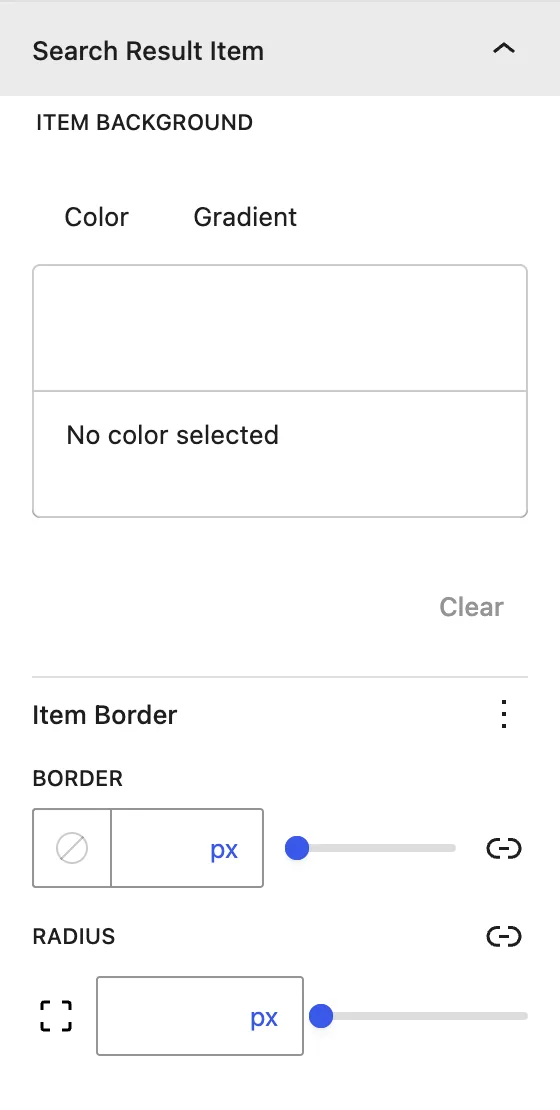
Panel What it controls Search Result Item Title Title color and typography. Search Result Item Excerpt Excerpt color and typography. No Result Text Alignment, color, and typography of the “no results” message. Featured Image Image Width (px) , Height (px) , border, and radius. Search Result Item Background (normal and hover), border, and radius of each result. Search Result Box Background, padding, border, and radius of the whole dropdown.
Advanced tab#
See Common Advanced Settings .
Tips#
For a store, set Post Types → Products and turn on Featured Image and Product Price .
Search Title only for the fastest and most relevant results on large sites.
Was this article helpful?
Yes No Thanks for the feedback. Need more help? Contact support . Updated Nov 2, 2026