
Blocks
Wavy GalleryFree
How to add images, set their width, height, and gap, turn on captions in the lightbox, and style the container, lightbox, and caption.
On this page
See the Wavy Gallery block live on the demo site (opens in a new tab)
Adding the block#
- Click the “+” (Block Inserter) button.
- Search for “Wavy Gallery” and select it.
- Click Upload, Media Library, or drag images onto the placeholder. You can add more images later with the gallery appender.
Settings overview#
| Tab | What you control there |
|---|---|
| General | Image size, gap, and lightbox caption |
| Design | Container border, lightbox background, and caption style |
| Advanced | See Common Advanced Settings |
General tab#
Display#
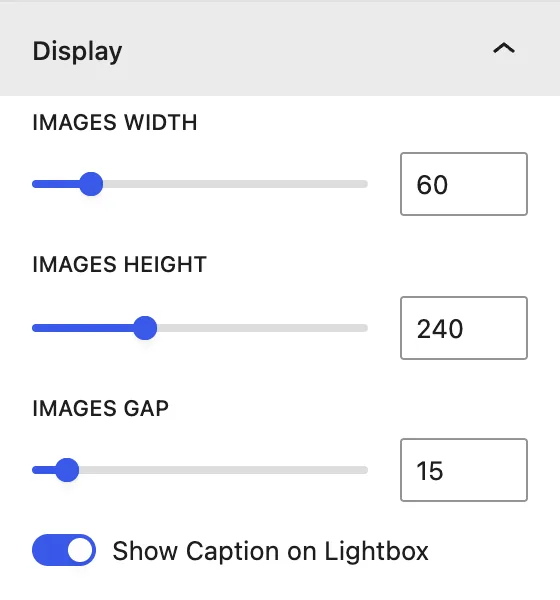
| Setting | Description |
|---|---|
| Images Width | Width of each image in the wave, in px. |
| Images Height | Height of each image, in px. |
| Images Gap | Space between images, in px. |
| Show Caption on Lightbox | Shows the image caption (from the Media Library) when the image is open in the lightbox. |
Design tab#
Container#
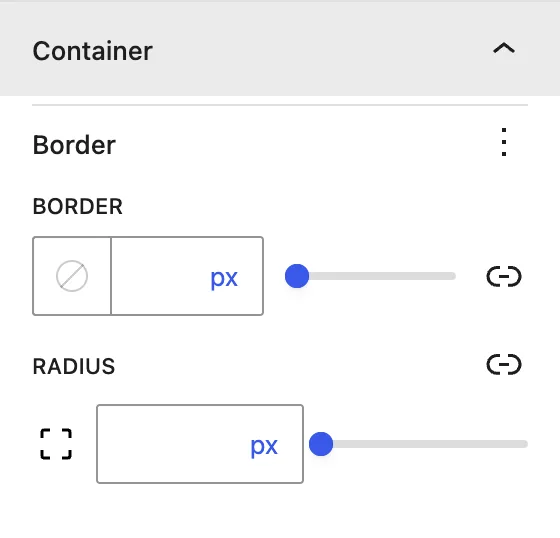
Border and Radius for each image, for example rounded corners.
Lightbox#
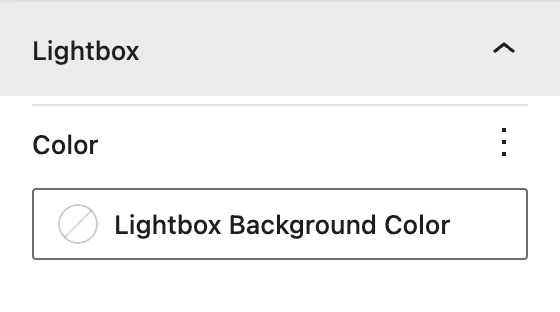
Lightbox Background Color: the overlay color behind the enlarged image.
Lightbox Caption#
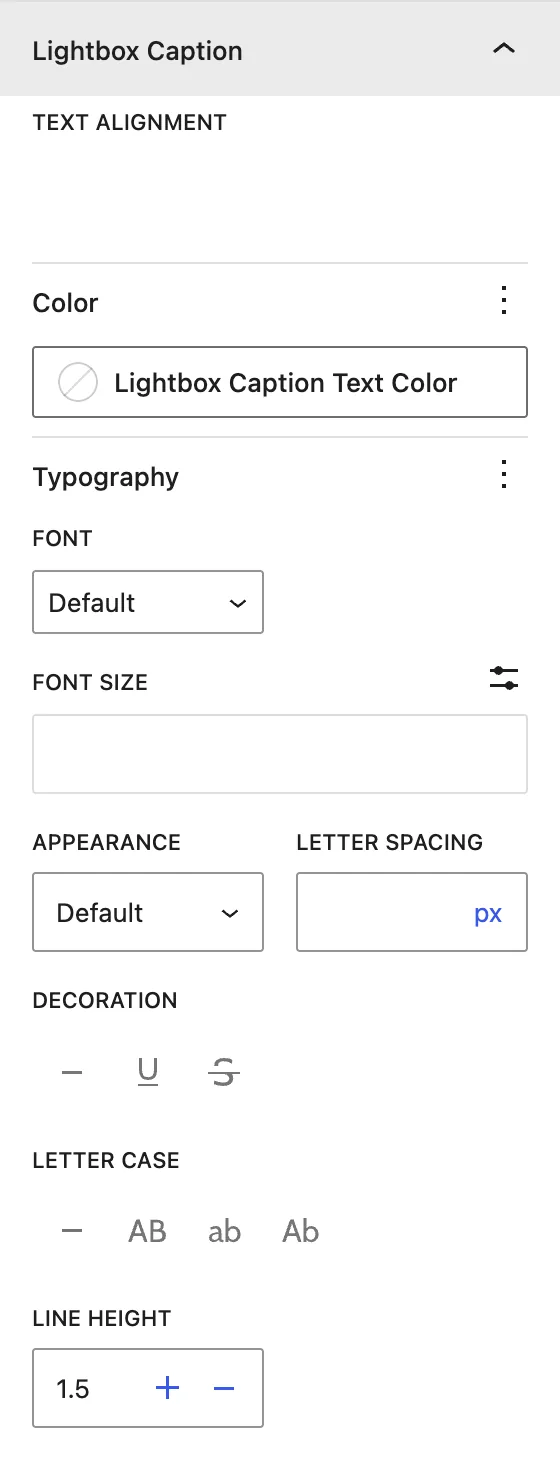
Text Alignment, Lightbox Caption Text Color, and Typography for the caption.
Advanced tab#
Tips#
- Use images with the same aspect ratio so the wave looks even.
- Add captions in Media → Library (the Caption field) so they show in the lightbox.
- 8 to 15 images usually give a smooth, continuous wave.
Was this article helpful?
Thanks for the feedback. Need more help? Contact support.