
Blocks
Post TickerFree
How to choose which posts appear, set the ticker label and effect (scroll, fade, or slide), set the speed, separator, and arrows, and style the label, bar, and post items.
On this page
See the Post Ticker block live on the demo site (opens in a new tab)

Adding the block#
- Click the “+” (Block Inserter) button.
- Search for “Post Ticker” and select it.
- The block loads your latest posts automatically. Change the source and animation from the sidebar.
Settings overview#
| Tab | What you control there |
|---|---|
| General | Which posts to show and how the ticker moves |
| Design | Label, bar, items, separator, and arrow styles |
| Advanced | See Common Advanced Settings |
General tab#
Content#
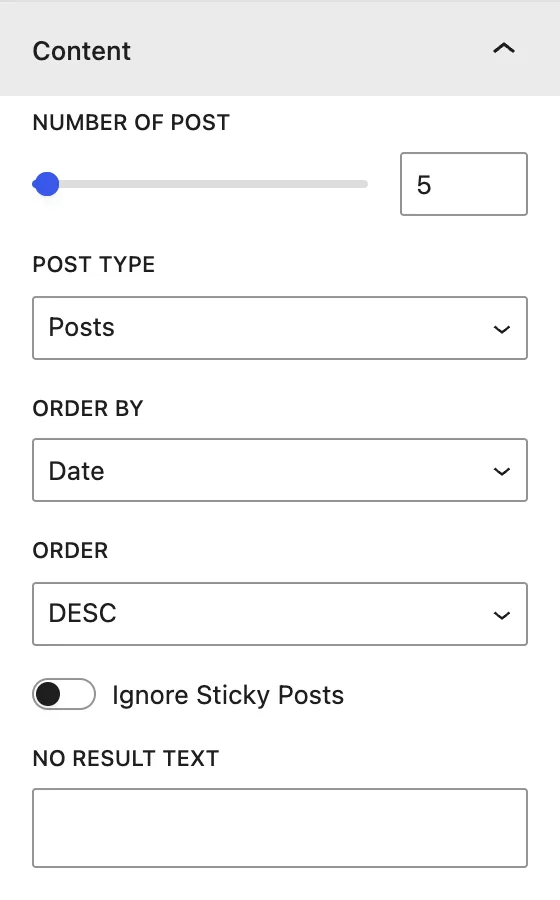
| Setting | Description |
|---|---|
| Number of post | How many items the ticker shows. |
| Post Type | Source of the items: Posts, Pages, Media, Products, or any public custom post type (for example WPMozo Testimonials, Team Members, Portfolios). |
| Order by | Date, Modified Date, Title, Slug, ID, or Random. |
| Order | DESC (newest or Z→A first) or ASC. |
| Ignore Sticky Posts | Treats sticky posts like normal posts instead of always putting them first. |
| No Result Text | Message shown when nothing matches. |
Display#
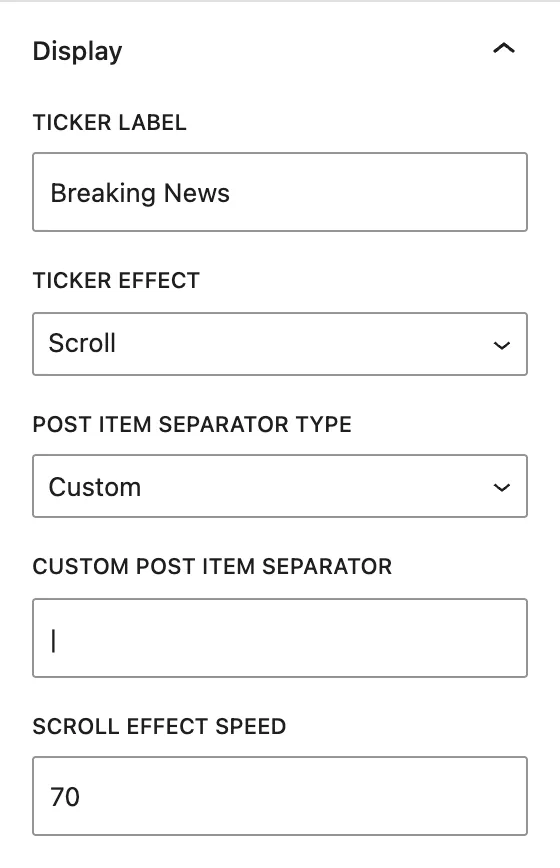
| Setting | Description |
|---|---|
| Ticker Label | The label at the start of the bar, for example “Breaking News” or “Latest”. |
| Ticker Effect | Scroll moves titles continuously like a marquee. Fade fades between titles. Slide slides titles in one at a time. |
| Post Item Separator Type | What appears between items in Scroll mode: Custom text or an Icon. |
| Custom Post Item Separator / Post Item Separator Icon | The separator character (for example • or |) or icon. |
| Scroll Effect Speed | Speed of the Scroll effect. A higher value is faster. |
| Slide Alignment | (Slide) Slides titles Horizontally or Vertically. |
| Effect Delay | (Fade/Slide) How long each title stays visible, in ms. |
| Transition Duration | (Fade/Slide) Length of the change animation, in ms. |
| Show Arrows | (Fade/Slide) Adds previous and next arrows. You can choose the Previous Arrow and Next Arrow icons. |
Design tab#
Ticker Label#
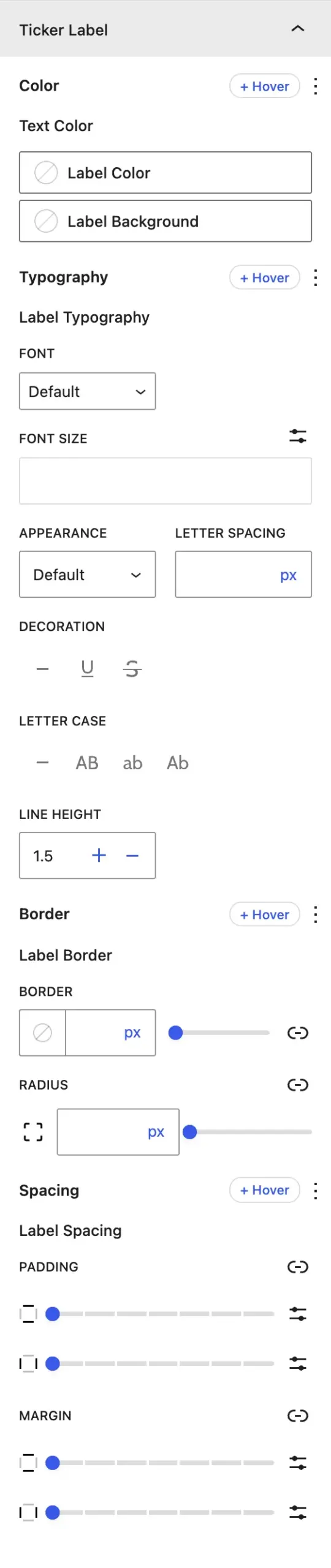
Text Color, Label Color (background), Label Typography, Label Border, and Label Spacing (padding and margin).
Post Items Bar#
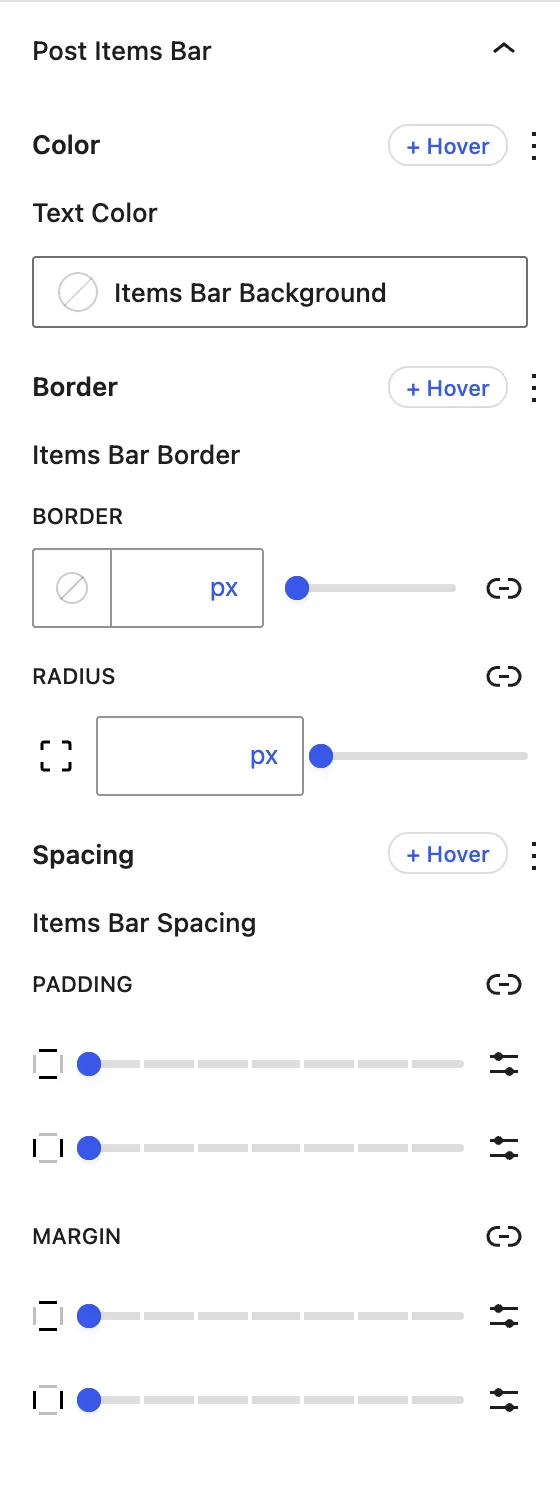
Background or Text Color, Items Bar Border, and Items Bar Spacing for the area that holds the moving titles.
Post Item#
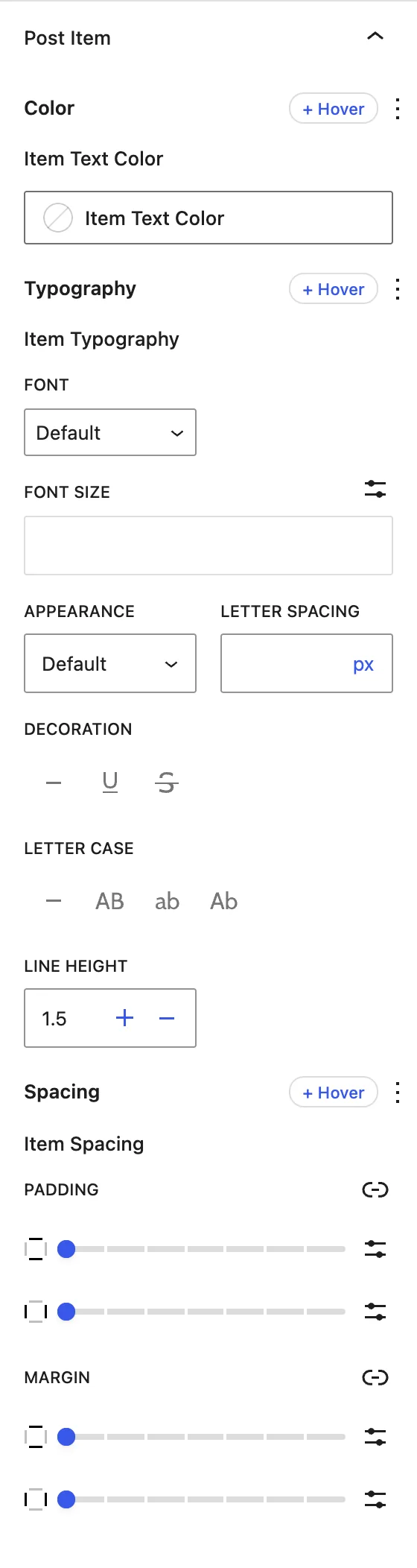
Item Text Color (normal and hover), Item Typography, and Item Spacing.
Post Item Separator#
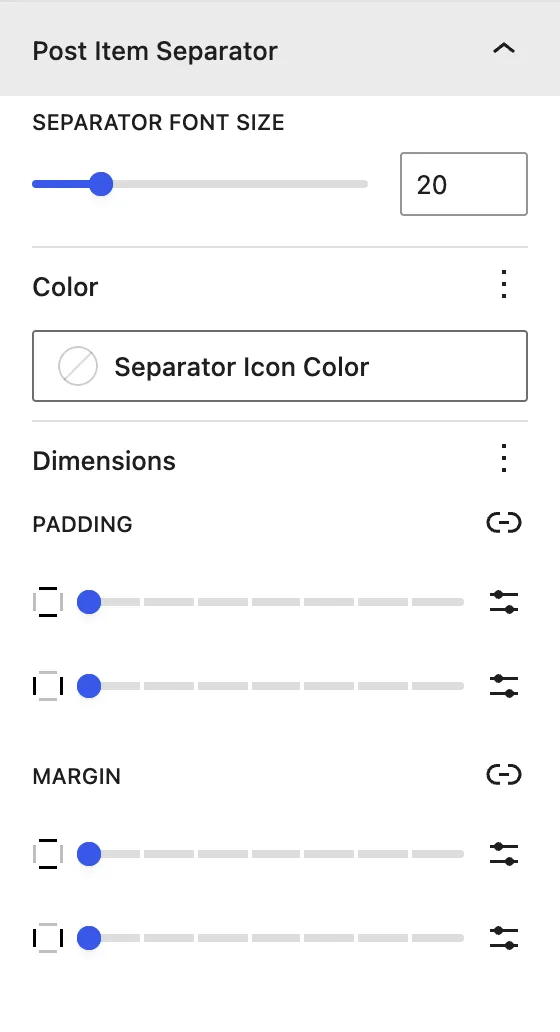
Separator Font Size, Color, and Dimensions (padding and margin) of the separator.
Arrows#
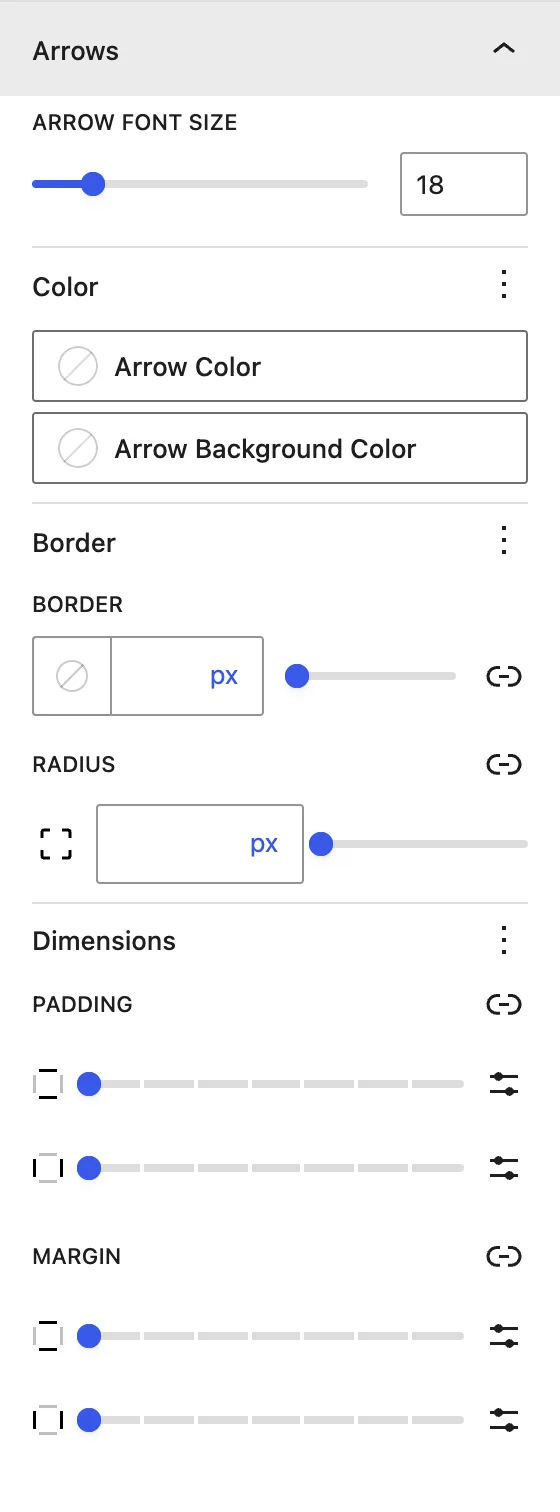
Arrow Font Size, Arrow Color, Arrow Background Color, Border, and Dimensions for the navigation arrows.
Advanced tab#
Tips#
- Use Scroll with a slow speed for headlines, and Fade for 3 to 5 important announcements.
- Set Post Type → Products to make a “new arrivals” ticker for your WooCommerce store.
- Visitors can pause a Scroll ticker by hovering over it, which gives them time to click a title.
Was this article helpful?
Thanks for the feedback. Need more help? Contact support.