
Pro blocks
Marquee TextPro
How to add the scrolling text, set its direction and speed, choose what happens on hover, and style the text.
This feature needs the Pro version of WPMozo Blocks and Addons.
See the Marquee Text block live on the demo site (opens in a new tab)

Adding the block#
- Click the “+” (Block Inserter) button.
- Search for “Marquee Text” and select it.
- Type your text in General → Configuration → Marquee Text.
General tab#
Configuration#
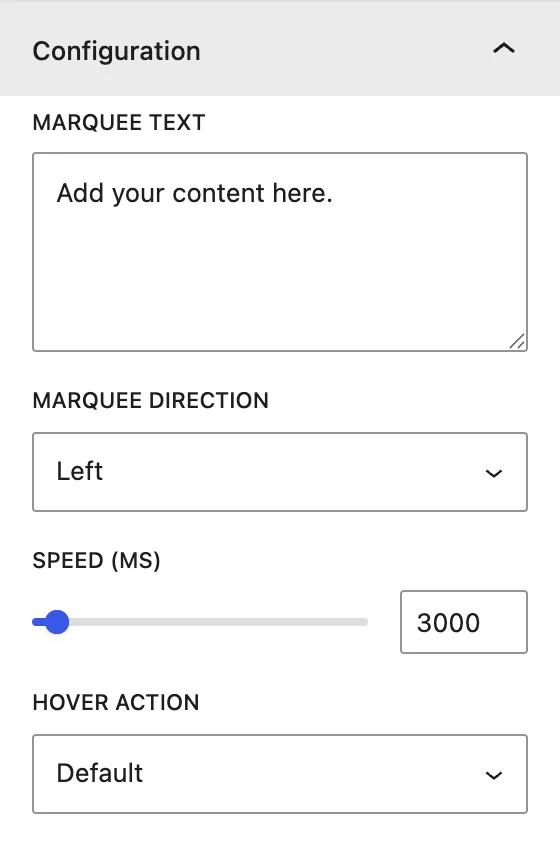
| Setting | Description |
|---|---|
| Marquee Text | The text that scrolls. |
| Marquee Direction | Scrolls toward the Left or Right. |
| Speed (ms) | Time for one full loop, in milliseconds. A lower value scrolls faster. |
| Hover Action | Default keeps scrolling, Stop on Hover pauses while the cursor is over the text, and Start on Hover only scrolls while the cursor is over it. |
Design tab#
Marquee Text#
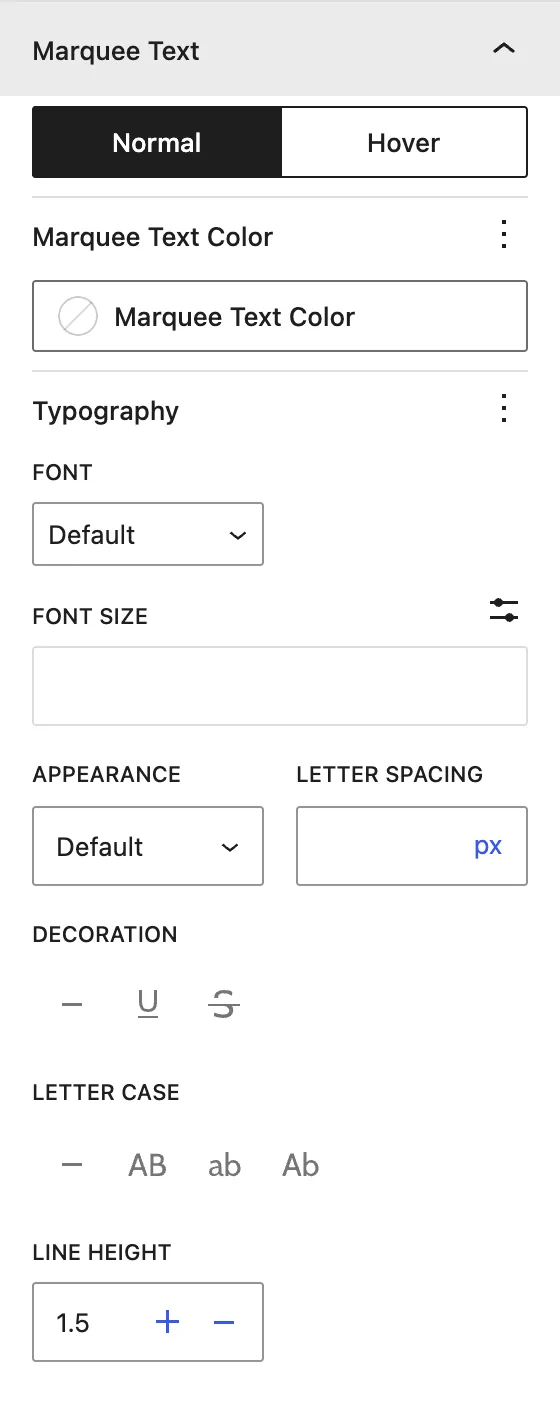
| Setting | Description |
|---|---|
| Normal / Hover | Style the text normally and on hover. |
| Marquee Text Color | Text color. |
| Typography | Font family, size, weight, letter spacing, case, and line height. Very large sizes (80px and up) look great as decorative headers. |
To add a colored strip behind the marquee, type CSS in Advanced → Additional CSS, for example background: #111; padding: 12px 0;.
Advanced tab#
Tips#
- Add a separator such as
★or•between phrases so the loop reads clearly. - Stop on Hover gives visitors time to read longer messages.
Was this article helpful?
Thanks for the feedback. Need more help? Contact support.