
Pro blocks
Testimonial GridPro
How to add testimonials (author, photo, designation, company, rating), select which ones appear, choose a grid or masonry layout, and style the cards, ratings, and quote icons.
This feature needs the Pro version of WPMozo Blocks and Addons.
On this page
See the Testimonial Grid block live on the demo site (opens in a new tab)
Before you start: add testimonials#
- Go to WPMozo Testimonials → Add New.
- Write the review in the content area and set a Testimonial Image (author photo) if you have one.
- Fill in Author Name, Author Email, Author Designation, Author Company, Author Company Url, and Author Rating.
- Optionally assign Testimonial Categories.
Adding the block#
- Click the “+” (Block Inserter) button.
- Search for “Testimonial Grid” and select it.
General tab#
Configuration#
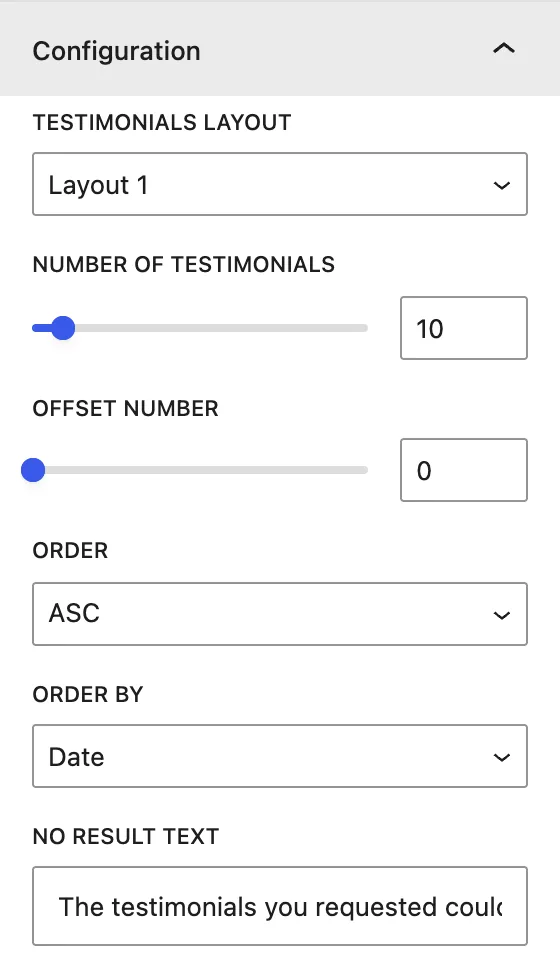
| Setting | Description |
|---|---|
| Testimonials Layout | Layout 1 or Layout 2. |
| Number of Testimonials | How many to show (per page when pagination is on). |
| Offset Number | Skips this many testimonials. |
| Order / Order By | DESC/ASC, by Date, Modified Date, Title, Slug, ID, Random, None. |
| No Result Text | Message shown when nothing is found. |
Display#
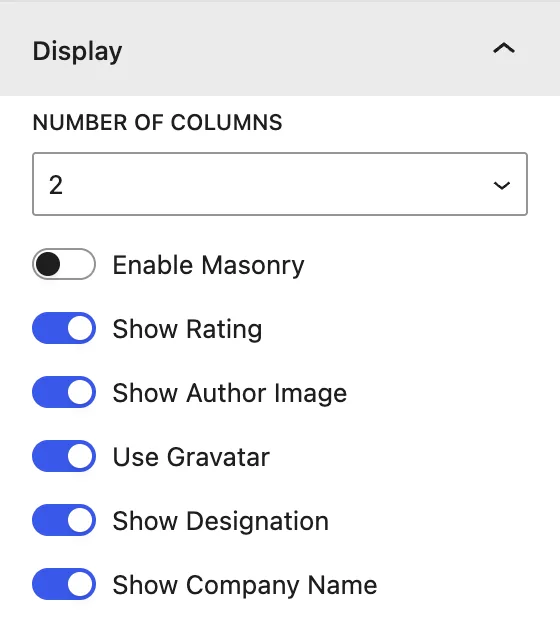
| Setting | Description |
|---|---|
| Number Of Columns | 1, 2, or 3 columns. |
| Enable Masonry | Lets cards keep their natural height, so short and long reviews fit together without gaps. |
| Show Rating | Shows the author’s star rating. |
| Show Author Image | Shows the photo. Use Gravatar uses the author email’s Gravatar when no image is set. |
| Show Designation / Show Company Name | Author details under the name. |
Pagination#
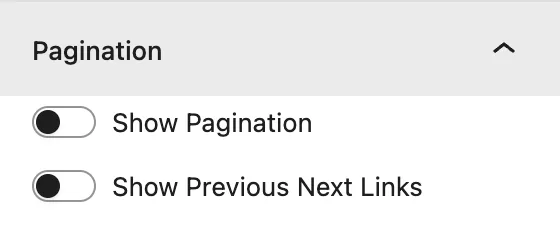
Show Pagination and Show Previous Next Links.
Design tab#
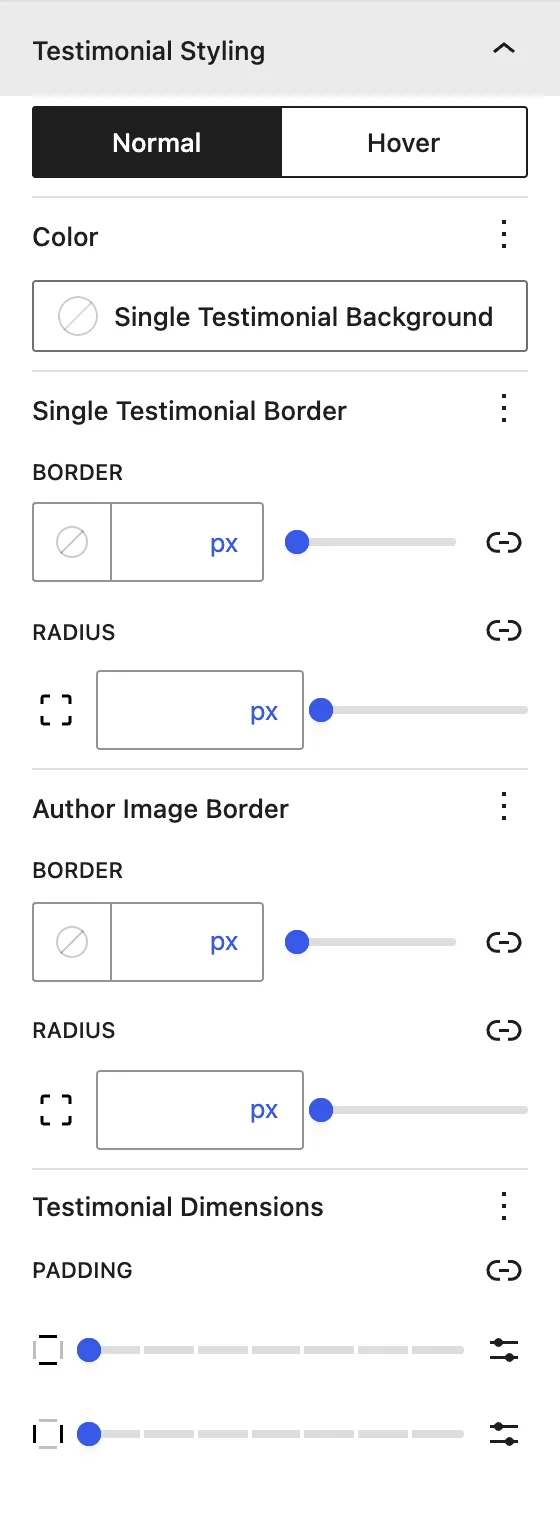
| Panel | What it controls |
|---|---|
| Text | Alignment of all text in the card. |
| Body | Normal / Hover color and typography of the review text. |
| Author | Name color and typography, Designation Text Color, and Company Text Color. |
| Star Rating | Star Font Size and color. |
| Quote Icon | Opening / Closing Quote: show or hide each icon and set its color and size. |
| Meta | Color of meta text. |
| Pagination | Normal and hover colors of page links. |
| Testimonial Styling | Card background (normal and hover), border, Author Image Border, and padding. |
Advanced tab#
Tips#
- Turn on Enable Masonry when reviews have very different lengths.
- Ask customers for permission before you publish their name, photo, and company.
Was this article helpful?
Thanks for the feedback. Need more help? Contact support.