
Pro blocks
Facebook Embedded PostPro
Where to find a Facebook post's URL, how to set the App ID, frame width and lazy loading, and how to align and style the embedded post.
This feature needs the Pro version of WPMozo Blocks and Addons.
See the Facebook Embedded Post block live on the demo site (opens in a new tab)
Adding the block#
- On Facebook, open the post, click ⋯ → Embed (or copy the post link), and copy the post URL.
- In the editor, click “+”, search for “Facebook Embedded Post”, and select it.
- Paste the URL in General → Configuration → URL.
The post must be public. Posts from private profiles or groups cannot be embedded.
General tab#
Configuration#
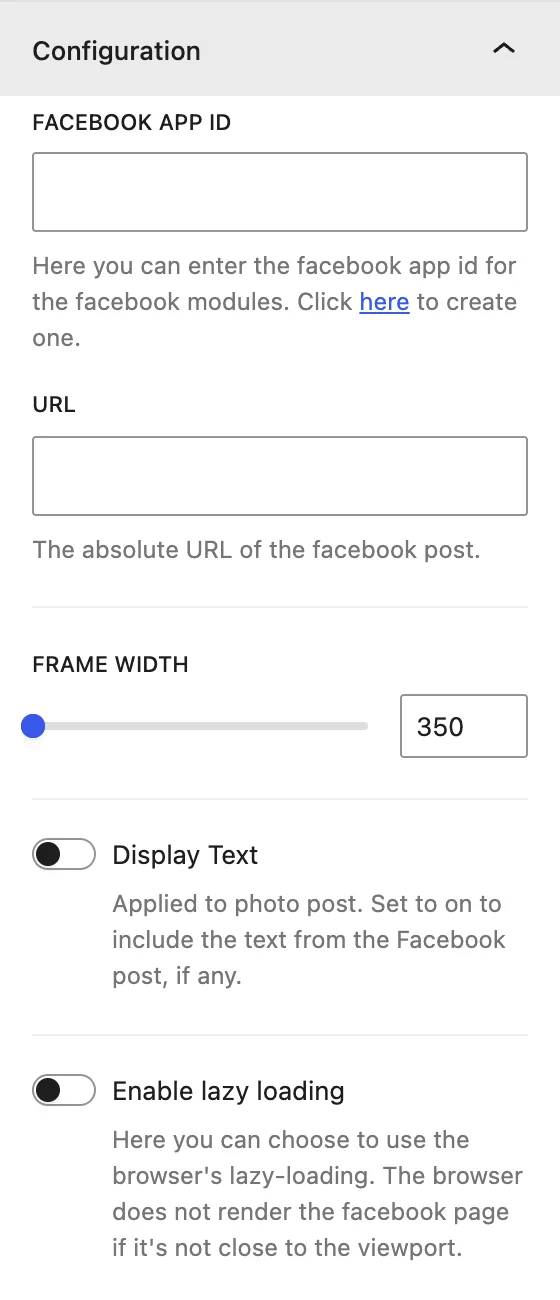
| Setting | Description |
|---|---|
| Facebook APP ID | Your Facebook App ID. It is optional for most embeds. Use the link under the field to create one. |
| URL | The full link to the Facebook post. |
| Frame Width | Width of the embed, in px (Facebook allows about 350–750px). |
| Display Text | (Photo posts) Includes the post’s text with the photo. |
| Enable lazy loading | Loads the embed only when it comes close to the visible screen, so the page loads faster. |
Design tab#
Post Item#
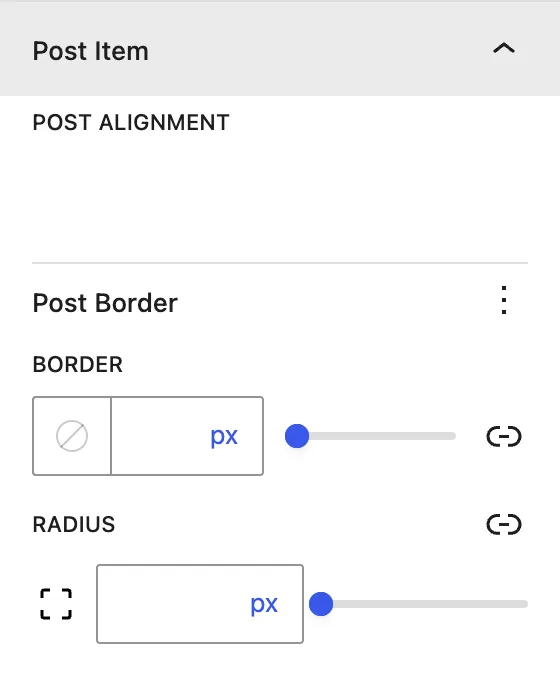
| Setting | Description |
|---|---|
| Post Alignment | Left, center, or right. |
| Post Border / Radius | Border and rounded corners around the embed. |
Advanced tab#
Tips#
- If the post doesn’t appear, open the URL in a private browser window to check that it is public.
- Keep Enable lazy loading on when the embed is far down the page.
Was this article helpful?
Thanks for the feedback. Need more help? Contact support.