
Blocks
Split ImageFree
On this page
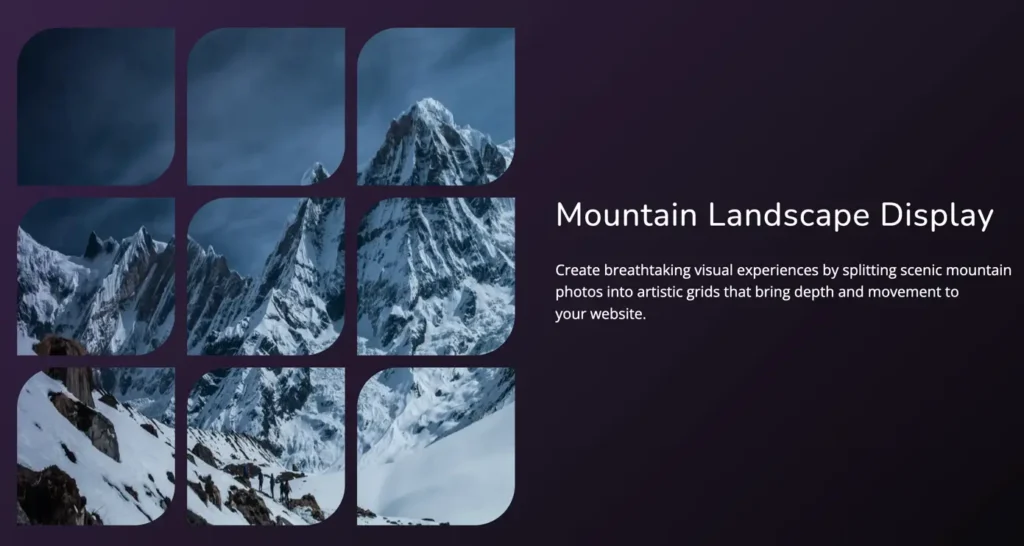
The WPMozo Split Image free Gutenberg Block lets you creatively divide an image into multiple sections using customizable rows and columns. It’s perfect for modern layouts, interactive designs, and grid-style visuals.
Adding the block#
To add the block:
- Click the “+” button to add a new block.
- Search for “Split Image” and select it.
Configuration#
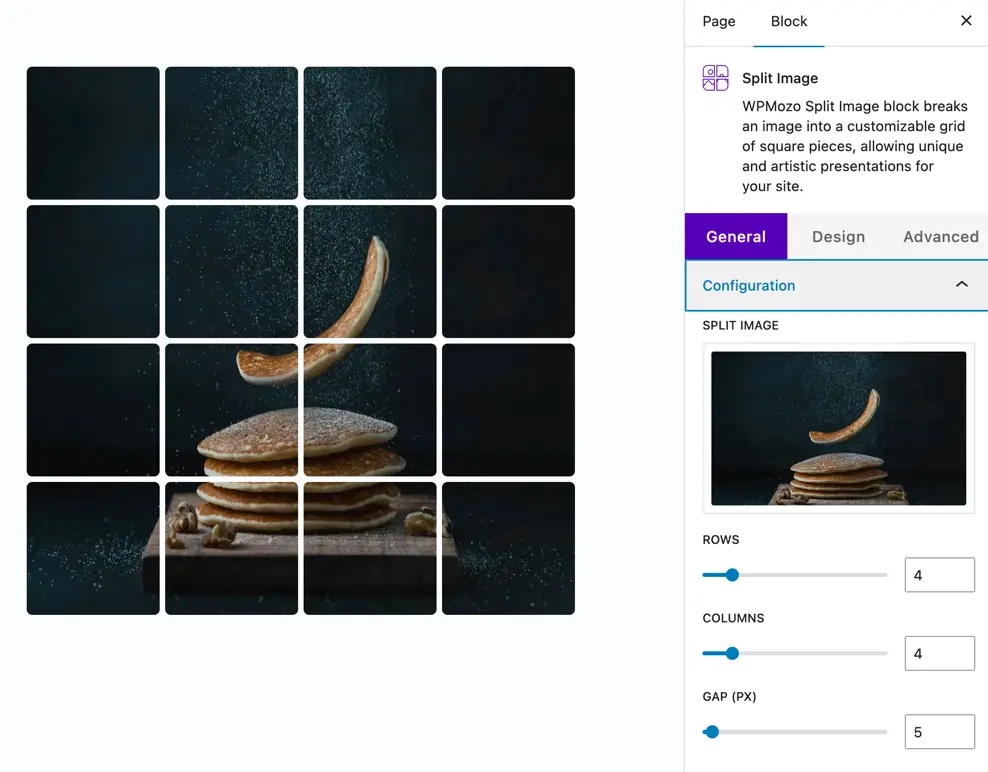
These settings control the basic structure of the split image.
- Add Image
Select or upload the image you want to split into multiple parts. - Rows
Set the number of horizontal slices you want to divide the image into. - Columns
Define how many vertical sections the image should be split into. - Gap
Control the spacing between each split section. This helps create a grid-like or spaced-out layout.
Link settings#
Turn your split image into a clickable element.
- Link
Enable linking for the entire split image block. - Link URL
Add the destination URL you want users to visit when they click the image. - Link Target
Choose whether the link opens in the same tab or a new tab.
Design settings#
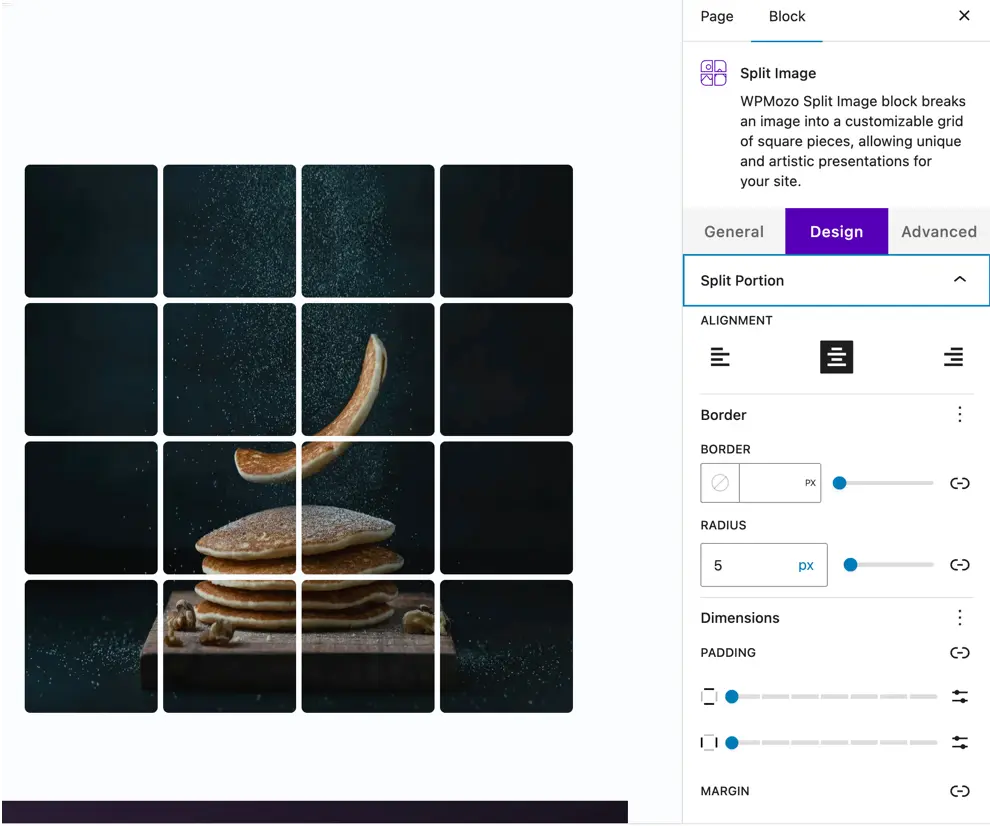
Alignment#
Adjust the alignment of the split image block within its container (left, center, or right).
Border#
Add a border around the entire block or around each split segment:
- Border width
- Border color
Border Radius#
Round the edges of the split image or its segments by adjusting the border radius.
Padding#
Add inner spacing inside the outer wrapper of the block.
Margin#
Control the outer spacing of the block relative to surrounding elements.
Was this article helpful?
Thanks for the feedback. Need more help? Contact support.