
Widgets
Flip Box
This widget comes free with WPMozo Addons Lite. To use it, simply install and activate the free version of plugin.
https://wordpress.org/plugins/wpmozo-addons-lite-for-elementor (opens in a new tab)
How to add widget on page#
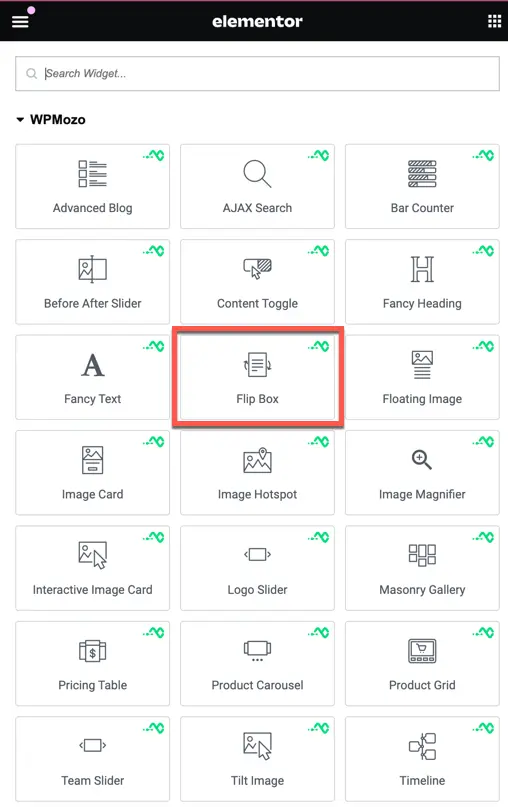
Once the WPMozo Addons plugin is activated, it adds several widgets to the Elementor builder. To insert the Flip Box widget, follow these steps.
- Create/edit a page/post that uses Elementor builder.
- Create/edit container.
- Search widget Flip Box under WPMozo.
Content#
In this section, you have various options for configuring the flip box layout, content, and elements.
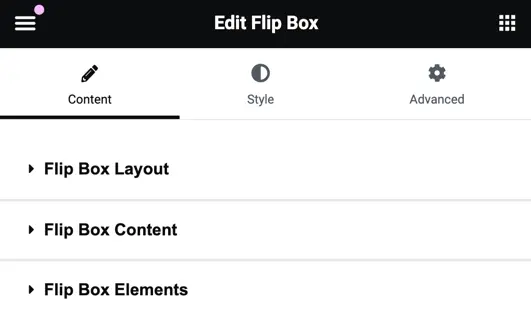
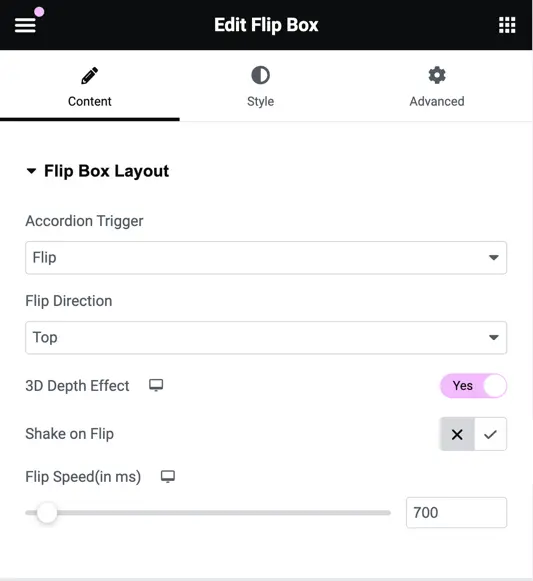
Flip box layout#
- Accordion Trigger: Choose between two trigger options: flip and 3D cube.

- Flip Direction: Select the direction of the flip, such as top, bottom, left, right, diagonal left, diagonal right, diagonal left inverted, or diagonal right inverted.

- 3D Depth Effect: Enable or disable the 3D depth effect.
- Shake on Flip: Set as yes to enable or disable shaking effect during flip.
- Flip Speed: Adjust the speed of the flip animation.
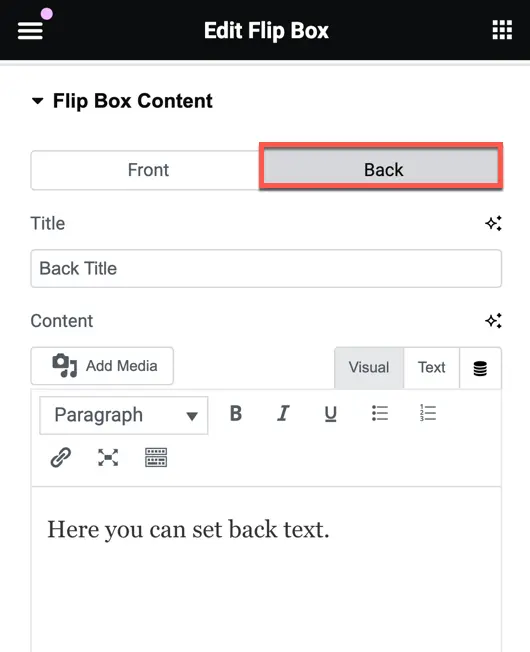
Flip box content#
Front Box Content: Enter the title and content for the front box.
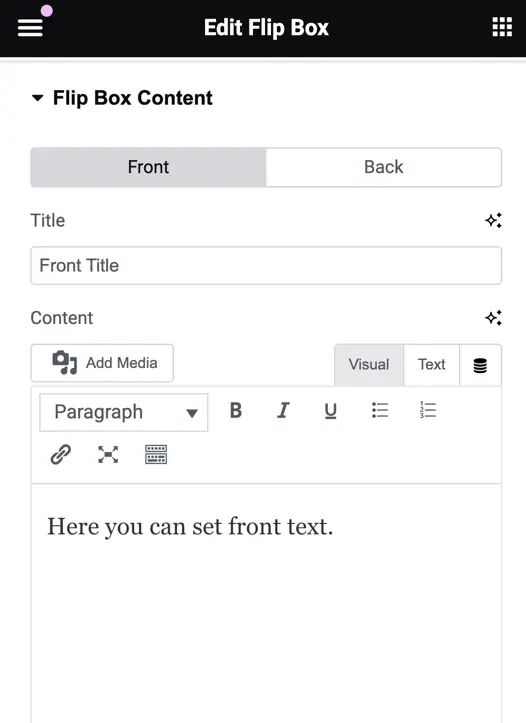
Back Box Content: Enter the title and content for the back box.
Flip box elements#
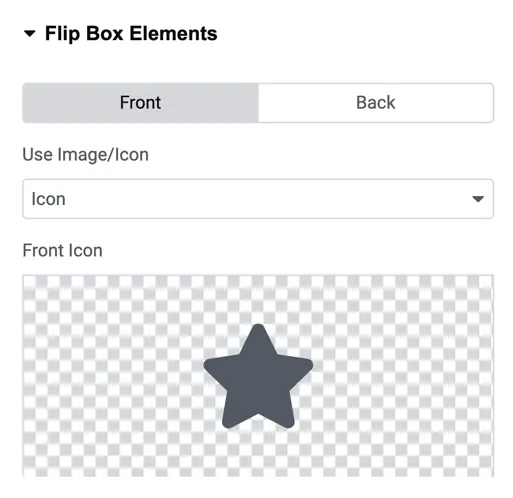
Front Box Elements
- Choose between an image or an icon for the front box.
- If selecting an image, upload the image.
- If selecting an icon, choose the icon.
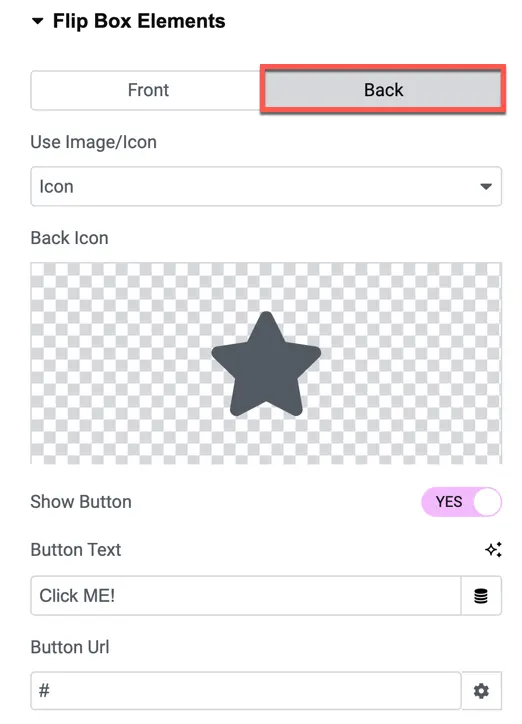
Back Box Elements:
- Choose between an image or an icon for the back box.
- Option to show a button.
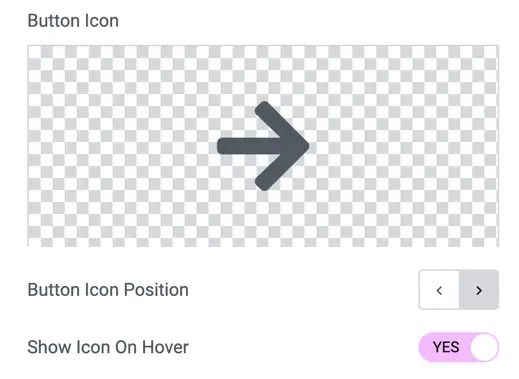
- Enter the button text, URL, and choose the button icon position.
- Toggle to show the icon on hover.
Was this article helpful?
Thanks for the feedback. Need more help? Contact support.