
Widgets
Advanced Blog
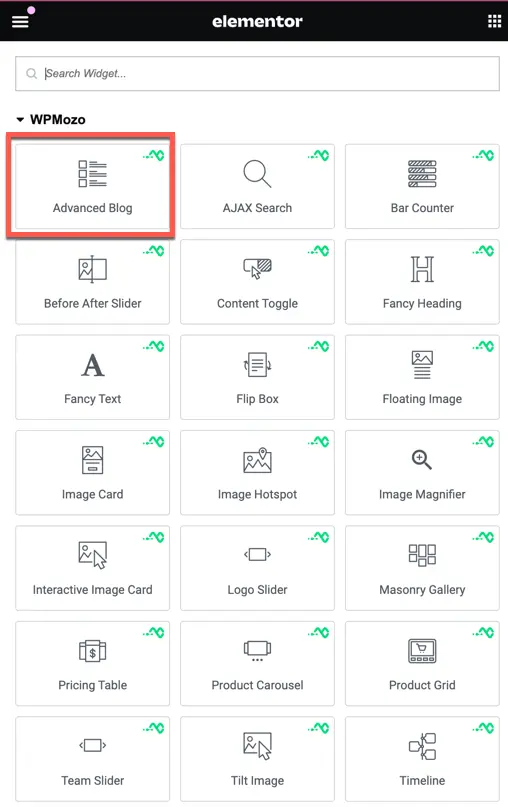
Once the WPMozo Addons plugin is activated, it adds several widgets to the Elementor builder. To insert the Advanced Blog widget, follow these steps.
- Create/edit a page/post that uses Elementor builder.
- Create/edit container.
- Search widget Advanced Blog under WPMozo.
Content #
The Advanced Blog Widget offers a range of settings to personalize how your blog posts are presented on your website.

Layout#
Blog Layout: It includes 7 blog layout options these are grid, box extended, full width, block extended, full-width background, classic, and masonry layouts, each offering a unique visual presentation of your posts.
Row Gap: It defines the space between rows in the layout, allowing you to adjust the vertical spacing to achieve the desired readability.


Query#
In the Query section, you have a range of options to customize which posts are displayed:
- Posts for Current Page: Determines whether to show posts related to the current page.
- Show Related Posts: Enables displaying related posts.
- Post Type: Specifies the type of posts to include.
- Categories: Filters posts by one or more categories.
- Tags: Includes posts based on specific tags.
- Formats: Filters posts by format types.
- Taxonomies Relation: Determines how multiple taxonomies are related.

- Post Count: Defines the number of posts to display.


- Order By: Sets the criteria for arranging posts.
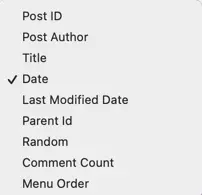
- Order: Determines the sorting order of the posts.
- Offset: Allows skipping a certain number of posts.
- Include Posts by ID: Specifies particular posts to include.
- Exclude Posts by ID: Excludes specific posts from the display.
- Meta Date Format: Specifies the format for displaying post dates.
- Ignore Sticky Posts: Decides whether to include sticky posts or not.
- Content: Allows choosing between displaying post excerpts or full content. If “Excerpt” is selected, you can further define the length of the excerpt.
Elements#
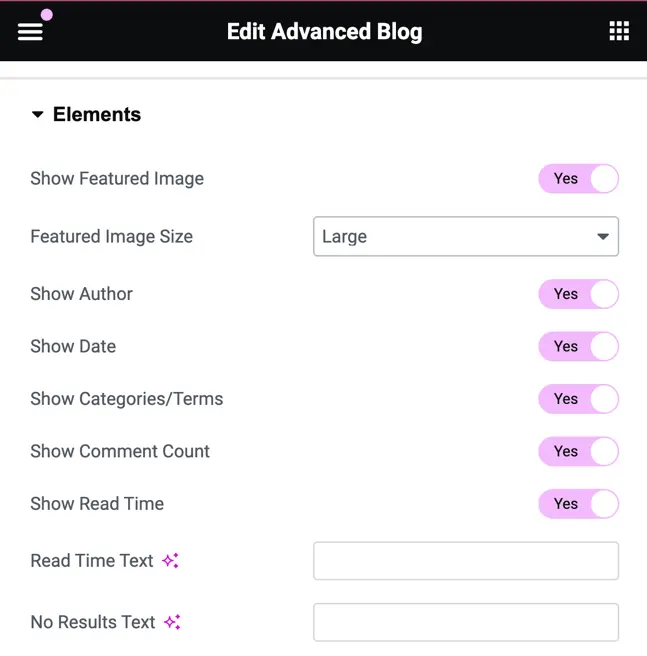
In the Elements Options section, you can control how various elements are shown:
- Show Featured Image: Enables or disables the display of featured images for posts.
- Featured Image Size: Specifies the size of the featured image to be displayed, with options for medium, large, and full.

- Show Author: Enables or disables the display of the post author’s name.
- Show Date: Set as yes to display the post-publication date.
- Show Categories/Terms: Enables or disables the display of categories or other taxonomy terms associated with the post.
- Show Comment Count: Set as yes to display the number of comments on each post.
- Show Read Time: Enables or disables the display of the estimated reading time for each post.
- Read Time Text: Allows customization of the text displayed alongside the estimated reading time.
- No Results Text: Specifies the text to be shown if no posts match the query criteria.
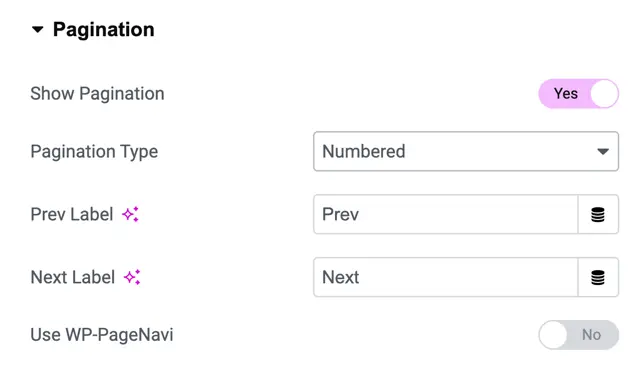
Pagination#
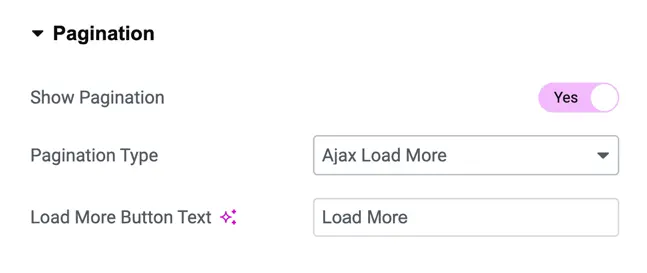
- Show Pagination: Enables or disables pagination for navigating.
- Pagination Type: Offers two options: “Ajax Load More” and “Numbered Pagination”.
- If “Ajax Load More” is selected, you can customize the text for the load more button.
- If “Numbered Pagination” is chosen:
- Prev Label: Allows you to enter custom text for the “Previous” pagination button.
- Next Label: Allows you to enter custom text for the “Next” pagination button.
- Use WP-PageNavi: Toggle option to use the WP-PageNavi plugin for pagination.
Links#
The “Single Post Link Target” setting allows you to specify whether links to single blog posts should open in the same browser window or in a new tab when clicked. You can choose between two options:
- In the Same Window: Selecting this option will open single post links within the same browser window or tab that the user is currently viewing.
- In New Tab: Choosing this option will open single post links in a new browser tab when clicked, allowing users to easily return to the original page they were browsing.

Was this article helpful?
Thanks for the feedback. Need more help? Contact support.