
Widgets
Image Card
This widget comes free with WPMozo Addons Lite. To use it, simply install and activate the free version of plugin.
https://wordpress.org/plugins/wpmozo-addons-lite-for-elementor (opens in a new tab)
How to add widget on page#
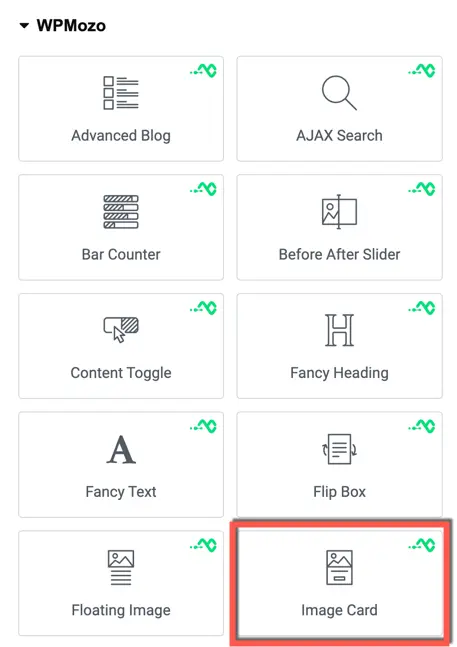
Once the WPMozo Addons plugin is activated, it adds several widgets to the Elementor builder. To insert the Image Card widget, follow these steps.
- Create/edit a page/post that uses Elementor builder.
- Create/edit container.
- Search widget Image Card under WPMozo.
Content#

Image#
Choose Image: This setting allows you to upload or select an image from your media library to be displayed on the image card.
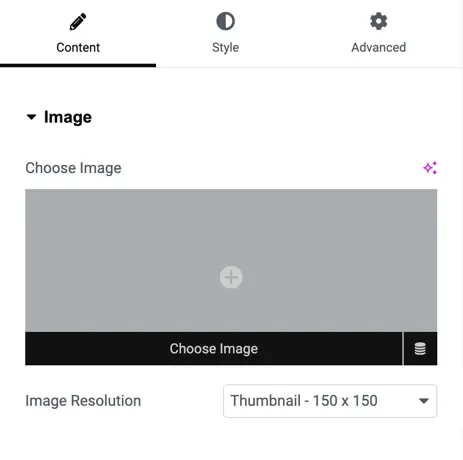
Image Resolution: Here, you can specify the resolution type for the image. You have the following options:
- Thumbnail: A small-sized image typically used for thumbnails.
- Medium: A medium-sized image suitable for general use.
- Medium Large: A slightly larger version of the medium-sized image.
- Large: A larger version of the image suitable for featured images or headers.
- WooCommerce Thumbnail: An image size specifically tailored for WooCommerce product thumbnails.
- Single: The original image size.
- Gallery Thumbnail: An image size suitable for use in galleries.
- Full: The full-size original image.
- Custom: Allows you to set a custom size for the image.

Content#
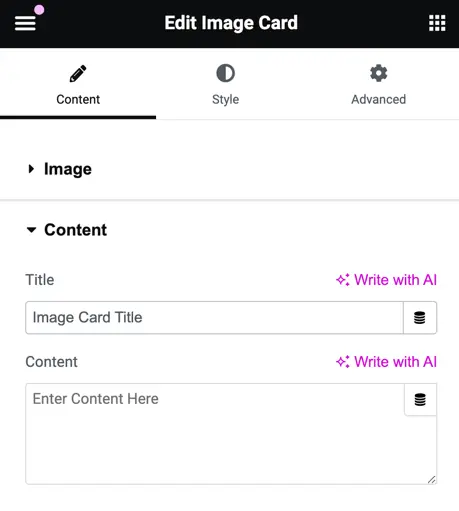
- Title: This field is for adding the title of the image card.
- Content: Here, you can input the content or description associated with the image card.
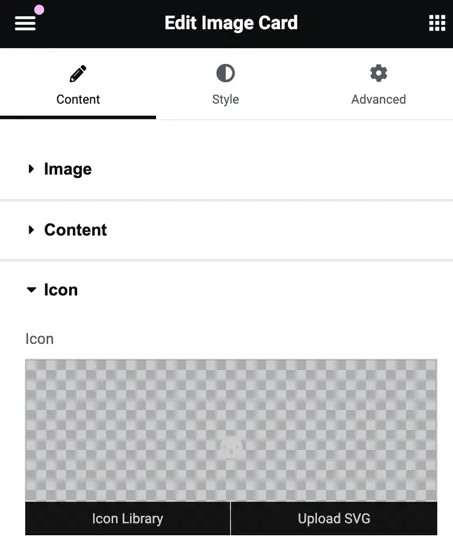
Icon#
- You can upload the icon from the library or upload an SVG file.
Button#
- Button Title: Enter the text for the button.
- Button URL: Provide the URL where the button should redirect.
- Button Icon: Upload an icon for the button or choose from the library.
- Icon Position: Select the position of the button icon, either left or right.
- Show Icon on Hover: Toggle to enable/disable the button icon visibility on hover.

Was this article helpful?
Thanks for the feedback. Need more help? Contact support.