
Widgets
Image Card Ticker
On this page
The Image Card Ticker widget in WPMozo Addons Lite allows you to display a continuous scrolling row of images with smooth animation. It’s perfect for showcasing brand logos, event snapshots, product images, or any visual content you want to highlight in a dynamic ticker format.
This widget is completely free.
How to add widget on page#
Once the WPMozo Addons plugin is activated, it adds several widgets to the Elementor builder. To insert the Before After Slider widget, follow these steps.
- Create/edit a page/post that uses Elementor builder.
- Create/edit container.
- Search widget Image Card Ticker under WPMozo.
Content settings#
Images#
Here you can add the images you want to display in the Image Card Ticker widget.
You can upload new images or select them from the Media Library.

Display settings#
Layout#
Choose the overall ticker layout:
- Marquee – Classic side-scrolling ticker
- 3D Circular – Rotating 3D-like loop
- Curve – Smooth curved image layout
Direction#
Select the scrolling direction:
- Left
- Right
- Top
- Bottom
Pause on hover#
Enable this option to stop the scrolling animation when the user hovers over the widget.
Images gap#
Set spacing between images (in pixels).
Default: 30px
Ticker speed#
Control how fast the image ticker moves.
Higher values = faster speed.
Default: 45

Style settings#
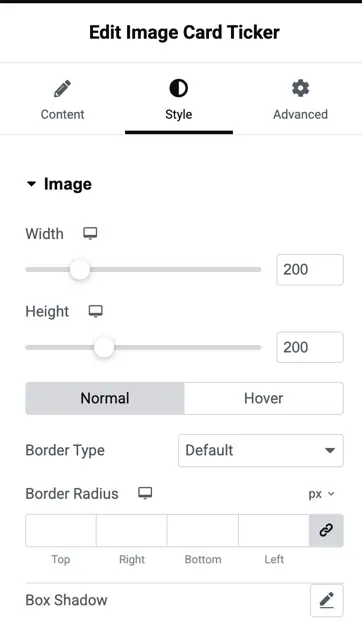
Image#
Width#
Set the width of each image in the ticker.
Default: 200px
Height#
Set the height of each image.
Default: 200px
Border type#
Choose border style for the images (solid, dashed, dotted, etc.) or keep it on default.
Border radius#
Adjust the corner roundness of the images.
Supports individual radius control:
- Top
- Bottom
- Left
- Right
Box shadow#
Add a shadow effect around images for depth.
Was this article helpful?
Thanks for the feedback. Need more help? Contact support.