

A company history is usually three paragraphs on an About page that nobody finishes. A timeline says the same things in a form people actually read. This guide is for anyone building an About page in the WordPress block editor. By the end you will know what to include, how to word each step, and how to build the timeline.
Why a timeline works better than a paragraph
People skim About pages. They want to know how long you have been around, what changed, and whether you are still growing. A timeline answers all three at a glance, because the dates carry the story. Each step has a clear start, and visitors can stop as soon as they have what they came for.
Decide what goes on it
Writing the timeline takes longer than building it, so start here. Most timelines work best with four to eight steps.
Keep the moments a customer would care about. Opening your doors, a new product, moving to a bigger space, or reaching a milestone with customers. Leave out internal changes that mean nothing outside the company.
Show movement. Each step should move the story on from the one before. If two steps feel the same, merge them.
End in the present. Finish with something recent, so the timeline shows you are active today.
How to write each step
Each step needs three things:
- A short date. A month and a year, or just a year.
- A title of a few words. “Our own roaster” says more than “A new chapter for the business”.
- One sentence of detail. Say what actually happened, with a real number or a real place where you can.
Here is one from our example bakery:
- Date: June 2019
- Title: Our own roaster
- Detail: We started roasting in the back room, a few kilos at a time.
Method 1: build it with core blocks
WordPress has no timeline block, but a simple version is possible with what comes built in.
- Add a Columns block with two columns, and make the first one narrow.
- Put the date in the left column and the title and detail in the right one.
- Duplicate the block for each step.
The result reads well, and it costs nothing. It is a list of dates, though, with no line connecting them, so it looks plainer than a timeline. It also needs extra care on small screens, because columns stack and the dates move above their text.
Method 2: use the Timeline block
The Timeline block comes with WPMozo Blocks and Addons Pro. It draws the line for you and keeps each step as one item.
- Add the Timeline block to your page.
- Under Timeline Layout, choose Select Layout. Date Tree puts the dates on the line, and Icon Tree puts icons there. Use Date Tree when the dates tell the story.
- Under Select Option, pick how the steps sit. Alternate places them on both sides of the line. You can also keep the content on the left or the right.
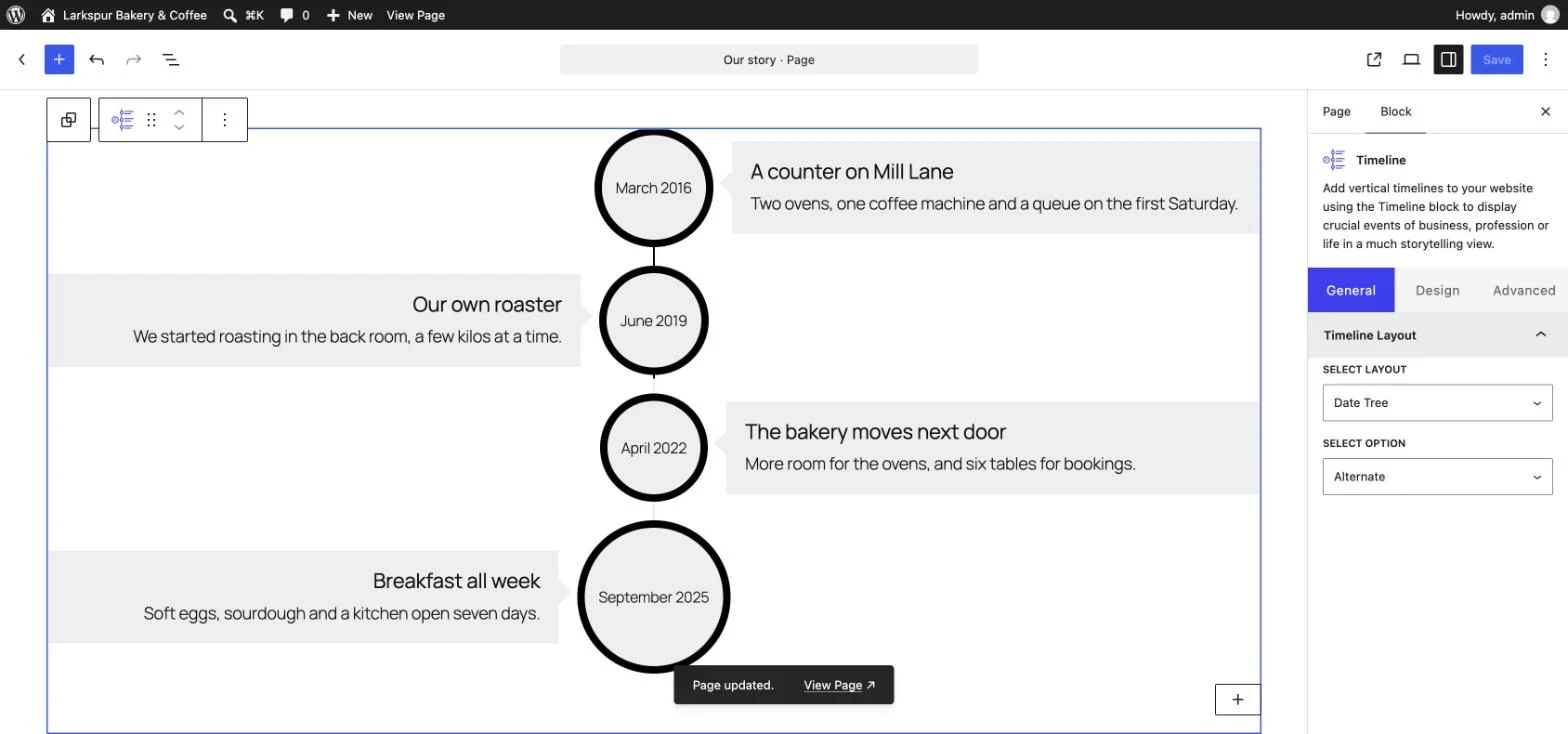
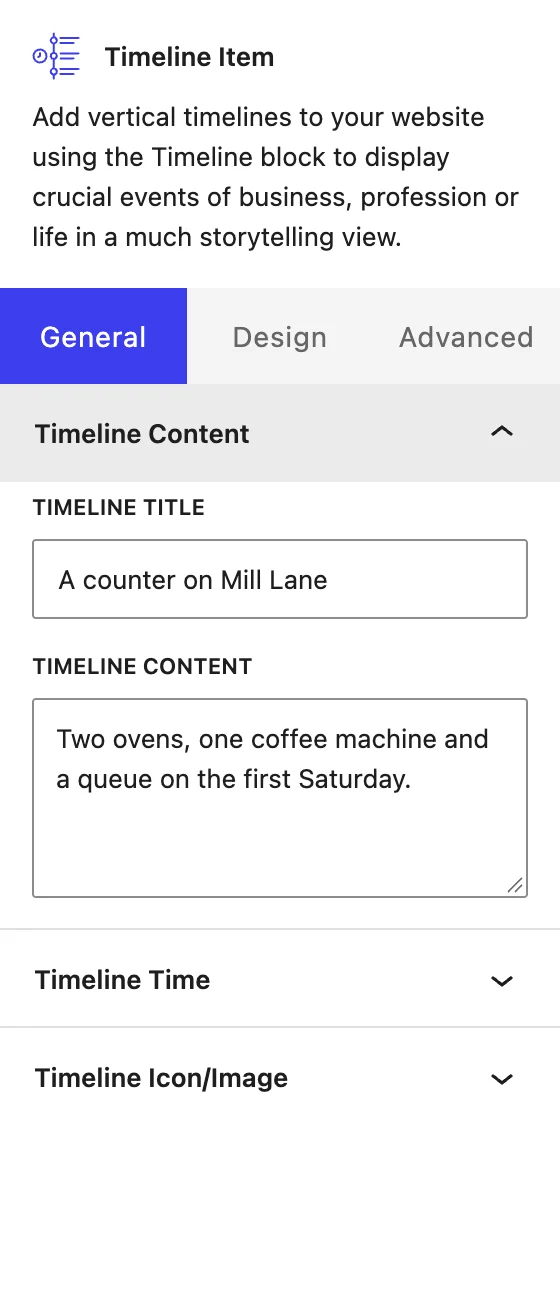
- Select a step and fill in Timeline Title and Timeline Content.
- Open Timeline Time. Pick a date, or type your own text. Custom text suits a history, where “March 2016” or “Spring 2016” reads better than an exact day.
- Open Timeline Icon/Image if you want an icon or image on the step.
- Add a step for each moment, and save the page.
Here is how the finished timeline looks on the page:
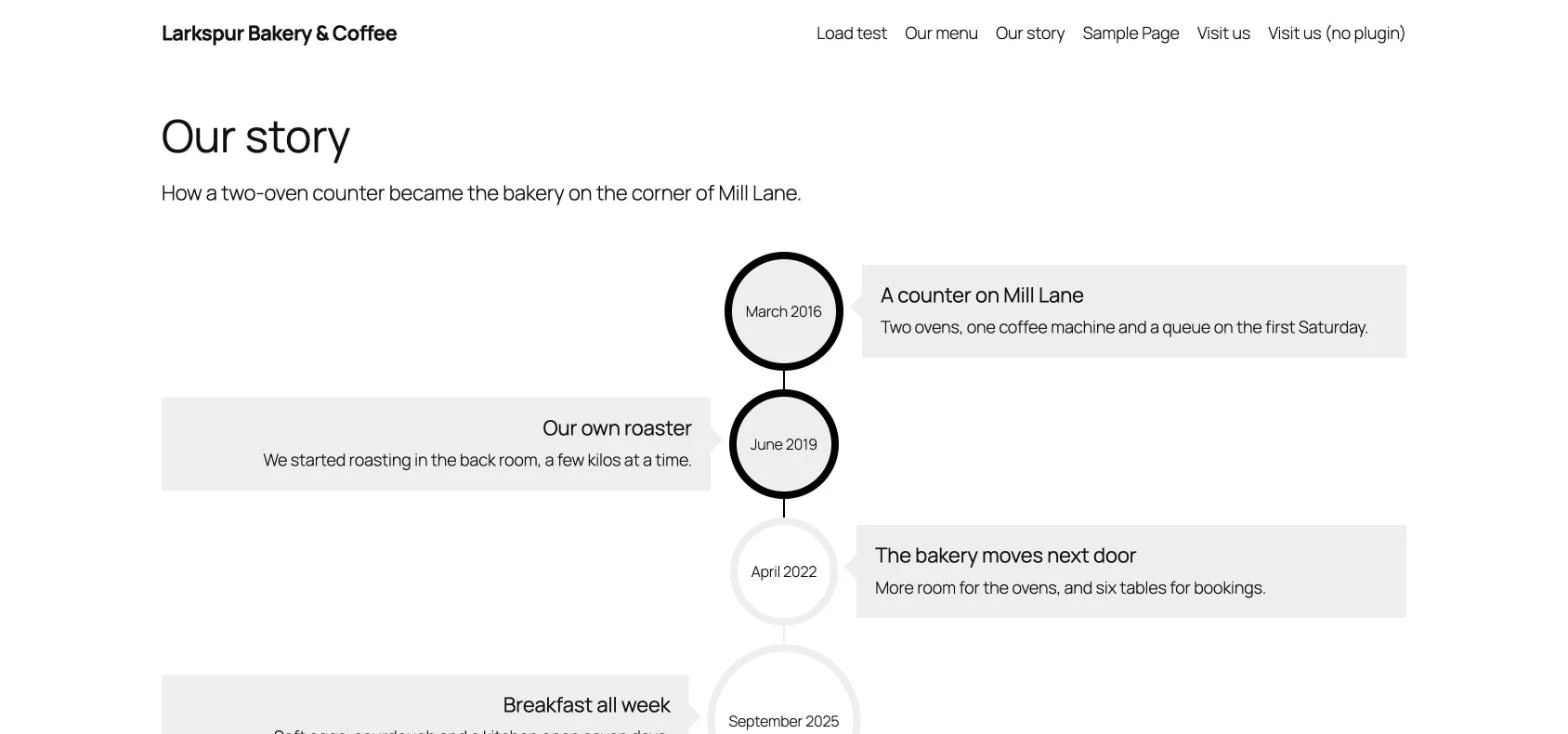
Keep the dates short. In the Date Tree layout, the circle grows with the text inside it. “September 2025” makes a noticeably bigger circle than “June 2019”, so a mix of very long and very short dates looks uneven. Using the same format throughout keeps the circles close in size.
Other uses for the same block
Once you have one, the same layout suits other pages:
- A project plan. Walk a client through the phases of the work.
- An event schedule. Show the order of the day.
- A how-we-work page. Show the steps a new customer goes through.
Check it before you publish
- Read it top to bottom. It should tell a story without any other text around it.
- Check the dates. Put them in order and use one format.
- Open it on a phone. Check that each step is still easy to follow.
FAQ
Does WordPress have a timeline block?
No. WordPress has no timeline block of its own, so you can build a simple version with Columns, or use a block from a plugin.
How many steps should a company timeline have?
Four to eight suits most companies. Fewer can feel thin, and more than that tends to include moments customers do not care about.
Can I use a year instead of a full date?
Yes. The Timeline block has a custom text option, so you can type “2016” or “Spring 2016” instead of picking a date.
Can I add images to a timeline?
Yes. Each step in the Timeline block can carry an icon or an image.
Next step
See the Timeline block for its layouts and settings, or browse all the Gutenberg blocks for the rest of your About page.

Leave a Reply