

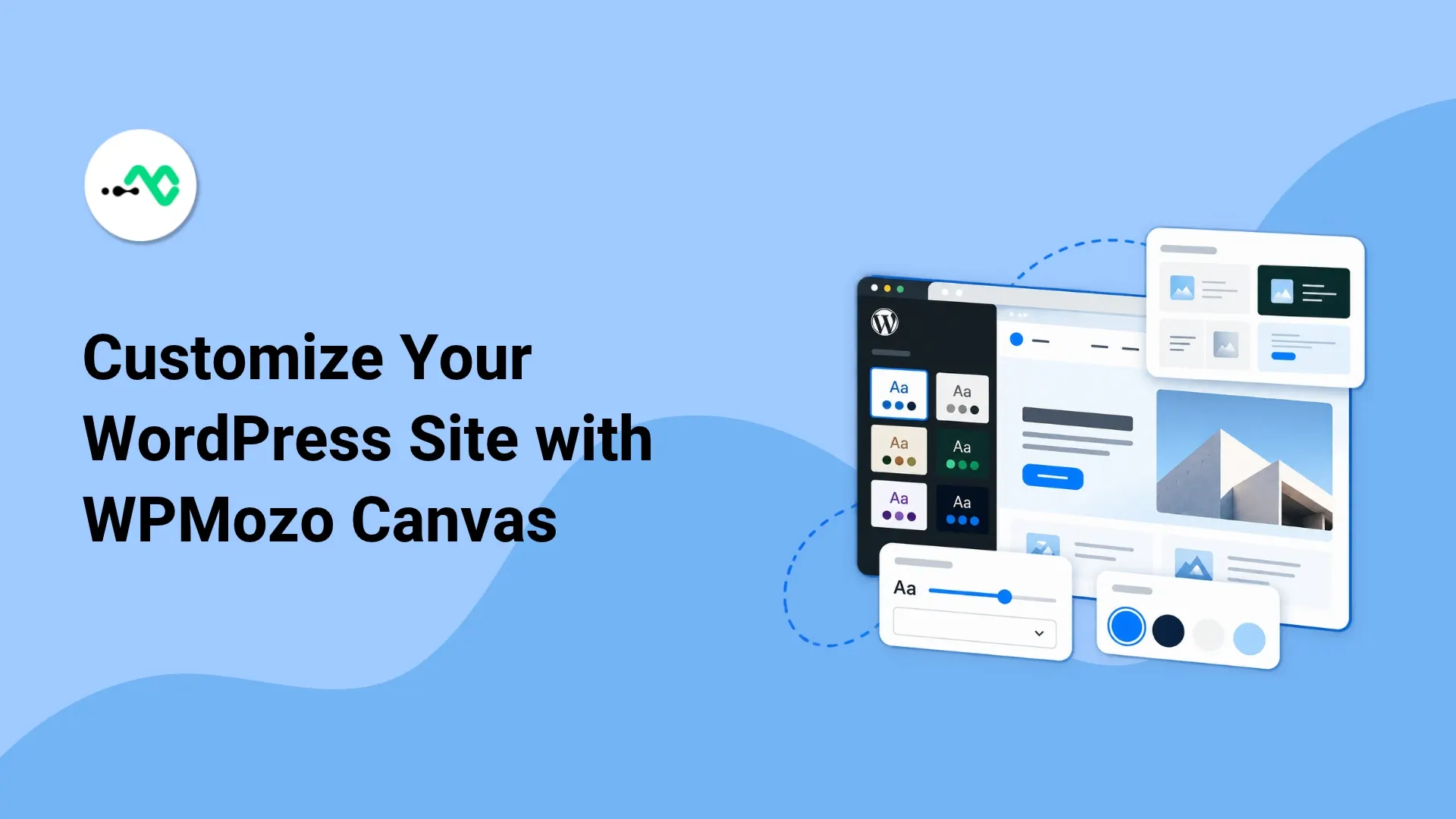
WordPress style variations allow you to change the look of your website without having to rebuild every single page. You can use them to change the site’s global design, which includes colors, typography, and other supported style settings. You can make these changes through the Site Editor.
The page content remains in place, although its presentation can change. For this guide, we will use WPMozo Canvas, a free WordPress block theme.
It features 16 style variations, 10 typography presets, and 59 ready-made block patterns. These options let you preview different designs before adjusting them for your brand.
In this guide, we will provide information on how to switch styles, customize global colors & typography, add canvas patterns, and select a matching header & footer.
What WordPress Style Variations Change
When you opt for WordPress style variations, you don’t change the theme itself; instead, you just select another design configuration that is supported by the active theme. You get the ability to change the colors for various elements such as site background, text, links, headings, buttons, and the theme’s color palette.
You can choose different fonts, font sizes, line heights, and other text settings. Depending on the theme’s options, you can also modify global layout dimensions, spacing defaults, and styles for buttons, headings, and quotes.
However, what you can modify is mostly dependent on the theme you are using and the available configuration options. You can get more information through the WordPress (opens in a new tab)Styles overview documentation (opens in a new tab).
Global Styles Versus Individual Block Settings
There’s a difference between the global styles and individual block settings. Global style variations establish the site’s general visual system, while individual blocks can utilize their own unique settings that don’t have to align with the defaults.
Let’s take the example of a service page with a dark green background, white headings, and green buttons. Switching to a variation with a light background and dark text can change the page’s appearance. However, a button with its own color settings may retain its original colors.
If a page doesn’t fully match the selected variation, check the individual block settings and custom styles before assuming there is a theme issue.
Style Variations Versus Block Patterns
A style variation changes the site’s overall presentation. A block pattern provides a group of blocks arranged into a particular layout.
For example, you might select a Canvas variation with a neutral palette, then insert a hero pattern containing a heading, introductory text, an image, and a button. The variation supplies the global design settings, while the pattern supplies the starting layout and content structure.
You can use both together without treating them as the same feature.
Before You Start: Install and Activate Canvas
Before testing the WPMozo Canvas block theme, make sure you can access the WordPress Site Editor and have a current backup. If you are changing themes on an existing site, test the changes on staging first. Follow these steps to install Canvas:
Step 1: Prepare Your WordPress Site
You will need:
- Admin access to the WordPress website dashboard
- An updated WordPress installation that allows use of the site editor and block themes
- A current backup
- Access to a staging site, if you are testing changes before publishing them.
The WordPress (opens in a new tab)Site Editor documentation (opens in a new tab) explains how to access global styles, templates, and template parts.
Step 2: Download, Install, and Activate WPMozo Canvas
Open the official WPMozo Canvas page to download the theme.
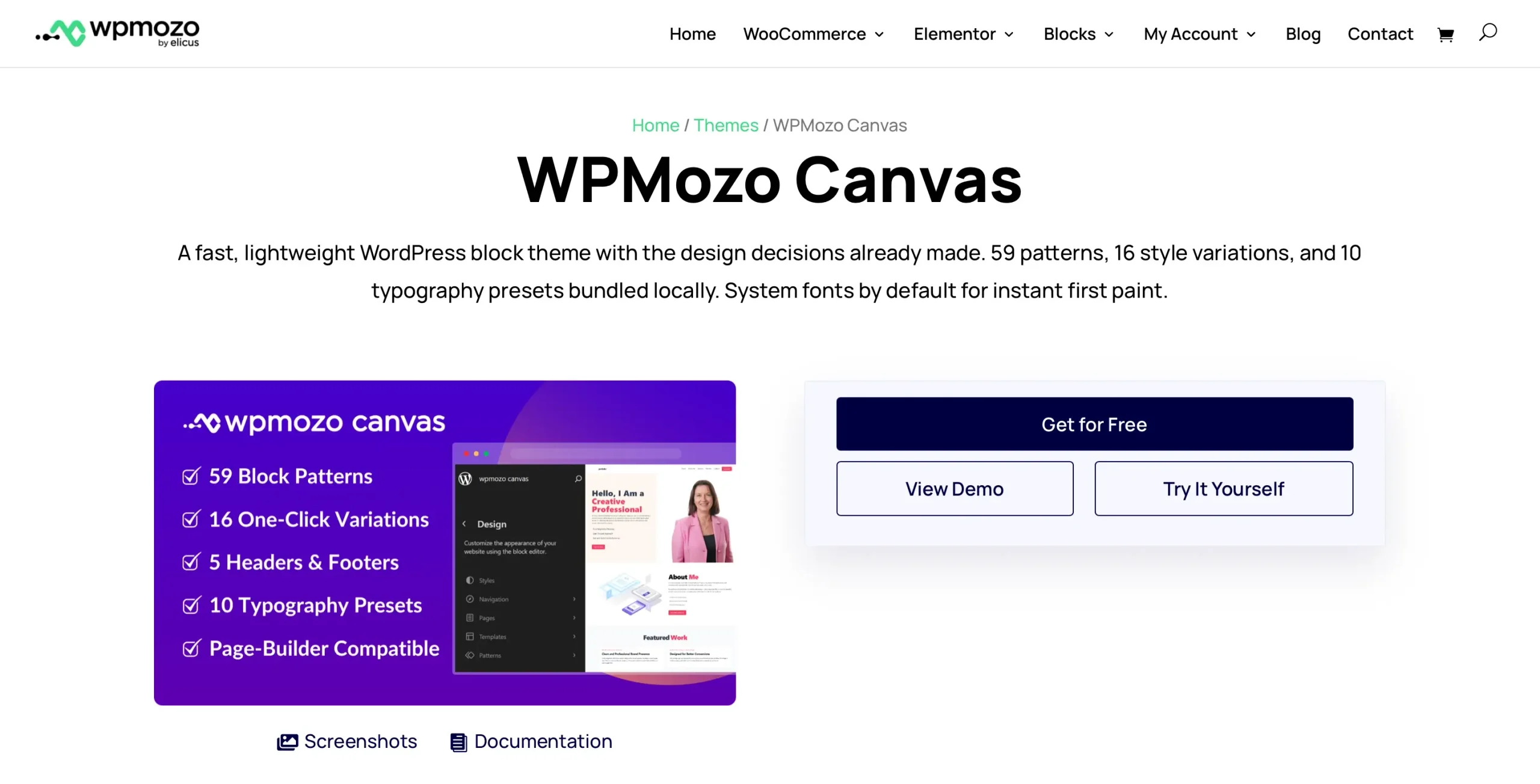
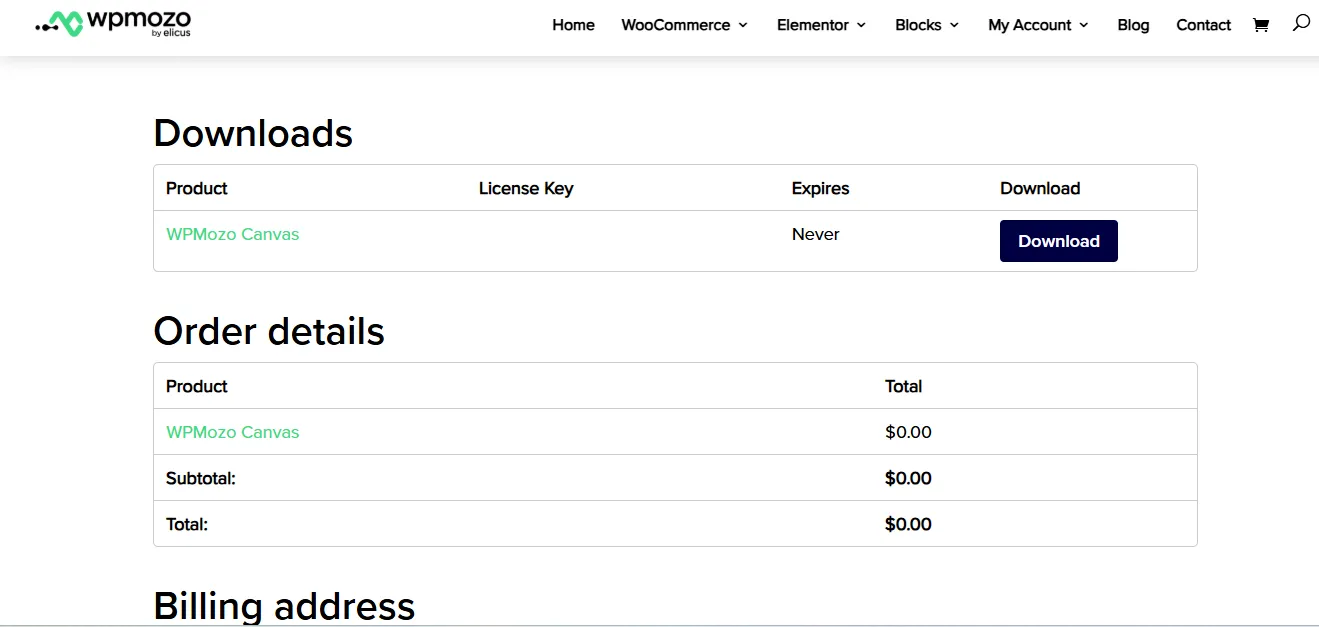
Follow the on-screen instructions for downloading, and then proceed to install it on your WordPress website.
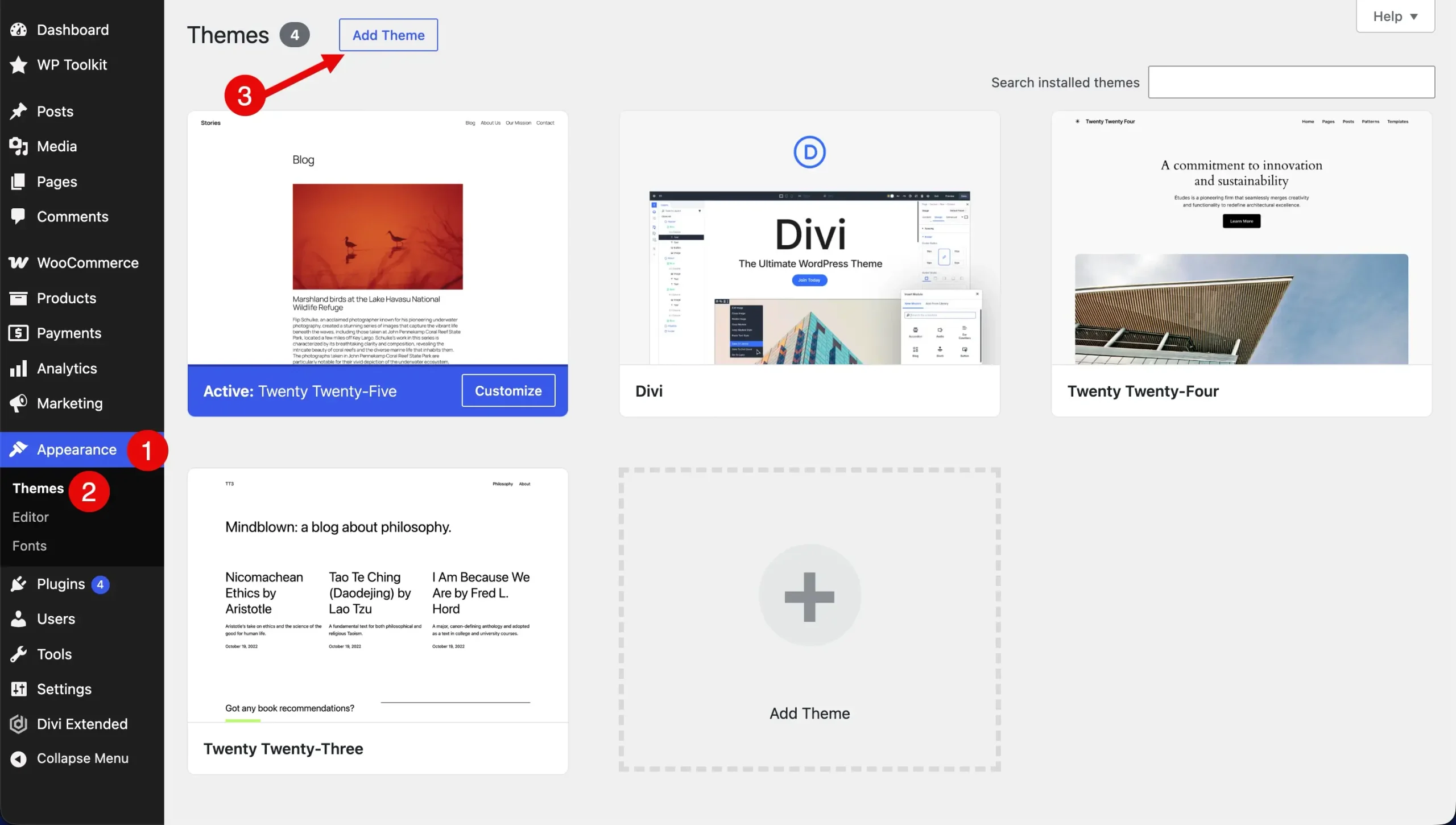
Download the theme ZIP file, then go to Appearance > Themes > Add New Theme > Upload Theme in your WordPress dashboard.
Choose the ZIP file, click Install Now, and activate WPMozo Canvas after installation.
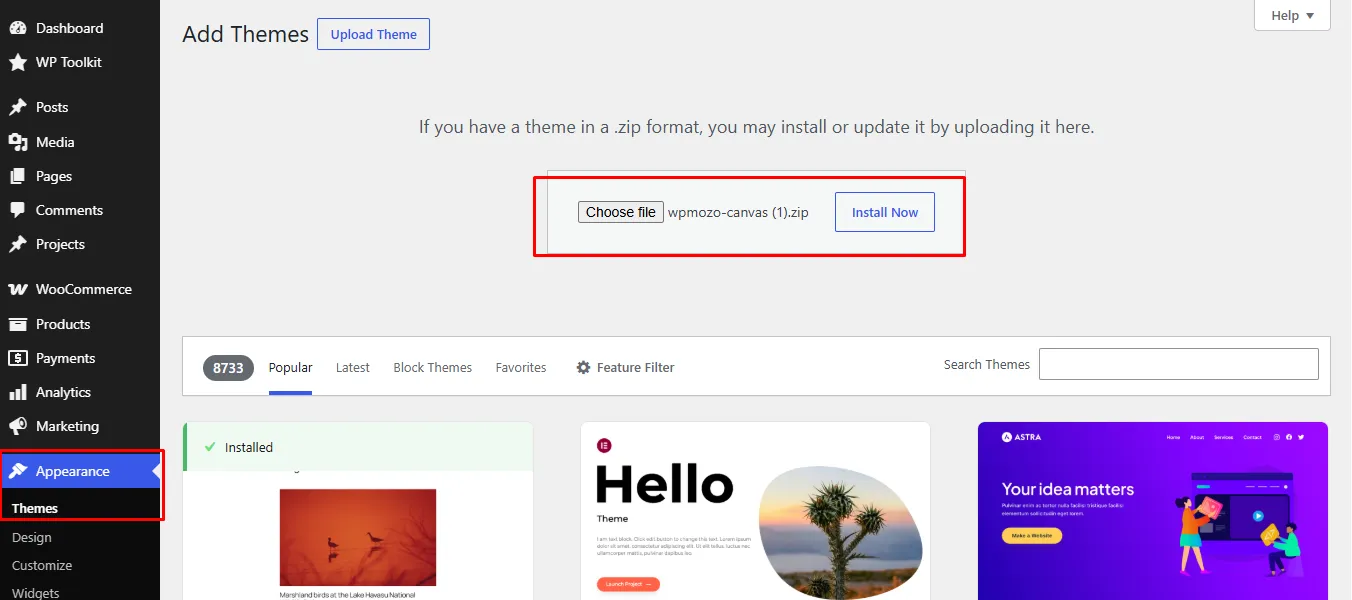
If WordPress shows an update for the theme, install it before continuing. Changing the active theme can affect the site’s layout and theme-dependent features, so test Canvas on staging before activating it on a live site.
Step 3: Open a Page
Choose a page containing several elements to compare, such as a main heading, body text, buttons, a section with a background color, images, and a multi-block layout. Check the header and footer, too.
Check how the page initially looks before making any changes.
How to Customize Your WordPress Site with WPMozo Canvas
Step 1: Switch WordPress Style Variations in the Site Editor
First, check the available designs and choose a variation that suits your website. From your WordPress dashboard, go to Appearance > Editor > Styles.
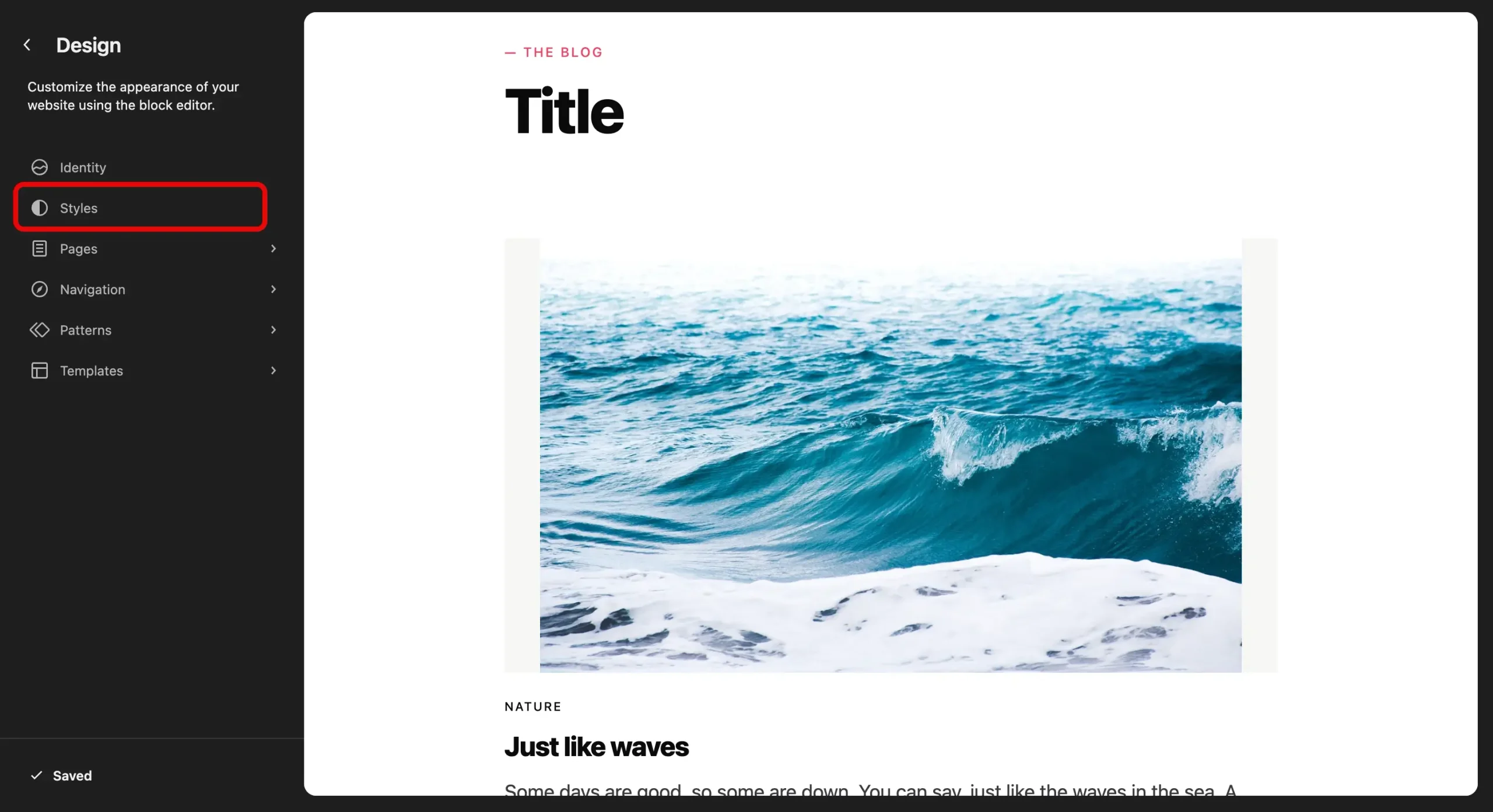
Depending on the interface, it can appear as a menu item or icon. Check the preview of the current style and select Browse styles.
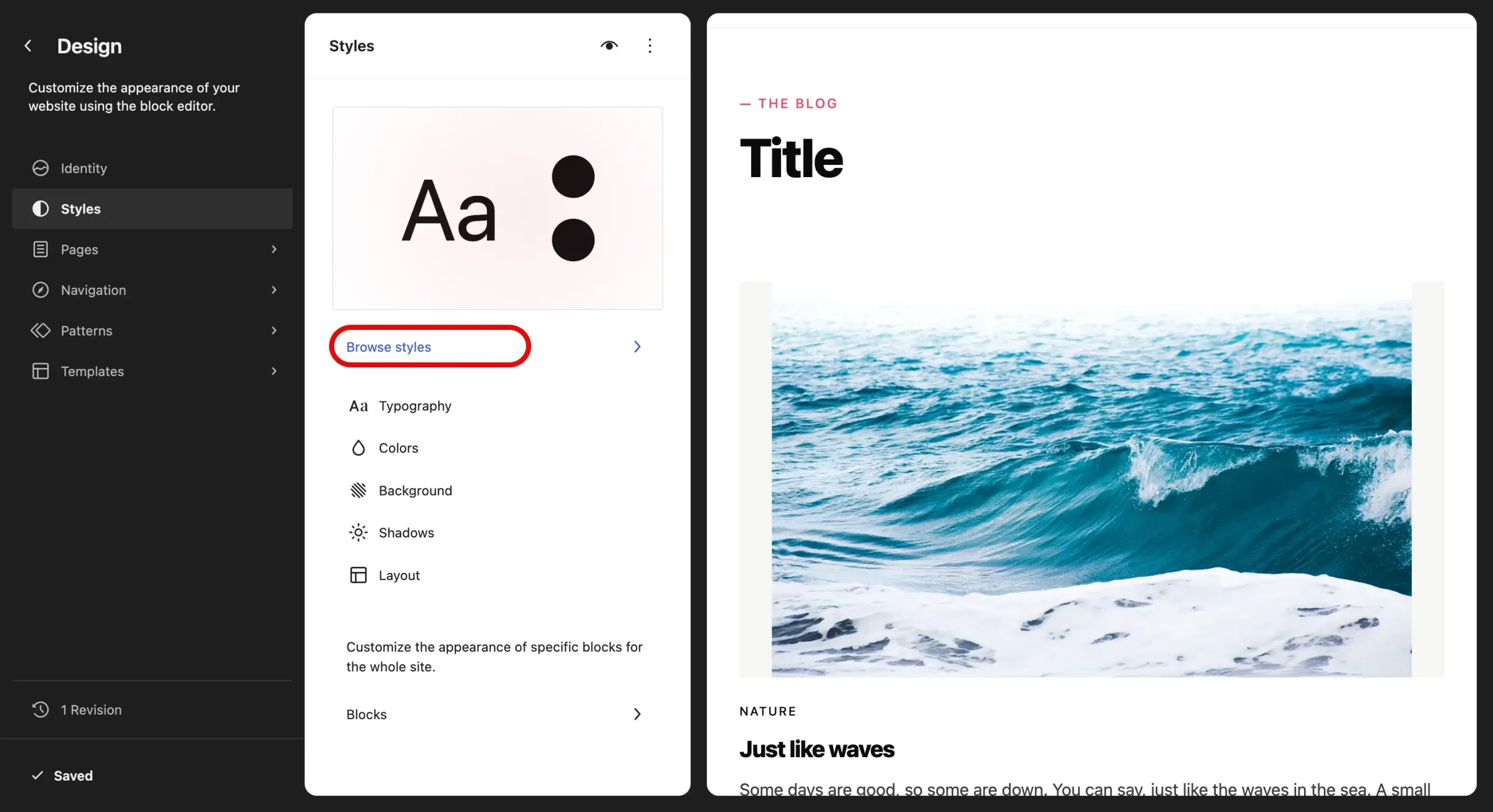
Once you click, you will get a wide variety of style variations that you can choose from.
Preview different styles to see whether they suit your website. WPMozo Canvas includes 16 style variations.
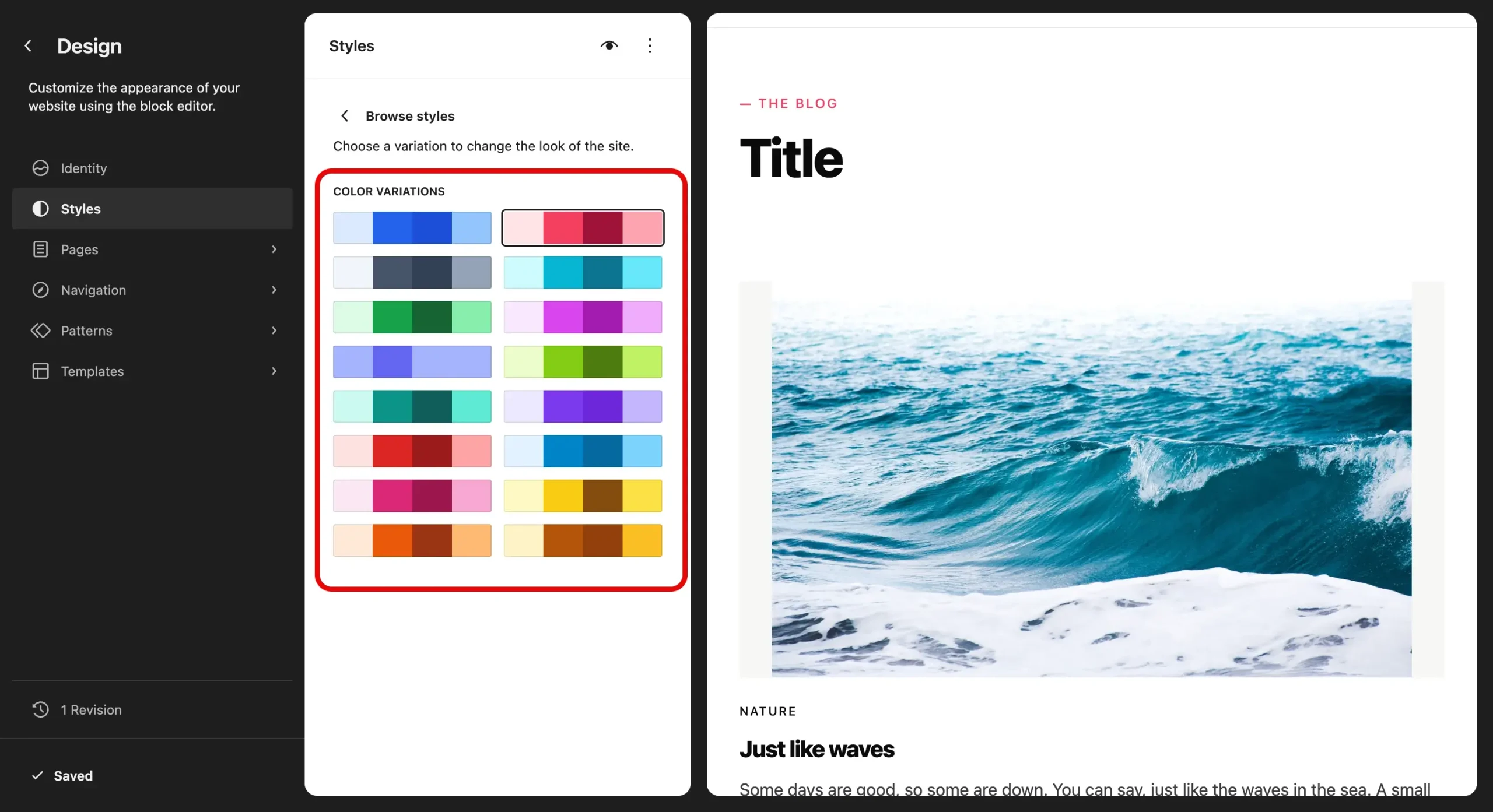
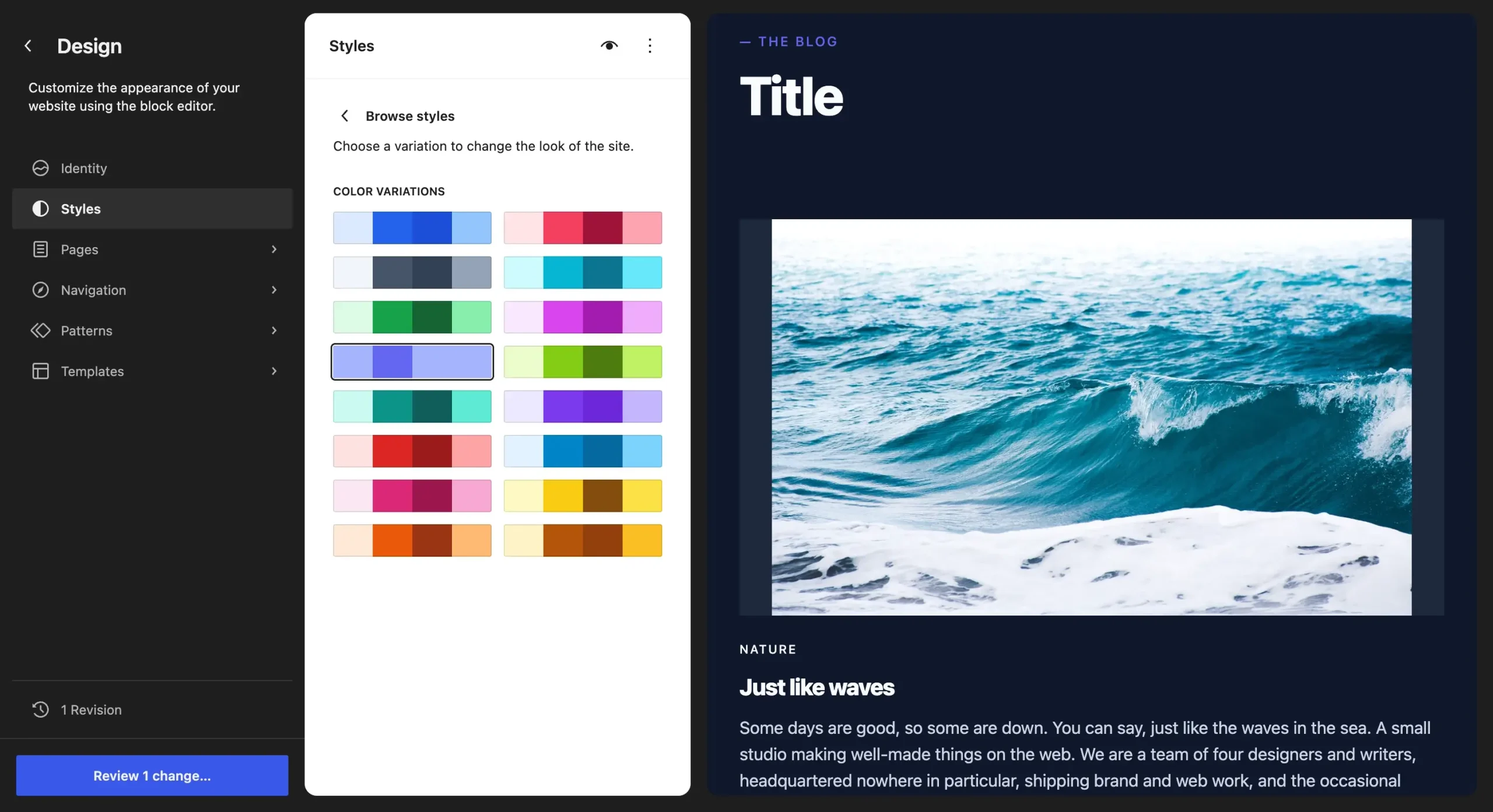
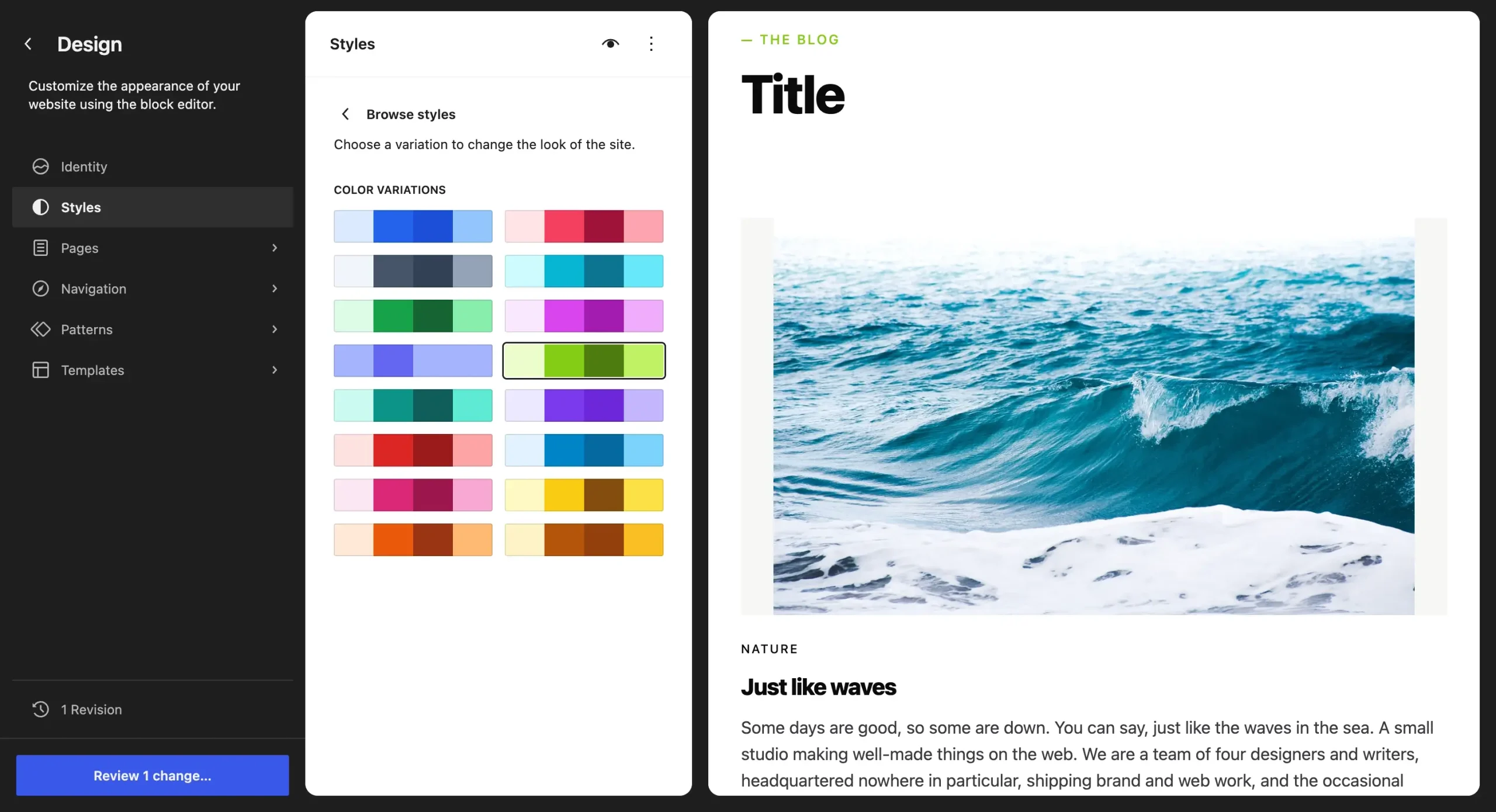
Compare 2 Style Variations
Try a light variation and a dark variation on the same page. Compare the background, headings, paragraph text, buttons, section backgrounds, and color contrast. Choose the variation that suits the purpose of the website.
i. Dark Style
ii. Light Style
Apply and Save Your Selection
Once done, review the list of changes before confirming, then click Save. Check representative pages before publishing to confirm that the selected variation works with their content and templates. Not every element will look identical across every page.
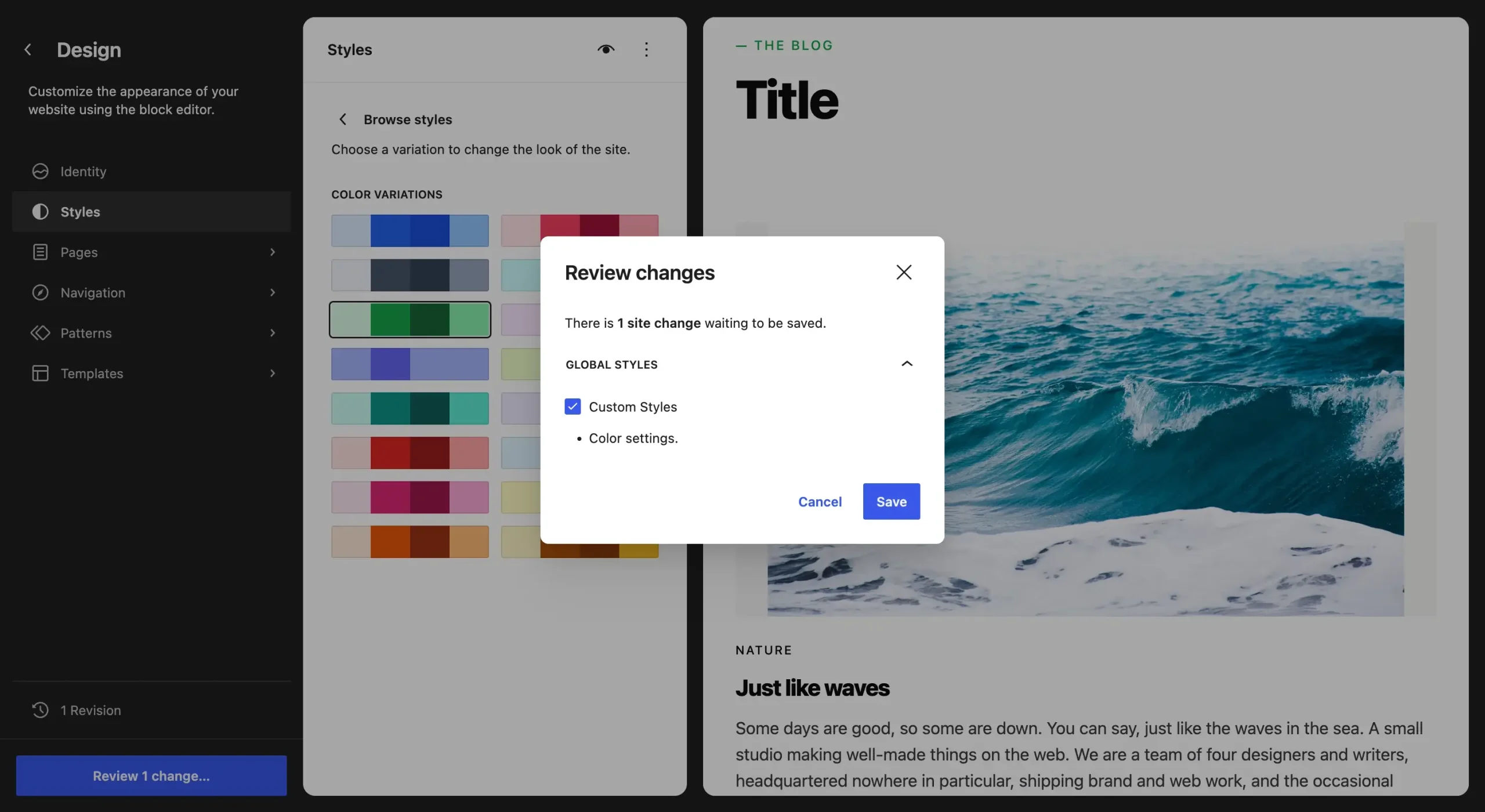
To switch to a different design later, go to Appearance > Editor > Styles > Browse styles and choose another variation.
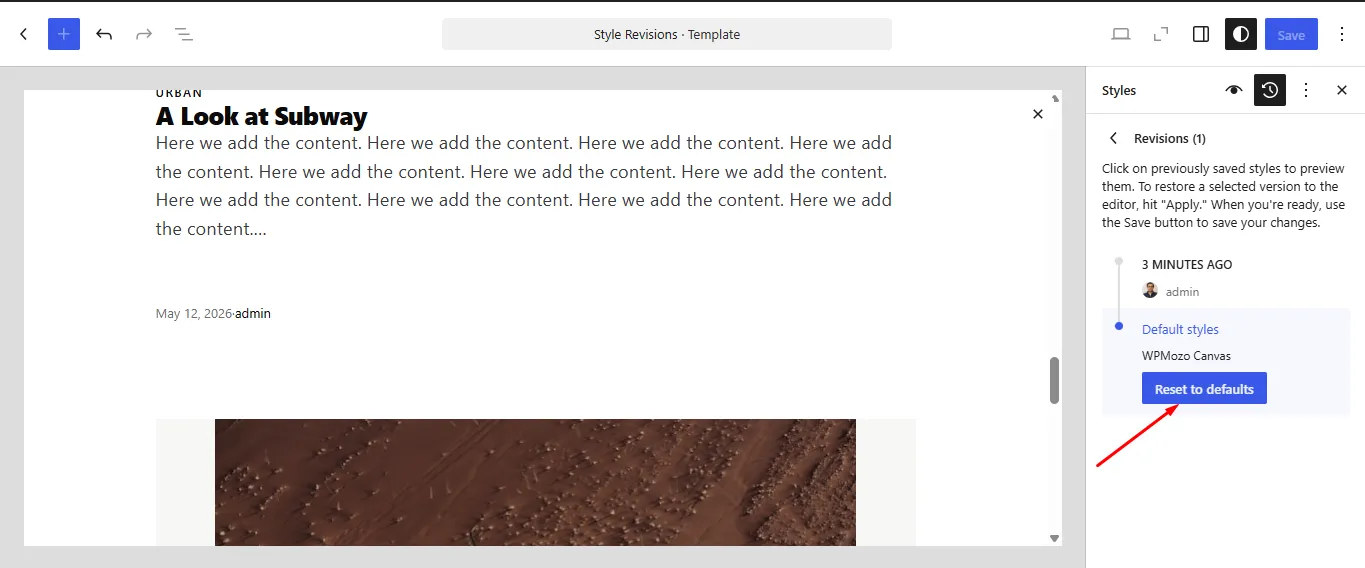
To undo saved style customizations, open the Styles menu and review the available style revisions or select Reset to defaults. This is different from restoring a page revision.
Step 2: Choose a Typography Preset or Adjust Typography
The typography affects how readers scan headings, read paragraphs, and identify buttons and other important elements. The typography options provide a way to establish consistent text styling across the website. To get the typography preset settings, click on Appearance > Editor > Styles > Typography.
WPMozo Canvas includes 10 typography presets. In WordPress, the Styles > Typography panel also provides available controls for font family, font size, appearance, line height, and other text properties. Preview the headings, body text, buttons, and navigation before saving your changes.
Step 3: Adjust the Selected Style for Your Brand
After selecting a variation, you can refine its global settings to match your website’s identity. To change the global settings, click on Appearance > Editor > Styles > Colors. You will therefore be able to adjust the global palette and the default colors used for the background, text, links, headings, and buttons.
For a business website, start with a short color system:
- A primary brand color for important buttons and links.
- A background color that supports readable content.
- A text color with sufficient contrast.
- An accent color for selected elements that need attention.
Apply the changes and review the page before adding more colors. A small, consistent palette is easier to maintain than a different color choice for every section.
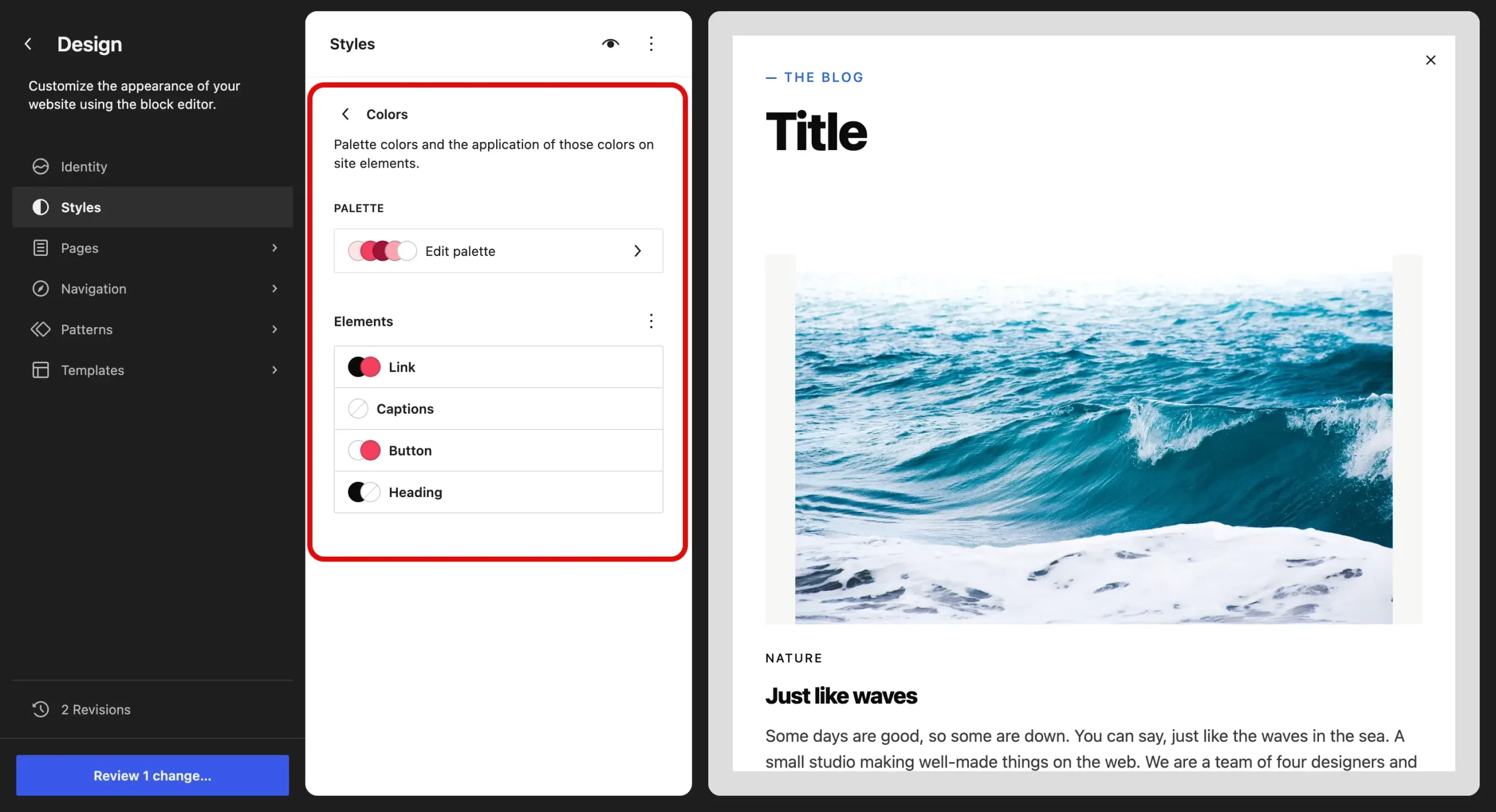
You can also modify the color palettes.
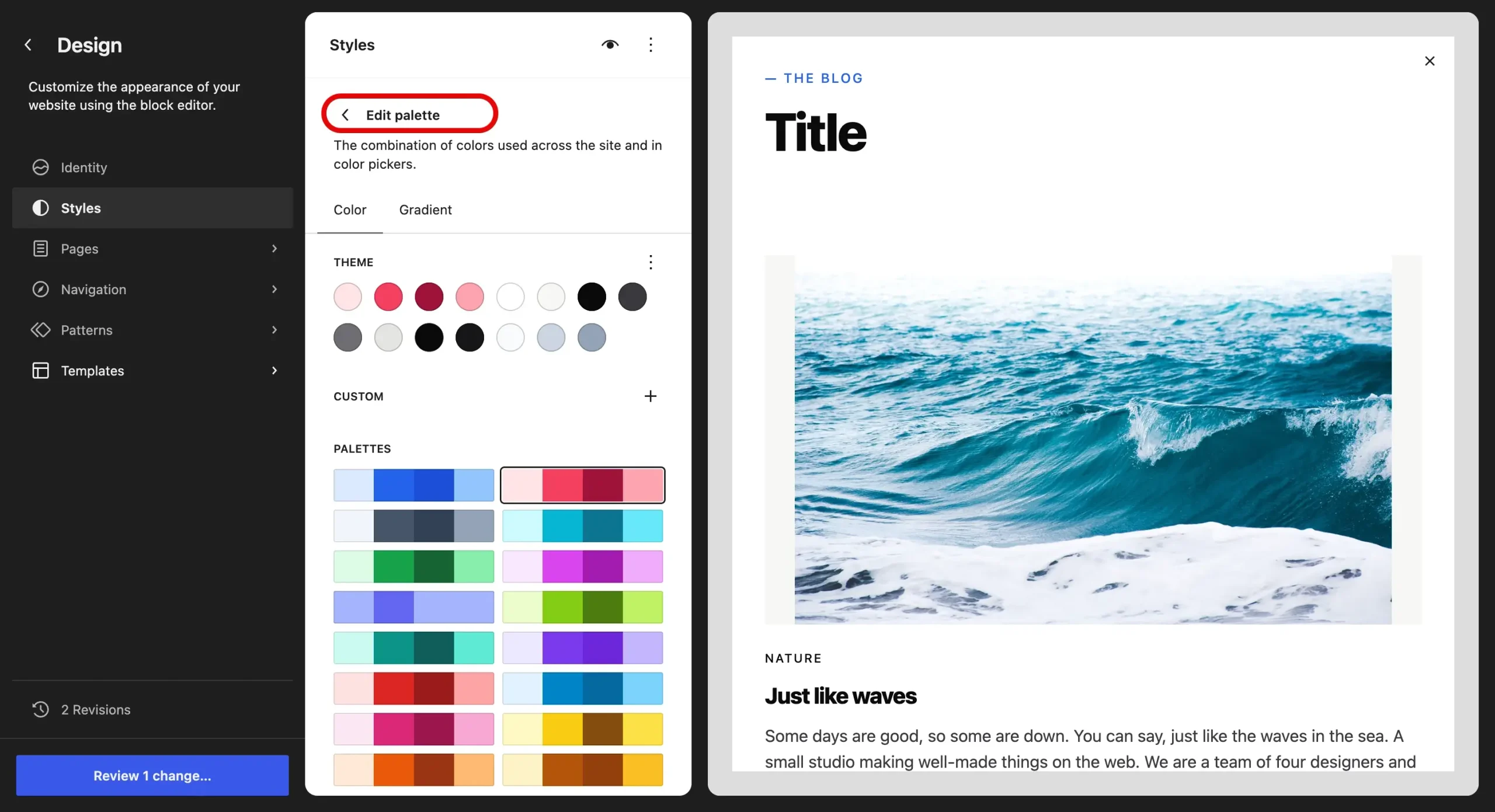
You can also refine global typography and layout. Return to Styles > Typography to adjust the available text settings for your site.
Rather than editing each paragraph, change the appropriate global settings. Once done, save the changes and compare at least two pages. Check heading sizes, link colors, button styling, and background colors.
A manually assigned color on an individual block can override the global style. If a button keeps its previous color, check its block settings. For more on global and local styles, see the WordPress (opens in a new tab)Styles overview (opens in a new tab).
Saving customized global styles stores your site customizations, but does not generate a new, distributable style variation JSON file.
To learn more, you can check WordPress’s (opens in a new tab)style variations developer documentation (opens in a new tab) to understand how variations are defined and how their settings interact with saved customizations.
Step 4: Add Canvas Block Patterns to a Page
Once the global style is set, use patterns to build or extend page layouts. To insert a pattern, open the page you want to edit, select the block inserter, open the Patterns section, and review the available patterns. Choose a pattern and insert it into the page. Replace its example text, images, links, and other content. Preview the page before saving.
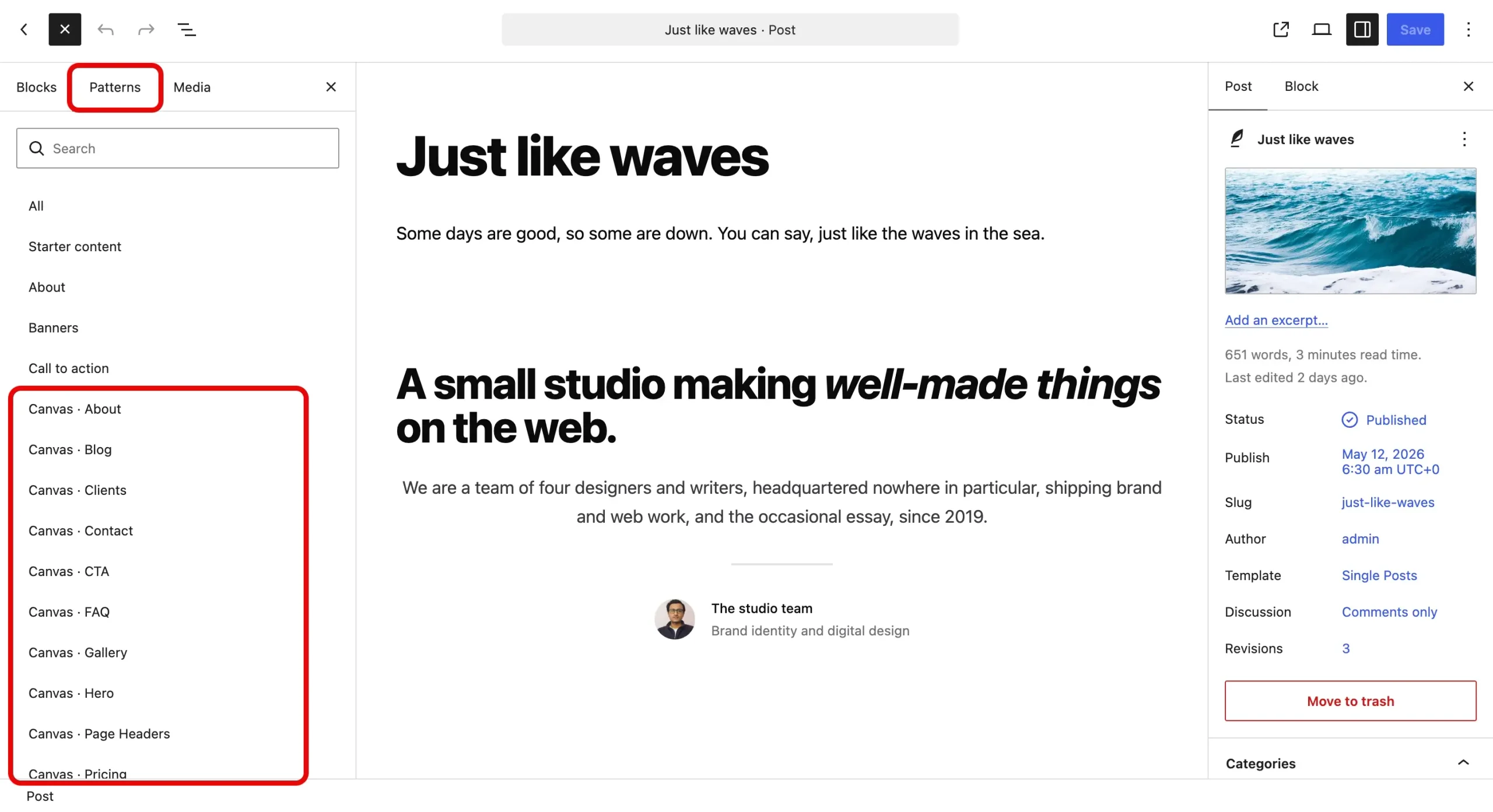
Canvas offers different block patterns such as for about, blog, clients, contact, CTA, FAQ, Gallery, Hero, page headers, pricing, process, services, stats, team, and testimonials.
Customize the inserted pattern’s content for your business. For more on the types of blocks available, see Gutenberg blocks explained. You can use those blocks within your selected pattern and style variation.
Step 5: Use a Matching Header and Footer
The header and footer appear across multiple pages, so their design should support the site’s global styling. WPMozo Canvas has five header options and five footer options; therefore, you have to choose what is most suitable. First, open Appearance > Editor and locate the template parts or patterns area.
However, before replacing a header, check its site logo, navigation links, mobile layout, and any contact or call-to-action elements.
For the footer, check the copyright text, important links, contact details, and other information your visitors need. Make sure they are customized to your company. Once done, preview the updated header and footer on more than one page.
Check the background, text, links, buttons, and spacing. A global variation can affect the header and footer styling, but manually customized blocks or template parts may retain their settings. Check these areas across the templates that use them, and review the changes listed in the Save panel.
Can Canvas Work on a Site That Uses Divi, Elementor or Bricks?
WPMozo Canvas includes a blank-canvas template for pages controlled by Divi, Elementor, or Bricks. Canvas’s global styles may not control content styled independently by a page builder. The result depends on the page template, builder, and styling applied to that page.
Common Problems When Switching Styles
1. The Editor Shows the New Style, But the Page Looks Different
First, you need to preview the page and compare the affected elements with the editor preview. Double-check whether the changes were saved and whether the page uses a customized template or block settings that differ from the global style.
If the issue involves changes to theme files that do not appear in the editor or on the front end, see Why Your Block Theme File Edits Aren’t Showing Up.
2. An Individual Block Ignores the Global Colors
In the case that an individual block ignores the global colors, select the block and inspect its color settings. If it has a manually assigned background or text color, review whether the local setting should remain or be cleared so that the block can follow the global styles. Test the results in the editor before saving.
3. The Header Changes on One Page But Not Another
If the header changes on one page but not another, open the templates and template parts used by the affected pages. Check whether they use the same header and whether a customized template part is involved.
The WordPress Site Editor lets you inspect and edit templates and template parts. Check which template each page uses before changing unrelated global settings.
Frequently Asked Questions
Go to Appearance > Editor > Styles > Browse styles to preview the available variations.
Switching a global style variation changes the site’s design settings, not the page content itself. Check pages with local block customizations and review the Save panel before confirming changes.
Yes, the Canvas theme includes style variations. It has 16 style variations you can try based on your requirements.
Yes. Open Appearance > Editor > Styles > Colors, change the available global color settings, and save your changes. Inspect the public page to check the saved result.
No, a pattern provides a layout made from blocks, while a style variation changes global design settings. For example, you can insert a services pattern and use a variation to change its general typography and color scheme.
Go to Appearance > Editor > Styles to choose another variation. To undo saved style customizations, use the Styles menu to review revisions or select Reset to defaults.
Conclusion
Start by choosing a Canvas style variation, then review the typography, colors, and layout on two representative pages. Add patterns where they support your content, and check the header and footer before publishing.
If you want to explore the available theme options, visit the WPMozo Canvas product page and confirm the features included in the version you plan to use.

Leave a Reply