
Widgets
Product Gallery
The WPMozo Product Gallery for Elementor helps you showcase WooCommerce product images in clean, visually engaging gallery layouts. You can easily customize the layout, select up to 10 columns, and apply flexible styling options to match your store’s design
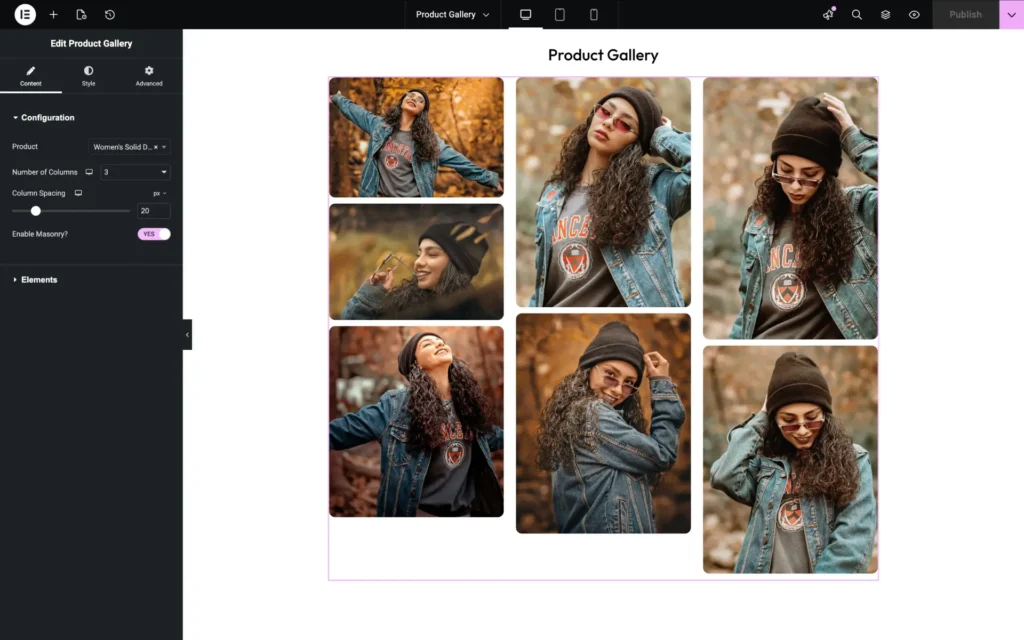
Content#
Number of columns#
Set how many columns the gallery should display. Increasing the number of columns allows more images to appear in a single row.
Column spacing#
Adjust the space between each column to control how tightly or loosely the images are placed.
Enable masonry#
Enable this option to arrange images in a masonry (brick-style) layout, where images fit together naturally based on their height.
Elements#
Title
Show or hide the image title in the gallery.
Caption
Enable or disable captions displayed with the images.
Enable Lightbox
Allow images to open in a lightbox view when clicked for a better viewing experience.
Title & Caption Style in Lightbox
Customize how the title and caption appear inside the lightbox, including typography and alignment.
Overlay on Hover
Enable an overlay effect when users hover over an image.
Overlay Icon
Choose an icon to display on the image overlay, indicating that the image is clickable or can be viewed in lightbox mode.
Was this article helpful?
Thanks for the feedback. Need more help? Contact support.