Elementor widgets / Tilt Image
Free widget Elementor
Tilt Image widget for Elementor
Images with a tilt effect.

Show Title, Content, Icon, and Button on the Image
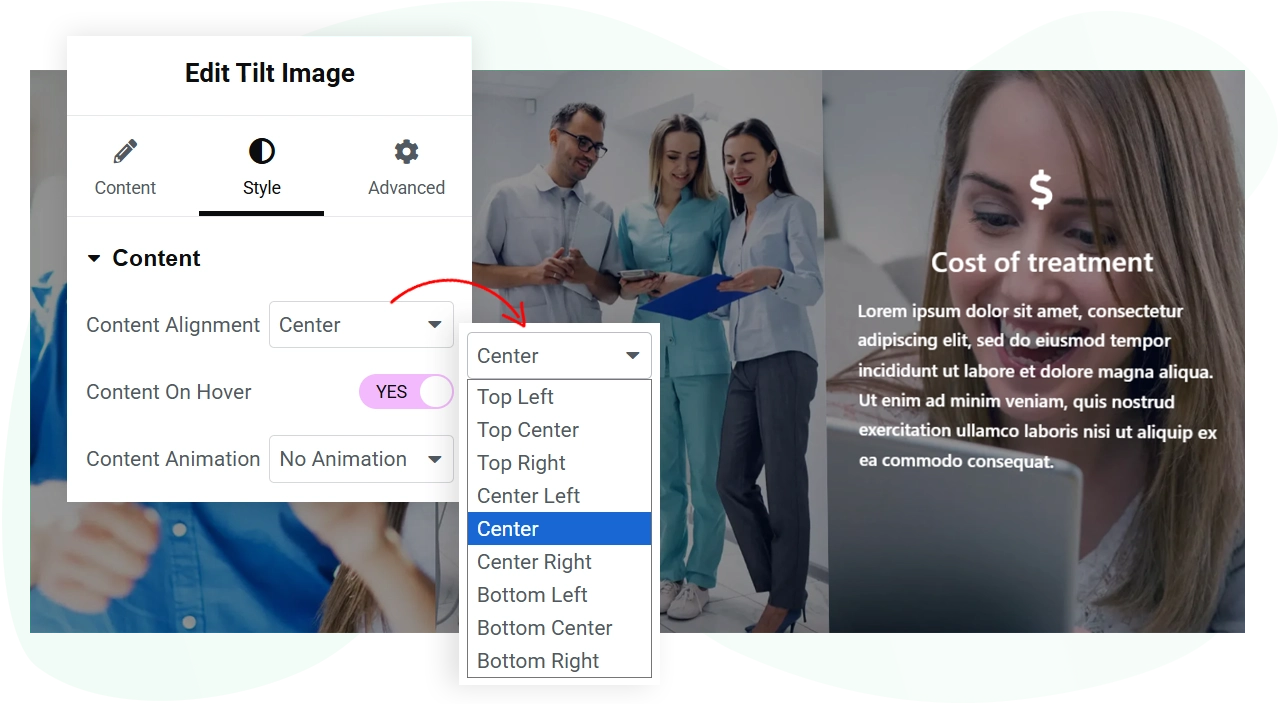
Provide your website users with additional information apart from the visuals you choose for the tilt image widget. It lets you display the image title, content, icon, and button. This makes the tilt image informative, plus, more interactive because of the CTA. You can direct them to a particular page or URL that needs priority attention. Hence, you can capture potential leads while engaging them in the first place.
Controls to Adjust Tilt Speed, Rotation, and Perspective
Make the tilt image function work effectively by customizing its Speed, Rotation, and Perspective. Choose how quickly it triggers the tilt animation and how much it should tilt based on the user’s cursor movement. Plus, with the help of Perspective control, make the tilted image have depth in its tilt angle. All of these allow you to add a tilting image to your Elementor website that looks like the work of a professional.Improve the Tilt Image Impression With Glare and 3D Effect
If you want to add more engaging and interactive styling to your tilt image, then you can use the Glare and 3D effect with the help of the WPMozo Tilt image widget. The glare effect will make the content look clearer. Using the 3D effect, you can present the content in a way that makes it feel as if it’s coming out of the screen. Hence, adding a beautiful, creative touch that makes your website visitors interested in exploring more.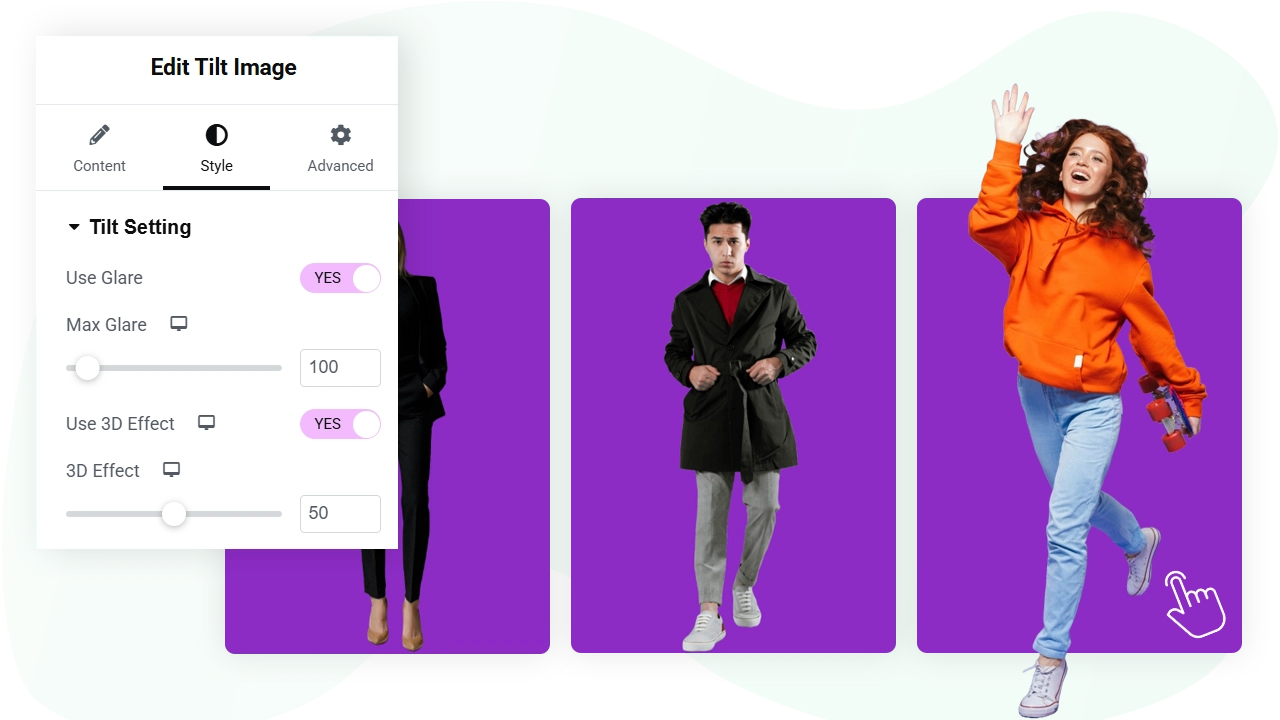
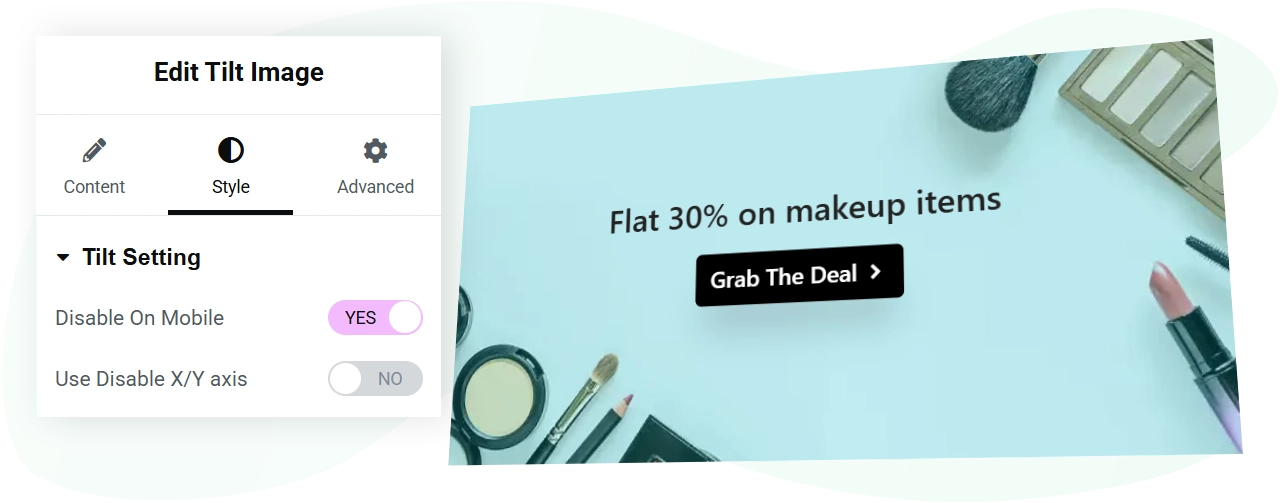
Don’t Want to Use Tilt On Mobile? Turn Off That Easily
On a mobile phone, users don’t have cursor movement. They just scroll and tap for more information. So, there’s no use in enabling the tilt effect. Therefore, the WPMozo Tilt Image widget comes with the option to turn off the effect on mobile phones. So, the page can have essential resources. In addition to the mobile phone disable option, it supports disabling the tilt effect on the X or Y axis as well. This makes the tilt widget super user-friendly and highly customizable per the project requirements.Add Overlay Color According to the Requirement
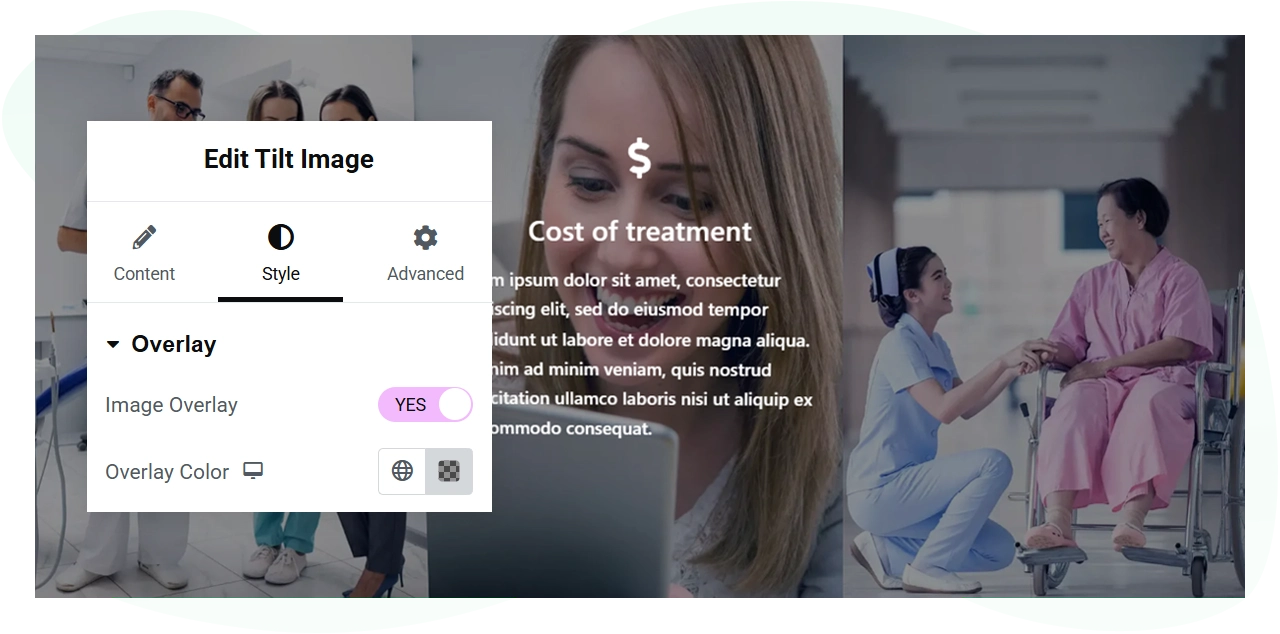
Get creative with your tilt image and add an overlay color to it when the user hovers over it. Easily choose any color you like using the WPMozo Tilt Image widget and set it as your overlay color. No need to do any custom coding or utilize any CSS, just the in-built options of the widget and a few clicks. And the overlay color on your tilt image will capture the attention of your website visitors the most.