

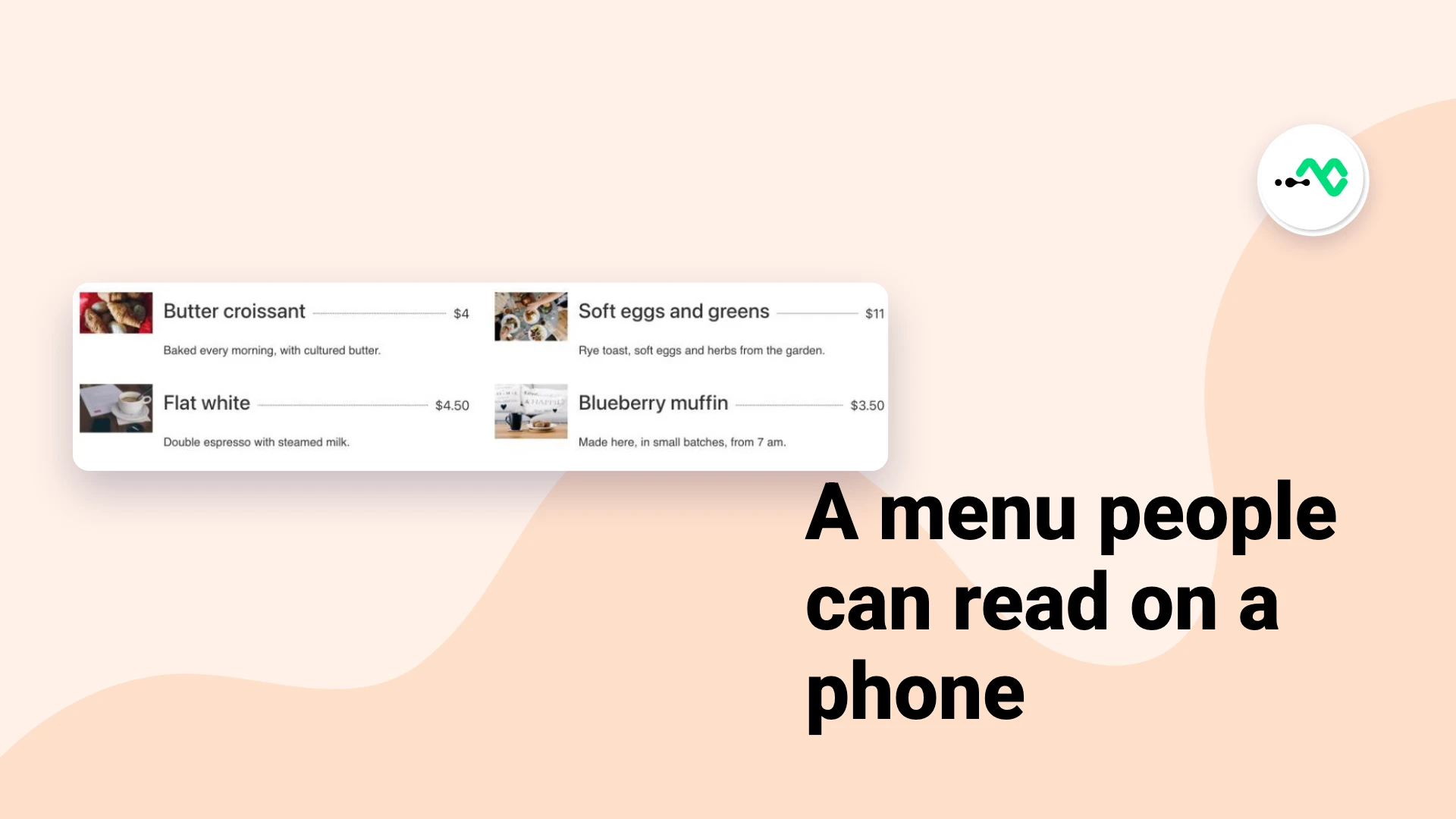
Many restaurant sites still link to a PDF menu, and it is usually the first page people open on a phone. This guide is for anyone running a restaurant, cafe or bakery site on Elementor. By the end you will have a menu built into the page, with dishes, prices and photos, that you can change in a minute when the specials do.
Put the menu on the page, not in a PDF
A PDF feels finished, but it causes three problems. On a phone, visitors have to pinch and zoom to read it. Every price change means editing the file and uploading it again. And the dishes sit in a separate file, away from the page people are looking at.
A menu built on the page avoids all three. The text resizes with the screen, you change a price by typing over it, and your dishes are part of the page itself. Keep a PDF as well if you want one for printing, but make the page the main version.
Decide how the menu is organised
Before you open Elementor, spend five minutes on the structure, because it decides how the page reads:
- Group by when or what people order. Breakfast, lunch and drinks, or starters, mains and desserts.
- Keep names short. “Butter croissant” reads faster than a sentence. Put the detail in the description.
- Use one line of description. Say what makes the dish worth ordering, and mention what guests ask about most often.
- Be sparing with photos. Small thumbnails help on a short menu. On a long one, photograph the dishes you most want to sell.
Method 1: build it with Elementor’s basic widgets
If your menu is very short, you can build it with what you already have.
- Add a section with two columns.
- Add a Heading for each dish and a Text Editor widget for its description.
- Type the price at the end of the heading, or in a narrow column of its own.
This works for a handful of items. The trouble starts as the list grows, because each dish is several separate widgets. Keeping names and prices lined up takes more work every time you add one.
Method 2: use the free Price List widget
The Price List widget in WPMozo Addons for Elementor keeps each dish as one item, with its title, price, description and thumbnail together, and it is one of the free widgets.
- Open your menu page with Elementor.
- Search for Price List in the widget panel and drag it onto the page.
- Under Configuration, choose Layout 1 or Layout 2, then set Number of Columns. You can pick from 1 to 6, and two suits most menus.
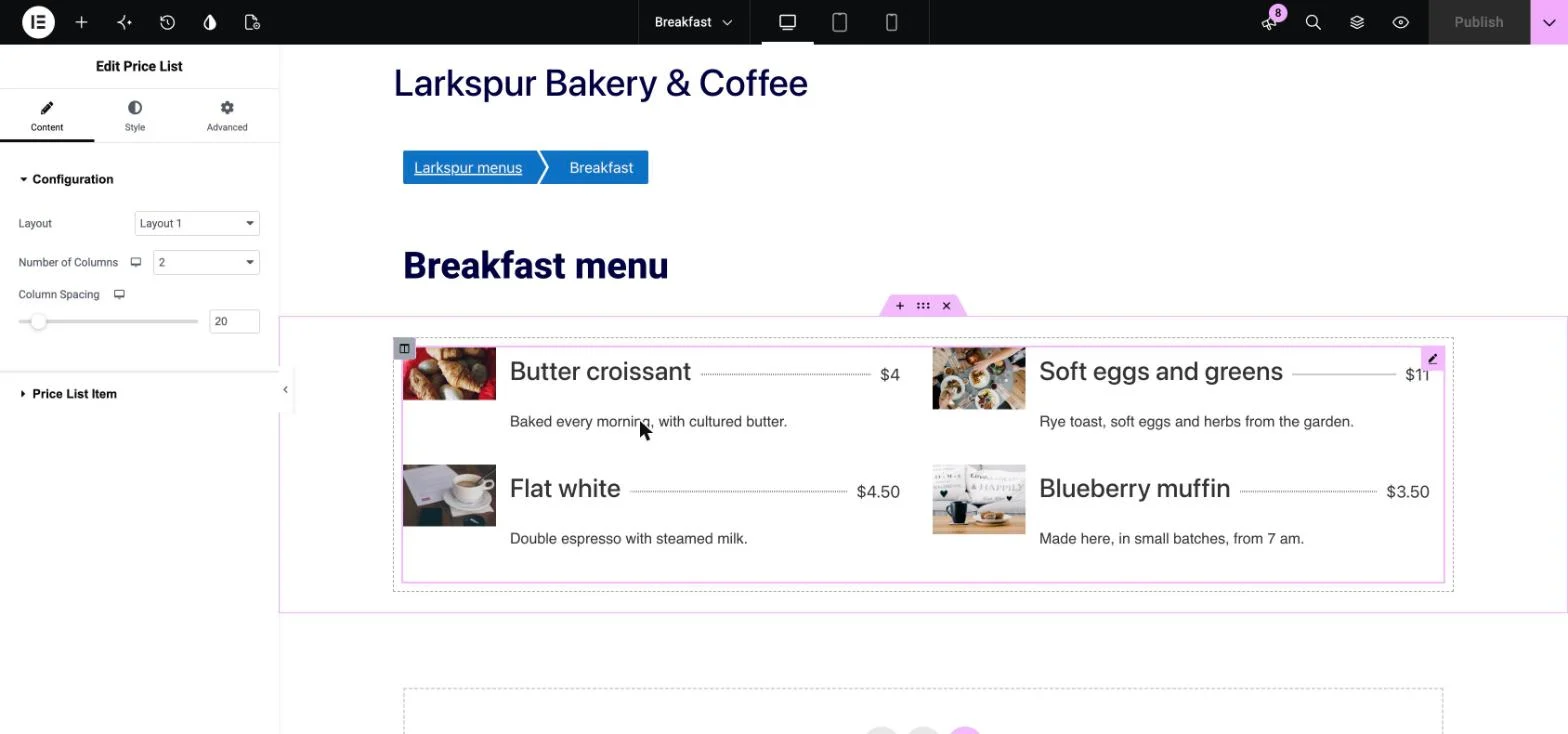
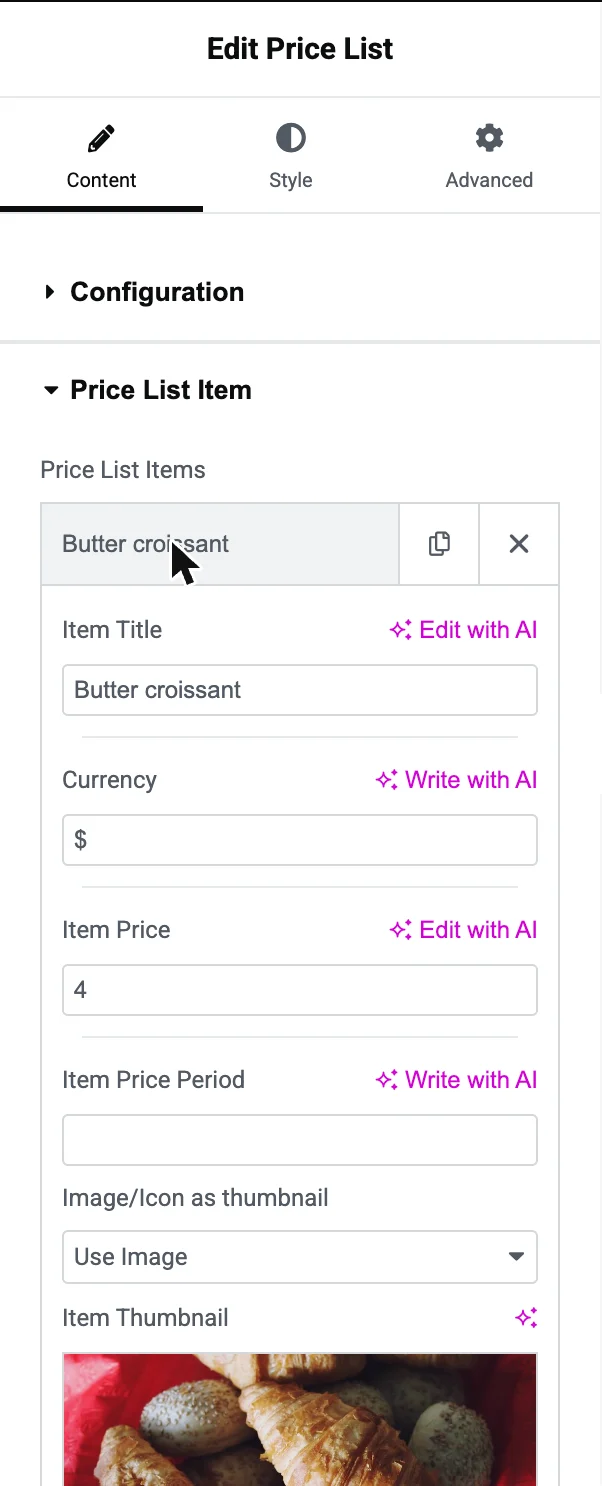
- Open Price List Item and click an item. Fill in Item Title, Currency, Item Price and the description.
- Under Image/Icon as thumbnail, choose Use Image and pick a photo, or choose Use Icon.
- Use Add Item for each dish on the menu.
- Under the Style tab, pick a divider. The line between a dish and its price can be solid, dashed, dotted, double, groove, ridge, inset or outset.
- Publish and open the page on your phone.
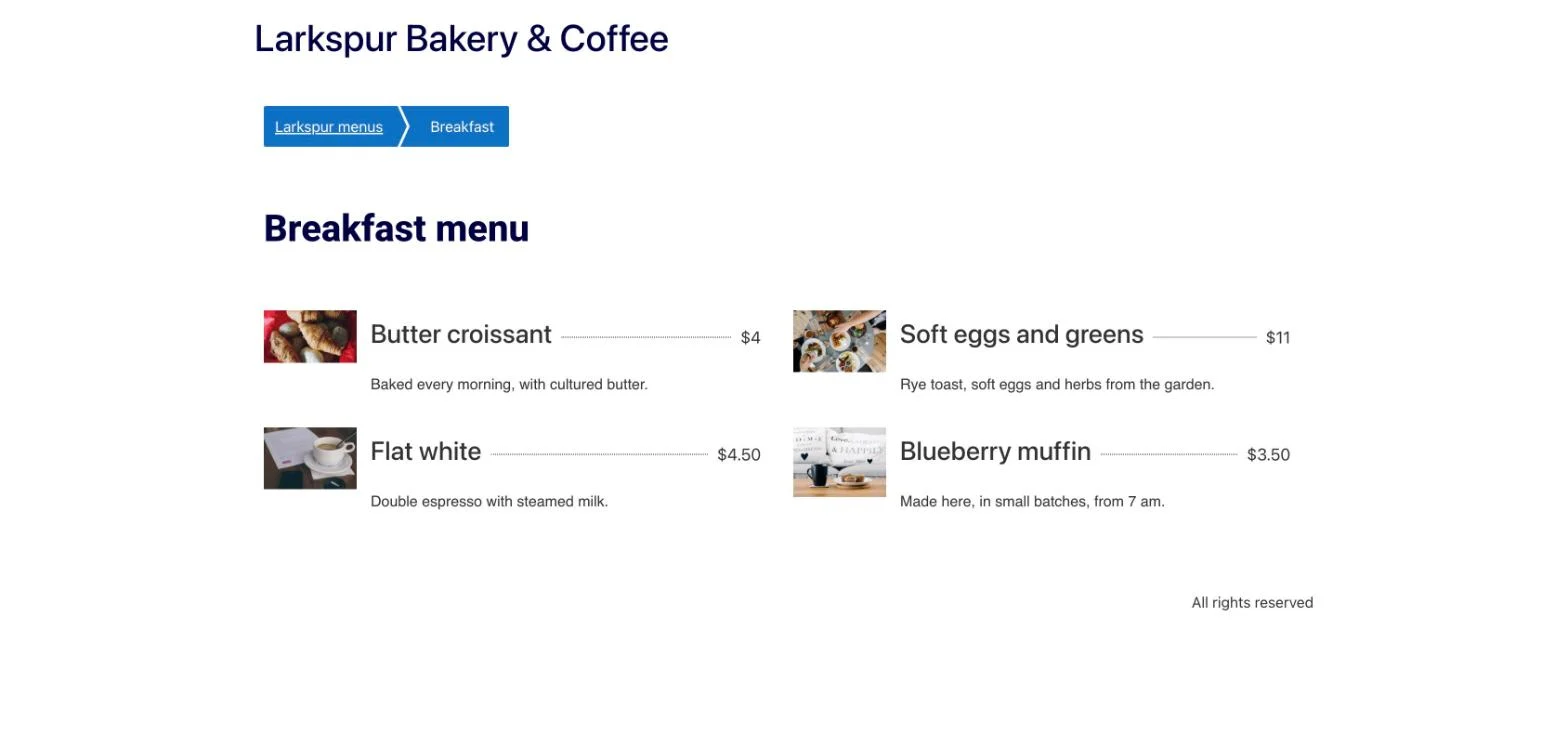
Here is the finished menu for a cafe, in two columns with dotted dividers:
Item Price Period is worth knowing about too. It adds a short label after the price, which suits a service menu such as “per hour”, or a set price “per person”.
Add more than one menu
Use one Price List widget per section, with a heading above each. That keeps breakfast, lunch and drinks easy to update on their own. If the page starts to feel long, the Advanced Tabs widget can hold each section behind its own tab. Each tab can load an Elementor Library layout, so a saved menu section can sit inside it.
Check it before you share it
- Open it on a phone. Check that the columns stack well and the prices are easy to read. The column setting has a device switch, so you can use fewer columns on small screens.
- Read the prices aloud. Typing errors in prices are the mistake customers notice first.
- Add the menu to your main navigation. It is often what visitors came for, so one click should reach it.
- Link it from your booking or contact page. People often check the menu just before they book.
FAQ
Can I add a restaurant menu in Elementor for free?
Yes. The Price List widget is one of the free widgets in WPMozo Addons for Elementor. You can also build a very short menu with Elementor’s Heading and Text Editor widgets.
Should I use a PDF menu or a menu on the page?
Use the page as the main version, because it fits phone screens and you can change a price without uploading a file. A PDF can still sit alongside it for printing.
Can I show a photo next to each dish?
Yes. Each Price List item has a thumbnail, which can be an image or an icon.
Can I use it for services instead of food?
Yes. The same widget suits a salon or a repair shop, and Item Price Period lets you add a label such as “per hour”.
Next step
See the Price List widget for its layouts and settings, or browse all the Elementor widgets if your site needs other sections too.

Leave a Reply