
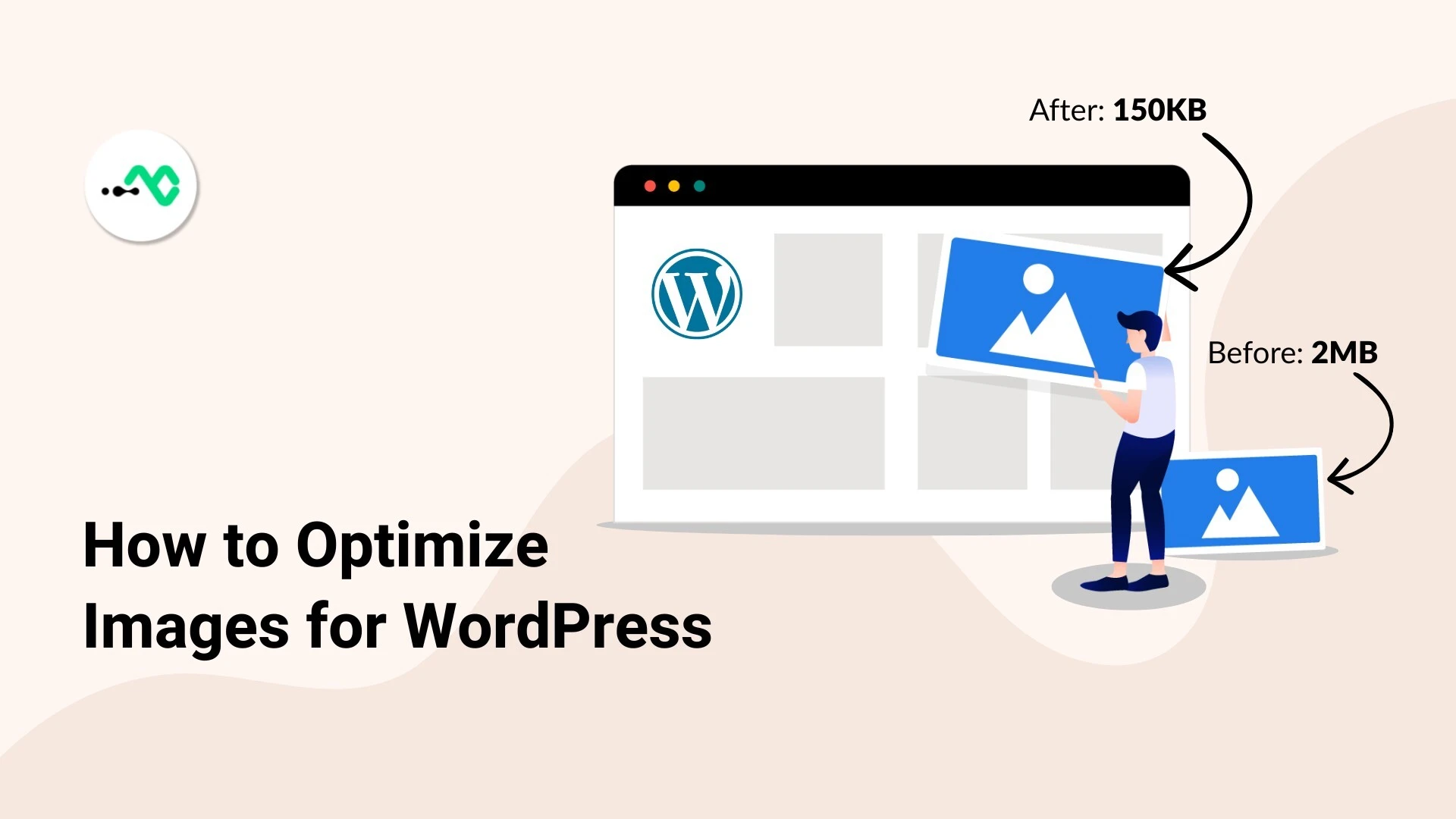
Images make WordPress website visually appealing and engaging. However, large or unoptimized images can slow down your website, affect user experience, and reduce search engine rankings. That’s why image optimization is an important step for every WordPress website whether it’s a blog, business site, or online store.
Why Image Optimization Is Necessary?
Unoptimized images increase page size, which leads to slower loading times. Visitors today expect fast websites, and a few seconds of delay can cause them to leave.
Optimizing images helps:
- Improve website speed
- Enhance user experience
- Boost SEO rankings
WordPress Image Optimization Best Practices
Below are effective ways to optimize images for WordPress. You can try these for best results.
1. Resize Images Before Uploading
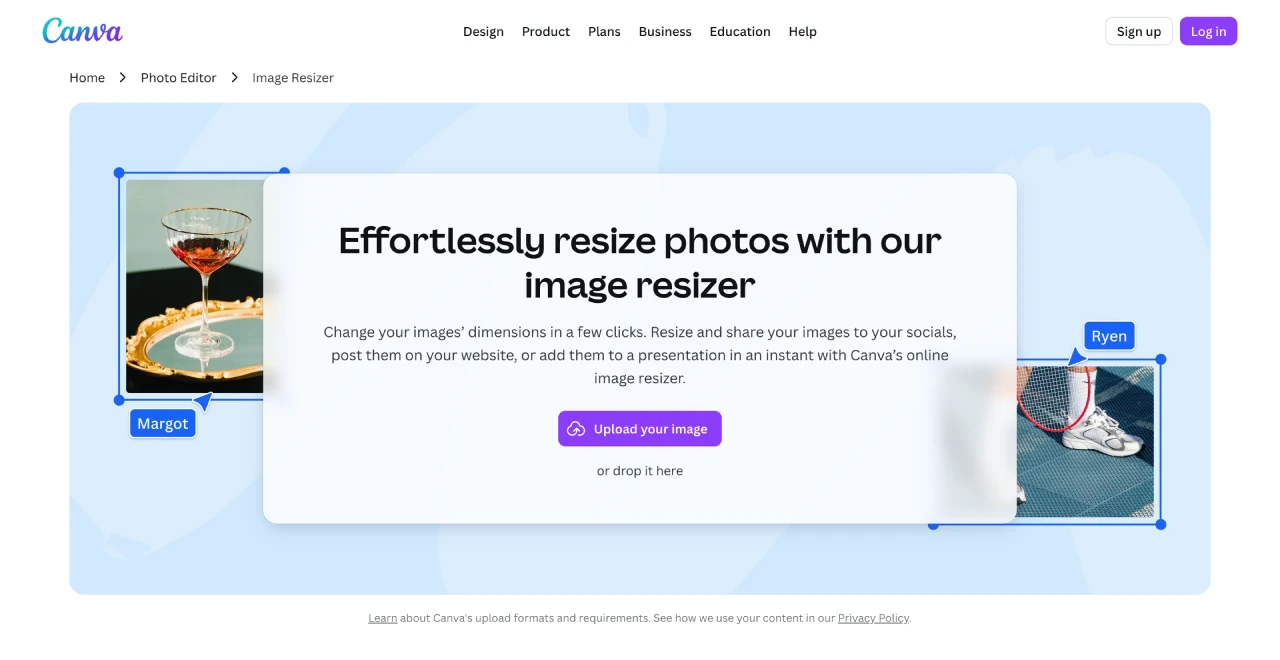
Uploading oversized images is a common mistake that can slow down your website. Images should always be resized according to your layout width, and high-resolution images should be avoided unless they are truly necessary.
Free tools:
2. Compress Images Without Losing Quality
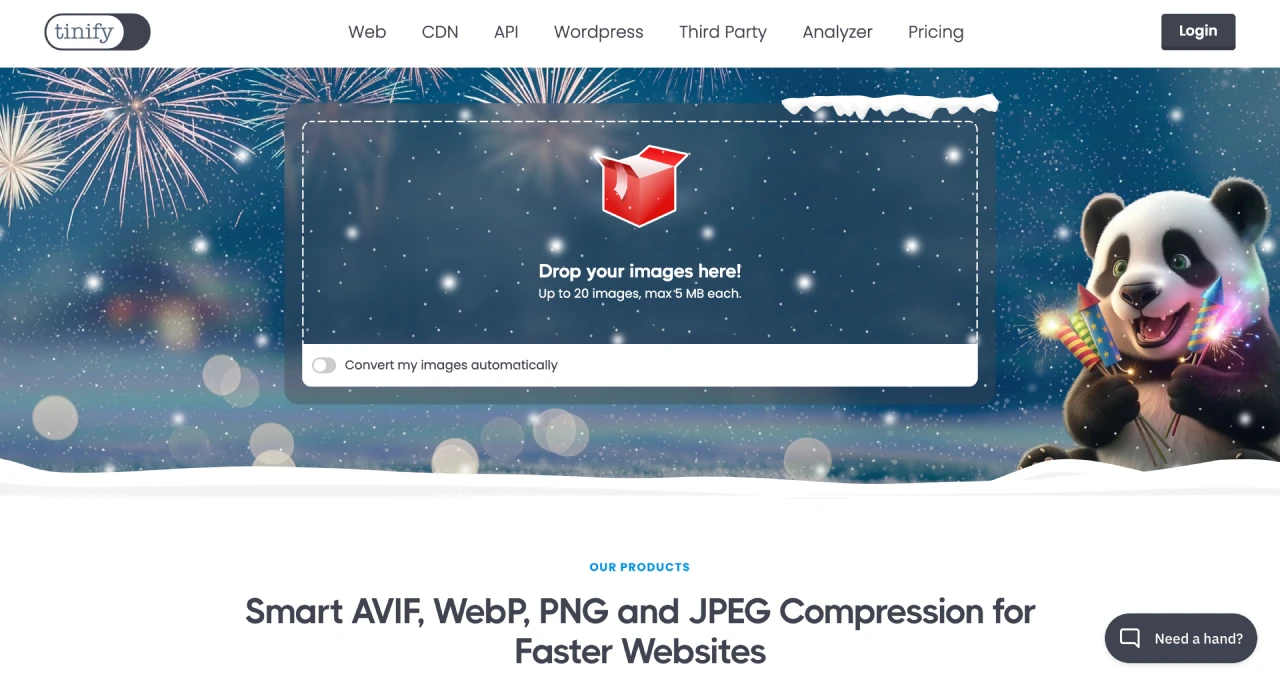
Image compression reduces file size while keeping the image visually clear, which helps pages load faster and reduces the amount of storage used on your server.
Free compression tools:
3. Use Modern Image Formats (WebP)
WebP is a modern image format that provides smaller file sizes compared to JPG or PNG, without compromising quality.
Benefits of WebP:
- Smaller file size
- Faster image loading
- Better performance on mobile
Many optimization plugins and CDNs automatically convert images to WebP.
4. Enable Lazy Loading for Images
Lazy loading delays image loading until the user scrolls to them.
Why lazy loading helps:
- Faster initial page load
- Improved performance on long pages
WordPress supports lazy loading by default, and many plugins like Smush Image Optimization offer extra features.
5. Serve Images Through a CDN
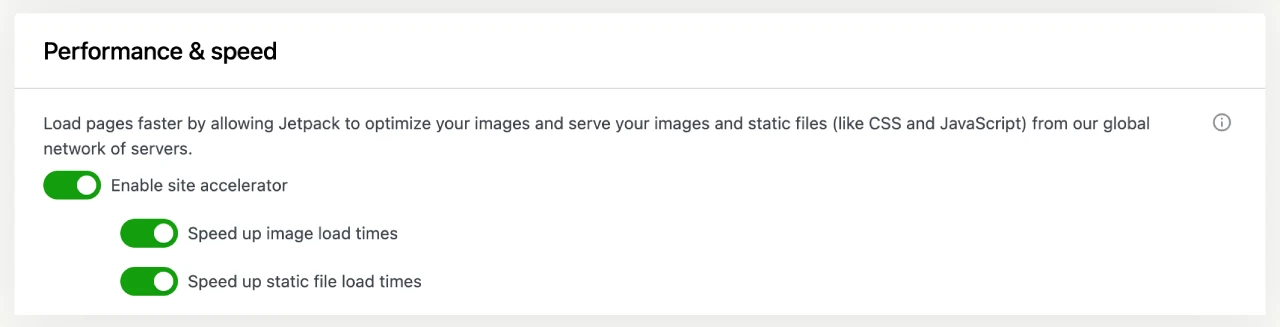
A CDN (Content Delivery Network) delivers images from the nearest server location, which helps load images faster for users around the world while also reducing the load on your hosting server.
Free CDN options:
CDNs are especially helpful for image-heavy websites.
6. Optimize Image File Names and Alt Text
Image optimization is not just about size it also helps SEO.
Best practices:
- Use descriptive file names (example: best-image-optimization-practice.webp)
- Add meaningful alt text for accessibility and SEO
This helps search engines understand your images better.
7. Clean Up Your WordPress Media Library
Unused images can clutter your Media Library and consume storage.
What to do:
- Delete unused and duplicate images
- Remove old images no longer in use
Free tool:
A clean Media Library keeps your site lightweight and organized.
Final Thoughts
Optimizing images for WordPress doesn’t require advanced technical knowledge. Small steps like resizing, compressing, using modern formats, and enabling lazy loading can greatly improve website speed and performance.
By following these image optimization practices, you’ll create a faster, more user-friendly, and SEO-optimized WordPress website.



0 Comments