
Emails are an important part of our WordPress site. From contact form messages to password resets and order alerts if emails don’t work, users can miss key information. Sometimes WordPress doesn’t send emails the way it should, but most of the time you can fix it yourself without any core technical knowledge.
In this guide, we’ll explain why emails stop sending and share easy steps to fix the issue so your WordPress emails work again.
Why WordPress Emails Sometimes Don’t Work
By default, WordPress uses a basic email function that many web servers don’t handle well. This can make emails fail, or they might end up in the Spam folder instead of the inbox.
Here are the most common reasons:
- Your hosting server doesn’t allow WordPress emails
- The email settings are wrong
- The site uses the default email system (which is unreliable)
- Emails get sent but go to Spam
- A plugin or form setting needs correction
How to Fix It
1. Check Your WordPress Email Address
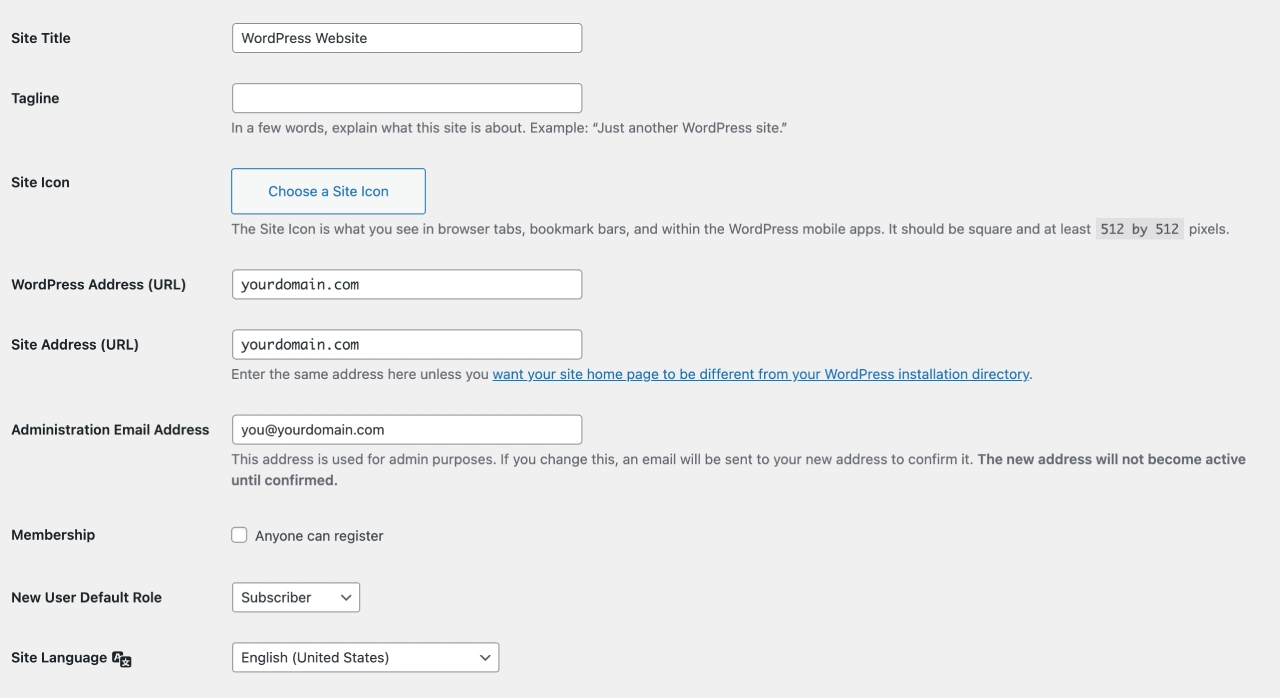
First, go to WordPress Dashboard → Settings → General and make sure your admin email address is correct. If it has a typo, WordPress won’t send any email. Changing this often fixes small issues instantly.
2. Ask Your Hosting Provider
Sometimes hosting companies block WordPress emails to stop spam. If you’re not sure, it’s best to contact your hosting support team.
You can ask them:
- Is email sending enabled on my server?
- Are there any limits for sending emails?
The hosting team can check this for you and let you know if anything is blocked. If needed, they will also guide you on what needs to be changed.
3. Use SMTP Instead of Default WordPress Email
WordPress’s default email system is simple but often unreliable. A much better method is SMTP — this sends email through a real mail server (like Gmail, Outlook, SendGrid, etc.).
How to set it up:
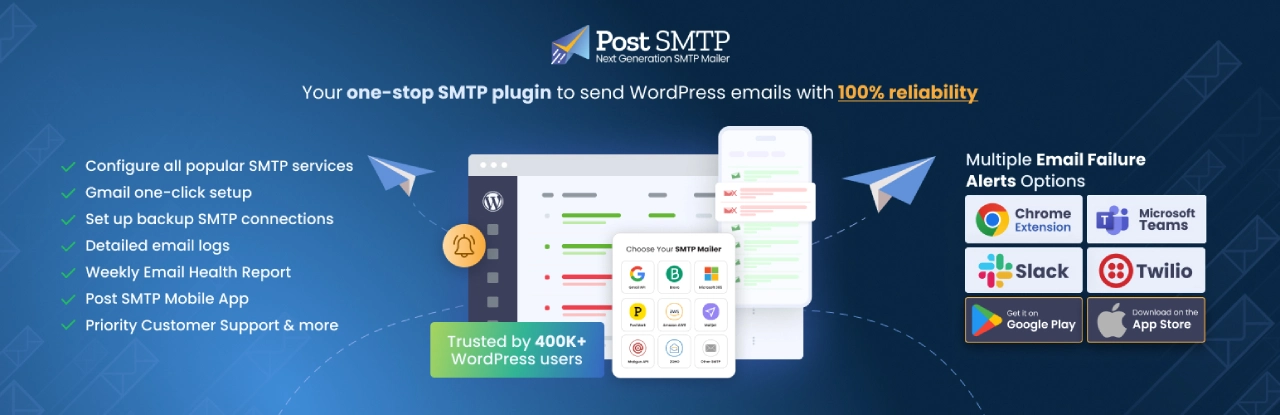
- Install an SMTP plugin (like WP Mail SMTP or Post SMTP).
- Go into the plugin settings.
- Enter your email provider’s SMTP details.
- Save and send a test email.
This method makes sure your emails are delivered more reliably.
4. Check Your Contact Form Settings
If only your contact forms aren’t sending, the problem may be in your form plugin:
- Make sure the “From” email uses your domain (like [email protected])
- Set the “To” email where messages should go
- Some form plugins require SMTP to send messages correctly
Fixing these settings usually gets form emails working.
5. Stop Emails From Going to Spam
Sometimes emails do send but land in Spam. Here’s how to reduce that:
- Use an SMTP service with real domain authentication
- Add SPF, DKIM and DMARC records to your DNS (these prove your emails are legitimate)
- Avoid spam-like words in email content
These steps help your emails land in the inbox instead of spam.
6. Test If Emails Are Working
After making changes, it’s a good idea to test everything once. Install a plugin like Check & Log Email, send a test email to yourself, and check both your inbox and spam folder. If the email shows up, you’re all set and your WordPress emails are working properly.
Quick Fix Checklist
Here’s a handy list you can copy:
- Admin email is correct
- SMTP plugin is installed
- SMTP settings are configured
- Contact forms are set up properly
- DNS email authentication is enabled
- Test email is successful
Final Thoughts
WordPress emails can stop working for many small reasons — but the fixes are usually simple. Setting up SMTP and checking form settings will solve most problems. Just follow the steps above and your WordPress emails should start delivering properly again.
If you get stuck, don’t worry — reach out to your hosting support or email service provider for help.



0 Comments