Addons for Elementor Documentation
Search for answers or browse our knowledge base.
Image Card Ticker
The Image Card Ticker widget in WPMozo Addons Lite allows you to display a continuous scrolling row of images with smooth animation. It’s perfect for showcasing brand logos, event snapshots, product images, or any visual content you want to highlight in a dynamic ticker format.
This widget is completely free.
How to add widget on page
Once the WPMozo Addons plugin is activated, it adds several widgets to the Elementor builder. To insert the Before After Slider widget, follow these steps.
- Create/edit a page/post that uses Elementor builder.
- Create/edit container.
- Search widget Image Card Ticker under WPMozo.
Content settings
Images
Here you can add the images you want to display in the Image Card Ticker widget.
You can upload new images or select them from the Media Library.

Display settings
Layout
Choose the overall ticker layout:
- Marquee – Classic side-scrolling ticker
- 3D Circular – Rotating 3D-like loop
- Curve – Smooth curved image layout
Direction
Select the scrolling direction:
- Left
- Right
- Top
- Bottom
Pause on hover
Enable this option to stop the scrolling animation when the user hovers over the widget.
Images gap
Set spacing between images (in pixels).
Default: 30px
Ticker speed
Control how fast the image ticker moves.
Higher values = faster speed.
Default: 45

Style settings
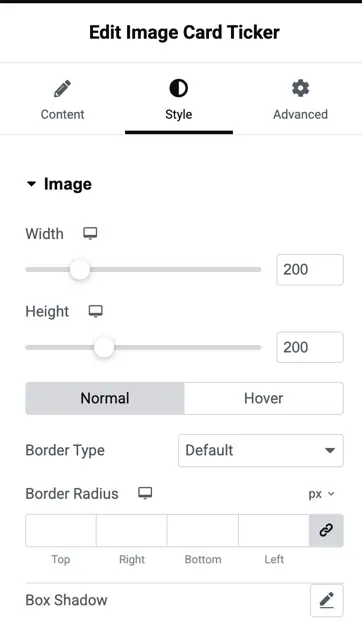
Image
Width
Set the width of each image in the ticker.
Default: 200px
Height
Set the height of each image.
Default: 200px
Border type
Choose border style for the images (solid, dashed, dotted, etc.) or keep it on default.
Border radius
Adjust the corner roundness of the images.
Supports individual radius control:
- Top
- Bottom
- Left
- Right
Box shadow
Add a shadow effect around images for depth.