
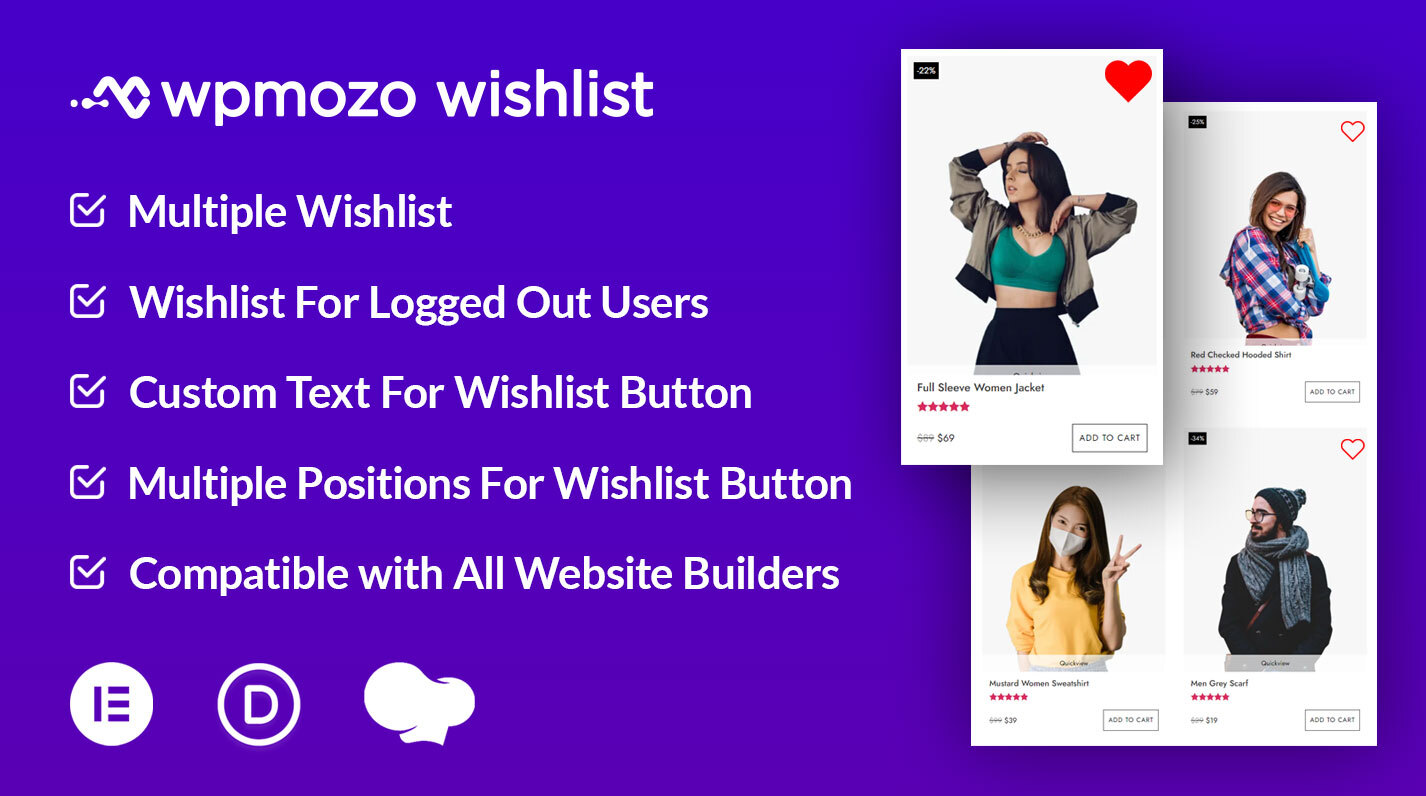
All-in-one wishlist plugin for WooCommerce that offers intuitive controls to display the add to wishlist button on the product pages and allow customers to create their favorite items list easily. Using this flexible WooCommerce wishlist plugin, you’d be able to bring the missing feature in WooCommerce without using any code. Add wishlist functionality to your store easily with the WPMozo wishlist plugin, designed to help customers save products for later. Plus, customize the button and its elements with no custom CSS at all.
The plugin offers configurable options that make the add to wishlist WooCommerce function part of the website’s design scheme. In addition, enjoy frequent updates, dedicated support, and much more.
Add Wishlist Buttons to WooCommerce Product Pages
Creating a wishlist should be easy; that’s why this WooCommerce wishlist plugin showcases the wishlist button on product pages, shop pages, or any page on the site that includes products, for instance, product categories, tags, and more. This will help your customers explore the site as they like and add favorite products to their wishlist without opening any specific page or option.

Multiple Wishlists per Customer
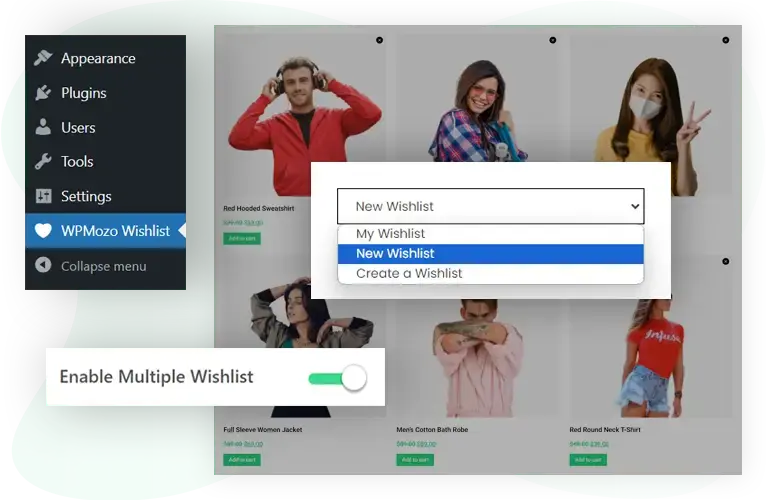
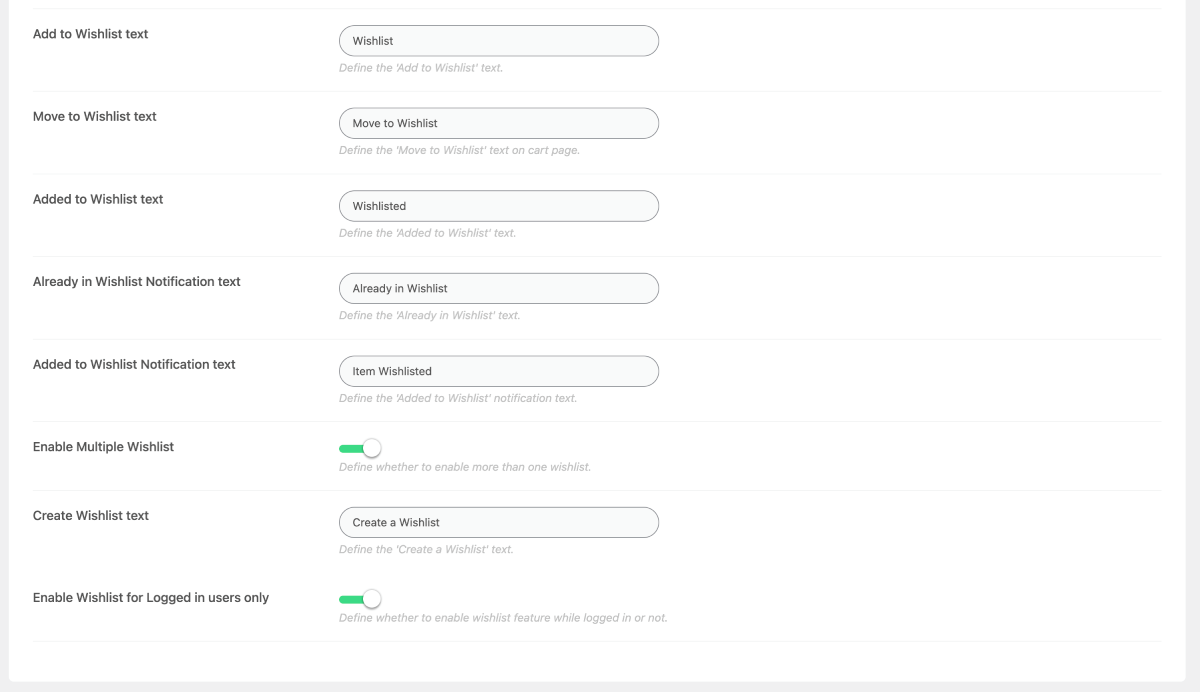
What makes this plugin one of the best wishlist plugins for WooCommerce? Well, as a multi-wishlist plugin for WooCommerce, it allows customers to create multiple wishlists according to their requirements. Whether they need a single one or multiple to save different products in different ways — your customers can do that if you let them. Simply toggle the Multiple Lists option to Enable, and you’re done.
Wishlist Button Positions: Product Image, Before, or After Cart Button
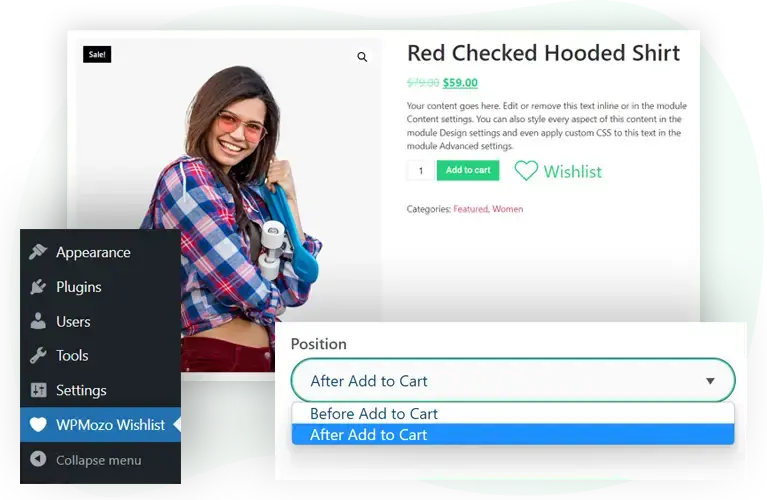
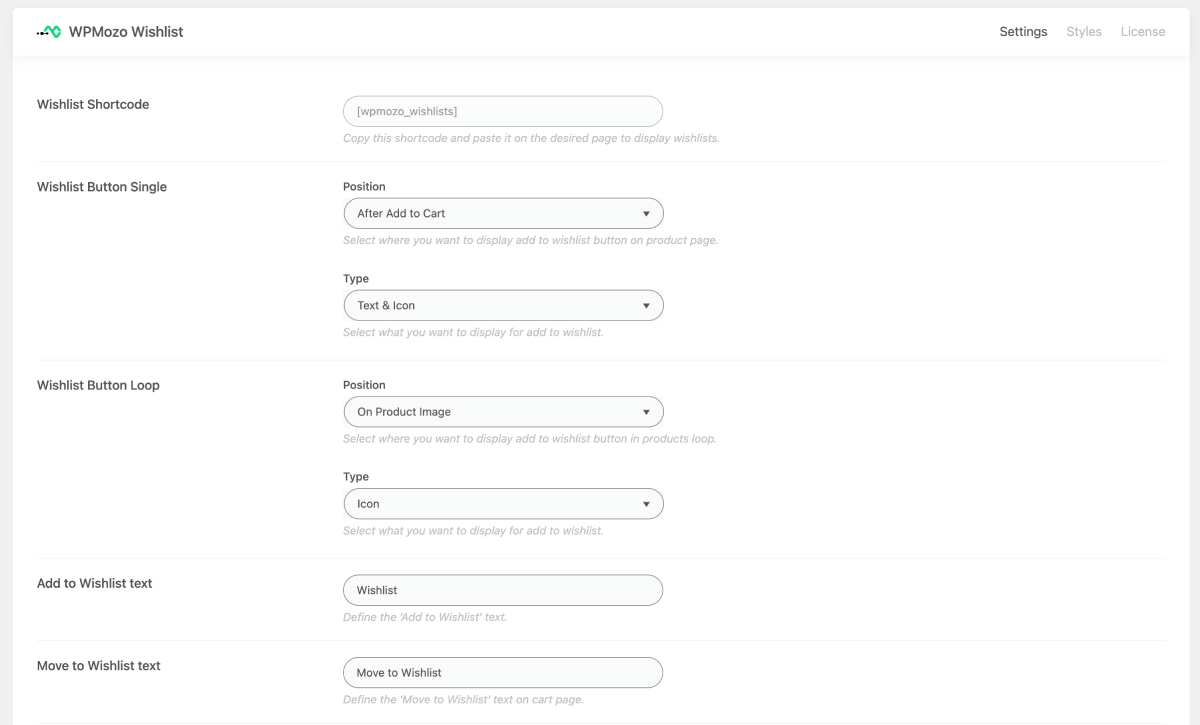
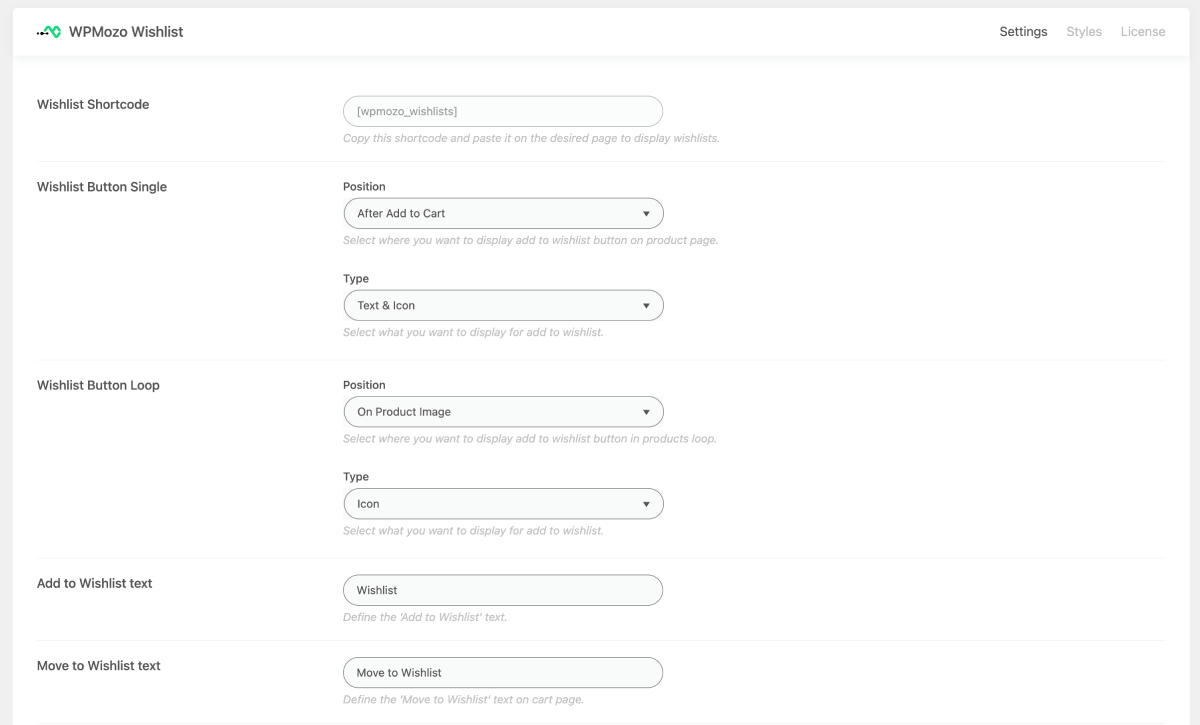
In addition to the freedom of showcasing the wishlist button throughout the WooCommerce website, you can also decide where the button should actually be visible. This plugin allows you to show the wishlist button on the Product Image, After Add to Cart Button, and Before Add to Cart Button. So, if you want to match your store’s design, this one is a useful feature.
Customize Wishlist Button: Text, Icon, or Both
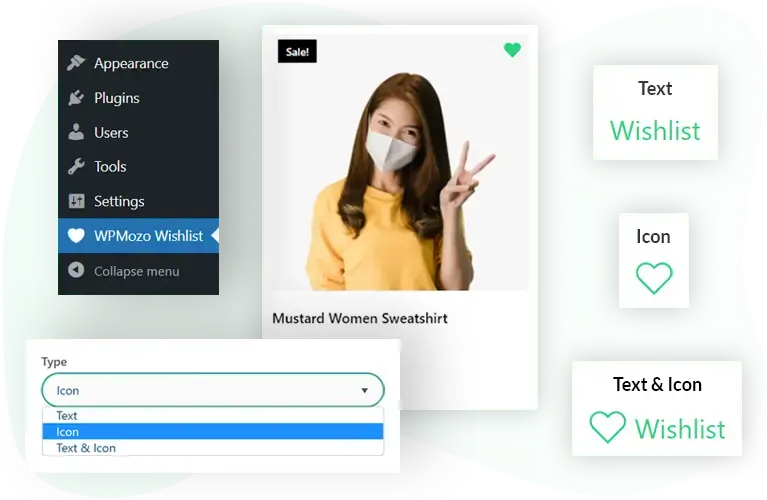
This WooCommerce wishlists plugin includes the option using which you can easily change the content type of the add to wishlist button. You can style buttons to match your design by using Text, Icon, or a combination of both: Text and Icon as their content type.
Custom Button Labels and Notification Text
You can use this WooCommerce product wishlist plugin to change the button and notification text per your liking. There’s no need to keep the default “Add to” button text or “Added to” notification text. Instead, you can use Save for later, Favorites, Love this, and much more.
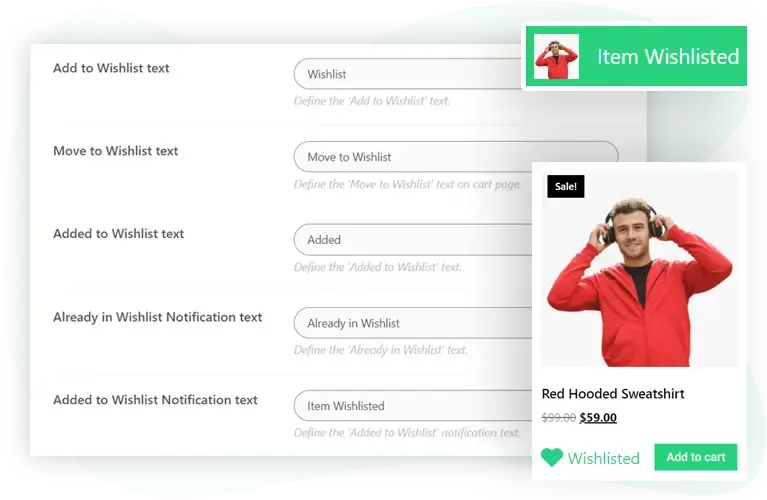
Button and Element Styling Controls
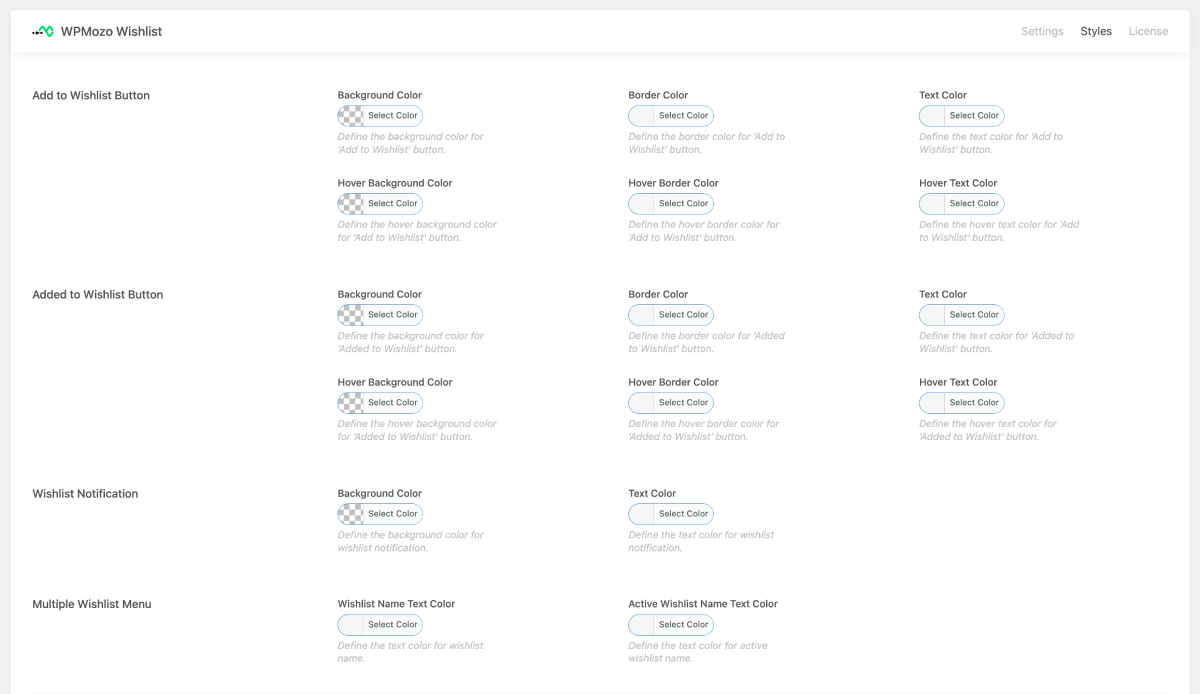
To assist you in customizing the button and other elements, this WooCommerce wishlist plugin provides you with typography, color, and spacing controls. Using these, you can change the button’s background color, text color, style notifications, etc.
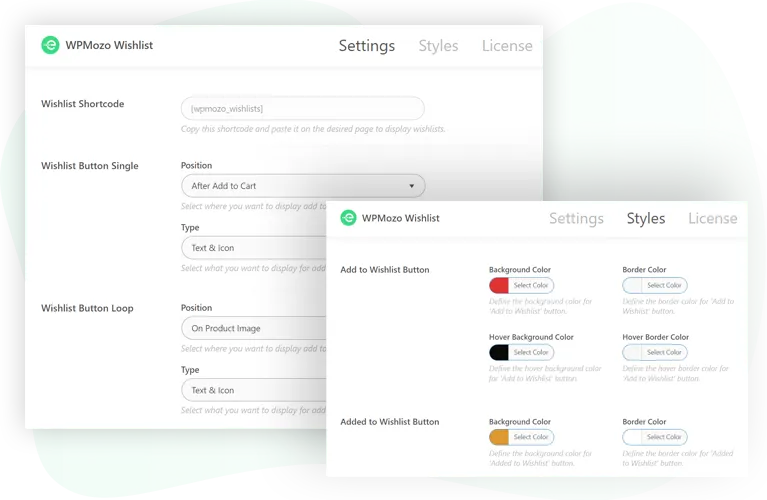
Guest Wishlist Support
Want to provide the wishlist option to users who are not logged in to the website? Then, guess what? The WPMozo Wishlist Manager includes this option that allows guests to create and manage their wishlists.
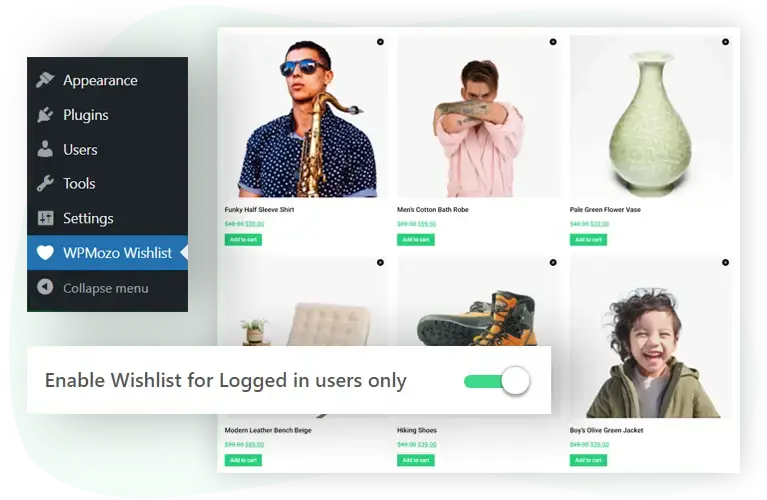
Move Items Between Cart and Wishlist
With this wishlist plugin for WooCommerce, customers will be able to move wishlist items to cart and cart items to wishlist easily. On the cart page, this option will be displayed clearly. If they don’t want to buy it now, they can save the items for later. Or, buy what’s in the wishlist.
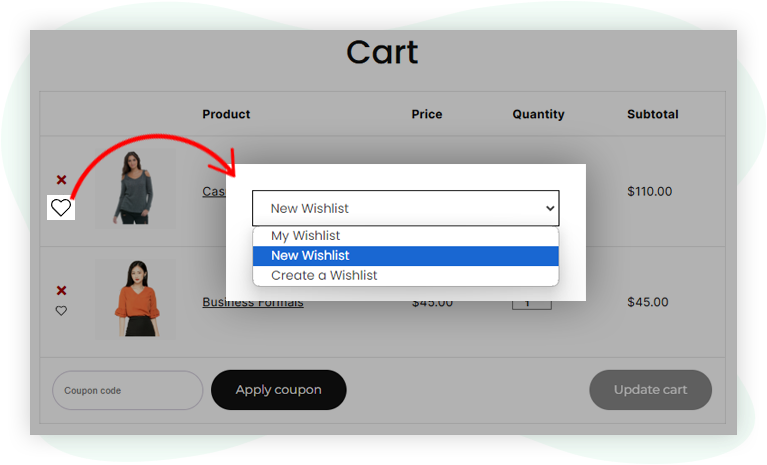
Wishlist Sync After Guest Login
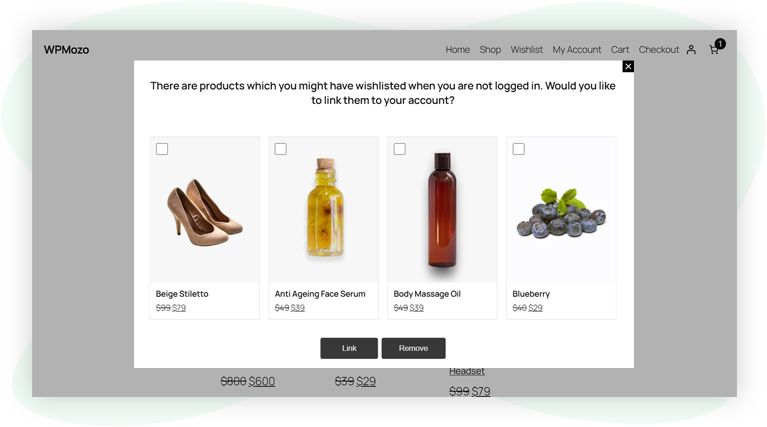
If the customer has created a wishlist without login, the wishlisted items will be added to their wishlist only after confirmation when they log in. This will help your customers keep their wishlist(s) sorted and clutter-free.
Build a Wishlist Page with a Shortcode
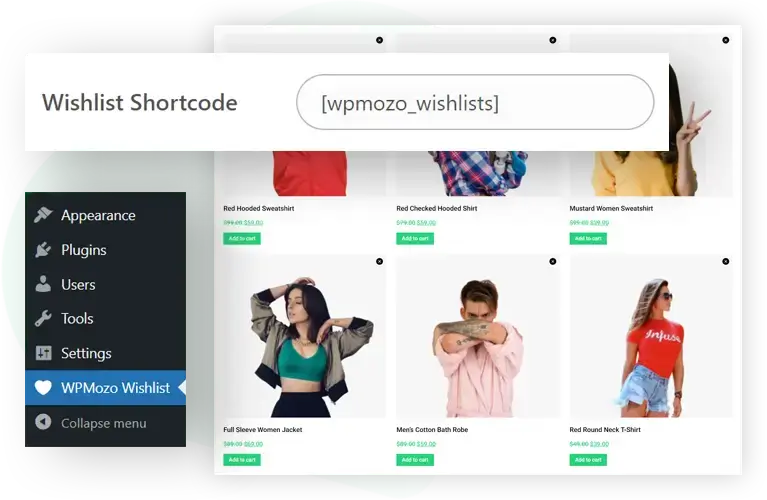
In addition to the button for a wishlist in WooCommerce, you can create a page where users can view their favorite products. Plus, they can switch between multiple lists and remove products they don’t want to purchase anymore. To achieve this, all you need to do is copy the page shortcode and paste it onto the page that you’re using for the wishlist page.
What’s new in WPMozo Wishlist 2.0
Version 2.0 rebuilds this wishlist plugin for WooCommerce as two plugins that work together: the free WPMozo Wishlist Lite for WooCommerce runs the wishlist itself, and the paid WPMozo Wishlist installs on top of it. The free plugin adds a price drop badge, a Wishlists block for the block editor, an Undo bar for removals, and new cart-page button options. The paid plugin adds public and private wishlists with sharing, saved variations and quantities, a Move to Cart action, and size and color controls for buttons, tooltips, and popups. Settings for both now live under WooCommerce > Settings > Wishlist, in General, Buttons, Texts, and Styles sub-tabs.
Free: new in WPMozo Wishlist Lite for WooCommerce
Free plan, $0. WPMozo Wishlist Lite for WooCommerce is free on WordPress.org, and everything in this section also runs on paid installs, because the paid plugin is built on top of it.
Price drop badge on saved products
When a saved product gets cheaper, its wishlist card shows “Price drop by” and the amount under the current price, compared with the price recorded when it was saved. Turn it on or off with Enable Price Drop Badge (on by default), reword it in Price Drop Badge Text, and set its font size (13px by default) and text color under Styles. It applies to simple products; variable products are skipped because their saved price is a “from” price.
Wishlists block for the block editor
Place the Wishlists block on any page to show the visitor’s wishlist, with wide and full-width alignment. Saved products sit in an inner Products area that uses the block editor’s own grid settings, so the column count (4 by default) and the spacing between cards are set there. The [wpmozo_wishlists] shortcode still works anywhere a shortcode can go.
Undo instead of a confirm prompt
Removing a product now hides it and shows an “Item removed from wishlist.” bar with an Undo button, replacing the old confirmation prompt. The bar stays for six seconds, and removals made in a row are grouped into one bar with a running count, then deleted together.
Move to Wishlist button on the cart page
The Move to Wishlist button can sit beside the remove icon in each cart row (the default) or under the product name, or be hidden with Don’t Show. The Type setting shows text, an icon, or both, and one click saves the product to the wishlist and takes that line out of the cart.
Browse products link for empty wishlists
An empty wishlist now shows “Your wishlist is empty.” with a Browse products link. The Browse Products Link setting points it at the shop page (default), any page on your site, or a Custom URL such as a product category archive; a blank custom URL falls back to the shop page.
Also in the free plugin
- Settings are grouped into General, Buttons, Texts, and Styles sub-tabs under WooCommerce > Settings > Wishlist and saved with the standard Save changes button.
- When guests are allowed to save products, their wishlists last 30 days from the first save (adjustable in the paid plugin), and a daily cleanup then deletes them so abandoned guest lists do not pile up in the database.
Paid: new in WPMozo Wishlist
Paid plan: Annual $49 per year or Lifetime $199, both for unlimited websites. WPMozo Wishlist is an add-on, so WPMozo Wishlist Lite for WooCommerce 2.0.1 or newer has to be installed and active first. It needs WordPress 6.4, WooCommerce 7.7.0, and PHP 7.4 or later, and existing wishlists and settings carry over when you update.
Public and private wishlists
Every wishlist starts private. With Enable Multiple Wishlists on, customers choose Private (only me) or Public (anyone with the link) when they create a list, then switch it with Make public or Make private on their wishlists page, where a lock or globe icon marks each one. A private list shows a not-found page to everyone except its owner and store administrators.
Share a wishlist on WhatsApp, Facebook, X, or by email
On a public wishlist, the owner’s Share button offers WhatsApp, Facebook, X, and Email, plus a link field with a Copy button; on touch devices that support it, a Share via button opens the device’s own share sheet. Anyone with the link can browse the list and add items to their own cart but cannot change it. Shared links use a random key rather than a numbered ID, and link previews show the list name, store name, product count, and first product image.
Save the exact variation
On a variable product page, the Add to Wishlist button follows the options the shopper has selected and saves that exact variation. Each saved variation gets its own row with its own image, price, stock status, and attributes under the product name, so two sizes of one shirt can sit side by side.
Pick options from the wishlist
A variable product saved from a shop or category page is stored without a variation. When the shopper adds or moves it to the cart, from its row or with a bulk action, a Select options popup opens with the product image, name, price, and WooCommerce’s own variation form, and the matching variation goes into the cart. Visitors on a shared wishlist get the same popup.
Quantities that carry to the cart
The quantity a shopper sets on the product page is saved with the item, and the list owner can change it in each row’s quantity field (minimum 1). Add to Cart and Move to Cart send that quantity, and if WooCommerce cannot add it, for example because stock is low, its own message explains why.
Move to Cart, one row or many
Set Add to Cart Button Action to Move to Cart and each row’s cart button adds the item, then removes it from the wishlist; anything that fails to reach the cart stays on the list. Bulk Actions work on ticked rows: Add to Cart, Move to Cart, Move to Another Wishlist (with multiple wishlists on), and Remove from Wishlist.
List or grid, with the columns you choose
The paid plugin adds two panels to the Products area of the Wishlists block. View sets whether the page opens in List or Grid and whether visitors get a List and Grid toggle, and Columns shown turns the Image, Price, Quantity, and Stock status columns on or off; the same options exist as [wpmozo_wishlists] shortcode attributes.
Tooltips you can word and style
Enable Add to Wishlist Tooltip adds hover labels to the Add to Wishlist button, and the Wishlist Tooltips group lets you reword seven tooltip labels, from Add to Cart and Move to Cart on each wishlist row to Wishlisted and Remove from Wishlist on the button. The Tooltip style group sets the text size (12px by default), background color, and text color.
Size and color controls for buttons and popups
The Add to Wishlist style group now has Text Font Size and Icon Font Size, both 16px by default. Three new groups cover the rest: Wishlist Row Buttons (icon size, background, and icon color for the cart, move, and remove squares on each row), Wishlist Modal Button (font size, background, and text color for the confirm button in the wishlist popups), and Wishlist Modal Close Icon (size, background, and icon color).
Translate custom wording with WPML or Polylang
Text you change in the settings, such as button labels, notifications, tooltips, the price drop wording, and the guest login popup messages, is registered in the plugin’s wpml-config.xml, so it shows up in WPML String Translation and in the Strings translations screen of Polylang. Wording left at its default is translated through regular language files.
How long a guest’s wishlist lasts
Guest Wishlist Cookie Duration sets how many days a guest’s wishlist is remembered in their browser, counted from their first save (30 by default, minimum 1). It appears when Enable Wishlist for logged in users only is off, and the free plugin’s daily cleanup follows the same number.
Also new in the paid plugin
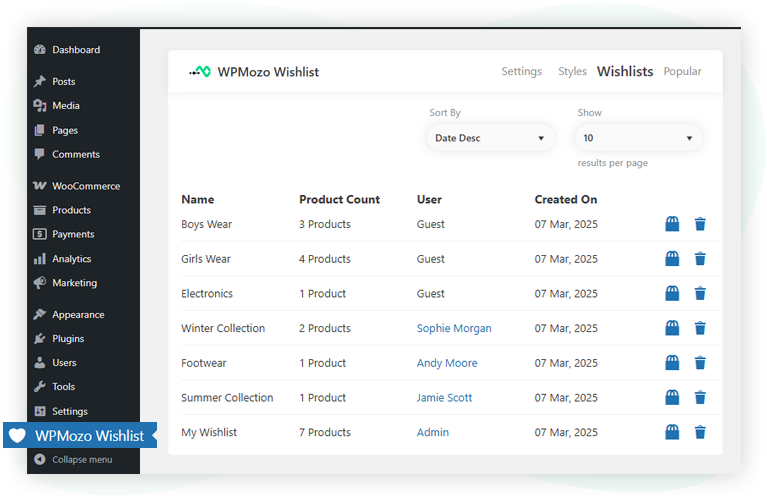
Reports now sit under WooCommerce > Wishlist Insights: a Wishlists tab lists every customer’s lists with product count, owner, and created date, next to the Popular Products report.
Admin features
View and Manage Customer Wishlists
Easily view how many wishlists are on the website, when they were created, and by whom. You can also view the products in the wishlist, access product edit options, and delete the wishlist if necessary.
Track Popular Wishlist Items
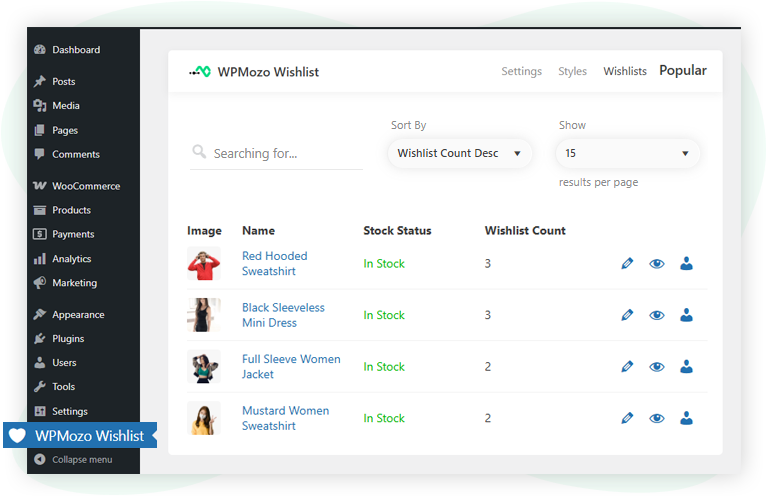
Using the Popular option in the Wishlist admin area, search for which product is more popular among all the wishlists. Know its status whether in-stock or not; make changes, and view users with popular products.

Wishlist Free vs Pro
Take a look at what you get with the Free version and see how the Premium license adds even more tools to grow your WordPress wishlist and grow your store.
Add products to wishlist
Let users quickly add items to their wishlist with a full WordPress and Gutenberg integration.
FREE
PREMIUM
Choose where the wishlist button appears, or place it anywhere using a shortcode
Show the wishlist button on shop pages, product categories, and tags
Let both visitors and logged-in customers save products to their wishlists
Automatically switch to a “Remove from Wishlist” button after a product is added
Trigger a wishlist popup when a guest logs in to make sure saved items aren’t lost
Support multiple wishlists so users can organize by occasion or preference (e.g., Holidays, Events)
Display a either a dropdown menu or Pop-up for users to choose from multiple wishlists when saving a product
Manage wishlist page
Display and customize the wishlist page layout using our Gutenberg-ready WordPress wishlist plugin.
FREE
PREMIUM
Display your wishlist on any page using a shortcode
Add a quick “Add to Cart” button next to each wishlist item
Allow users to rename or delete their existing wishlists anytime
Offer both grid and list view options for browsing the wishlist
Enable bulk selection of wishlist items for quick actions like remove or add to cart
Admin management tools
Easily monitor and manage wishlist activities from your WordPress dashboard with admin features built for flexibility and control.
FREE
PREMIUM
See which products are most frequently added to wishlists by your customers
Access a user list showing who saved the top wishlisted products
Let store admins view individual customer wishlists for better personalization or support
Settings and controls
Unlock advanced customization options to tailor wishlist functionality on your WordPress site with ease.
FREE
PREMIUM
Match the wishlist design with your brand using customizable styles and color options
Edit button labels, messages, and text easily to align with your store’s niche
Common Use Cases for Wishlists
The wishlist feature works differently depending on what your store sells. Here are five scenarios that match common WooCommerce use cases.
Fashion and apparel stores. Customers often browse multiple options before buying. The free version supports a single wishlist where customers save their choices. The Pro version adds multiple named wishlists so customers can organize by season, occasion, or recipient. Best for: stores where customers actively browse and compare before purchase. Recommended settings: Free with shop page button placement is enough for most stores; upgrade to Pro if customer behavior suggests they want list organization.
Gift registries and event planning. Customers building lists for weddings, birthdays, or baby showers benefit from publicly shareable wishlists. The plugin’s shortcode-based wishlist page works on the free version. The Pro version adds multiple named wishlists (one per event), grid and list views for the wishlist page, and rename/delete controls so customers can curate their lists. Best for: stores that serve gift buyers and event planners. Recommended settings: Pro recommended for the multi-event use case.
Home goods and decor stores. Customers furnishing rooms typically save items across multiple visits. The free version preserves customer wishlists between sessions for logged-in users. The Pro version adds multiple wishlists so customers can maintain separate collections per room or project. Best for: stores where customer purchases span weeks or months of consideration. Recommended settings: Free version sufficient for single-list use; Pro recommended for project-based organization.
B2B and wholesale stores. Buyers in B2B contexts often build product lists for procurement review. Wishlists work like saved order templates. The free version handles this for buyers with one master list. The Pro version’s bulk selection lets buyers quickly add all wishlist items to cart at once, making the procurement flow faster. Best for: stores serving wholesale buyers and agencies. Recommended settings: Pro recommended specifically for the bulk-add-to-cart feature.
Stores that want customer insights. The free version shows which products are most frequently added to wishlists, useful for inventory and marketing decisions. The Pro version expands this with a user list showing who saved which top-wishlisted products, plus the ability to view individual customer wishlists. Best for: stores running personalized email campaigns or that want detailed customer behavior data. Recommended settings: Pro recommended for active personalization workflows.
How WPMozo Wishlist Compares
When shoppers evaluate WooCommerce wishlist plugins, four points usually decide the winner. Here’s how WPMozo Wishlist handles each.
✓ Guest wishlist support. Many plugins force users to register before saving anything. WPMozo lets guests create wishlists, then prompts them to sync those wishlists when they log in. Available in both Free and Pro.
✓ Multiple wishlists per customer. WPMozo Pro supports unlimited named wishlists per customer, which competitors typically gate behind expensive premium tiers. Customers can organize lists by occasion (Holidays, Events) or by project. Pro feature; the Free version supports one wishlist per customer.
✓ Customization without code. Most plugins require CSS edits to change button styles or positioning. WPMozo provides typography, color, position, and label controls in the admin panel at both tiers. No code required. Available in both Free and Pro.
✓ Cart and wishlist integration. Customers can save products from any page (product, shop, category, tag) and move items into the cart with a single click. The Pro version adds bulk selection so customers can move multiple wishlist items to cart at once. Cart integration is in both tiers; bulk actions are Pro.
What’s Included with the WPMozo Wishlist License
The license includes:
- Unlimited websites. Install on every site you build, with no per-site license fees.
- One year of updates. All bug fixes, new features, and WooCommerce compatibility updates released during the license period.
- Email support. Direct access to the development team for installation help, configuration questions, and bug reports.
- 30-day money-back guarantee. Full refund within 30 days, no questions asked.
- Future features. New layouts, sharing options, and admin tools added during the license period are included automatically.
For agencies and freelancers managing multiple client sites, the WPMozo All Access Pass covers this plugin and every other WPMozo plugin in one license.
FAQs
Yes, you can add any product to your wishlist by clicking the “Add to Wishlist” button or the icon.
Yes, the plugin allows you to use either an icon, text, or both for the Wishlist button.
You can view all wishlist items on the page where you’ve placed the Wishlist shortcode provided by the plugin.
Yes, you can remove any item from your wishlist at any time by clicking the “Remove” button next to it.
Yes, you can move any item from your wishlist to the shopping cart with one click.
Yes, you can create and manage multiple wishlists to organize your products.
Yes, items in your cart can be moved back to your wishlist easily.
No, there is no limit. You can add as many items as you like.
Yes, your wishlist is linked to your account, so it syncs across all devices when logged in.
If an item goes out of stock, it will be marked on your wishlist page so you can decide whether to keep it or remove it.
Yes, you can customize the wishlist button and page design in the plugin settings.
Yes, guest users can create wishlists, but you can restrict this option to logged-in users only.
For deeper context on why wishlists drive sales, see why wishlists are important for ecommerce. To compare WPMozo Wishlist against other plugins, see the best WooCommerce wishlist plugins for 2026.

Reviews