
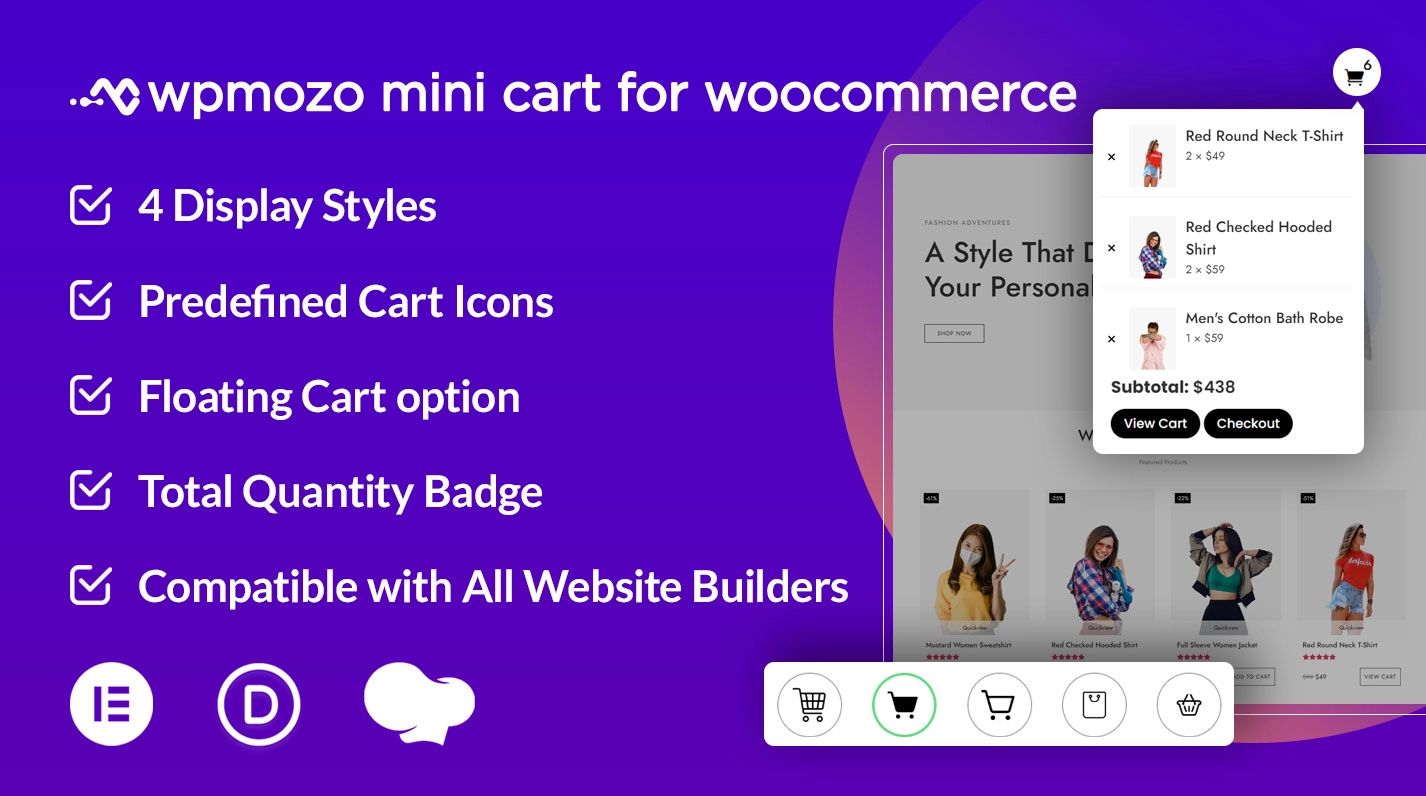
Display a mini cart icon on your WooCommerce website’s menu and allow users to view cart items without visiting the cart page. The Mini Cart for WooCommerce is an intuitive plugin for WooCommerce websites that offers highly customizable options to display a mini cart in the menu and other website areas. By using this cart icon WooCommerce plugin, you can customize cart-related elements to amplify the user experience when it comes to checking the cart items and performing related actions, such as product removal, opening checkout and viewing subtotal.
With this WooCommerce plugin, you streamline the buyer’s journey and allow them to explore and purchase effectively. To use it, all you need is a few minutes, and the mini cart will take care of the rest.
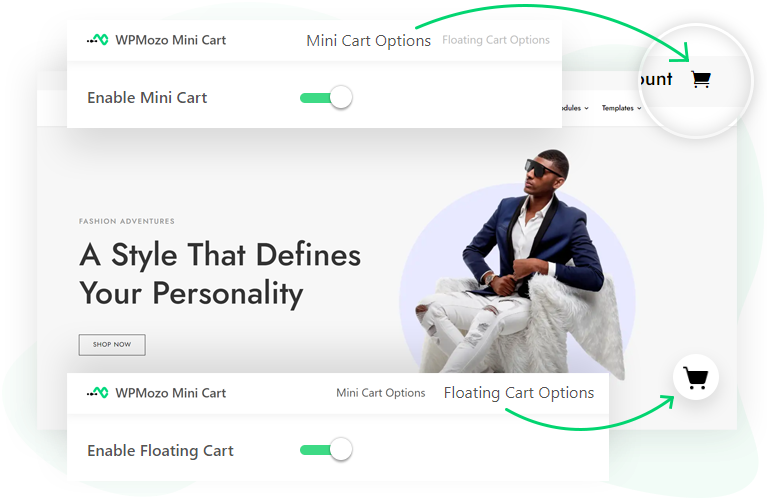
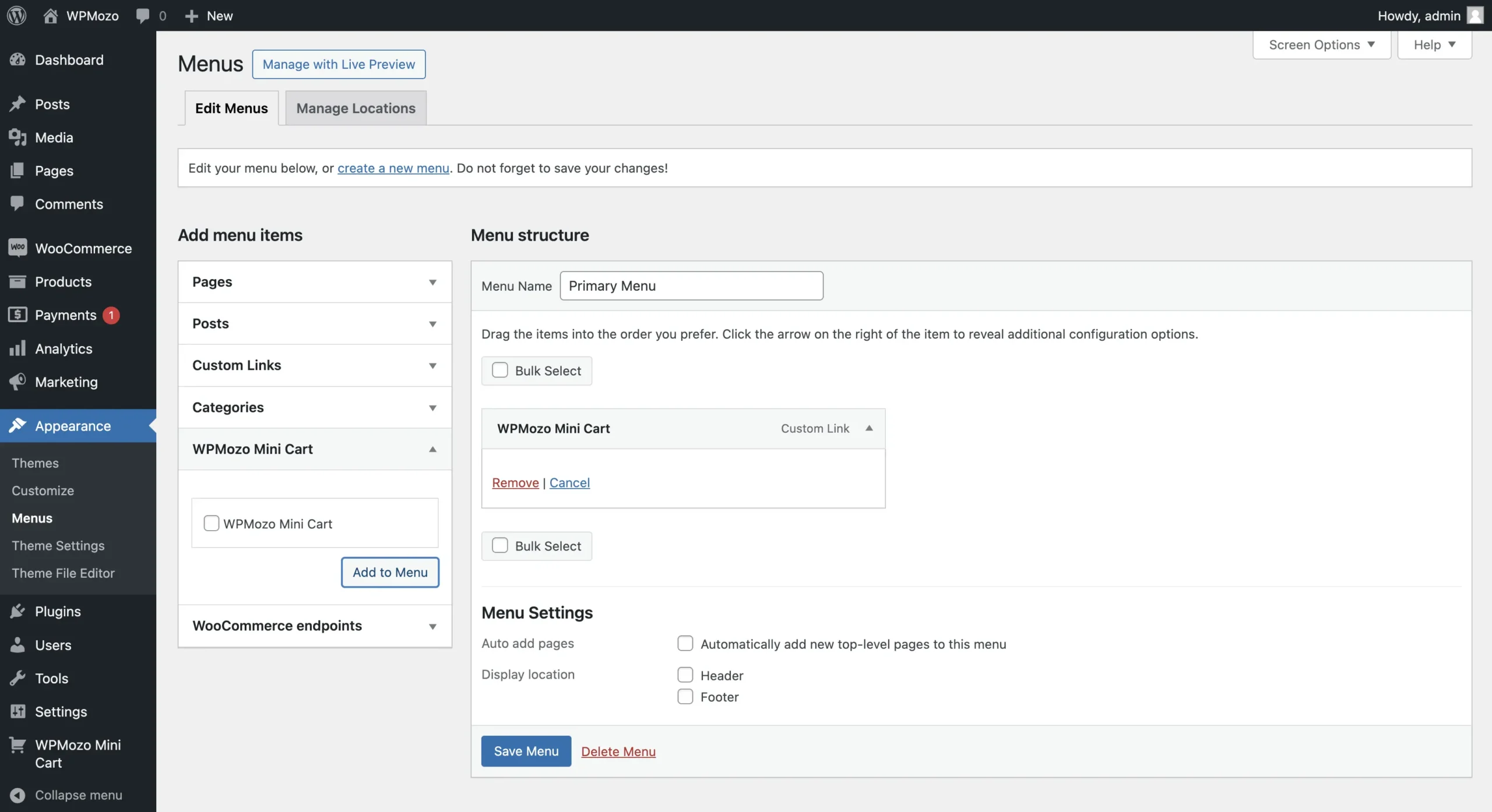
Menu Cart and Floating Cart Placement
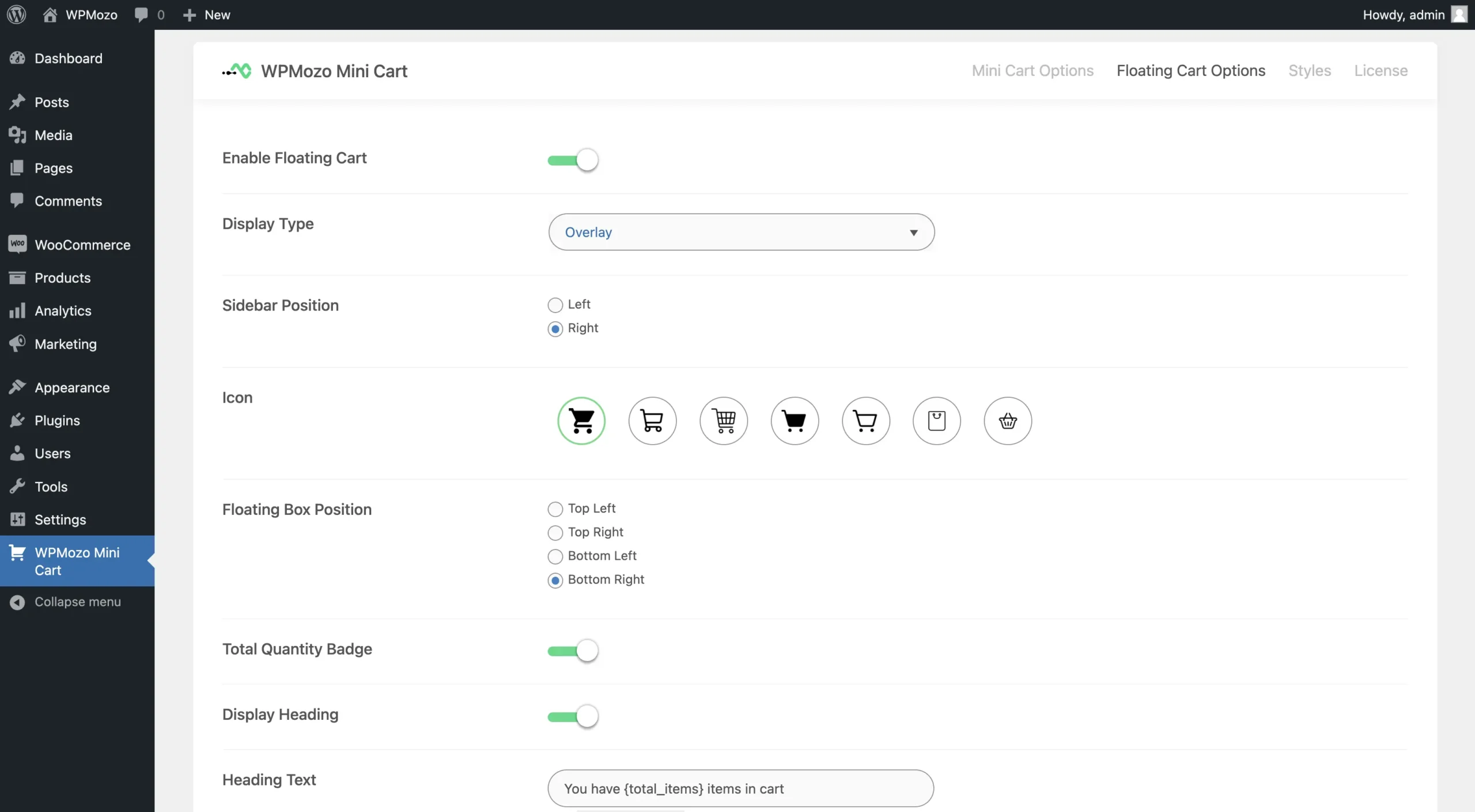
Yes, with the option to display a mini cart in the WooCommerce website’s menu, you can also display a floating cart icon in the website’s body with all the menu mini cart’s elements and features. Whether the user is on the store or product pages, they can view the cart icon and easily explore the items they have added to the cart. In addition to extensive styling options, you can change the floating cart’s side to right or left. Hence, suiting the requirements of your WooCommerce store.
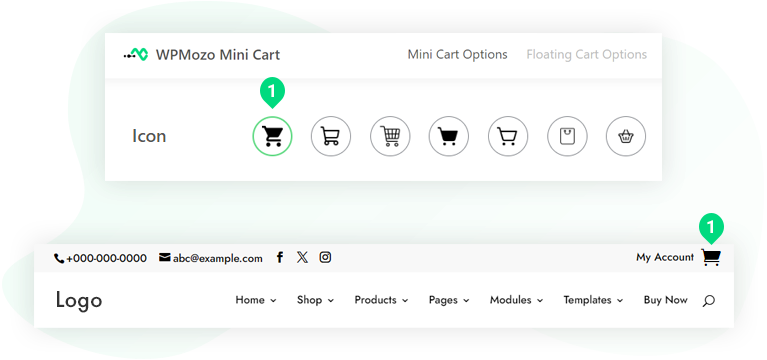
7 Cart Icon Options for the Mini Cart
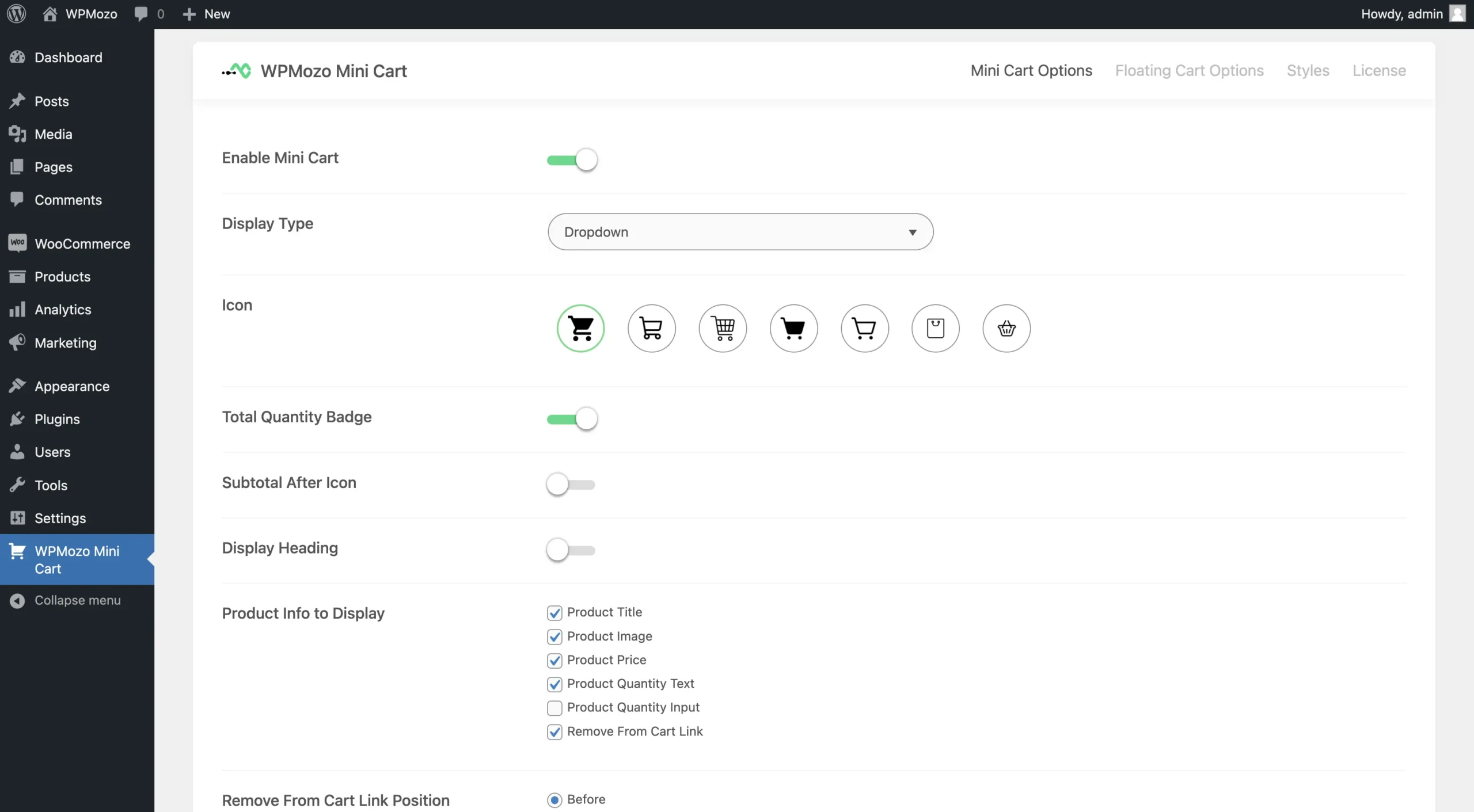
You get 7 different types of cart icons that you can use for mini carts, both menu and floating. This allows you to keep the cart icon for WooCommerce according to your digital store’s design scheme and make the element more engaging. Simply go to the mini cart settings and click on the icon you want to use. Easy peasy, right?
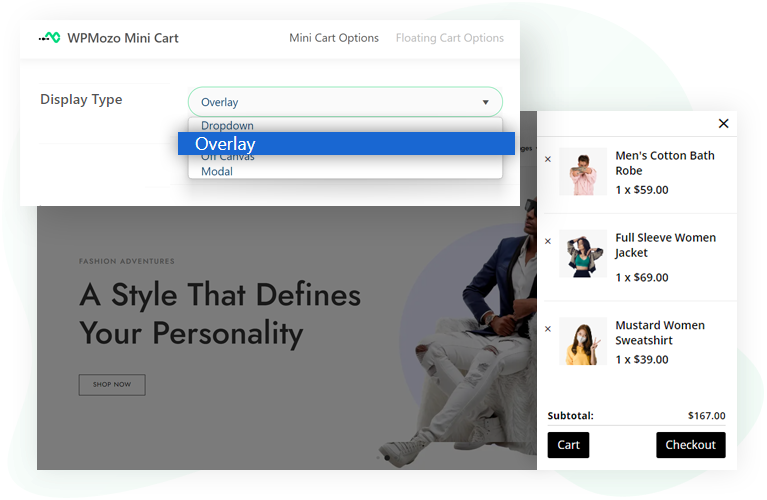
4 Mini Cart Display Modes: Dropdown, Overlay, Slide-in, Modal
There are 4 ways you can configure the WooCommerce mini cart to display the cart item details when the user clicks the WooCommerce mini cart icon. You can drop down the details, show an overlay, slide in the details(off-canvas), or bring a cart modal popup. The overlay and slide can be on the right or left side. Whatever suits your requirements best, select it.
Customize Mini Cart Elements
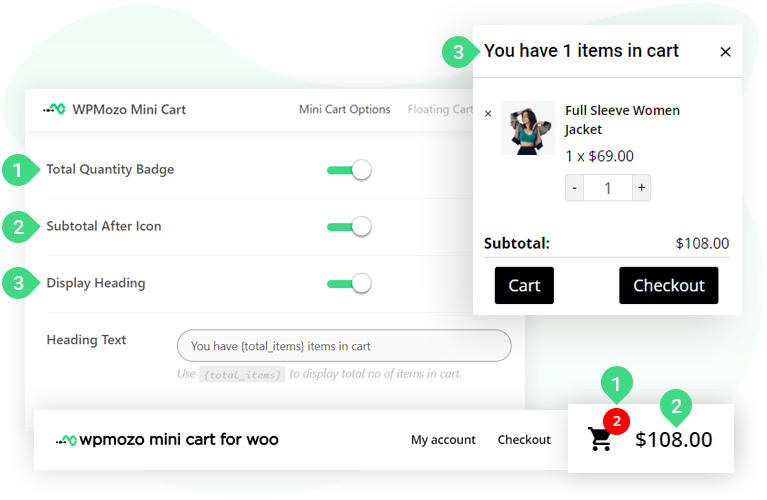
If you prefer to display adequate information in the WooCommerce mini cart, then you get the option to display multiple elements with this cart icon WooCommerce plugin. You can choose to hide/show the quantity badge, subtotal and even the heading. If you display the heading, you can use custom text to make the WooCommerce cart info easy to understand.
Product Detail Display Options
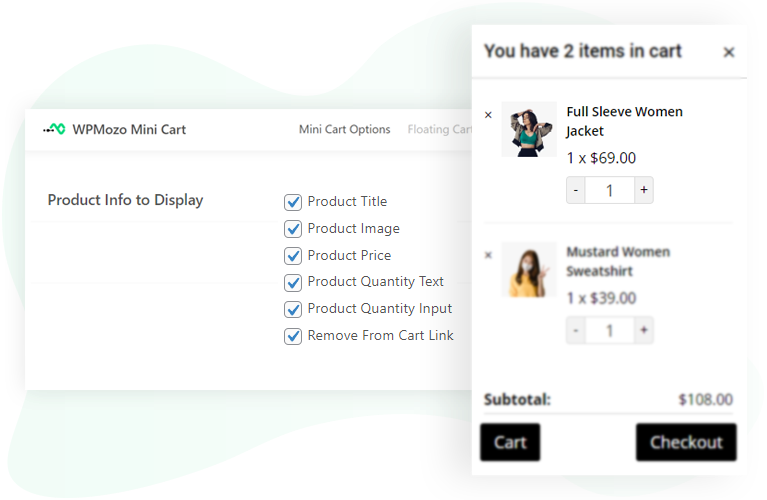
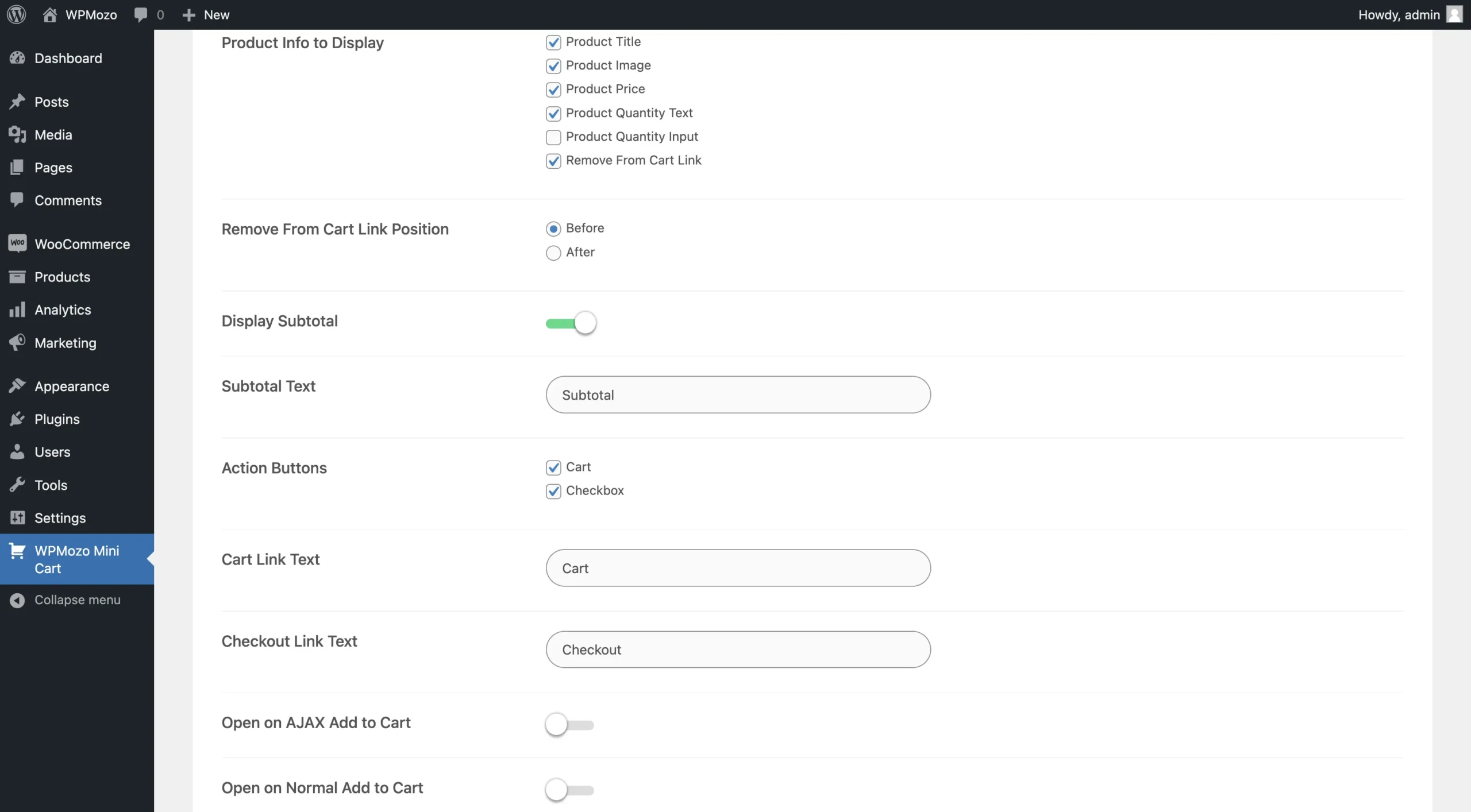
In addition to the mini cart elements, you get the option to display/hide product info as well. Not only one or two, but you can hide/show a total of 6 details of the product. You can choose to display the Product Title, Image, Price, Quantity Text and Input, and Remove From Cart Link. Hence, this WooCommerce mini cart is an effective way to display complete product details, leaving no confusion behind.
Remove Icon Position Setting
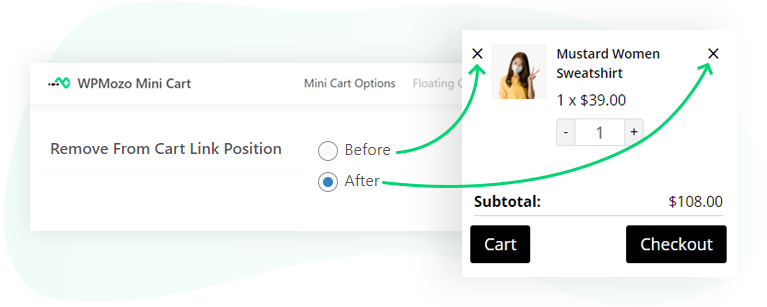
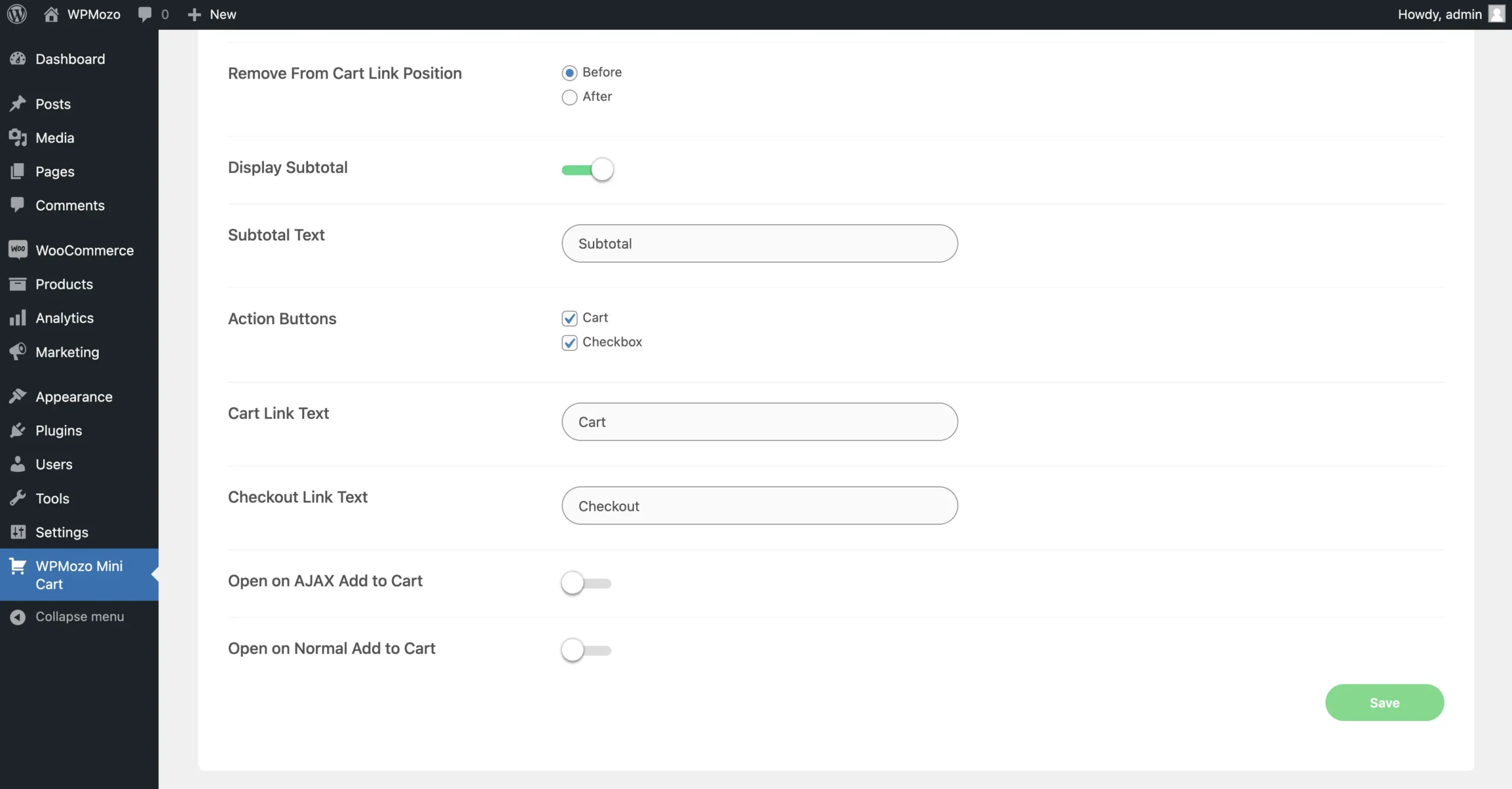
Choosing to display the ‘Remove’ WooCommerce cart icon from the mini cart? Then, you can adjust its position by simply selecting the straightforward options available. By default, the remove-icon appears before the cart item, but if you want to display it after, select After from the settings, and the icon will appear once the product detail is finished. Highly customizable WooCommerce mini cart plugin, right?
Custom Text for Subtotal and Checkout Links
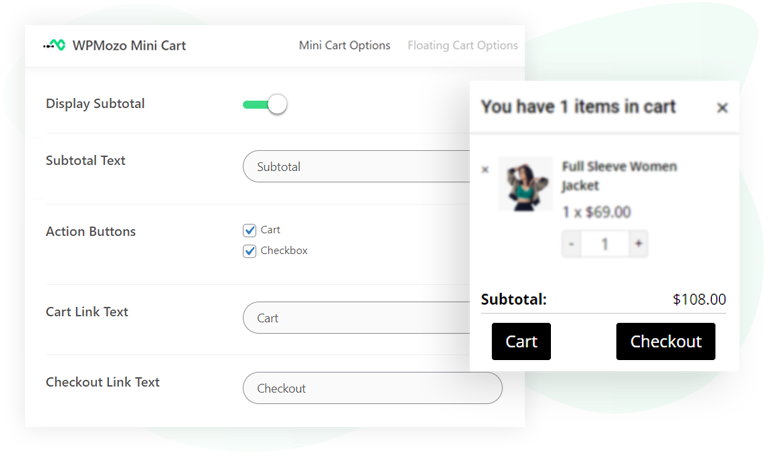
The WooCommerce mini cart customization options allow you to use custom text for subtotal text, cart and checkout links text. This will enable you to personalize the users’ experience when they explore the cart items through the mini cart. You can keep the text however you like, allowing you to personalize cart text with the utmost satisfaction.
Ajax Add-to-Cart Auto-Open Behavior
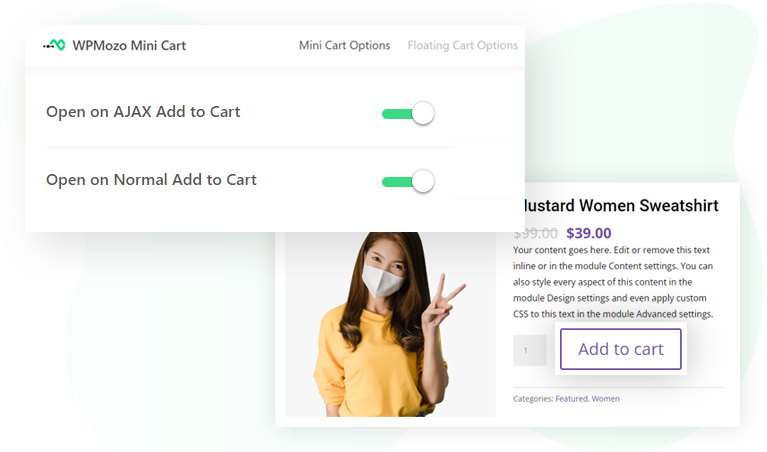
Would you like to display the cart items automatically when the customer adds an item to the cart? If yes, then the mini cart plugin for WooCommerce lets you open the cart when an item is added. You can do it for both Ajax and Normal add to cart functionality. So that users won’t have to check the cart manually, enabling them to save time and explore better.
Mini Cart Styling and Customization Controls
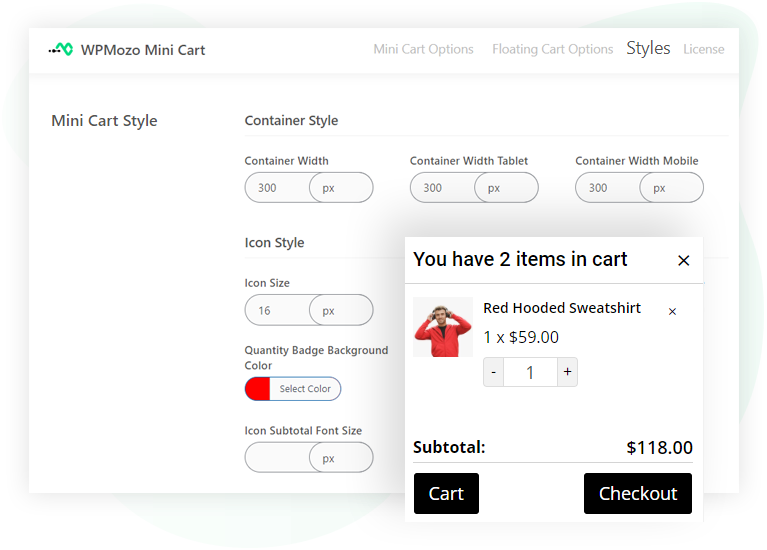
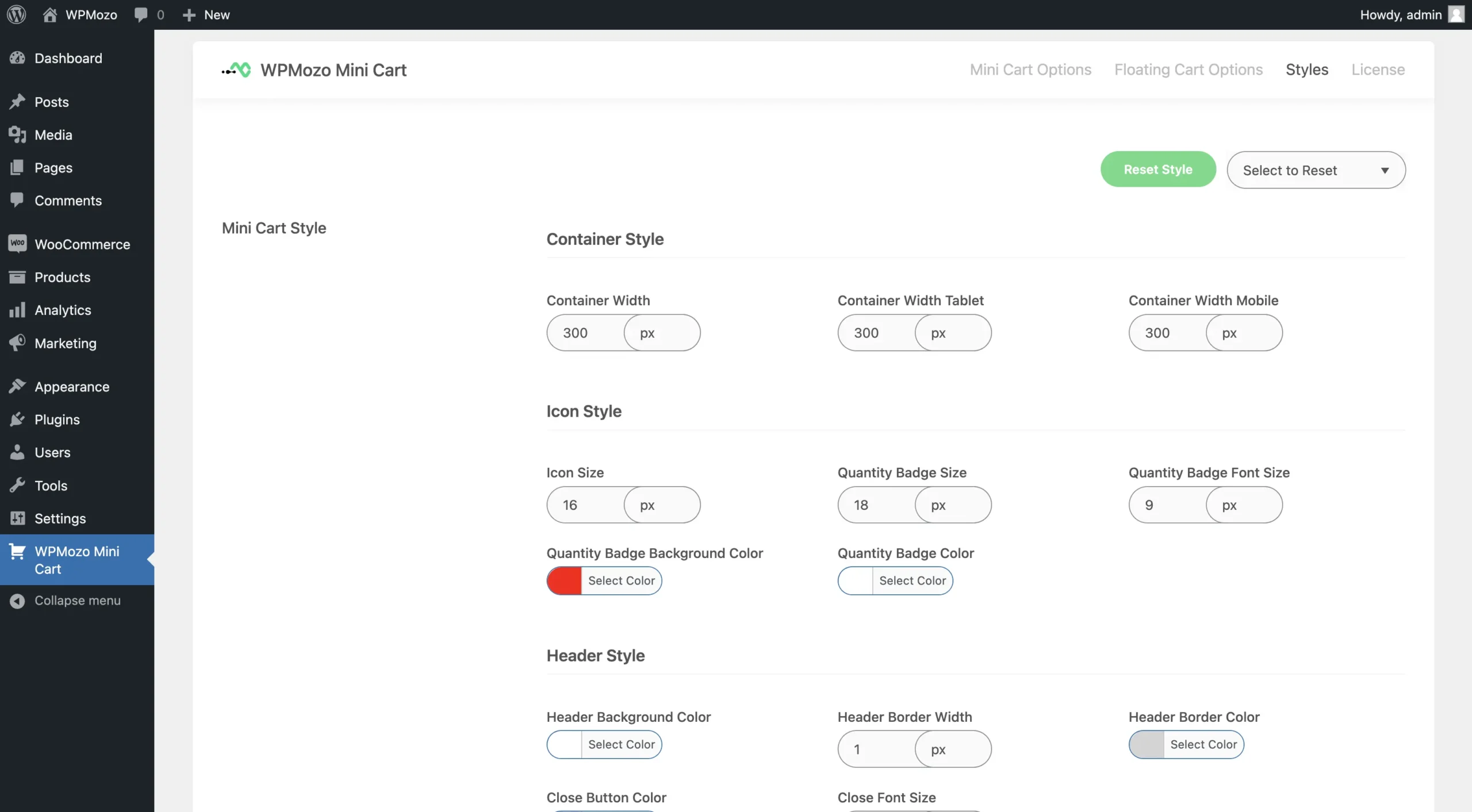
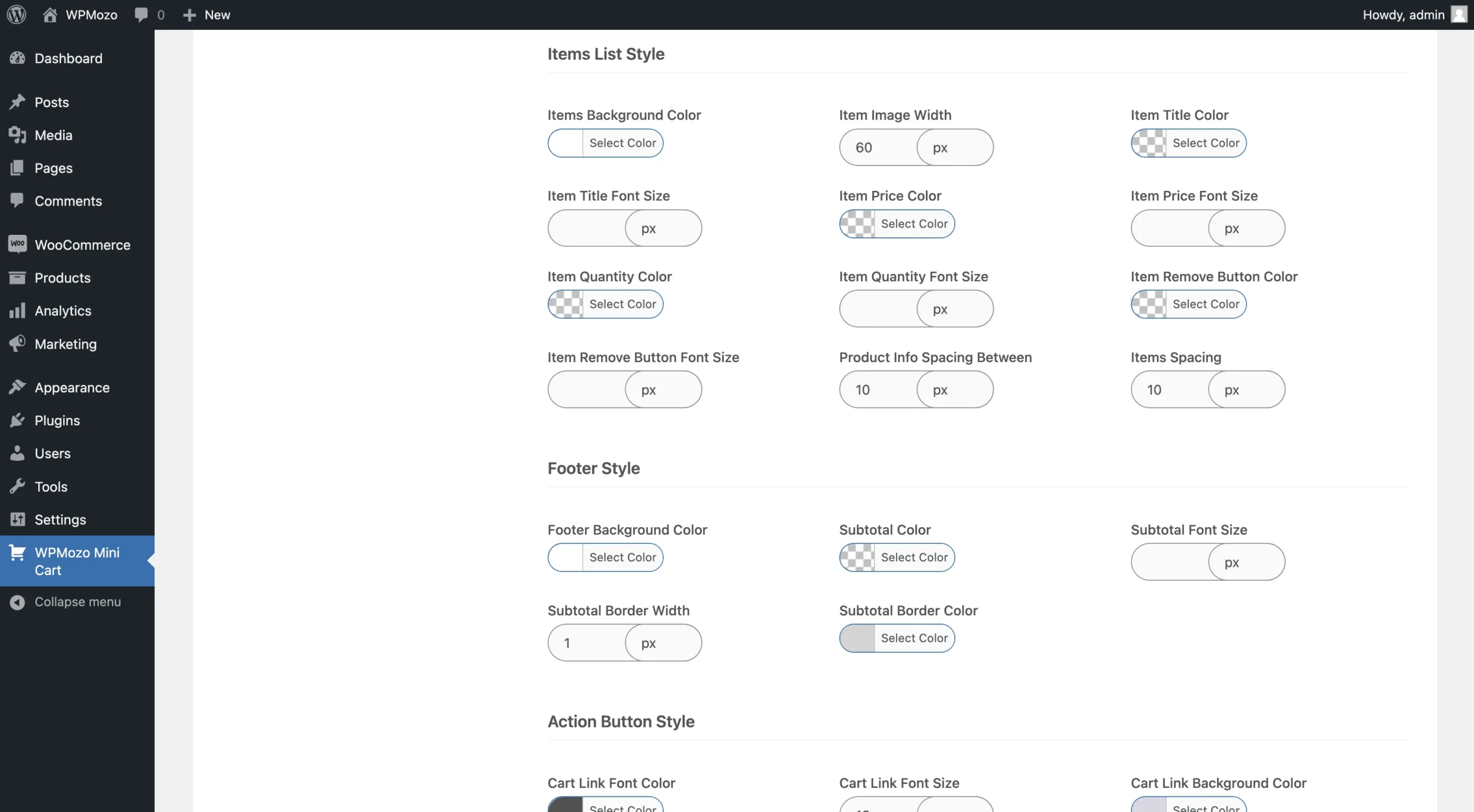
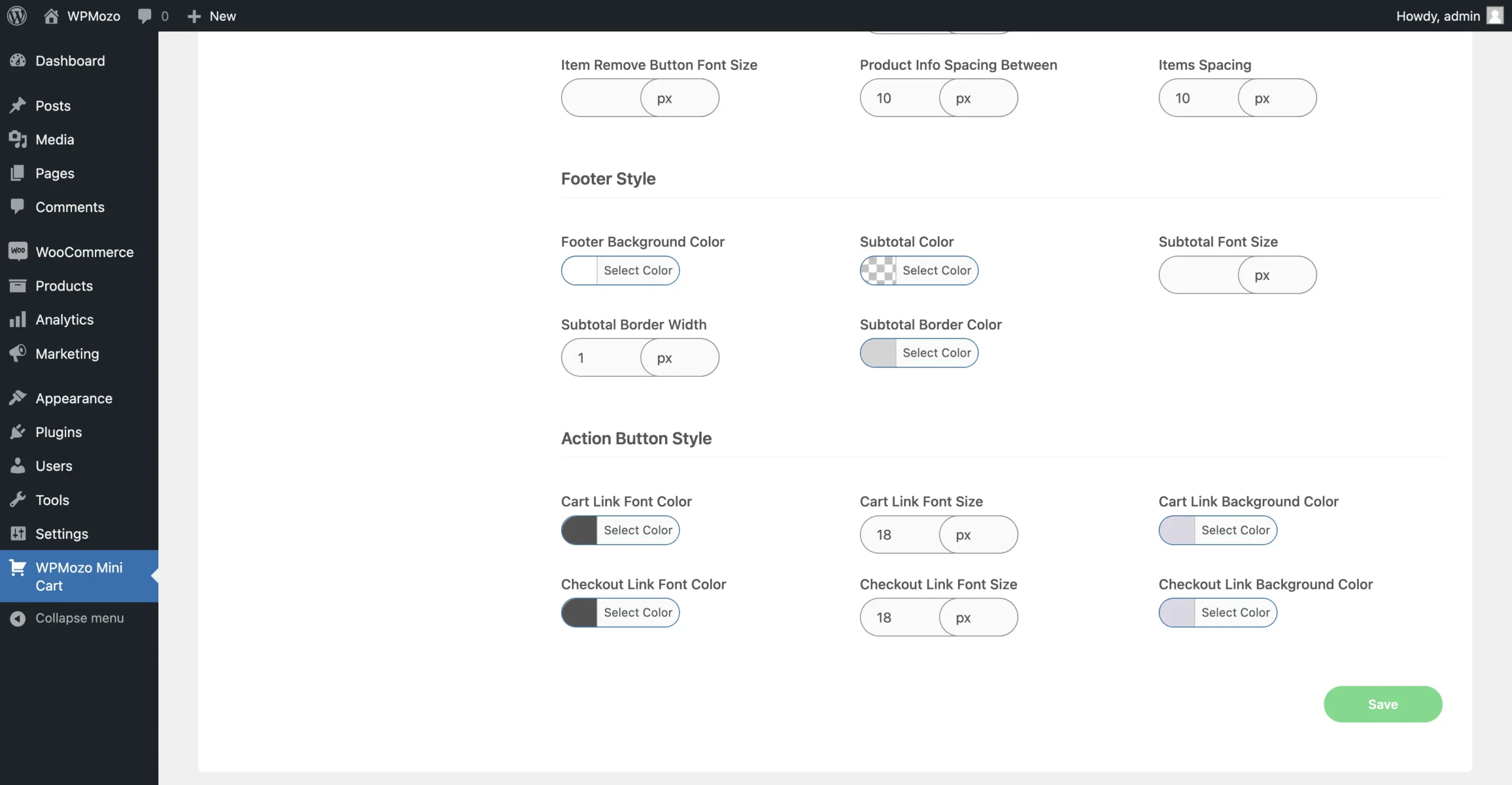
In addition to the WooCommerce cart customization options for functionality, there are a plethora of other options to customize the look and feel of the various elements of the mini cart design. These options include but are not limited to mini cart container styles, icon styles, font styles, action button styles, colors, and more. With all of these choices available, you can display a WooCommerce mini cart that matches your brand’s aesthetic and provides a seamless shopping experience for your customers.
Use Cases for the WooCommerce Mini Cart
The mini cart works differently depending on the store type. Here are the configurations that match common retail scenarios.
High-volume retail stores. Use the floating cart icon on the body of every page. Customers add multiple products across categories without losing track of what’s in the cart. The cart icon updates the item count in real time so the visual feedback is immediate.
Recommended settings: Floating cart enabled, Ajax add-to-cart auto-open enabled, slide-in display mode, badge showing item count.
Mobile-first stores. Mobile shoppers scroll through long product lists. The floating cart stays accessible at the corner of the screen while they browse. Tap once to view the cart, no need to find a menu.
Recommended settings: Floating cart enabled, positioned bottom-right, modal popup display mode, larger cart icon for thumb-friendly tapping.
Small catalog or boutique stores. Stores with few products benefit from a menu cart icon in the main navigation. Shoppers see the cart count next to other menu items and don’t need a floating element cluttering the design.
Recommended settings: Menu cart enabled, floating cart disabled, dropdown display mode, minimal icon style.
Design-sensitive sites. Stores where brand consistency matters use the full styling controls to match cart colors, typography, and spacing to the rest of the site. The dropdown or overlay modes work well here because they appear inline with the page design rather than as a separate panel.
Recommended settings: Menu cart enabled, dropdown or overlay display, custom colors and fonts matching the brand kit.
Multi-category browsing scenarios. Stores where customers buy across categories (general merchandise, multi-niche stores) benefit from the slide-in side cart. Customers can browse one category, slide the cart open to verify, slide it closed, and keep shopping.
Recommended settings: Floating cart enabled, slide-in display mode, subtotal and checkout button visible inside the cart panel.
How WPMozo Mini Cart Compares
✓ Display modes. Most mini cart plugins offer one cart style (typically a slide-out or a dropdown). WPMozo offers four: dropdown, overlay, slide-in, and modal popup. Pick the one that fits the design.
✓ Cart placement. Many plugins force a choice between menu cart and floating cart. WPMozo supports both simultaneously, controlled by independent settings.
✓ Customization scope. Plugins often gate styling controls behind premium tiers. WPMozo includes all icon options (7 styles), color controls, typography settings, and element visibility toggles in the base price.
✓ Pricing. $29 per year for unlimited websites with no feature gates, no per-site fees, and a 30-day refund.
What’s Included in WPMozo Mini Cart
The $29 annual license includes the following:
✓ Unlimited websites. Install on every site you build, with no per-site license fees.
✓ One year of updates. All bug fixes, new features, and WooCommerce compatibility updates released during the license period.
✓ Email support. Direct access to the development team for installation help, configuration questions, and bug reports.
✓ 30-day money-back guarantee. Full refund within 30 days, no questions asked.
✓ Future features. New display modes, icons, and styling options added during the license period are included automatically.
For team agencies and freelancers, the WPMozo All Access Pass covers this plugin and every other WPMozo plugin in one license.
FAQs
The Mini Cart gives users a quick view of their cart, showing product details, letting them update quantities, and proceed to checkout, all from a compact view.
After installing the WooCommerce mini cart plugin, just enable the Mini Cart from the WordPress plugin panel, and it will be activated. For more details, check the documentation.
The menu cart sits inside the website’s main navigation as a cart icon next to other menu items. Shoppers see the cart count alongside Home, Shop, About, and other links. The floating cart is a separate icon that sits on the page body, usually pinned to a corner, and stays visible while scrolling. WPMozo Mini Cart supports both at the same time, so you can have the cart accessible from the menu AND as a floating element if the store benefits from both.
Each mode opens the cart contents in a different style.
Dropdown opens a panel below the cart icon, similar to how a menu submenu opens. Best for compact, in-line cart previews.
Overlay places the cart contents on top of the page with a tinted background behind it. Best for stores where the cart needs visual emphasis.
Slide-in (also called off-canvas) slides the cart in from the left or right edge of the screen as a side panel. Best for high-volume retail and multi-category browsing.
Modal popup opens the cart as a centered popup window. Best for mobile-first stores where the popup uses the full screen width.
You can set the mode in the plugin settings and change it anytime without losing data.
You can change things like colors, fonts, and layout through the plugin’s settings to match your site’s style.
Yes. WPMozo Mini Cart adds a cart icon to your WordPress menu and as a floating element on the page body. These work independently of the page builder used to design the rest of the site. The plugin has been tested with Elementor, Divi, Gutenberg, Beaver Builder, and Bricks. The plugin’s settings page is accessed from the WordPress admin, not from the page builder interface.
Yes, the Mini Cart is designed to work with most WordPress themes.
If you need help, you can reach out by submitting a ticket through our support portal.
The plugin keeps working on your sites with the features you have. You only lose access to new updates, new features, and direct support after the license expires. To continue receiving updates and support, renew the license. Existing functionality is not deactivated when the license expires.
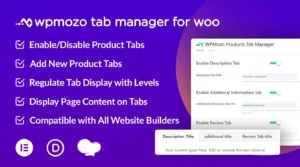
For broader WooCommerce design control, also see the WPMozo Wishlist for WooCommerce and WPMozo Tab Manager for WooCommerce plugins.
Reviews