
If you are using WordPress, you might not even notice it, but WordPress keeps saving copies of your posts again and again. These copies are called post revisions.
Revisions are useful, yes, but too many of them can actually slow down your site over time. This usually happens on blogs where posts are edited frequently or by multiple people.
In this article, we’ll talk about:
- What post revisions actually are
- Why having too many revisions is not a good idea
- Simple ways to limit post revisions in WordPress
What Are Post Revisions?
Post revisions are automatically saved copies of your content that WordPress creates while you’re working on a post or page. Every time you click Save, Update, or when WordPress auto-saves content in the background, a new revision is stored in the database.
Basically, WordPress keeps a history of all the changes made to your content.
This feature is actually very helpful in many situations, for example:
- If you accidentally delete some text and save the post
- If you make changes and later feel the older version was better
- If something breaks after an update and you want to go back
In such cases, you can easily restore an older revision with just one click, which is quite handy.
However, there is a downside too.
By default, WordPress saves unlimited post revisions. That means even small edits, typo fixes, or auto-saves create another copy every time. Over a period of time—especially on active blogs—hundreds or even thousands of revisions can get stored in the database.
Most of the time, we don’t really need that many old versions. Keeping unlimited revisions just increases the database size and can slowly affect site performance.
That’s why managing and limiting post revisions is important for keeping your WordPress site clean and optimized.
Why Limiting Post Revisions Is a Good Idea
If your site has been running for some time, revisions can pile up quickly in the database.
Limiting them helps to:
- Reduce database size
- Improve site performance
- Make backups faster
- Keep things more clean and manageable
It’s a small change, but over time it can actually make a noticeable difference.
Method 1: Limit Post Revisions Using wp-config.php
This is the most common and reliable method.
Open wp-config.php
You can find this file using FTP or your hosting file manager.
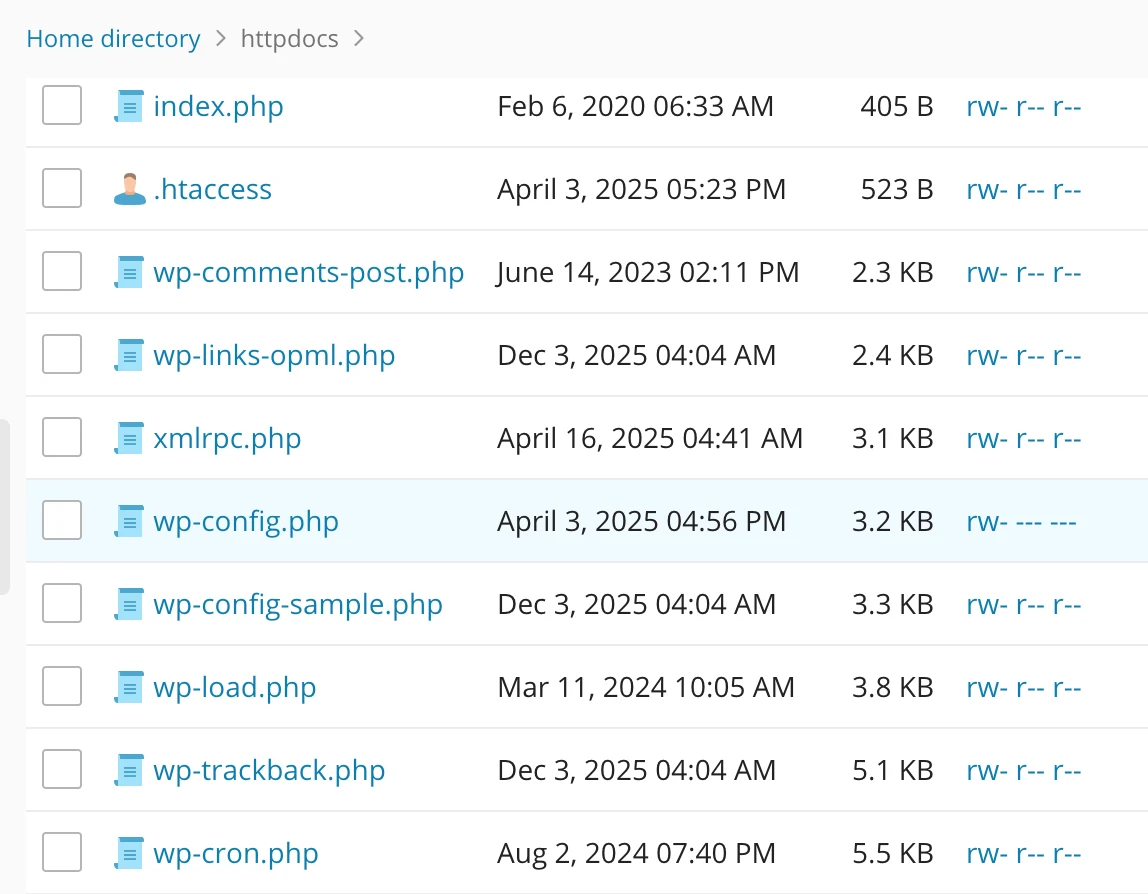
Add the code
Add the following line before this line:
/* That’s all, stop editing! Happy publishing. */
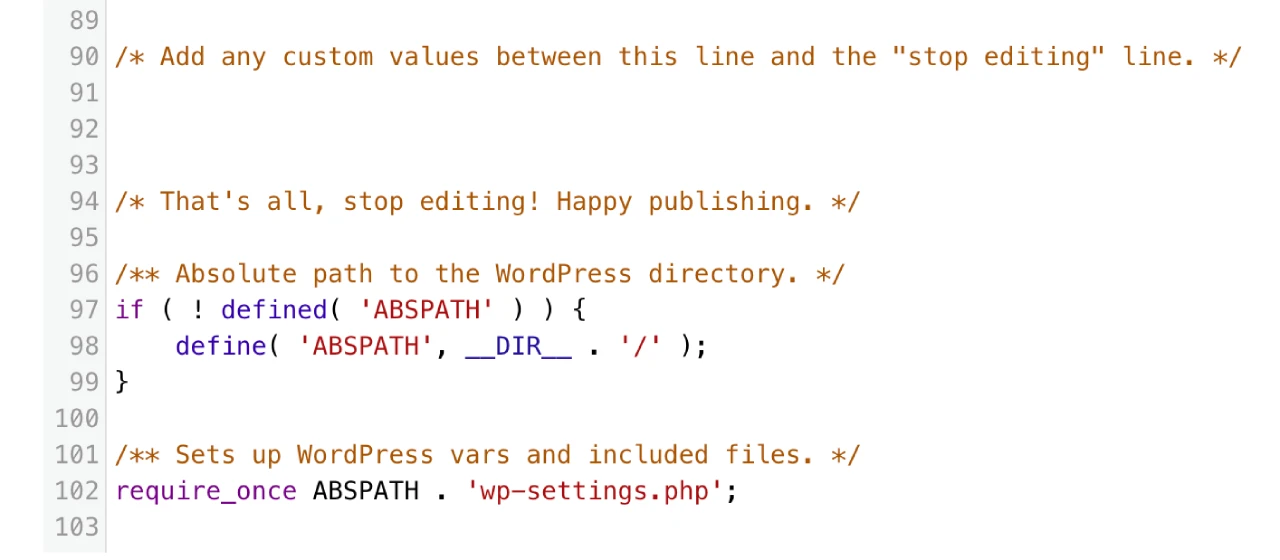
define(‘WP_POST_REVISIONS’, 5);
This means WordPress will keep only 5 revisions per post, instead of unlimited ones.
Want to disable revisions completely?
If you really don’t need revisions at all, you can use:
define(‘WP_POST_REVISIONS’, false);
Just keep in mind that once revisions are disabled, you won’t be able to restore older versions.
Method 2: Using Plugins to Limit Post Revisions
There are several free plugins that make controlling post revisions very easy and safe. These plugins let you manage revisions without touching any code.
Some popular free options include:
1. WP-Optimize
WP-Optimize not only helps limit post revisions, but also cleans your database, removes spam comments, and improves overall website performance.

This is a lightweight plugin that lets you set a limit on how many revisions WordPress should keep for posts, pages, and even custom post types.
This plugin helps you clean old revisions, drafts, spam comments, and other unused data. It’s a good option if you want to keep the database neat and fast.
How it works:
- Install and activate the plugin.
Go to WordPress Dashboard → Plugins → Add New, search for the plugin, then install and activate it. - Open plugin settings.
Each plugin has its own settings page, usually under Dashboard → Settings or its own menu. - Set how many revisions you want to keep.
For example, you may decide to keep only the latest 3 or 5 revisions. - Save changes.
Don’t forget this step. Once saved, the plugin will start managing revisions automatically.
What About Old Revisions?
Limiting revisions does not remove old ones automatically. Existing revisions will remain unless you clean them manually.
You can:
- Use a database cleanup plugin
- Clean revisions using WP-Optimize or similar tools
Always take a full backup before deleting anything from the database, just to be safe.
Recommended Settings
For most websites, these settings work well:
- Keep 3 to 5 revisions per post
- Don’t disable revisions unless it’s really needed
- Clean old revisions once in a while
This setup is good enough for most blogs and business websites.
Final Thoughts
Post revisions are definitely useful, but unlimited revisions are honestly not needed for most sites. Limiting them helps keep your WordPress site lighter, faster, and easier to manage.
It’s one of those small optimizations people usually ignore, but it actually does make a difference in the long run.




0 Comments