
Configuration
Wishlists management
On this page
Pro This page explains the Wishlists list, where you can see every wishlist your customers have created, open a wishlist to see its products, and delete wishlists. Go to WooCommerce → Wishlist Insights → Wishlists.
The Wishlists tab is available with WPMozo Wishlist (Pro). The Popular Products tab is available in the free Lite version too.
Wishlists list#
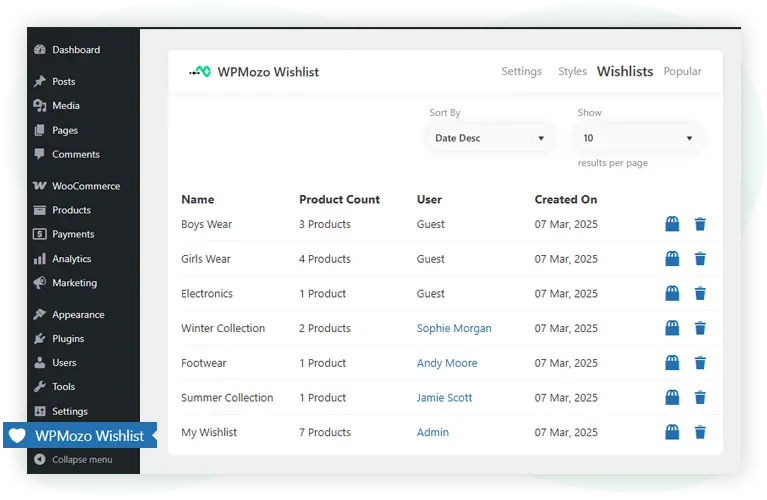
Each row shows:
- Name: the wishlist name. Click it to see the products in that wishlist.
- Products: how many products are in the wishlist.
- User: the customer who owns the wishlist. Click the name to open their user profile. Guest wishlists show “Guest”.
- Created On: the date the wishlist was created.
You can also:
- Search: find wishlists by wishlist name or by the customer’s name or email.
- Sort: click the Name, Products or Created On column header to sort.
- Delete: hover over a wishlist and click Delete, or select several wishlists and choose Delete from Bulk actions.
- Rows per page and columns: open Screen Options at the top right to choose the columns and how many wishlists show per page.


Products in a wishlist#
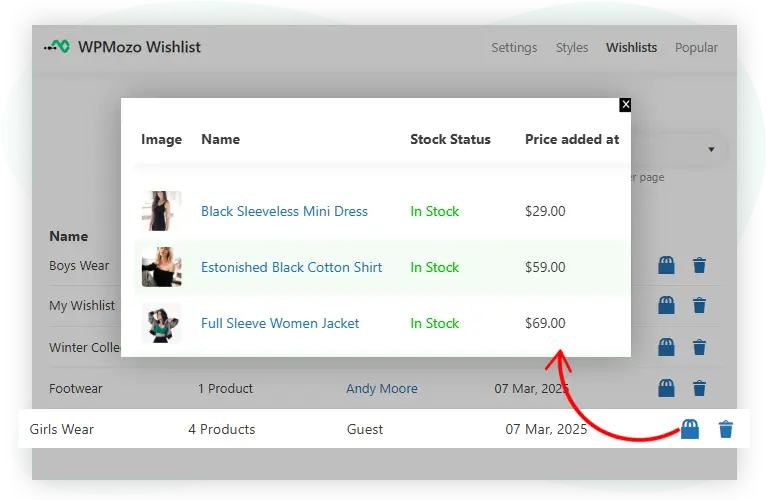
Click a wishlist name or View Products to open the wishlist on its own page. It shows the owner and creation date, and for each product: stock status, the price when it was added, the current price, quantity and the date it was added. Sort by product or date, and remove products with Bulk actions. Click Back to Wishlists to return to the list.
Was this article helpful?
Thanks for the feedback. Need more help? Contact support.