
Getting Started
Installation
On this page
For Lite Version (Free)#
You can install the Lite version directly from your WordPress dashboard:
- Go to WordPress Dashboard → Plugins → Add New.
- In the search field, type “WPMozo Wishlist for WooCommerce”.
- Locate the plugin in the search results and click Install Now.
- Once installed, click Activate to start using the plugin.
For Premium Version (Paid)#
From WordPress Dashboard#
Go to WordPress Dashboard > Plugins > Add New > Upload Plugin > Choose File > Browse wpmozo-wishlist-for-woocommerce.zip and click Install Now > Activate Plugin.
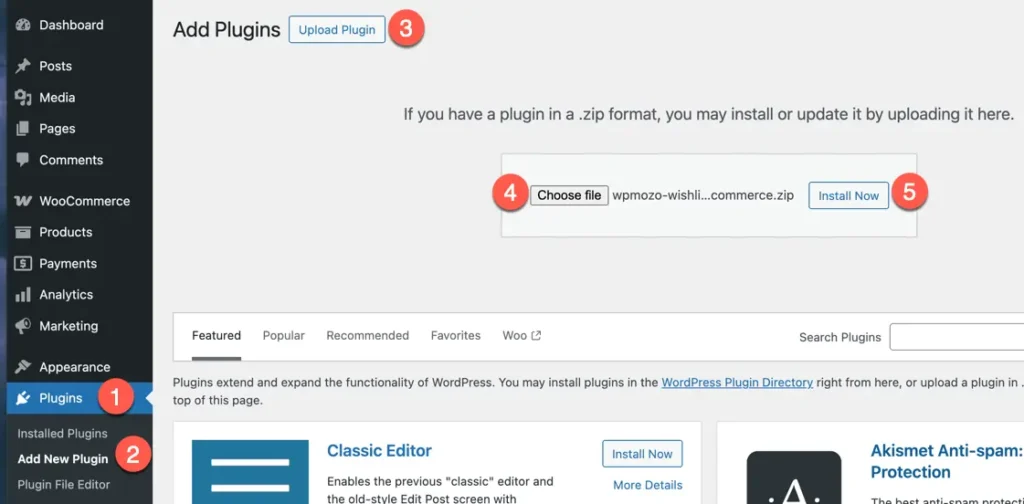
- Go to Plugins.
- Select Add New Option.
- Click on button named Upload Plugin.
- Browse for file wpmozo-wishlist-for-woocommerce.zip
- Install the plugin.
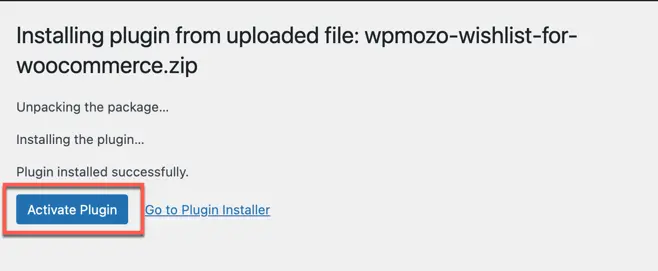
- Click on Activate Plugin to activate.
Manually uploading via FTP#
- Extract wpmozo-wishlist-for-woocommerce.zip
- Connect to your server using an FTP application.
- Navigate to wp-content/plugins/.
- Upload the WPMozo Wishlist for WooCommerce folder you extracted earlier.
- Go to WordPress Dashboard > All Plugins > Activate WPMozo Wishlist for WooCommerce
Was this article helpful?
Thanks for the feedback. Need more help? Contact support.