
Widgets
Wavy Gallery
On this page
The free Elementor Wavy Gallery widget offers an extensive range of customization options, giving you full control over spacing, borders, typography, and lightbox styling. Whether you’re designing a clean, minimal gallery or a more decorative visual layout, these settings allow you to fine-tune every detail and create a cohesive, visually appealing presentation that aligns with your design goals.
How to add widget on page#
Once the WPMozo Addons plugin is activated, it adds several widgets to the Elementor builder. To insert the Before After Slider widget, follow these steps.
- Create/edit a page/post that uses Elementor builder.
- Create/edit container.
- Search widget Wavy Gallery under WPMozo.
Content#
Images#
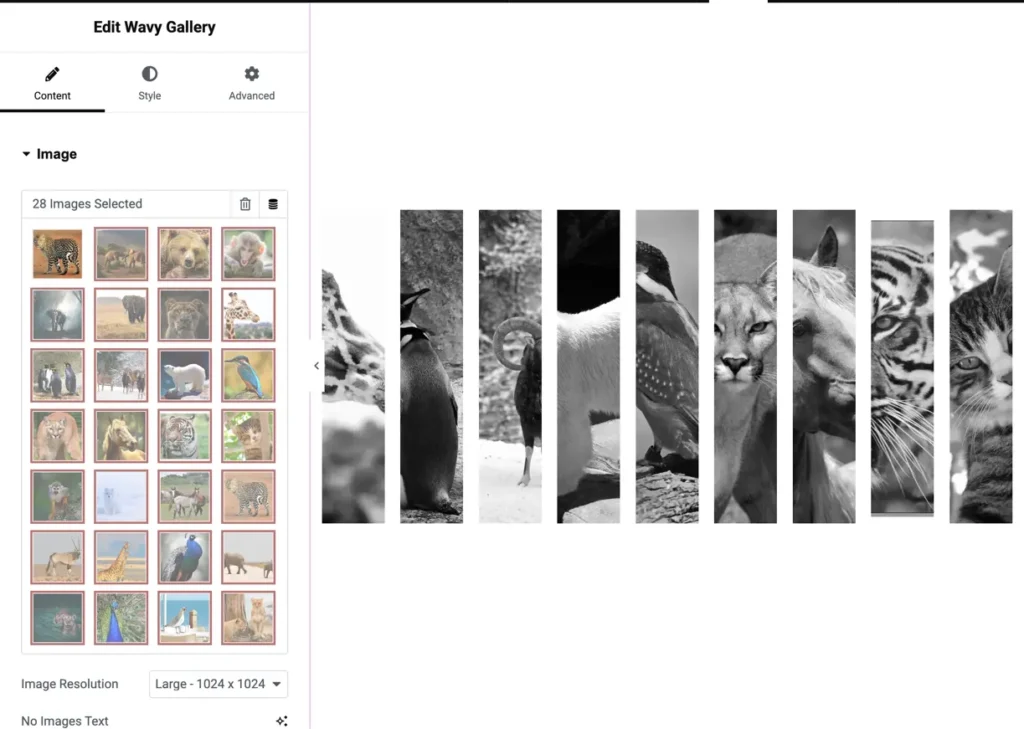
Add one or multiple images to display inside the wavy gallery.
Image resolution#
Select the image resolution for optimal display quality.
- Large – 1024 × 1024 (recommended for crisp, high-quality visuals)
No images text#
A fallback message that appears when no images are added.
- Example: “No images to display”
Display#
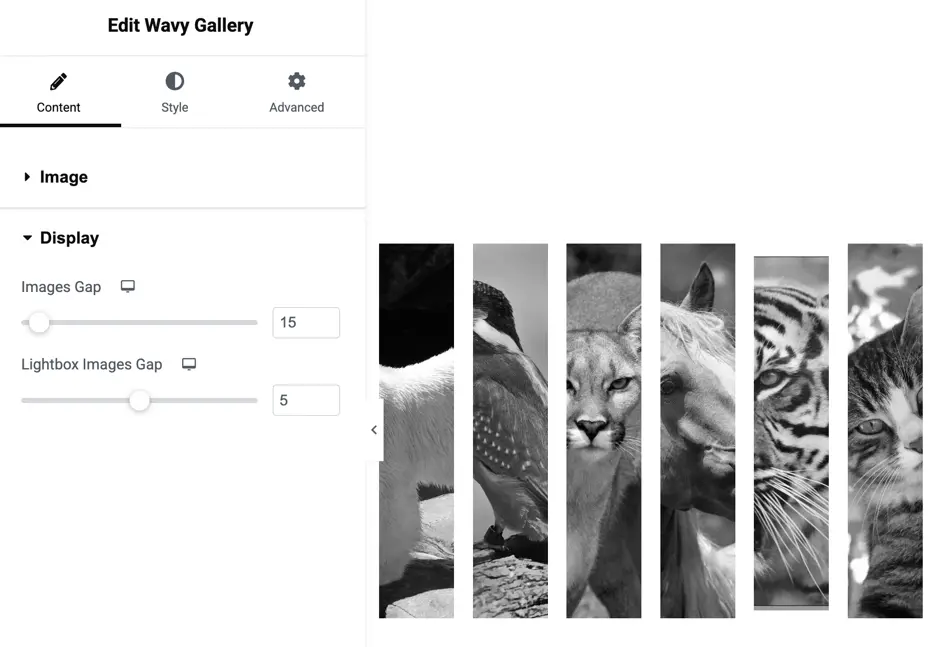
Images gap#
Controls the spacing between gallery images.
- Unit: pixels
- Default: 15px
Lightbox images gap#
Spacing between images inside the lightbox (when clicked to enlarge).
- Unit: pixels
- Default: 5px
Was this article helpful?
Thanks for the feedback. Need more help? Contact support.