
Widgets
Fancy Text
On this page
This widget comes free with WPMozo Addons Lite. To use it, simply install and activate the free version of plugin.
https://wordpress.org/plugins/wpmozo-addons-lite-for-elementor (opens in a new tab)

How to add widget on page#
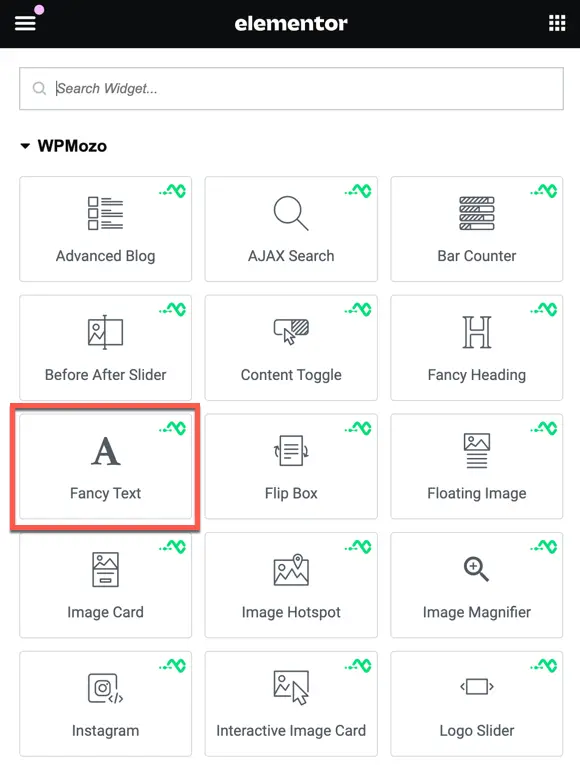
Once the WPMozo Addons plugin is activated, it adds several widgets to the Elementor builder. To insert the Fancy Text widget, follow these steps.
- Create/edit a page/post that uses Elementor builder.
- Create/edit container.
- Search widget Fancy Text under WPMozo.
Content#
Fancy text content#
Fancy Text Content
- Text Style: Choose between two options: Gradient and Background Clipping.
- Fancy Text: Enter the desired text to display.

Style#
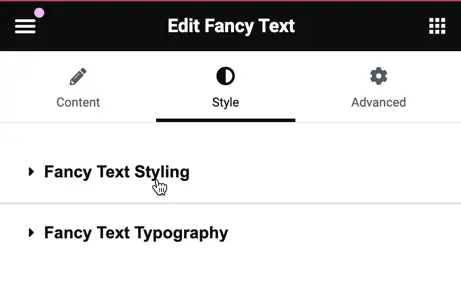
Fancy text styling#
If you have chosen the text style “Background Clipping,” you will have the following options
- Background Clip Image: Choose an image to clip as the background.
- Background Size: Set the size of the background image.
- Position: Define the position of the background image.
- Repeat: Choose whether the background image should repeat or not.
- Background Color Overlay: Apply a color overlay to the background image.

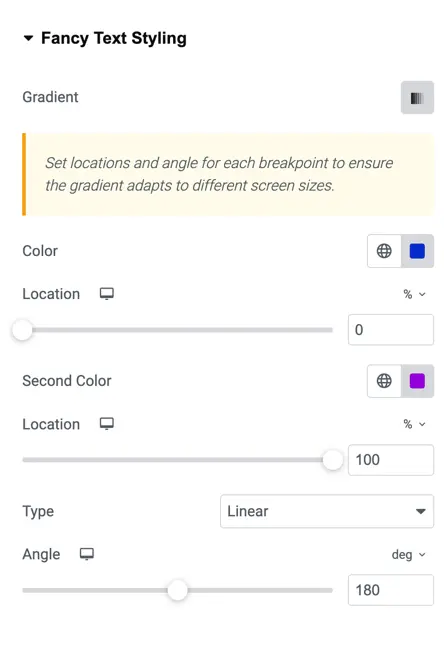
If you have chosen the text style “Gradient,” you will get the following options:
- Color: Choose the primary color for the gradient.
- Second Color: Select the secondary color for the gradient.
- Location: Define the location of the gradient.
- Type: Choose between linear or radial gradient.
- Angle: Set the angle for the gradient direction.
Fancy text typography#
Here, you can customize the typography and text shadow options for the fancy text.

Was this article helpful?
Thanks for the feedback. Need more help? Contact support.