
Configuration
Popular wishlist products
This page explains the Popular Products report, which shows the products customers add to their wishlists most often and who added them. Use it to see which products customers want, plan stock and target offers. Go to WooCommerce → Wishlist Insights → Popular Products.
Popular products list#
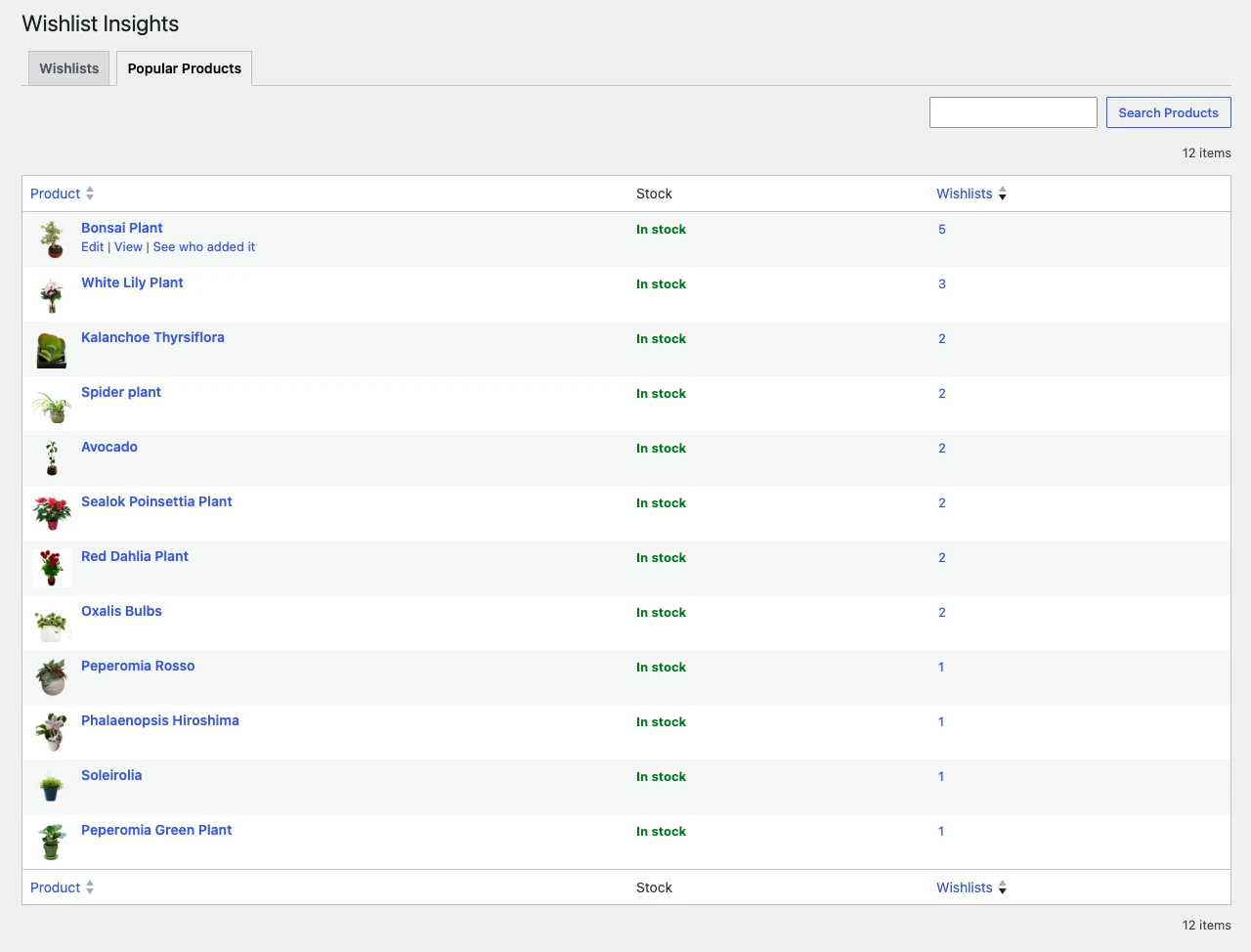
- Product: product image and name. Click the name to see who added it.
- Stock: the product’s stock status.
- Wishlists: the number of wishlists the product is in. Click the number to see who added it.
Hover over a product for quick links:
- Edit: opens the product in the WooCommerce editor.
- View: opens the product page on your site.
- See who added it: opens the list of customers who added the product.

Use the search box to find a product, sort by product name or wishlist count, and set the number of rows per page in Screen Options.
Customers who added a product#
Click See who added it (or the product name) to open the list of customers who saved the product. For each customer it shows:
- Customer: the customer’s name and picture. Click the name to open their profile.
- Wishlist: the wishlist the product is saved in.
- Added price: the product price when the customer saved it.
- Current price: the product’s price now.
- Quantity: the quantity saved.
- Added on: the date the customer saved the product.
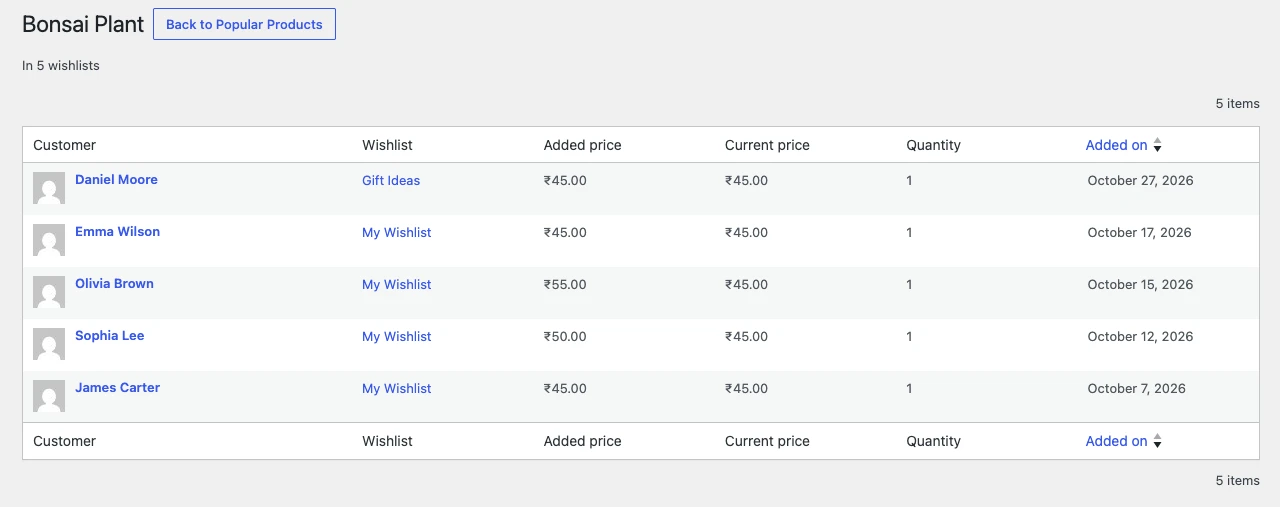
Comparing the added price with the current price shows which customers saved a product at a higher price, so you can, for example, send them an offer when the price drops. Click Back to Popular Products to return.
Was this article helpful?
Thanks for the feedback. Need more help? Contact support.