
Configuration
Style wishlist appearance
On this page
This page explains the Styles tab, where you set the colors and sizes of the wishlist buttons, the wishlist page buttons, popups, the price drop badge, notifications and tooltips. Go to WooCommerce → Settings → Wishlist → Styles. Leave a color empty to use your theme’s default.
Settings marked Pro are available when WPMozo Wishlist (Pro) is installed and active along with WPMozo Wishlist Lite for WooCommerce.
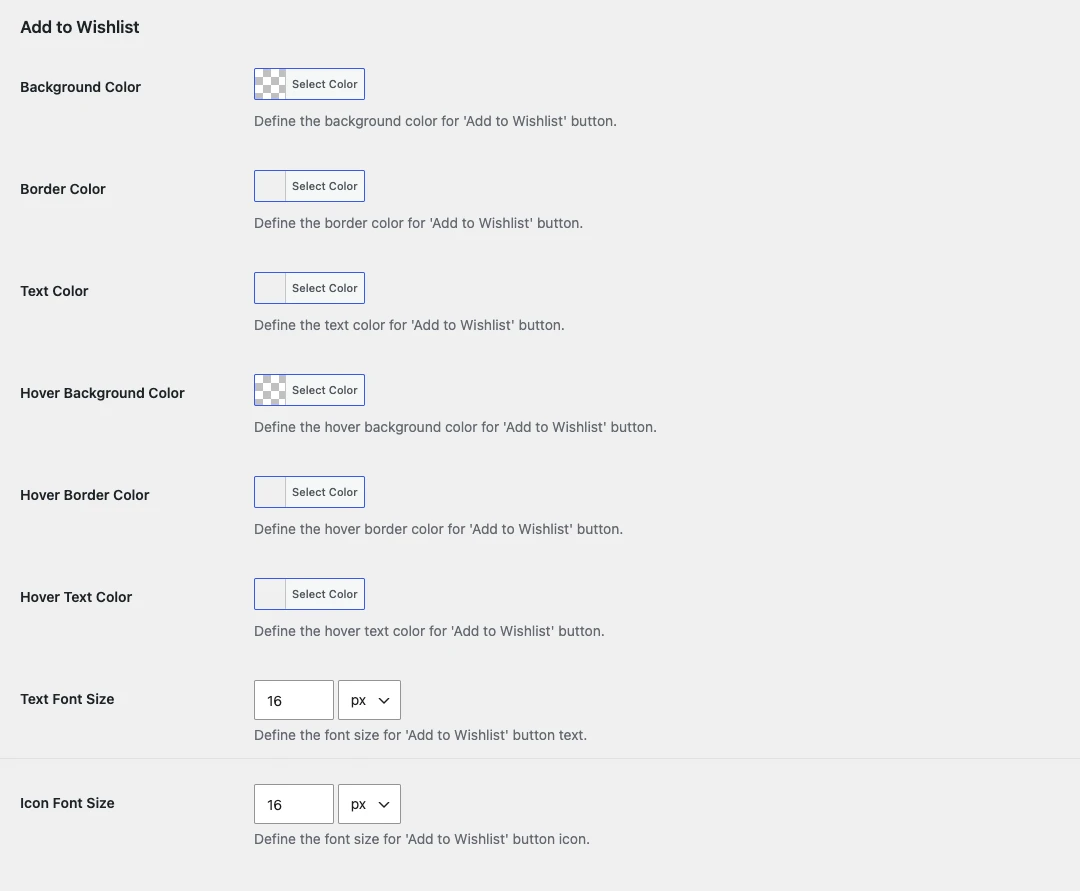
Add to Wishlist#
Style of the wishlist button before the product is saved.
- Background Color / Hover Background Color: button background, normal and on hover.
- Border Color / Hover Border Color: button border, normal and on hover.
- Text Color / Hover Text Color: button text and icon color, normal and on hover.
- Text Font Size Pro: size of the button text.
- Icon Font Size Pro: size of the button icon.
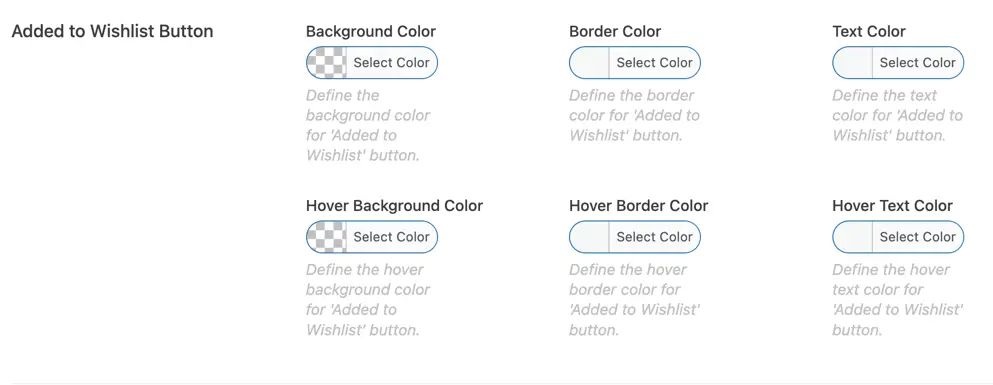
Added to Wishlist#
Style of the button after the product is saved: background, border and text colors, each with a hover color.
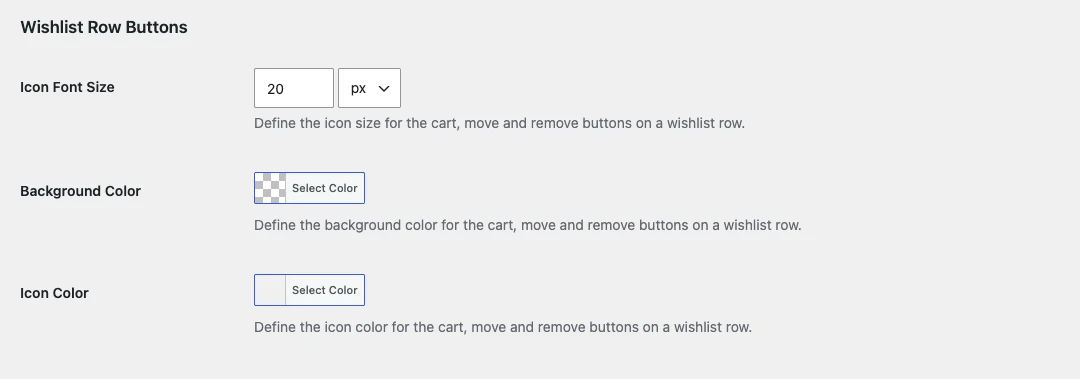
Wishlist Row Buttons Pro#
The Add to Cart, Move to another wishlist and Remove buttons on each product of the wishlist page: Icon Font Size, Background Color and Icon Color.
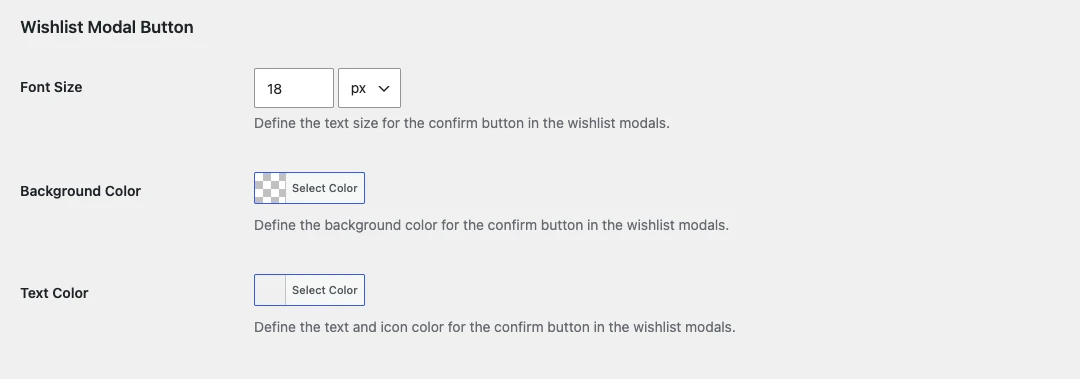
Wishlist Modal Button Pro#
The confirm button in the wishlist popups (for example, “Add to Wishlist” in the multiple wishlists popup): Font Size, Background Color and Text Color.
Wishlist Modal Close Icon Pro#
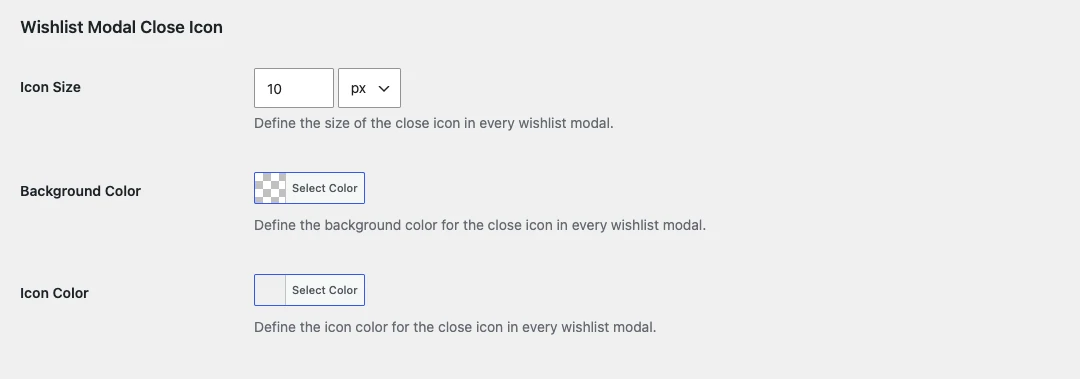
The close (×) icon of every wishlist popup: Icon Size, Background Color and Icon Color.
Price Drop Badge#
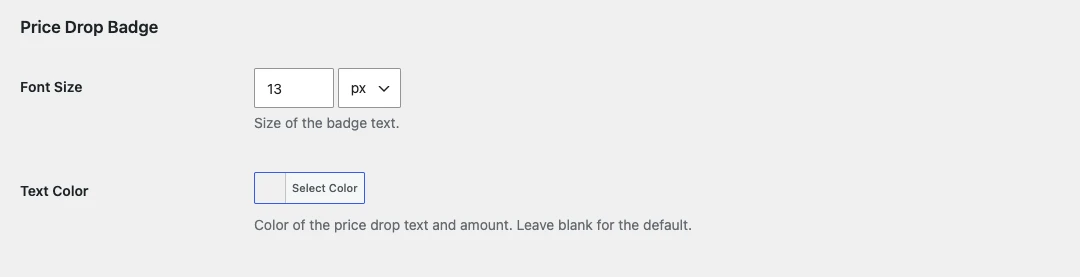
Font Size and Text Color of the price drop badge on the wishlist page.
Wishlist Notification#
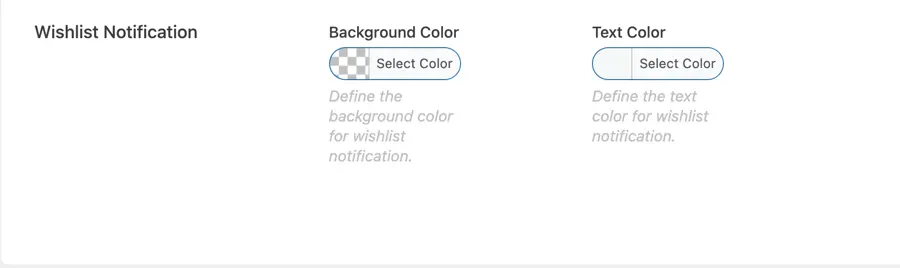
Background Color and Text Color of the notification that appears when a product is added to or removed from the wishlist.
Tooltip Pro#
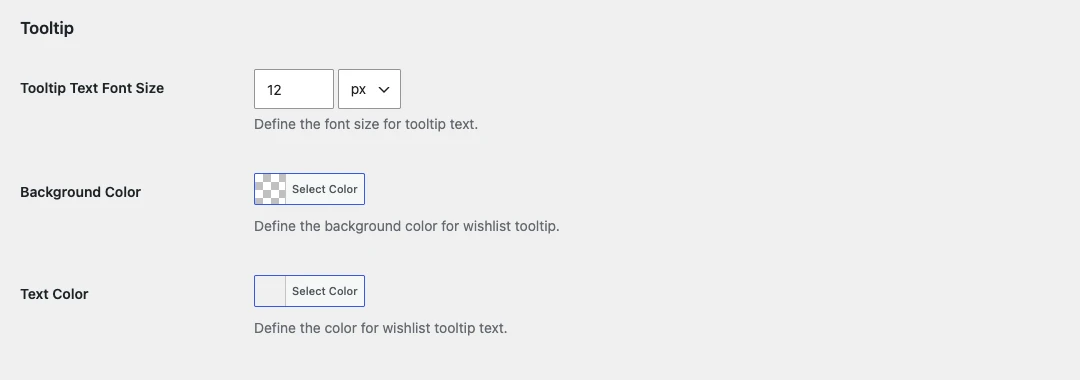
Tooltip Text Font Size, Background Color and Text Color of the wishlist tooltips.
Click Save changes at the bottom of the tab to apply your changes.
Was this article helpful?
Thanks for the feedback. Need more help? Contact support.