
Configuration
How to use
On this page
- Where to find the wishlist settings
- How to create the wishlist page
- Using the shortcode
- Using the Wishlists block
- General settings
- Guest Wishlist Cookie Duration
- Enable Multiple Wishlists
- Enable Price Drop Badge
- Browse Products Link
- Buttons settings
- Add to Wishlist Single
- Add to Wishlist Loop
- Move to Wishlist Cart
- Wishlist icon, Add to Cart action and tooltip
- Texts settings
- Wishlist Texts
- Wishlist Tooltips
- Guest Wishlist Modal Popup Texts
- License Pro
This page explains every setting of WPMozo Wishlist for WooCommerce: where the settings are, how to create the wishlist page, and what each option under the General, Buttons and Texts tabs does. The Styles tab, the Wishlists list and the Popular Products report have their own pages in this section.
Settings marked Pro are available when WPMozo Wishlist (Pro) is installed and active along with WPMozo Wishlist Lite for WooCommerce.
Where to find the wishlist settings#
All wishlist settings are in WooCommerce → Settings → Wishlist.
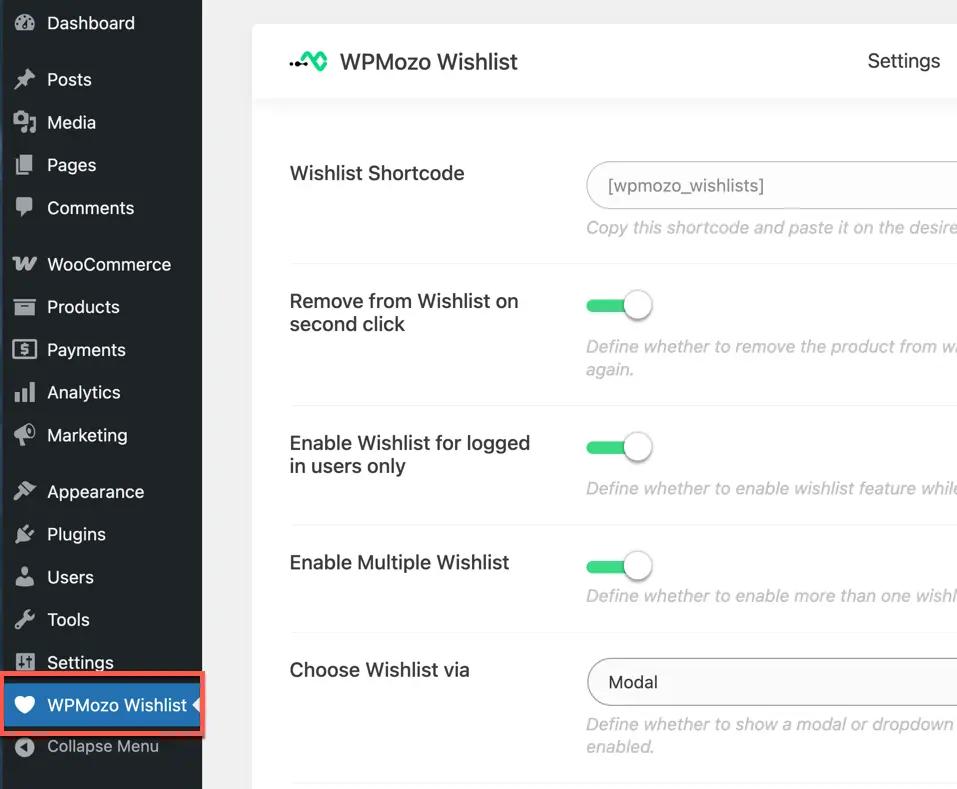
The Wishlist tab is split into sub-tabs:
- General: the wishlist page, who can use the wishlist, multiple wishlists, the price drop badge and the empty wishlist link.
- Buttons: where the wishlist button shows on the product page, in product lists and on the cart page, and how it looks.
- Texts: button labels, notification messages and tooltip texts.
- Styles: colors and sizes of the buttons, notifications, badge and tooltips. See Style wishlist appearance.
- License Pro: activate your Pro license key.

Click Save changes at the bottom of the tab to apply your changes.
How to create the wishlist page#
Customers see their saved products on the wishlist page. Create it in one of two ways:
Using the shortcode#
- Go to WooCommerce → Settings → Wishlist → General.
- Click Copy next to Wishlist Shortcode.
- Create a new page (for example, “Wishlist”), paste the shortcode and publish the page.
[wpmozo_wishlists]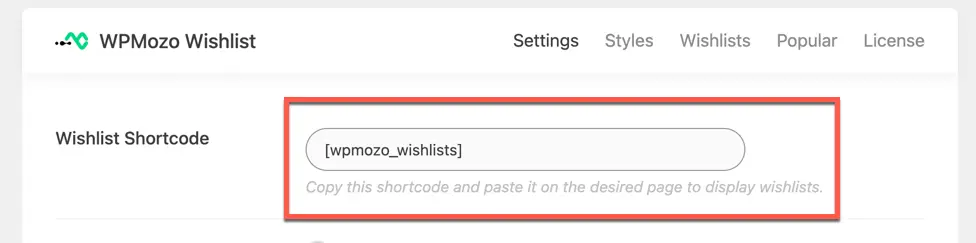
Using the Wishlists block#
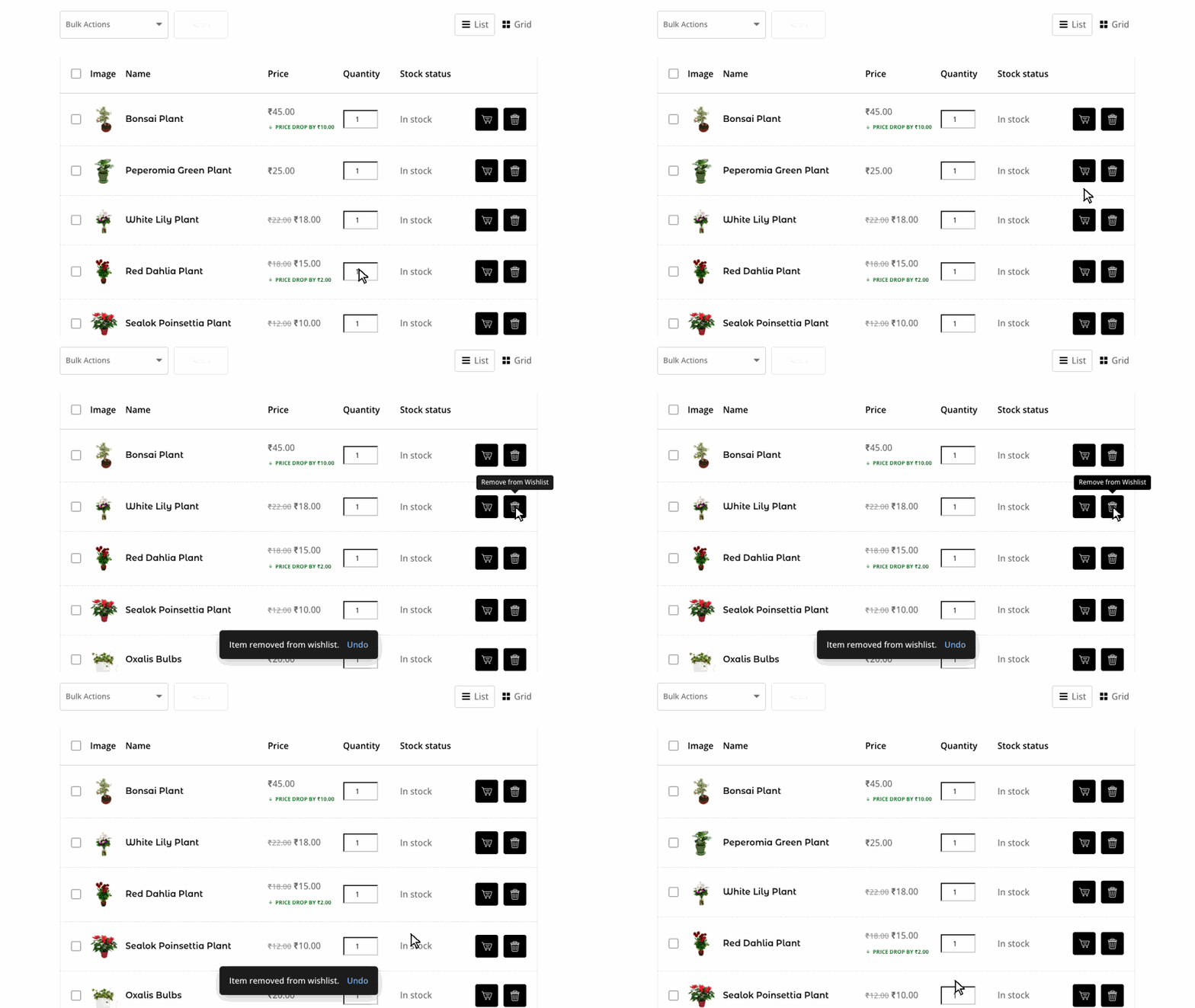
In the block editor, add the Wishlists block to any page. The block shows the same wishlist as the shortcode and lets you set the number of columns and the gap between products for the grid view.
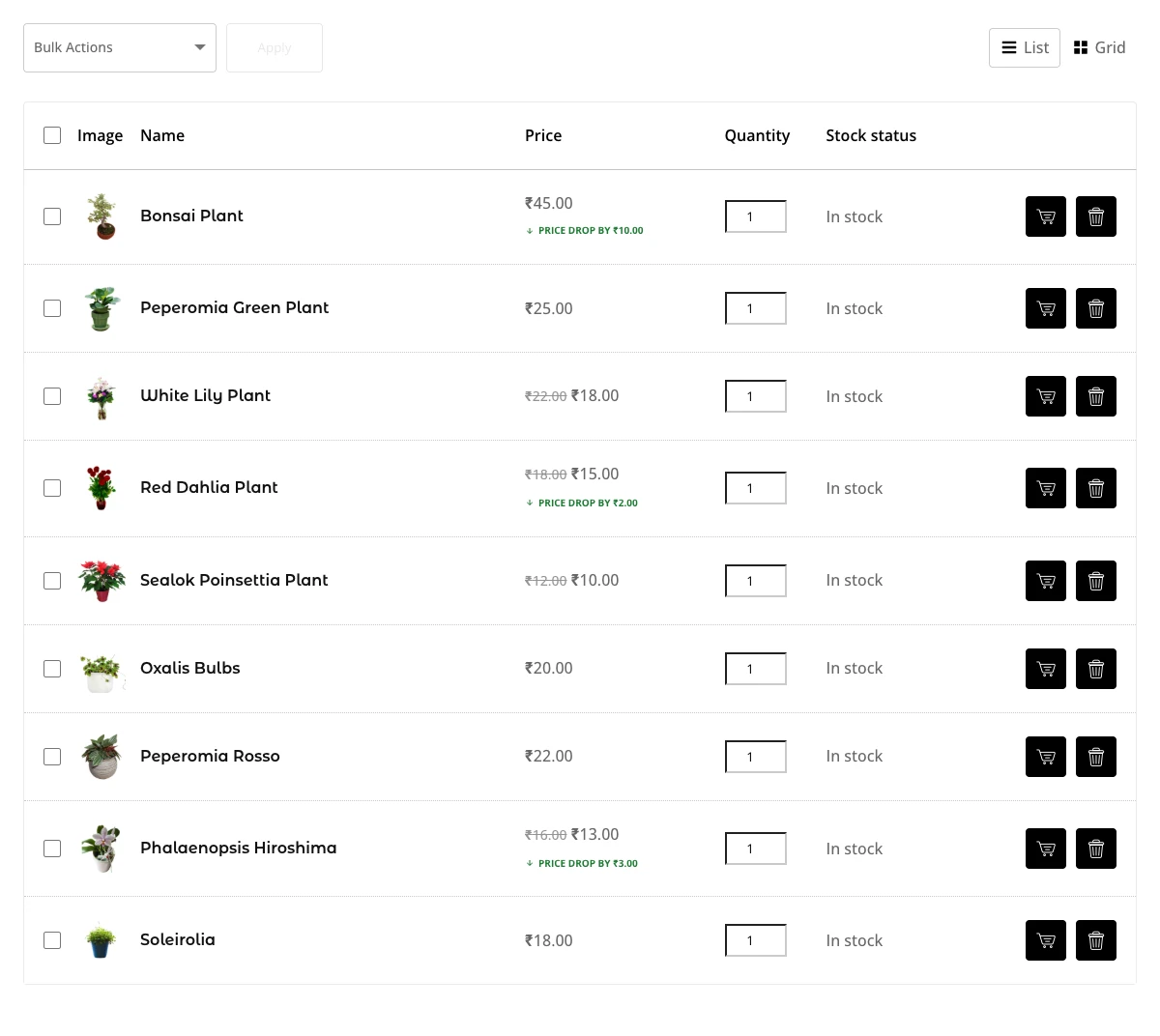
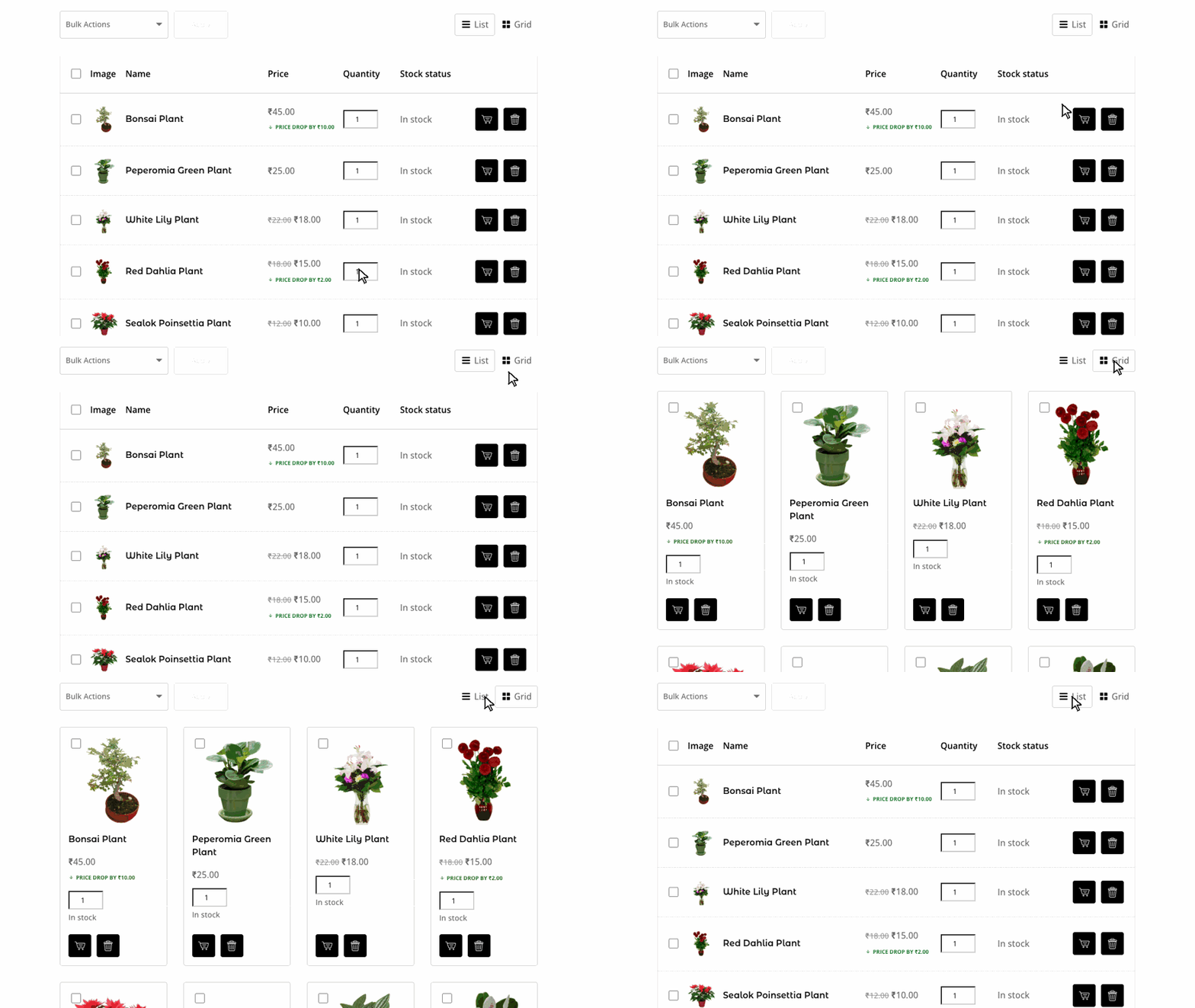
Customers can switch between the List and Grid view. When they remove a product, an Undo option appears for a few seconds so they can bring it back.
General settings#
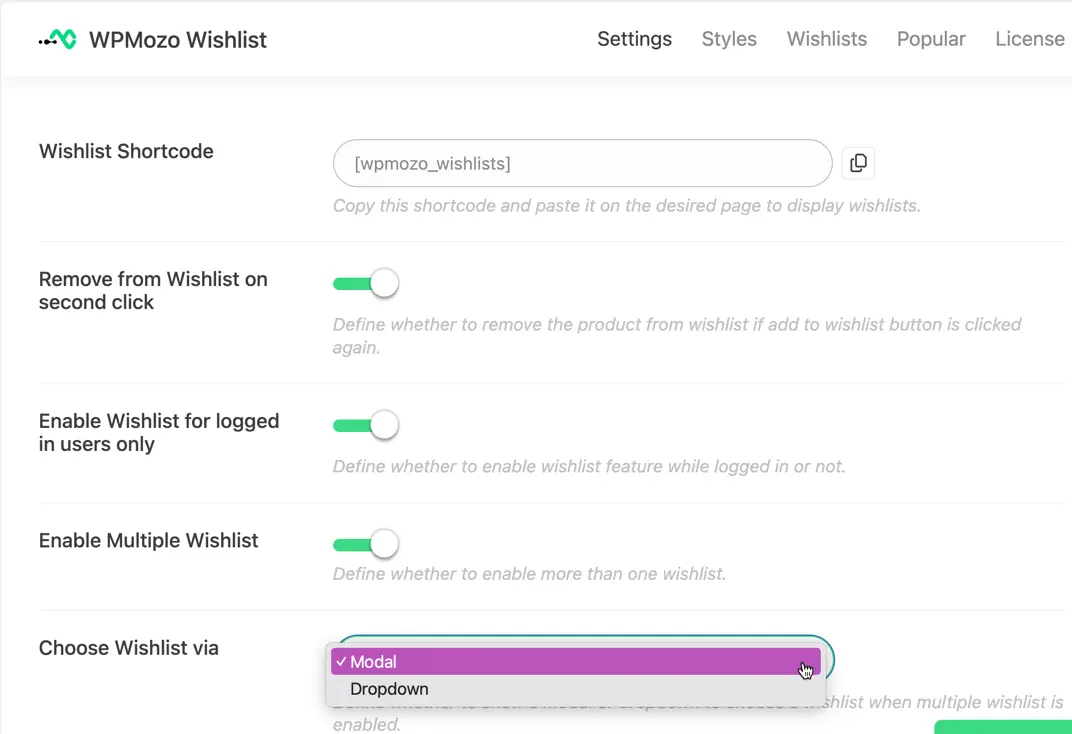
- Wishlist Shortcode: the shortcode for the wishlist page (see above).
- Remove from Wishlist on second click: when enabled, clicking the wishlist button again on a product that is already in the wishlist removes it. When disabled, a second click shows the “Already in Wishlist” message.
- Enable Wishlist for logged in users only: when enabled, only logged-in customers can use the wishlist. Guests who click the button are asked to log in. When disabled, guests can save products too.
Guest Wishlist Cookie Duration#
Pro Shows when Enable Wishlist for logged in users only is turned off. Set how many days a guest’s wishlist is remembered in their browser. The default is 30 days.
When a guest who saved products logs in, a popup asks whether to link those products to their account. You can change the popup texts under Texts → Guest Wishlist Modal Popup Texts.

Enable Multiple Wishlists#
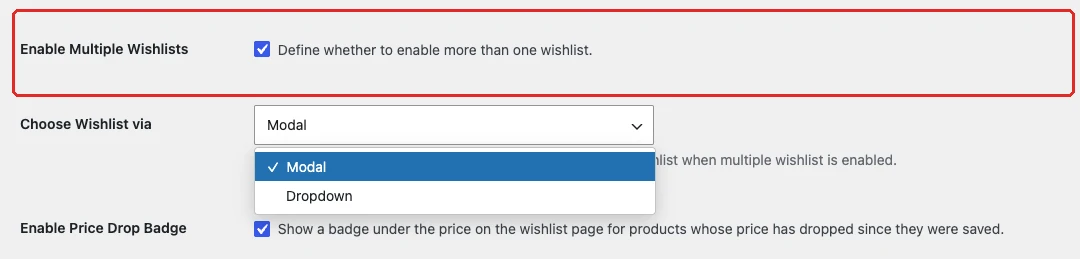
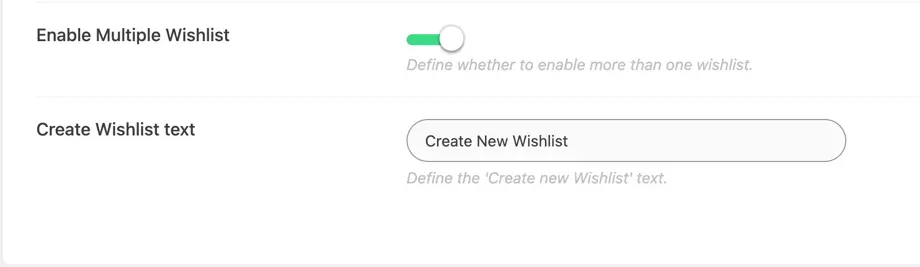
Pro Lets customers create more than one wishlist, for example “Birthday Gifts” or “Home Decor”, and choose a wishlist each time they save a product. When disabled, every customer has one wishlist.
Choose Wishlist via Pro: choose how customers pick the wishlist when they click the wishlist button.
- Modal: a popup opens where customers select a wishlist from a list or create a new one.
- Dropdown: a small dropdown opens next to the button with the customer’s wishlists and a “create new wishlist” option.
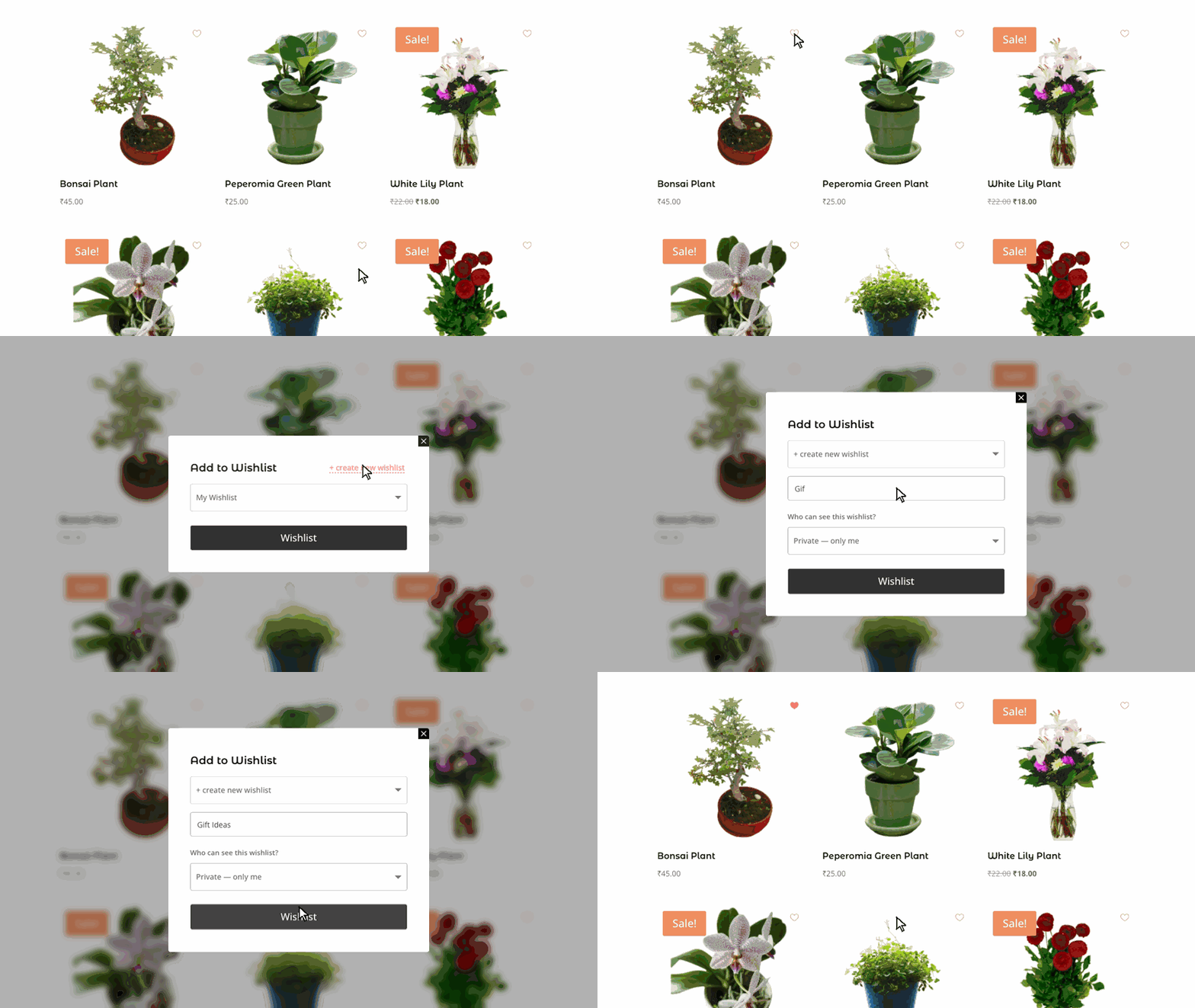
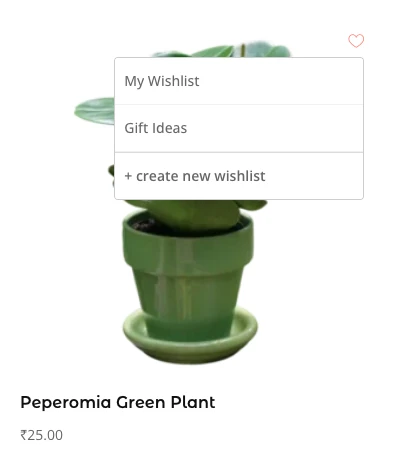
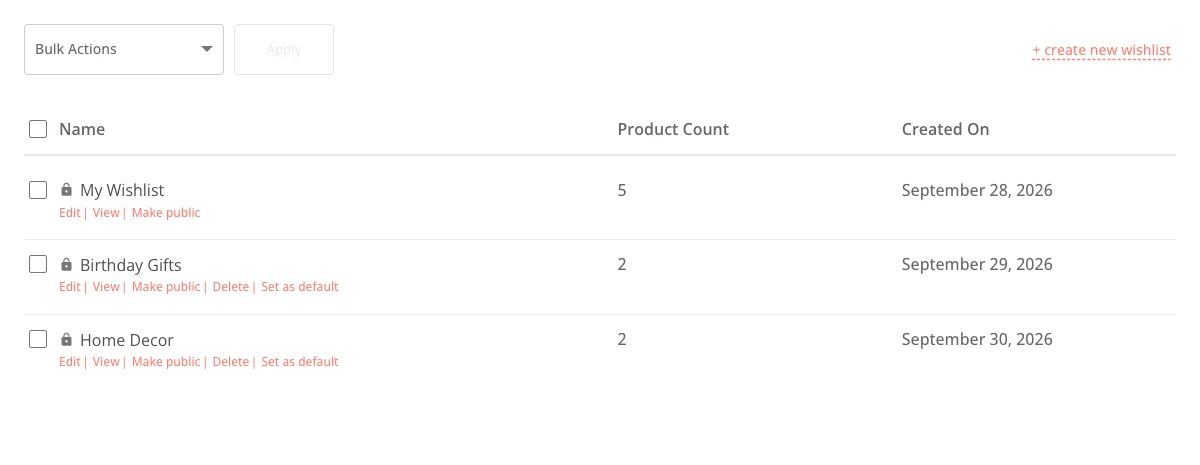
With multiple wishlists, the wishlist page lists all the customer’s wishlists. Customers can rename a wishlist, view its products, make it public or private, copy its share link, delete it or set it as the default.
Enable Price Drop Badge#
Shows a badge under the price on the wishlist page when a product’s price has dropped since the customer saved it, for example “Price drop by ₹10.00”. Change the badge text under Texts → Price Drop Badge Text and its size and color under Styles → Price Drop Badge.


Browse Products Link#
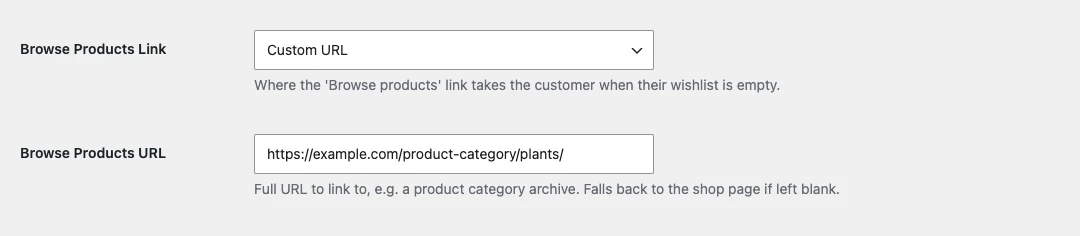
When a customer’s wishlist is empty, the wishlist page shows a Browse products link. Choose where it goes: the Shop page, any page of your site, or Custom URL. With Custom URL, enter the address in Browse Products URL (for example, a product category). If the field is left empty, the link goes to the shop page.

Buttons settings#
The Buttons tab controls the Add to Wishlist button on the single product page and in product lists (shop, category pages and product grids), and the Move to Wishlist button on the cart page.
Add to Wishlist Single#
Settings for the button on the single product page.
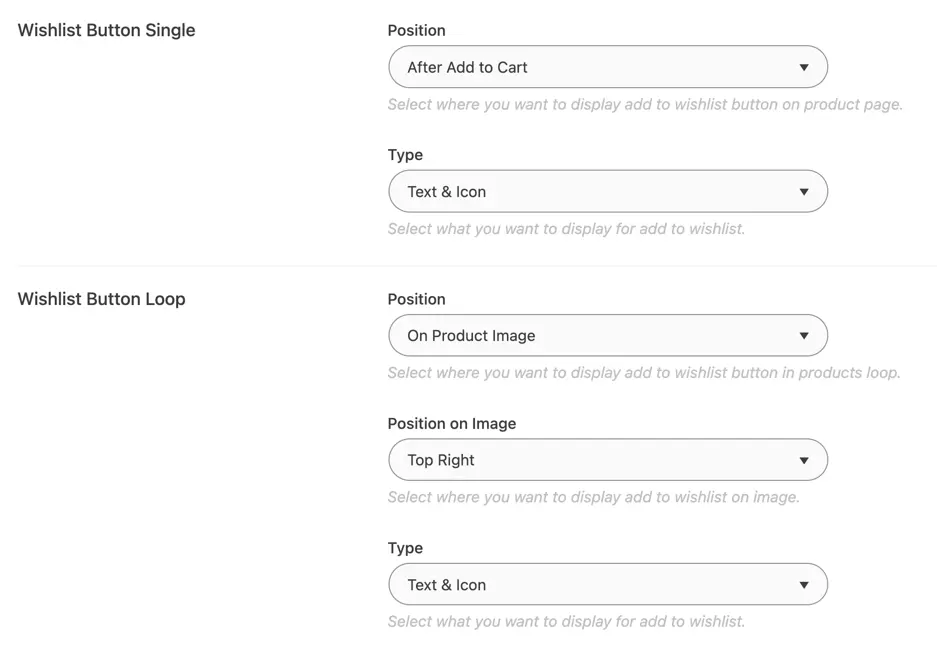
- Position: Before Add to Cart, After Add to Cart or Use Shortcode.
- Type: show the button as Text, Icon or Text & Icon.
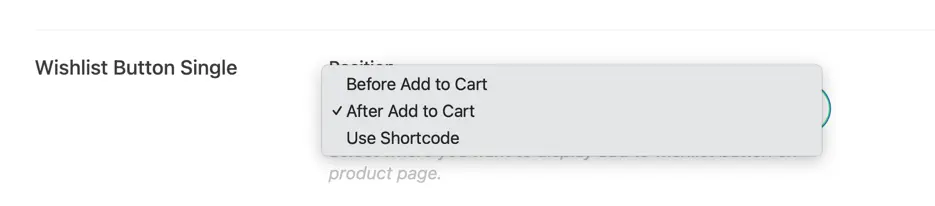
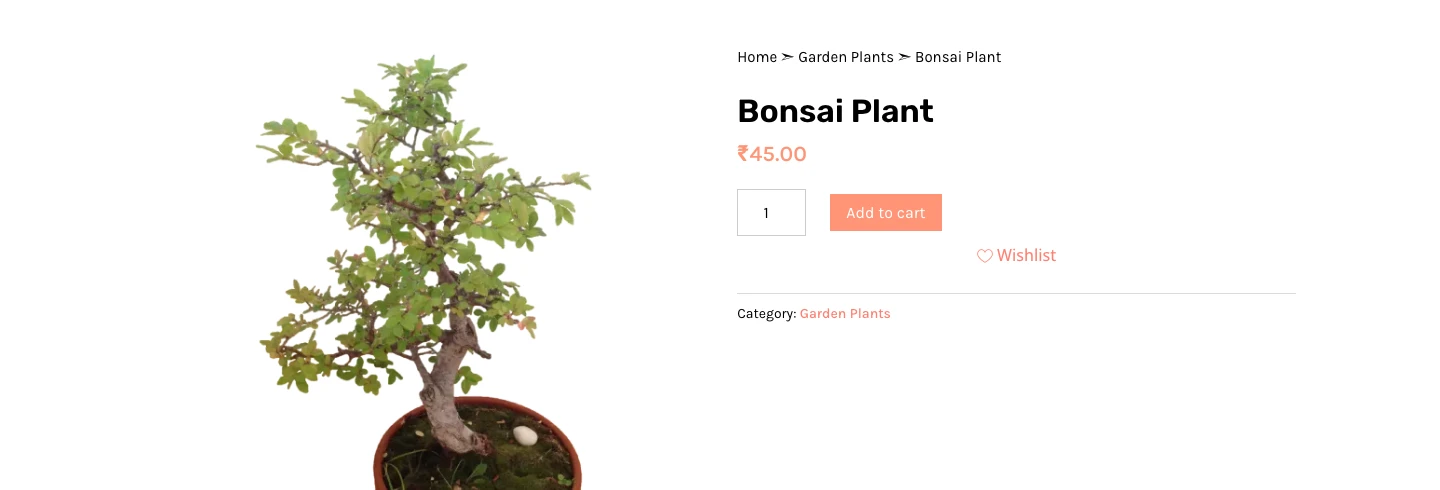
With Use Shortcode, the button is not added automatically. Copy the Add to Wishlist Shortcode and place it where you want the button, for example in a Divi or block theme product template.
[wpmozo_add_to_wishlist_button]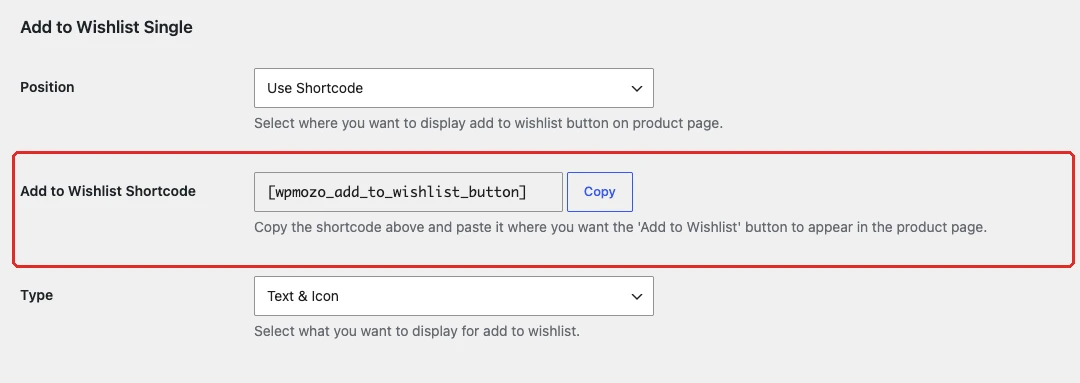
Add to Wishlist Loop#
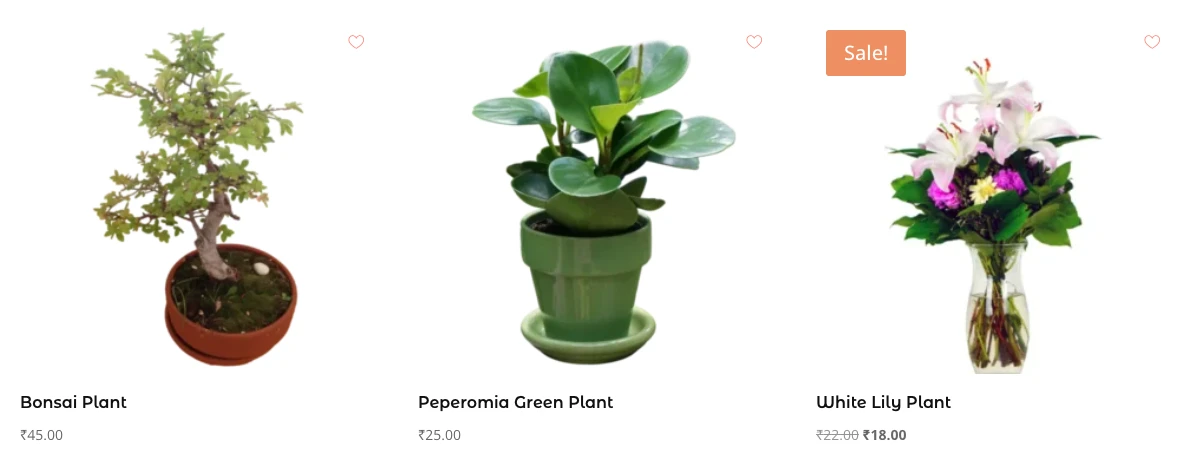
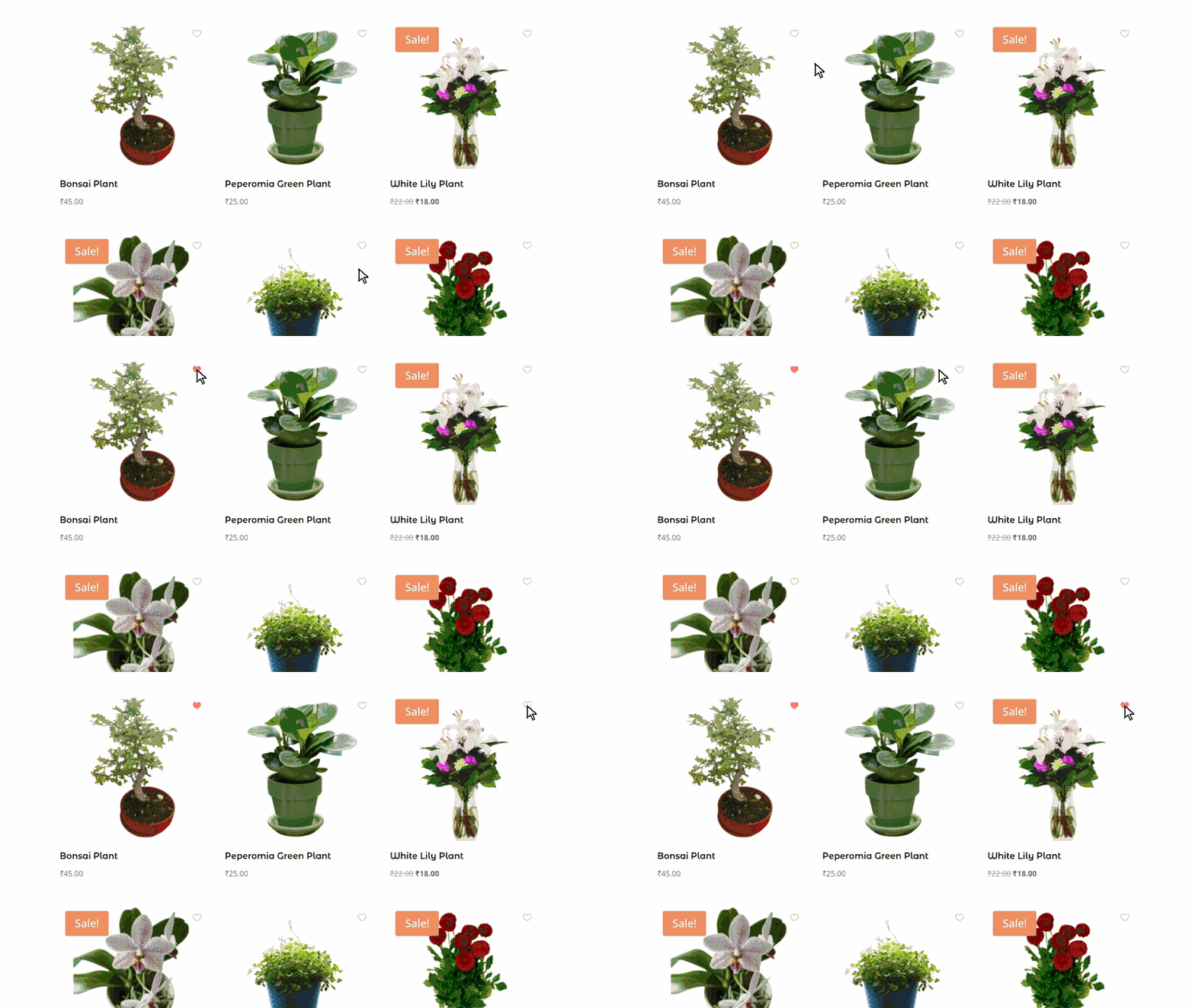
Settings for the button in product lists such as the shop and category pages.
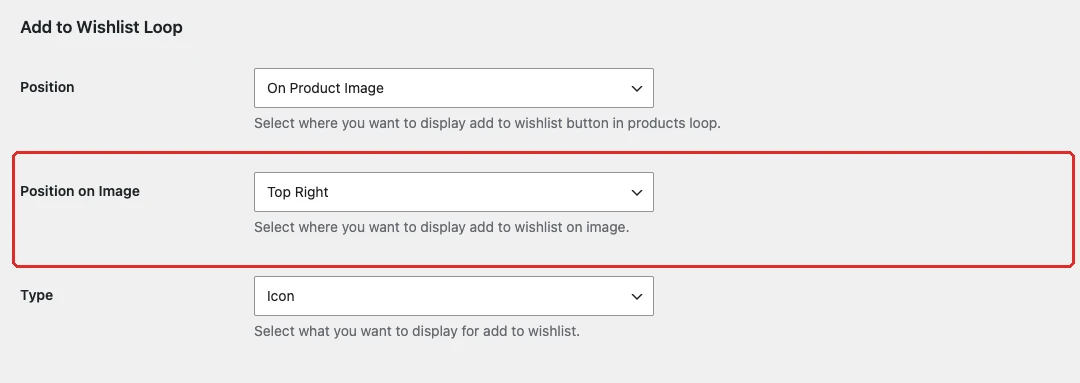
- Position: On Product Image, Before Add to Cart, After Add to Cart or Use Shortcode.
- Position on Image: shows when the position is On Product Image. Choose Top Left or Top Right corner of the image.
- Add to Wishlist Shortcode: shows when the position is Use Shortcode. Copy it and place it in your product loop template.
- Type: Text, Icon or Text & Icon.

Move to Wishlist Cart#
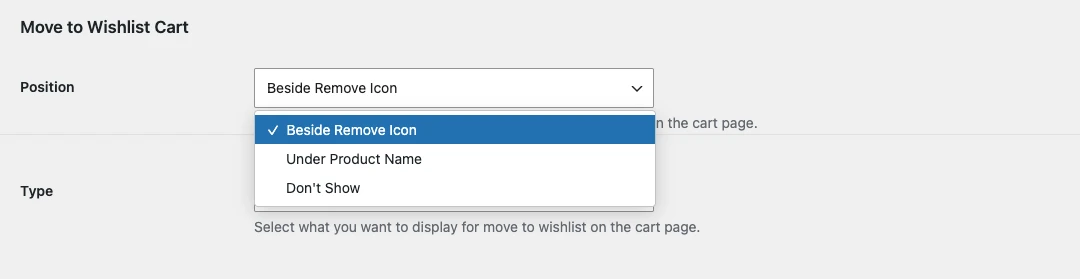
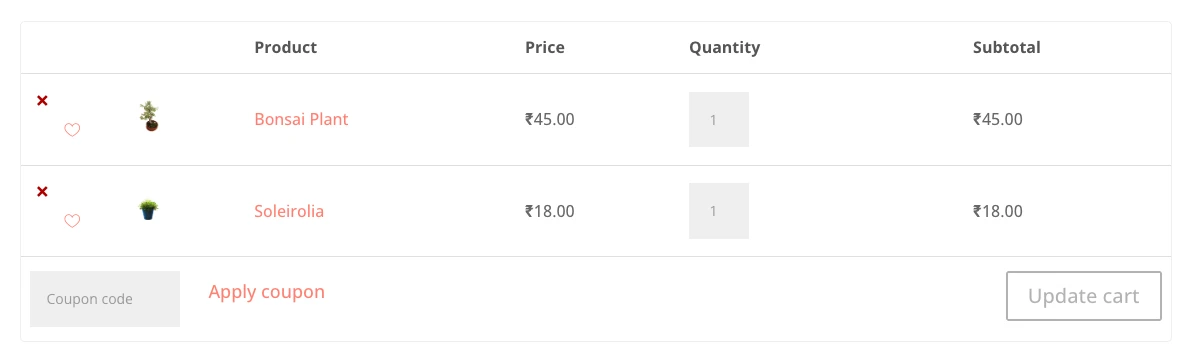
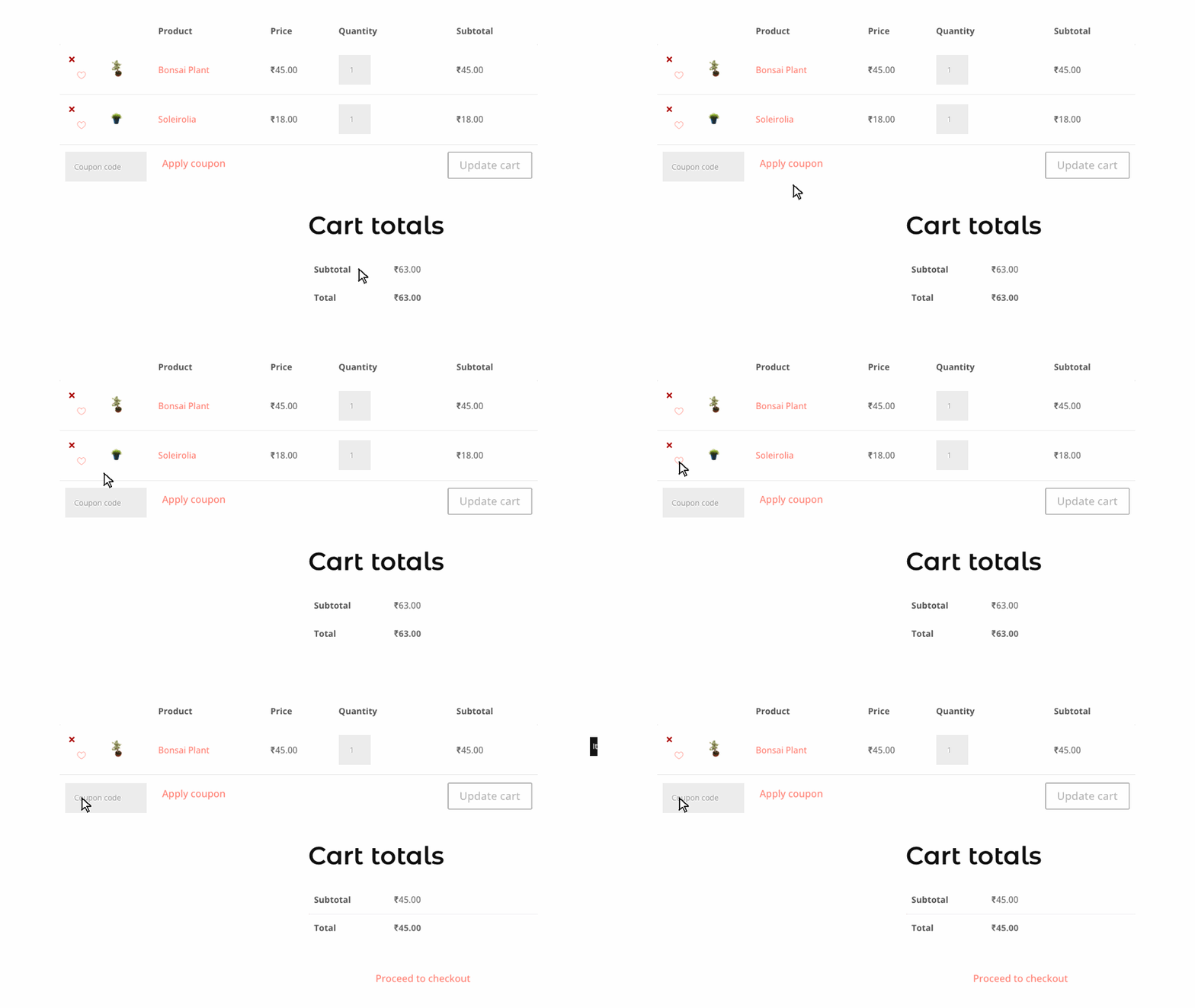
Adds a Move to Wishlist button to each product in the cart. Clicking it removes the product from the cart and saves it to the wishlist.
- Position: Beside Remove Icon, Under Product Name or Don’t Show (hides the button).
- Type: Text, Icon or Text & Icon.
Wishlist icon, Add to Cart action and tooltip#
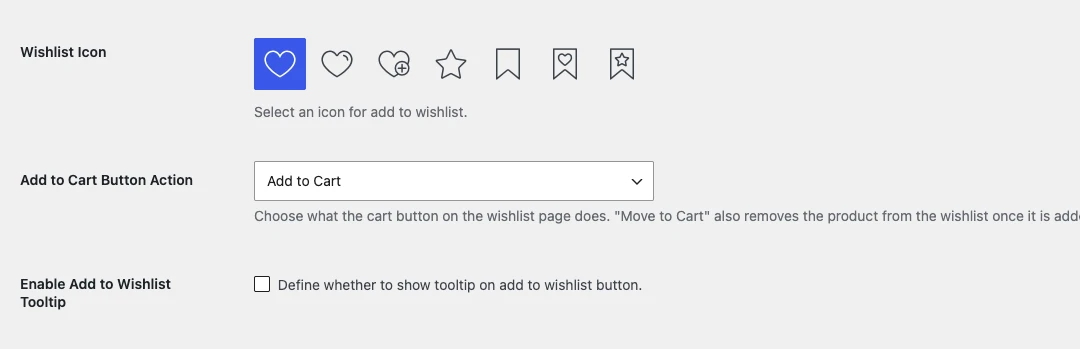
- Wishlist Icon Pro: choose the icon used on the wishlist button: heart, heart with plus, star, bookmark and more.
- Add to Cart Button Action Pro: what the cart button on the wishlist page does. Add to Cart adds the product and keeps it in the wishlist. Move to Cart adds it and removes it from the wishlist.
- Enable Add to Wishlist Tooltip Pro: shows a tooltip when customers hover over the wishlist buttons. Set the tooltip texts under Texts → Wishlist Tooltips.

Texts settings#
Change the wording customers see. Leave a field as it is to use the default text.
Wishlist Texts#
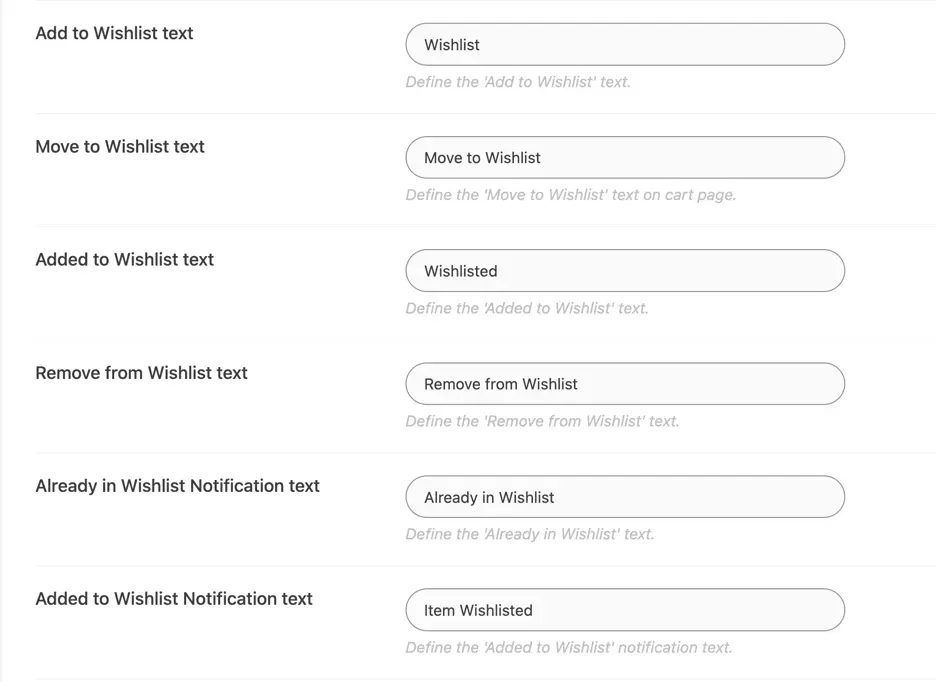
- Add to Wishlist text: label of the wishlist button. Default: “Wishlist”.
- Move to Wishlist text: label of the button on the cart page. Default: “Move to Wishlist”.
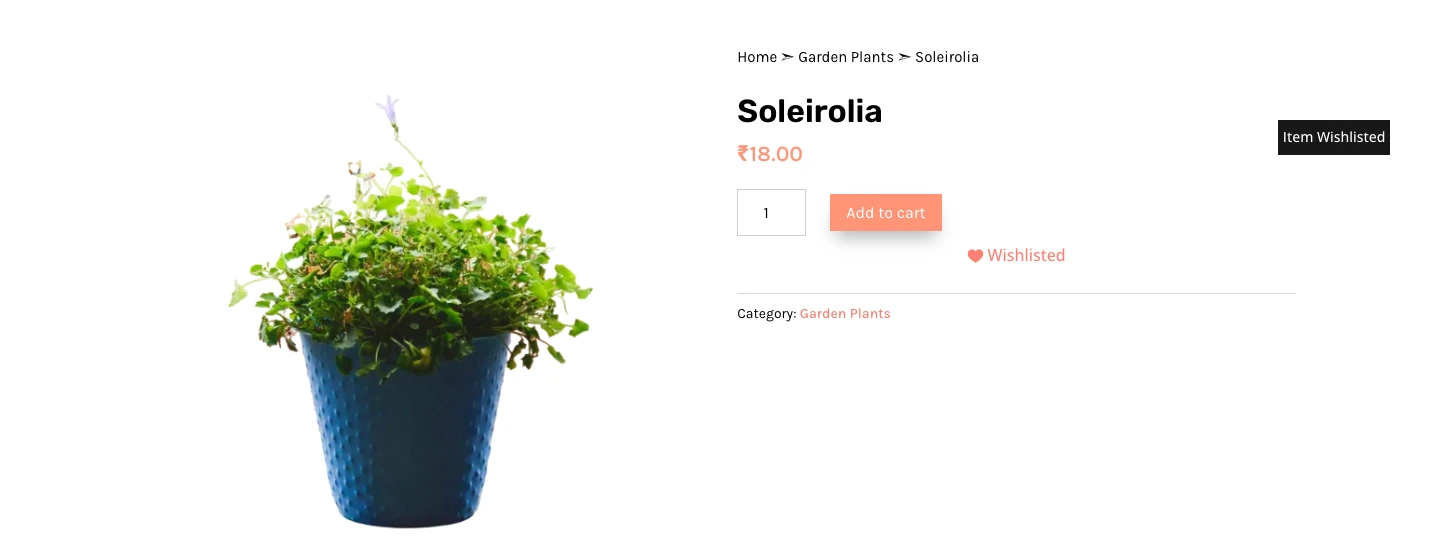
- Added to Wishlist text: label of the button after the product is saved. Default: “Wishlisted”.
- Create Wishlist text Pro: label of the link that creates a new wishlist. Default: “+ create new wishlist”. Shows when multiple wishlists are enabled.
- Remove from Wishlist text: title shown on the button when a second click removes the product. Shows when Remove from Wishlist on second click is enabled.
- Already in Wishlist Notification text: message when the product is already saved. Default: “Already in Wishlist”.
- Added to Wishlist Notification text: message when a product is saved. Default: “Item Wishlisted”.
- Removed from Wishlist Notification text: message when a product is removed. Default: “Product removed from the wishlist”.
- Price Drop Badge Text: text shown before the amount in the price drop badge. Default: “Price drop by”.
Wishlist Tooltips#
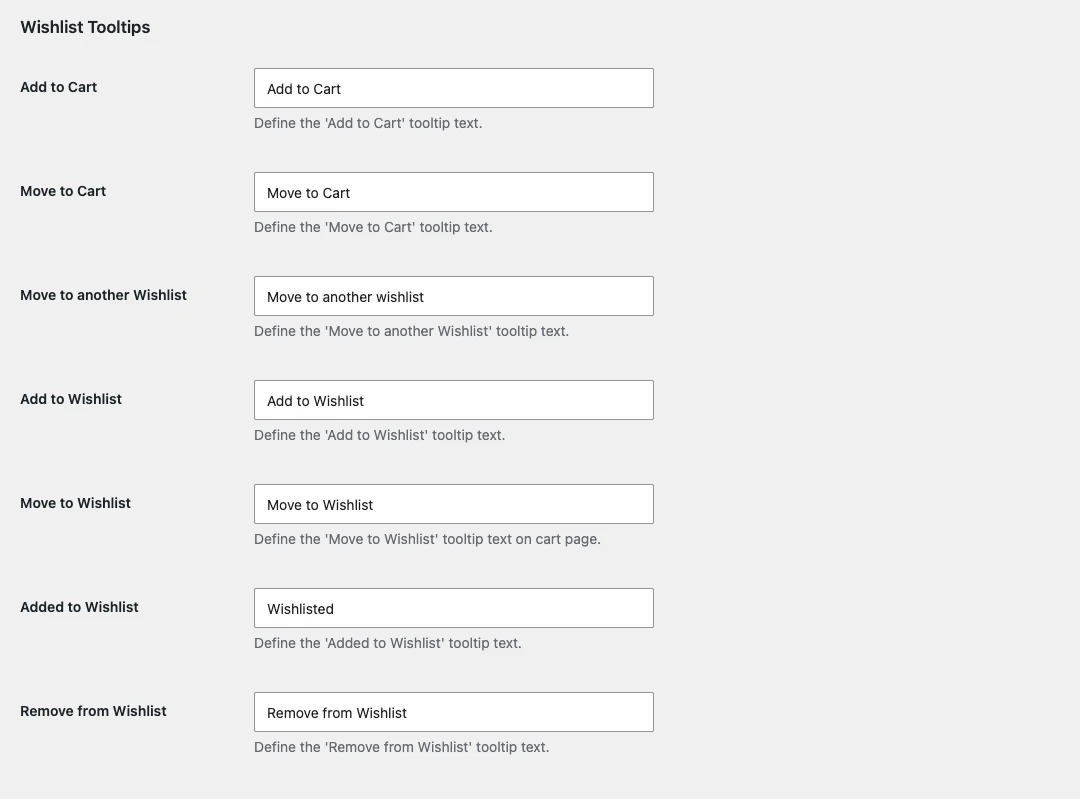
Pro Texts for the tooltips on the Add to Cart, Move to Cart and Move to another wishlist buttons on the wishlist page. The Add to Wishlist, Move to Wishlist, Added to Wishlist and Remove from Wishlist tooltips show when Enable Add to Wishlist Tooltip is turned on.
Guest Wishlist Modal Popup Texts#
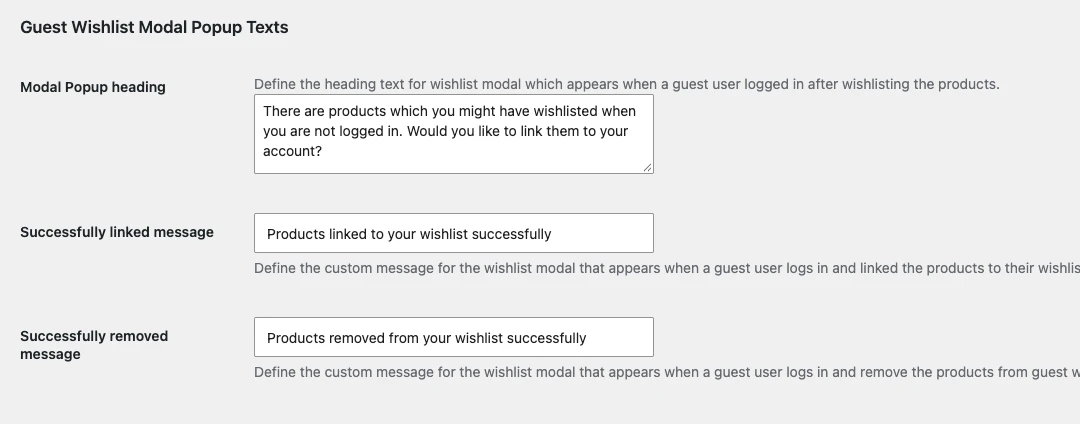
Shows when Enable Wishlist for logged in users only is turned off. These texts appear in the popup that asks a guest, after logging in, whether to link the products they saved as a guest to their account.
- Modal Popup heading: the question in the popup.
- Successfully linked message: message after the products are linked to the account.
- Successfully removed message: message after the guest products are removed.
License Pro#
Go to WooCommerce → Settings → Wishlist → License, paste your license key in Enter the License Key and click Activate. An active license gives you plugin updates. See License activation in the Getting Started section for details.

Was this article helpful?
Thanks for the feedback. Need more help? Contact support.