WPMozo Product Ticker Documentation
Search for answers or browse our knowledge base.
How to use
Overview of the WPMozo product ticker plugin
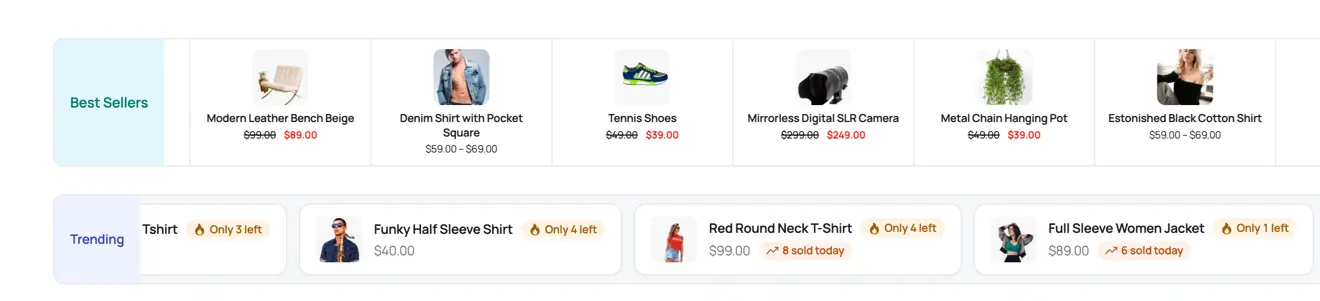
This document provides a comprehensive guide on configuring and using the WPMozo Product Ticker for WooCommerce plugin. The WPMozo Product Ticker plugin allows you to transform your store products into a continuous, interactive scrolling ticker strip—similar to a live stock ticker—to showcase on-sale items, bestsellers, new arrivals, or custom product collections without consuming excess vertical screen space. This guide covers step-by-step instructions for creating tickers in the backend custom post type, displaying them using the Divi Builder module, and configuring all available options across the Content, Design, and Advanced tabs.
How the plugin works
The plugin uses a streamlined two-step workflow:
- Create and configure your ticker in the WordPress backend under the WPMozo Product Ticker custom post type.
- Display your saved ticker on any page using the dedicated module or shortcode.
Step by step guide to creating a ticker in the backend
Creating a new ticker post
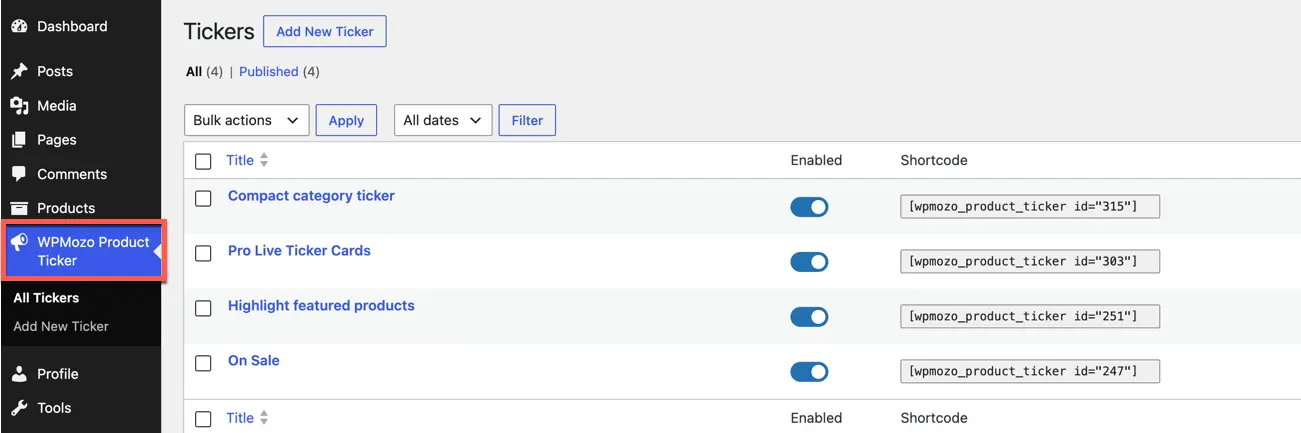
- In your WordPress administrative dashboard, locate the WPMozo Product Ticker menu item in the left sidebar.
- Click Add New Ticker to open the ticker configuration editor.
- Enter an administrative title for your ticker (for example, Black Friday Flash Sale Ticker or Trending Products Bar).
Configuring product source settings
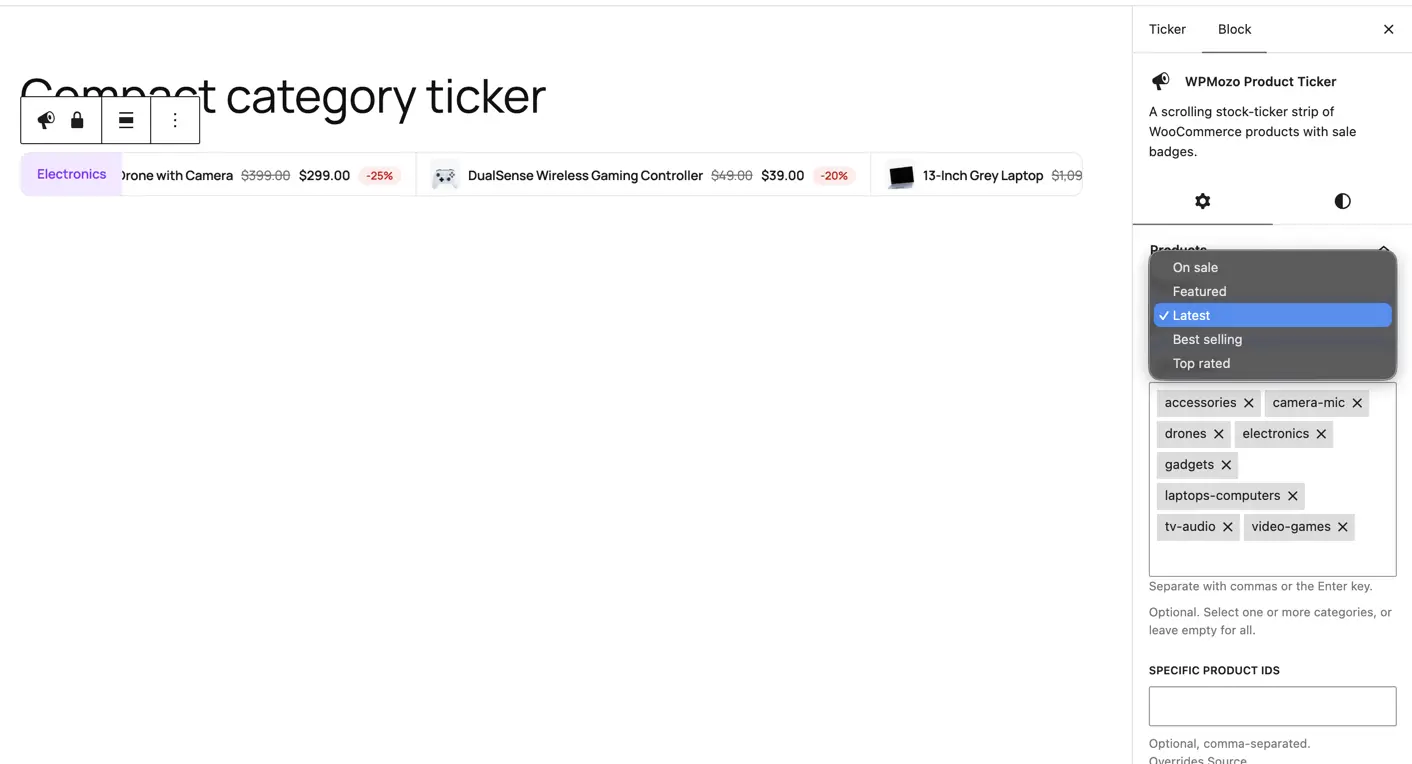
- Product query type: Select which products to display in the ticker:
- Latest products: Automatically displays your most recently added store items.
- On-sale products: Automatically filters products currently marked with a discount or sale price.
- Featured products: Displays items marked as featured in WooCommerce.
- Best-selling products: Displays items with the highest sales volume.
- Top-rated products: Displays items with the highest customer review ratings.
- Category and tag filter: Restrict the ticker to specific product categories or tags.
- Hand-picked products: Specify exact product IDs to create a custom curated list.
- Product limit: Set the maximum number of products to include in the ticker loop.
- Exclude out of stock: Toggle whether products with zero inventory are automatically omitted from the ticker.
Configuring ticker animation and controls
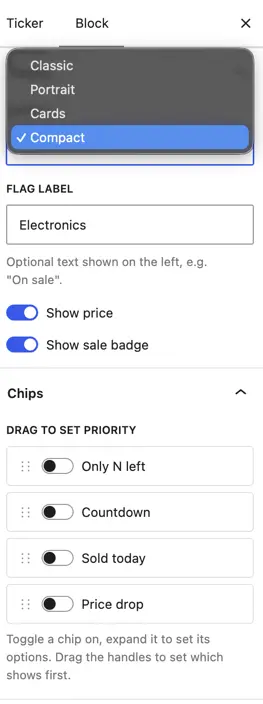
- Layout format: Choose between Classic layout (horizontal strip with thumbnail, product title, and price in a single row) and Portrait layout (compact vertical card style with image above the title).
- Scroll direction: Set the ticker movement to scroll from right to left or left to right.
- Scroll speed: Configure the animation movement speed for smooth, continuous scrolling.
- Pause on hover: Enable this setting so the ticker automatically halts animation when a shopper hovers their mouse cursor over an item, allowing them to click comfortably.
- Item separator: Choose the separator style between items (such as a dot, pipe symbol, slash, custom character, or icon).
Configuring badges and promotional flags
- Sale discount badge: Show a dynamic badge displaying either Sale or the exact calculated discount percentage (such as 25% Off).
- Promo flag: Display custom promotional labels such as New, Hot, Trending, or Limited Stock.
- Out of stock label: Display a clear notice if an item is sold out.
Step by step guide to displaying the ticker on frontend
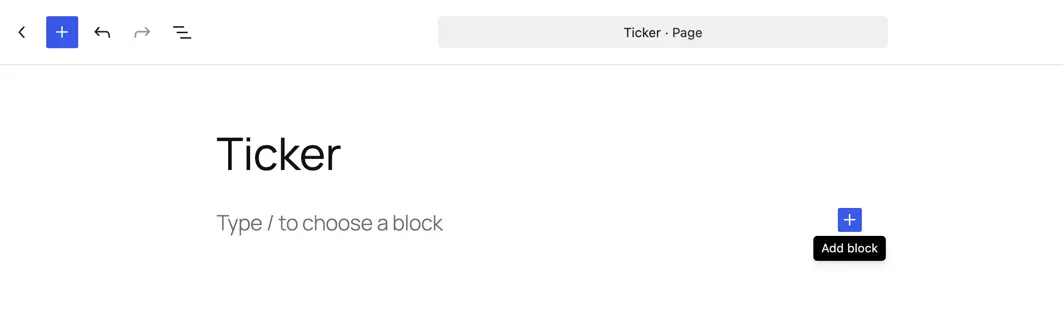
- Open or edit the page.
- Click the plus icon to add widget
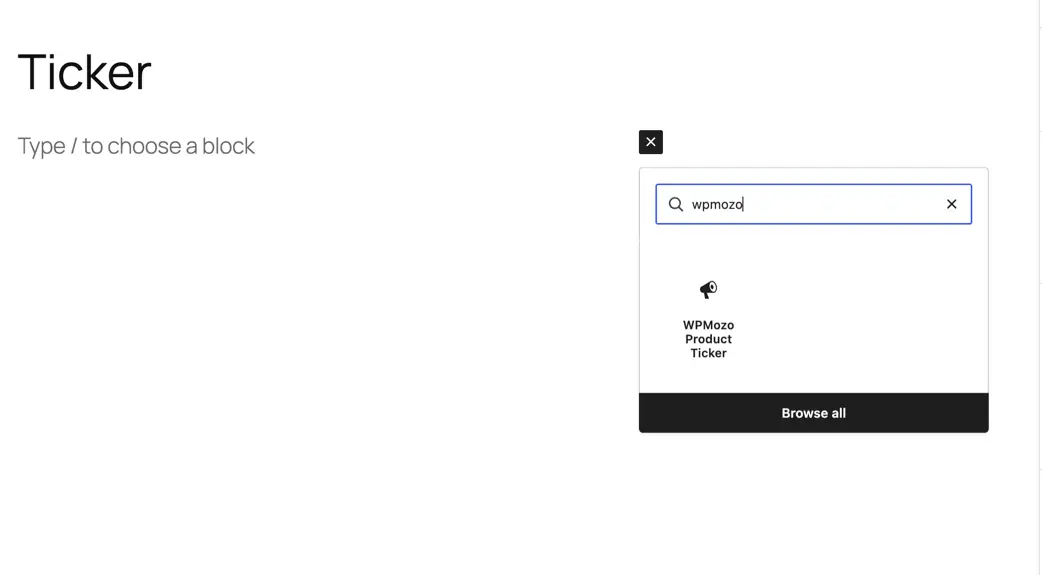
- Search for WPMozo Product Ticker.
- Click the widget icon to insert it onto your page.
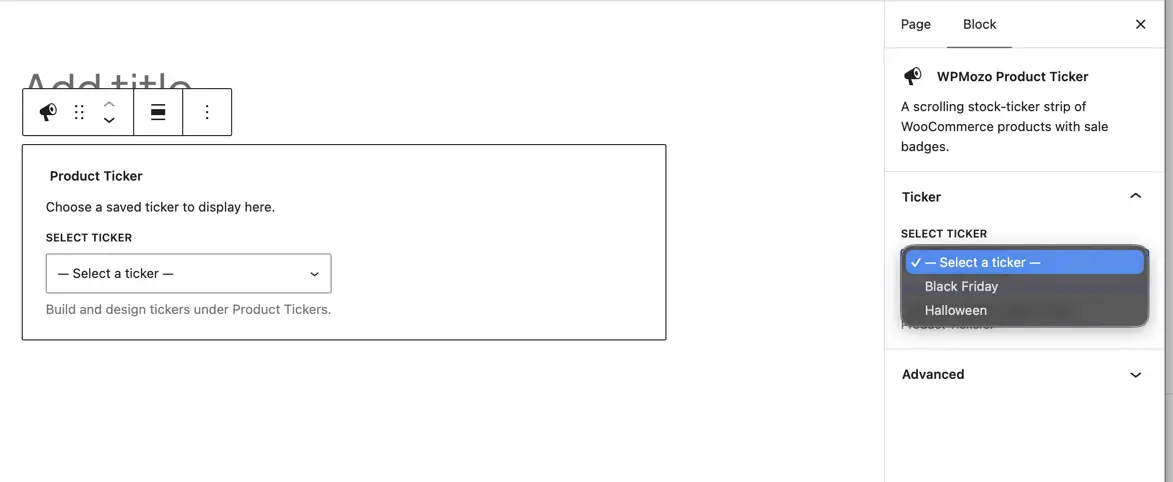
- In the Content tab under Ticker Selection, choose your saved backend ticker from the dropdown list.
- The widget will immediately render your live product ticker on the page with all configured products and animation rules.
Content tab setting
Ticker selection and label settings
- Select ticker: Choose from your pre-configured backend tickers created in the WPMozo Product Ticker custom post type.