
If a WooCommerce checkout snippet or plugin is not working as expected, the first thing to check is which checkout your store uses. WooCommerce supports both the classic shortcode checkout and the newer Checkout block, and each uses different methods for customization and extension.
In many cases, the problem is not with the code or plugin itself. Your store may be using the Checkout block while the snippet or plugin was designed for the classic checkout. Because the two checkout systems have different structures and extension methods, a customization that works with one may not work with the other. Knowing which checkout your store uses can help you troubleshoot the issue and decide whether switching checkout types makes sense.
How to Tell Which Checkout You Have
The fastest way to identify your checkout type is to inspect the Checkout page in WordPress. First, access your WordPress dashboard, then select Pages > All Pages.
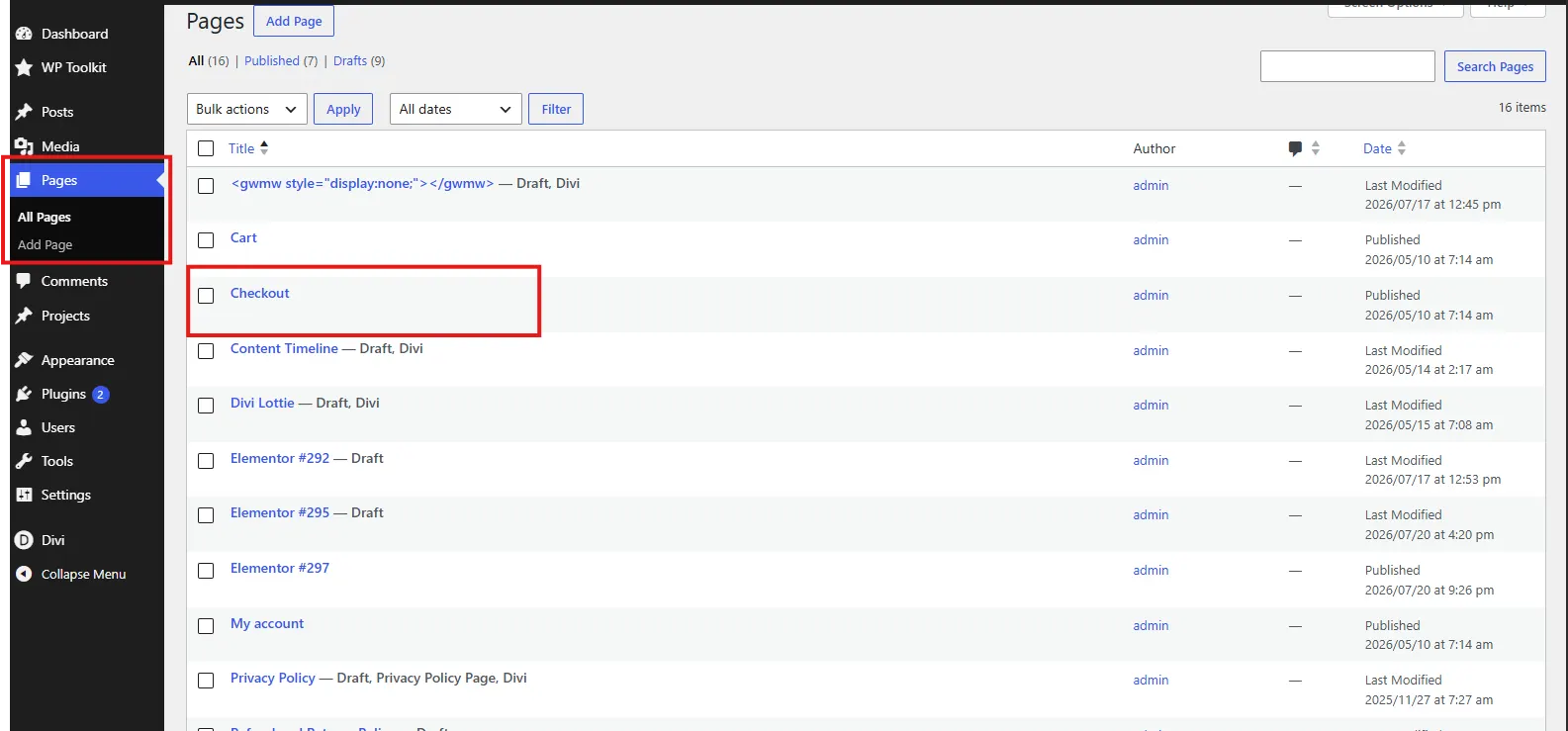
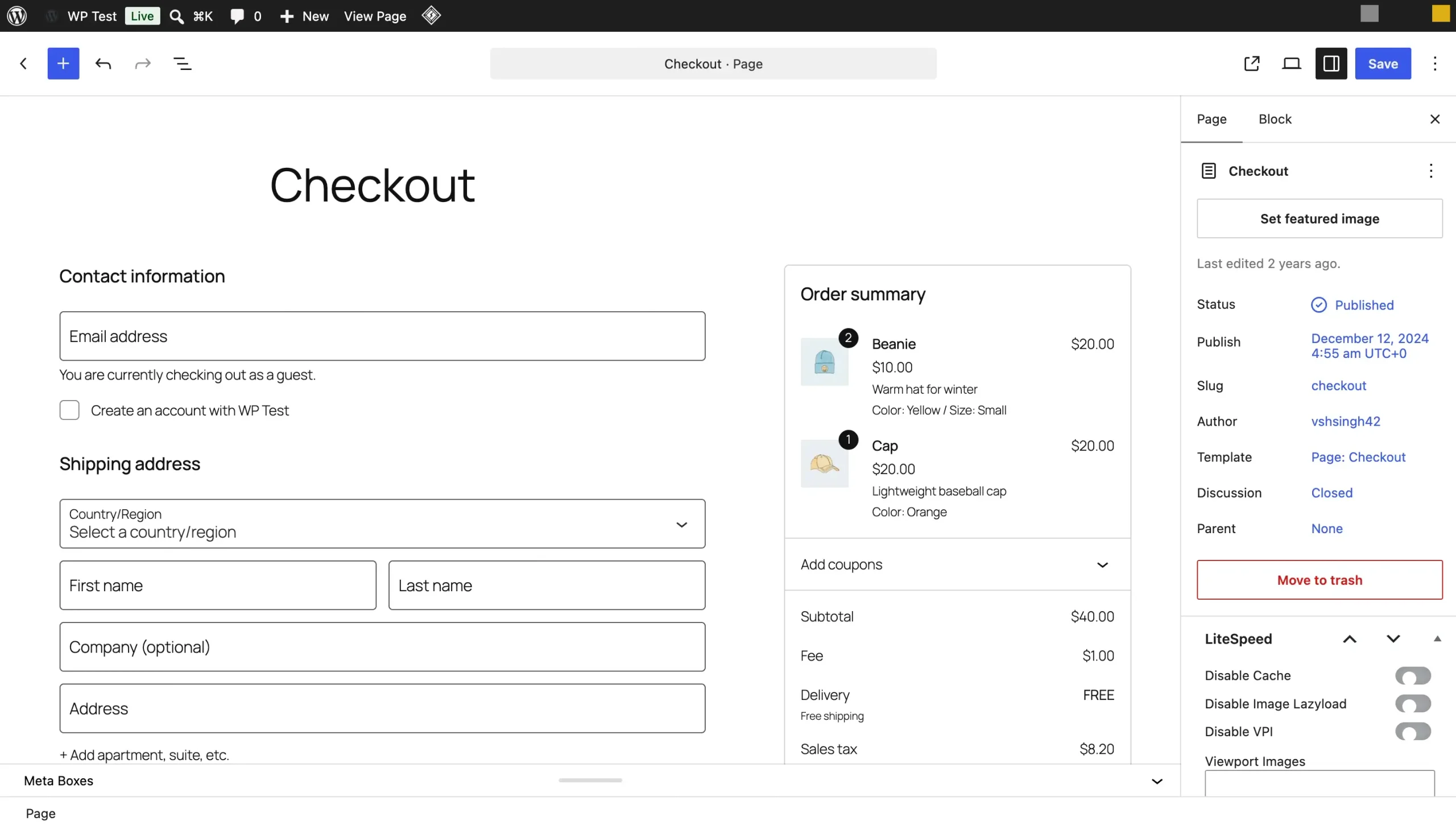
Proceed to open the page assigned as your checkout page. If you are currently using a block theme, the checkout template can be edited through Appearance > Editor. If you are seeing a checkout block with checkout-related inner blocks, the store is using the block checkout.
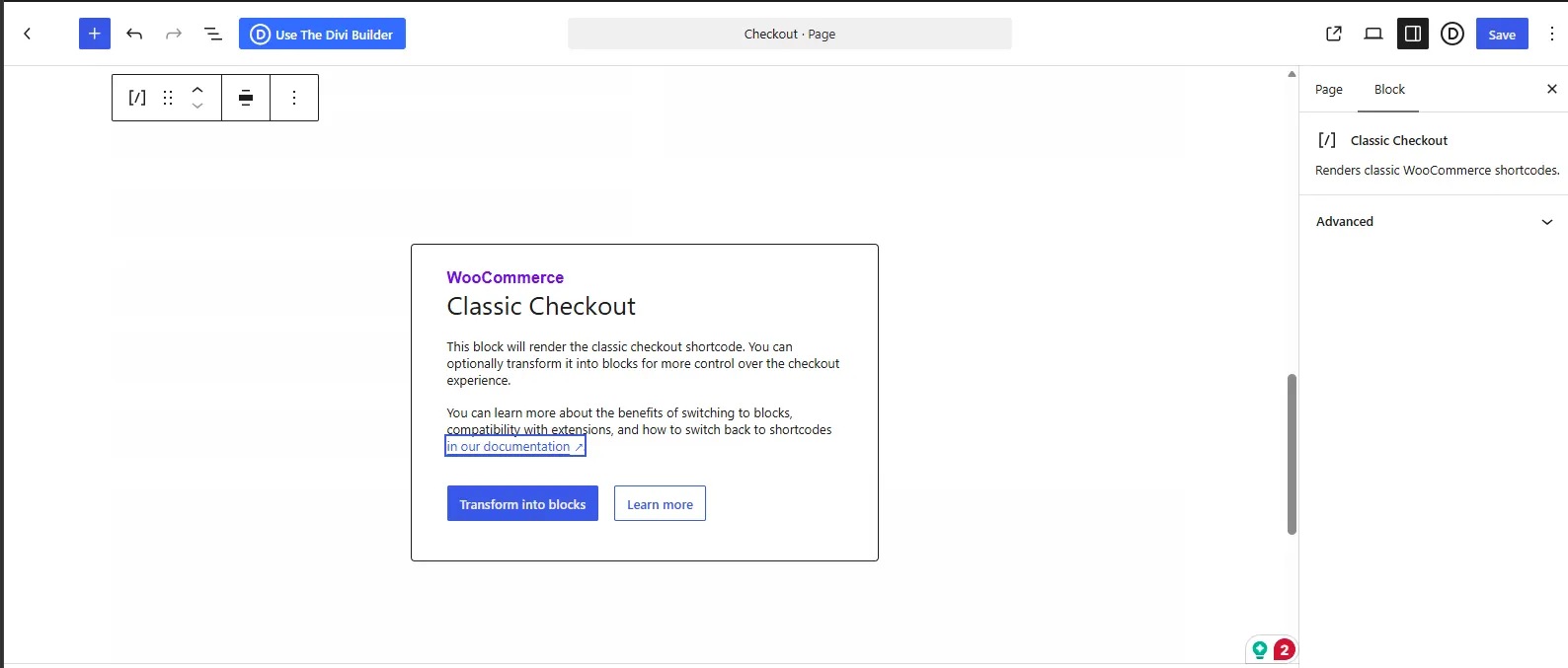
If the page contains the [woocommerce_checkout] shortcode, or a Classic Checkout block that says it renders the classic shortcode, the store is using the classic checkout.
WooCommerce made the Cart and Checkout blocks the default for new installations in version 8.3, released in November 2023. Existing stores were not converted when they upgraded, so a store’s creation date gives a rough clue, but the page content is the reliable test.
WooCommerce covers both setups in its Cart and Checkout customization guide.
What Actually Differs Under the Hood
WooCommerce runs two checkout systems. The classic checkout is built on WooCommerce’s PHP templates, so developers change its output and behavior through PHP hooks, filters, and template overrides that target the shortcode checkout.
The Checkout block uses a different architecture. It renders in the browser as a React-based block and sends checkout data through the Store API. Because of this, a PHP hook written for the classic checkout often has no matching location in the block checkout. The code does not throw an error. It never runs.
For example, woocommerce_before_checkout_form is supported by the classic checkout but is listed by WooCommerce as not supported in the block checkout. A snippet attached to that action will not place content in the same location when the page uses the Checkout block.
The difference also affects custom fields. Classic checkout field customizations can use the established WooCommerce checkout hooks and field APIs. Block checkout extensions can use the Additional Checkout Fields API, Store API extensions, JavaScript-based block extensibility, and other block-specific interfaces.
This is why two stores running the same WooCommerce version can behave differently after installing the same plugin or code snippet. The WooCommerce version matters, but so does the checkout the page actually uses.
WooCommerce Block checkout vs classic checkout: comparison
The choice is not just about how the checkout looks. It affects the tools and development methods available for modifying the checkout.
| Classic checkout | Block checkout | |
| Page content | [woocommerce_checkout] shortcode | Checkout block |
| Default for | Stores created before WooCommerce 8.3, unless switched manually | New installations from WooCommerce 8.3 |
| Customized via | PHP hooks, filters, templates, field plugins | Block settings, Additional Checkout Fields API, block extensibility |
| Classic PHP hooks | Yes | Many are not supported; WooCommerce lists alternatives |
| Field editor support | Broad established ecosystem | Extension compatibility varies |
| Development direction | Supported for backward compatibility | Active WooCommerce block development |
WooCommerce continues to document both approaches. Its current documentation also notes that shortcode versions can provide better extension compatibility in some cases.
If You Are On Classic Checkout
The Classic checkout remains a practical option when your store depends on plugins or custom PHP that target WooCommerce’s traditional checkout hooks.
For example, WPMozo Checkout Manager for WooCommerce currently targets the classic WooCommerce checkout. It provides controls for adding, removing, editing, and rearranging checkout fields through its plugin interface.
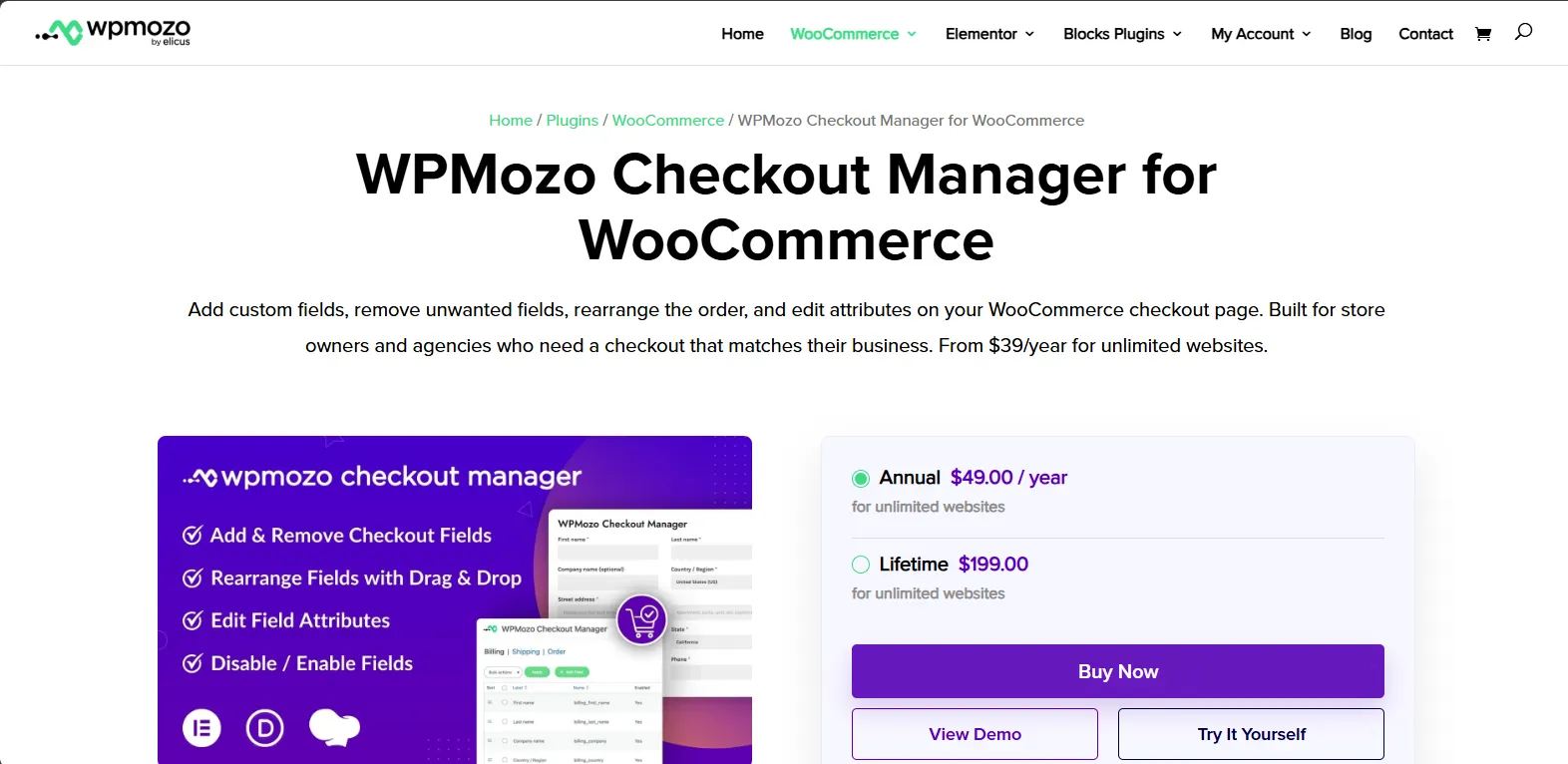
For step-by-step setup, see our guides on custom WooCommerce checkout fields and how to use WPMozo Checkout Manager.
You can also review the WooCommerce checkout field editor options when evaluating how a classic checkout can be customized.
The important point is to confirm that your checkout is actually using the shortcode before choosing a tool based on classic checkout hooks.
If You Are On Block Checkout
You configure the Checkout block inside the WordPress editor. Open the Checkout page (or the Checkout template under Appearance > Editor on a block theme), select the Checkout block, and use the settings panel in the right sidebar.
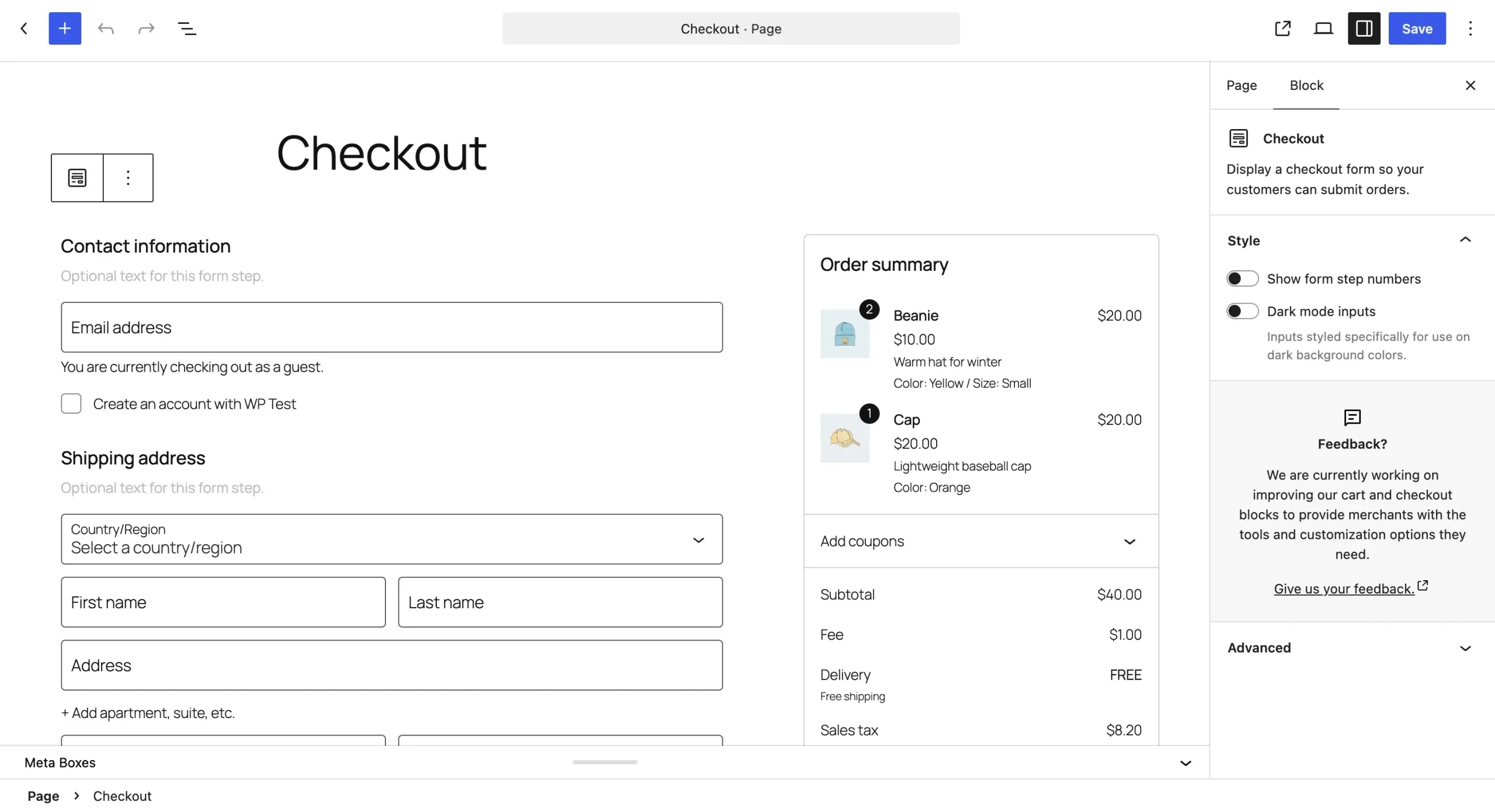
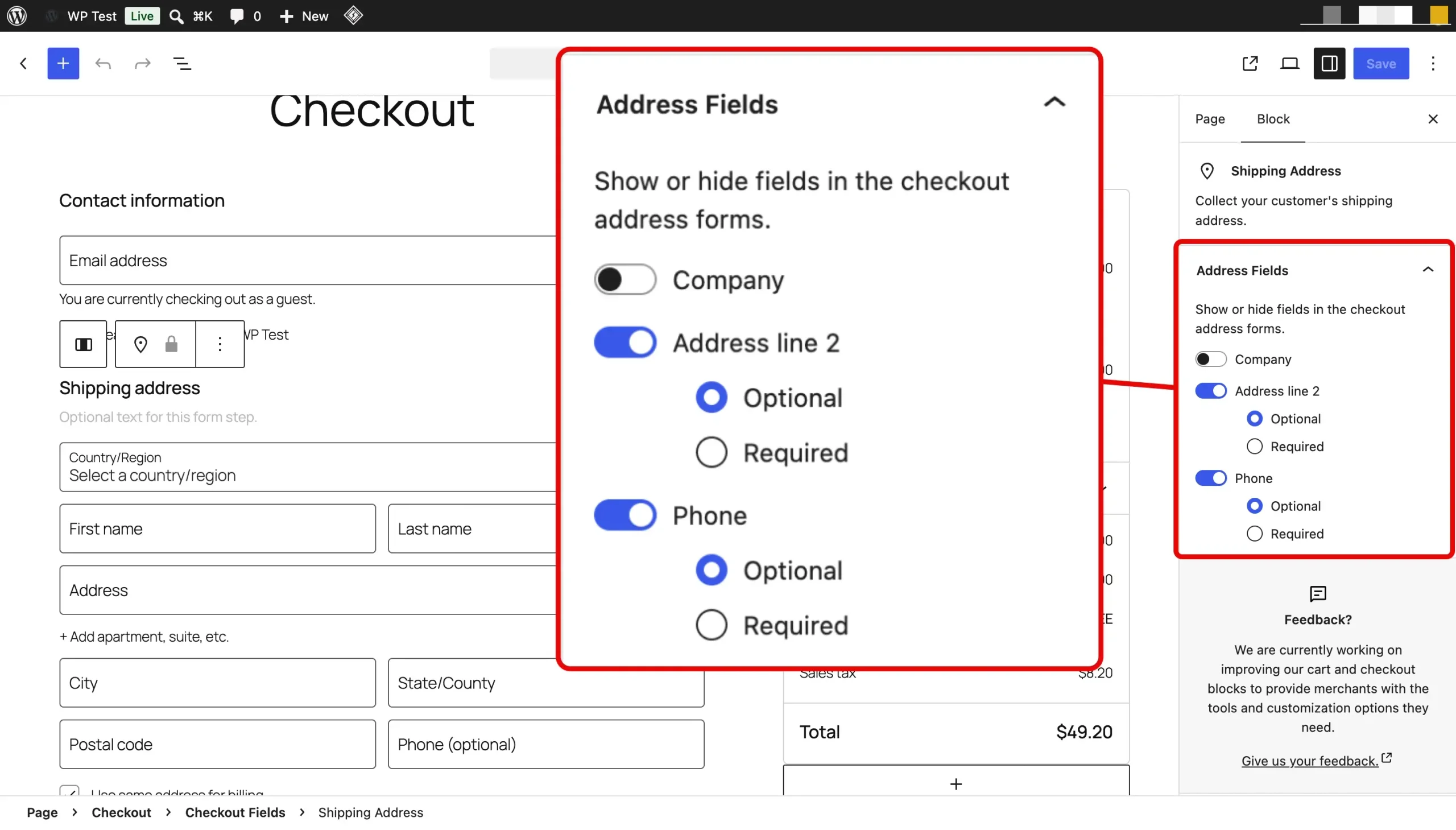
You can also control the visibility of Company, Address Line 2, and Phone fields, along with options relating to whether address and phone fields are required. The Checkout block also contains configurable inner blocks for areas such as checkout fields and totals.
For custom data that is not covered by those settings, developers can use WooCommerce’s Additional Checkout Fields API. The API currently supports contact, address, and order locations and supports text, select, and checkbox field types. WooCommerce also provides validation and conditional-visibility mechanisms for additional fields.
This is a development task rather than a matter of adding a classic PHP checkout hook. Developers working with more advanced block customizations may also need React, Gutenberg block APIs, and WooCommerce’s Store API extensibility interfaces.
If you plan to use a field editor built for the classic checkout, confirm it supports the Checkout block before installing it. WPMozo Checkout Manager currently targets the classic checkout, and block compatibility is in development.
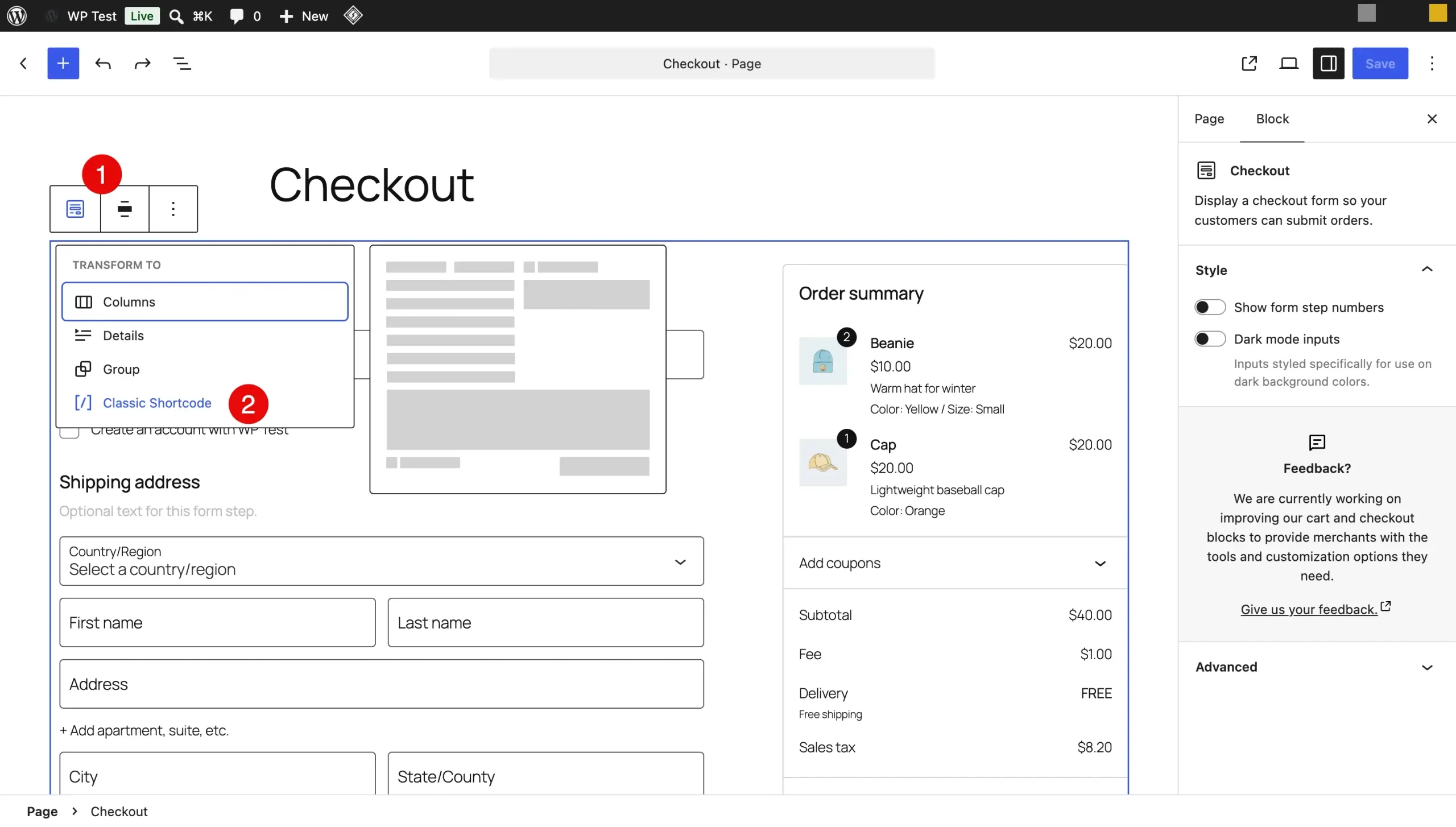
If you need functionality that your current block checkout cannot provide and the required extension only supports classic checkout, WooCommerce provides a Transform control for converting the Checkout block to the classic shortcode.
In the editor, select the Checkout block, open its block toolbar, choose Transform, and select [/] Classic Shortcode. WooCommerce recommends reverting the Cart and Checkout together because the two blocks work as a pair.
Should You Switch?
Switching should solve a specific compatibility or development requirement, not be treated as a routine WooCommerce update step.
Stay with the block checkout if your current extensions support it, you want to work with WooCommerce’s current block-based checkout architecture, or your customizations fit within the available block settings and APIs.
Consider classic checkout if a required plugin, payment extension, custom integration, or PHP customization depends on classic checkout hooks or shortcode behavior. WooCommerce continues to support the shortcode checkout for backward compatibility, so there is no need to change a working classic checkout solely because newer installations use blocks.
Before changing a live store, clone it to staging and test the complete purchase flow. Test your actual payment gateway, shipping methods, coupons, tax rules, customer accounts, order creation, emails, analytics, and checkout-related extensions before making the change on production.
WooCommerce still ships checkout and Store API changes in regular releases. WooCommerce 11.0.1 reduced checkout latency on stores with large log backlogs, and WooCommerce 11.1 made Store API and REST requests 30 to 42% faster. Check compatibility against the WooCommerce version your staging site runs.
FAQ – Frequently Asked Questions
Go to Pages > All Pages, edit the page assigned as Checkout, and look at its content. A Checkout block with inner blocks means block checkout, while the [woocommerce_checkout] shortcode or a Classic Checkout block means classic checkout.
No. WooCommerce 8.3 (November 2023) made the Cart and Checkout blocks the default only for new installations, so stores that upgraded kept the checkout they already had.
The Checkout block does not run many classic PHP hooks, including woocommerce_before_checkout_form, so code attached to them never fires. WooCommerce’s hook alternatives documentation lists block-compatible replacements, such as the Additional Checkout Fields API for custom fields.
Yes. Select the Checkout block, choose Transform in the block toolbar, and pick Classic Shortcode, then repeat for the Cart block, since WooCommerce recommends converting both together.
No. WooCommerce still supports the shortcode checkout for backward compatibility and notes it can offer better extension compatibility in some cases, so a working classic checkout does not need to change.
Conclusion
Start by checking the checkout page itself rather than relying on the WooCommerce version or assuming which checkout system the store uses. Look at the page content and confirm whether it contains the [woocommerce_checkout] shortcode or the Checkout block. This distinction affects which hooks, APIs, templates, plugins, and customization methods will work.
If you are considering switching between the two checkout types, test the change on a staging site first. Run through the full checkout process using the payment gateway, shipping methods, coupons, taxes, and extensions used by the store. Check the customer-facing fields, order creation, emails, and mobile layout before making the change on production. This gives you a chance to identify compatibility issues without disrupting active orders.
If your store runs the classic checkout, WPMozo Checkout Manager lets you add, edit, and reorder checkout fields without code.

0 Comments