
You spent an hour editing parts/header.html. The file is right. The cache is cleared. Apache restarted. The browser hard-reloaded. And the front-end of the site still shows the old header.
You’re not losing your mind. WordPress is silently rendering a different version of your file — one stored in the database, not the one you edited. And there’s no in-editor warning that this is happening.
This article explains the problem, why it exists by design, and how to fix it permanently with a small plugin we built and open-sourced: WPMozo Site Editor Lock.
The hidden behavior of FSE templates
In Full Site Editing (FSE) themes, WordPress doesn’t always read template parts directly from your theme directory. Here’s what actually happens:
- First page load — WordPress reads
parts/header.htmlfrom the theme folder, renders it. - User opens Site Editor → modifies the header → clicks Save.
- WordPress does NOT save the change back to
parts/header.html. Instead, it creates a row in thewp_poststable with: post_type =wp_template_part, post_name =header, post_content = the modified markup, and awp_themetaxonomy term linking it to your active theme. - From this moment on, every page load uses the database version. The
parts/header.htmlfile is ignored. - You edit the file on disk. Reload. Nothing changes. The database row still wins.
This is documented WordPress behavior. The Site Editor calls it “customization.” From a UX standpoint for end users, it makes sense. For theme developers iterating on file-based markup, it’s a silent footgun.
Why WordPress designed it this way
WordPress has legitimate reasons:
- End users don’t have FTP access. They edit themes via the Site Editor, not by SSHing into the server. The DB-first model is the only way they can customize.
- Theme updates would wipe user changes. If WordPress overwrote user customizations on every theme update, users would lose hours of work. The DB-first model treats customizations as user content (preserved across updates), not as theme code (overwritten by updates).
- Predictable separation. Theme files = developer’s source of truth. Database overrides = user’s source of truth. The DB always wins because the user’s choices outrank the developer’s defaults.
For shipped themes used by end users, this design is correct. For theme developers in active development, it inverts the entire workflow.
What every block theme developer eventually discovers
You hit this bug at least three times before you know what’s happening:
- First time — you assume it’s a caching issue. You clear object cache, opcache, browser cache, Cloudflare. Nothing.
- Second time — you assume your file is wrong. You diff it carefully. The file is exactly what you want.
- Third time — you Google “wordpress block theme not updating from file” and finally land on a Stack Overflow answer explaining the database override.
There’s no in-editor warning. The Site Editor doesn’t say “you’re now editing a database copy that overrides your theme file.” It just lets you save and silently switches to DB rendering.
The official “fix” from the Theme Review team is: when developers want to test file-based markup, they should “Clear customizations” via the three-dot menu on each template part. That’s per-template, manual, and easy to forget. One accidental Save and you’re back to debugging.
Existing workarounds (and why they don’t scale)
| Approach | Why it fails |
|---|---|
| “Clear customizations” three-dot menu | Manual, per-template. One accidental Save resets you. |
wp post delete via WP-CLI | Works but requires discipline. Easy to forget. |
| Don’t open Site Editor at all | Unrealistic — you need to preview patterns in context. |
| Pure git discipline | Works until it doesn’t. One stray click in Site Editor and you’ve broken the source-of-truth contract. |
The right fix is to prevent the save from happening in the first place. Block it at the REST layer. Allow Site Editor to render and preview, but reject any attempt to write to wp_template_part or wp_template.
That’s exactly what WPMozo Site Editor Lock does.
What the plugin does
Two WordPress core filters do all the work:
add_filter( 'rest_pre_insert_wp_template',      'wpmozo_sel_lock_save', 10, 2 );
add_filter( 'rest_pre_insert_wp_template_part', 'wpmozo_sel_lock_save', 10, 2 );
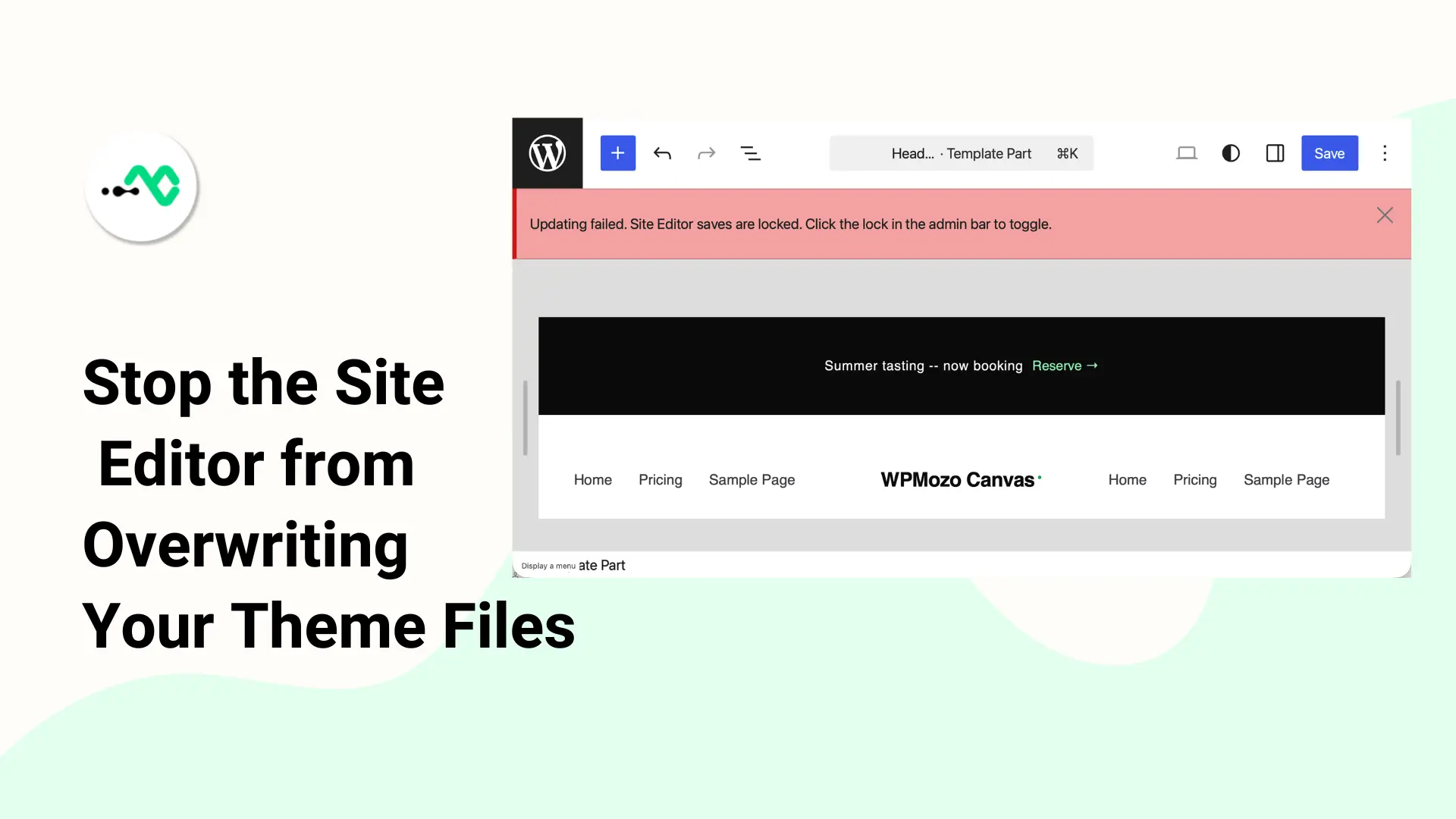
When the lock is enabled (default), any save attempt to these post types returns a clean HTTP 403 with a clear message:
“Site Editor saves are locked. Click the lock in the admin bar to toggle.”
You can still open the Site Editor. Browse template parts. Preview style variations. Inspect block trees. Only the Save button is intercepted.
The lock is one click on/off via the admin bar:
🔒 Lock: ON    ← saves blocked
🔓 Lock: OFF   ← saves allowed
A persistent yellow admin notice keeps you aware of the state, so you don’t accidentally try to save without realizing the lock is on.
Features at a glance
- Admin bar toggle — one click on/off from any admin page
- Persistent notice — yellow banner when locked, so you don’t forget
- WP-CLI commands —
wp wmsel status / lock / unlockfor scripted workflows - Programmatic override —
add_filter( 'wpmozo_sel_is_locked', '__return_false' );for conditional logic - Zero theme-specific code — works with every block theme (Twenty Twenty-Five, Twenty Twenty-Four, Astra, GeneratePress, Kadence, Ollie, custom themes)
- Tiny footprint — ~140 lines of straight WordPress API calls in a single PHP file. No JavaScript bundle. No CSS. No third-party dependencies.
Compatibility
The plugin uses standard WordPress core filters that fire for all block themes. It works with Twenty Twenty-Five, Twenty Twenty-Four, Twenty Twenty-Three, WPMozo Canvas, Astra block theme, GeneratePress block version, Kadence, Ollie, and any custom block theme that uses wp_template_part and wp_template.
For classic (non-FSE) themes, the plugin loads without errors but does nothing — classic themes don’t write to those post types, so the filter never fires. No-op, no harm.
Requirements: WordPress 6.4+, PHP 7.4+.
Installation
Method 1 — Download the zip from GitHub
- Visit https://github.com/elicus/wpmozo-site-editor-lock
- Click Code → Download ZIP
- In WordPress admin, go to Plugins → Add New → Upload Plugin
- Choose the downloaded
wpmozo-site-editor-lock-main.zip - Click Install Now, then Activate
Method 2 — Clone via git (developer workflow)
cd wp-content/plugins
git clone https://github.com/elicus/wpmozo-site-editor-lock.git
Then activate via Plugins in WordPress admin.
Method 3 — Install via WP-CLI
wp plugin install https://github.com/elicus/wpmozo-site-editor-lock/archive/refs/heads/main.zip --activateOne command, fully automated. Best for staging environments and scripted setups.
Usage
The lock is on by default the moment you activate the plugin. You’ll see the admin notice immediately, and the admin bar will show 🔒 Lock: ON.
Toggle from the admin bar
Click the lock icon at the top of any admin page. It cycles between locked and unlocked. The current state persists until you toggle again.
Toggle from WP-CLI
wp wmsel status   # show current state
wp wmsel lock     # enable lock
wp wmsel unlock   # disable lock
Useful when you’re in a terminal and don’t want to alt-tab to the browser.
Programmatic control
If you have conditional logic — say, lock only on staging but not on a developer’s local install — drop a filter into a small mu-plugin or your theme:
add_filter( 'wpmozo_sel_is_locked', function() {
    return defined( 'WP_LOCAL_DEV' ) ? false : true;
} );
The default behavior (locked) is preserved unless you override.
A typical developer workflow
Here’s how I use it on a daily basis while building WPMozo Canvas:
- Boot up local WP — plugin auto-locks. Yellow notice confirms.
- Edit
parts/header.htmlin my code editor. - Reload the front-end — change appears immediately because the file is the source of truth (no DB override possible — locked).
- Want to preview a pattern in Site Editor? Click admin bar → unlock. Open Site Editor. Browse pattern. Don’t save. Click admin bar → re-lock.
- Continue editing files.
No more “wait, why isn’t my edit showing up?” cycles.
When you should NOT use this plugin
This is a developer tool. Do not activate it on production sites.
Activating the lock on an end-user’s live site removes their ability to customize anything via Site Editor — defeating the entire purpose of FSE for non-technical users.
If you’re shipping a theme to clients or to the WordPress.org repository, this plugin should be in your local development environment only. It is not a runtime dependency of any theme.
Roadmap
- v1.1 — Optional “snapshot before unlock” — auto-create a JSON backup of the current Site Editor state when you unlock, so you can restore if a save accidentally goes through.
- v1.2 — Multisite support — toggle lock per-site in a network install.
- v2.0 — Diff view — show a side-by-side comparison of current Site Editor state vs. theme file state, so you can see at a glance what would change if the lock were disabled.
Pull requests welcome at https://github.com/elicus/wpmozo-site-editor-lock.
License and credits
GPL-2.0-or-later. Free for commercial and personal use, modification, and redistribution.
Built by Elicus, makers of WPMozo and DiviExtended.
If this plugin saves you debugging time, share it with the next block-theme developer who’s about to hit the same wall. They’ll thank you.
Conclusion
The DB-override behavior of WordPress block themes is one of the most common time-sinks in FSE development. Most developers discover it the hard way after hours of frustrated debugging. The fix is a 140-line plugin that blocks the save at the REST layer.
Install it, lock it, and let your theme files do their job.



0 Comments