Installation
From WordPress Dashboard
Go to WordPress Dashboard >> Plugins >> Add New >> Upload Plugin >> Choose File >> Browse wpmozo-gallery-for-elementor.zip and click Install Now >> Activate Plugin.
- Go to Plugins.
- Select Add New Option.
- Click on the button named Upload Plugin.
- Browse for file wpmozo-gallery-for-elementor.zip
- Install the plugin.
- Click on Activate Plugin to activate.
Manually uploading via FTP
- Extract WPMozo Gallery for Elementor.
- Connect to your server using an FTP application.
- Navigate to wp-content/plugins/.
- Upload the WPMozo Gallery for Elementor folder you extracted earlier.
- Log in to your WordPress dashboard.
- Navigate to Plugins >> Installed.
- Activate the plugin.
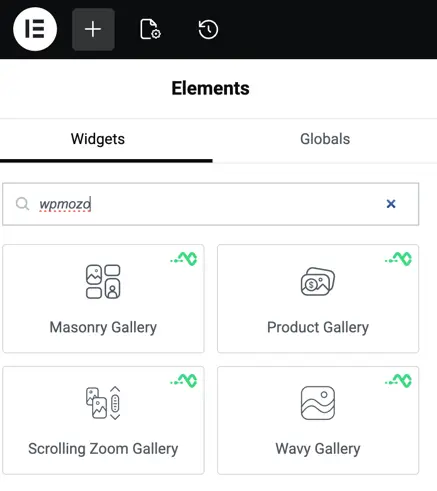
This plugin comes with widgets
- Masonry Gallery
- Product Gallery
- Wavy Gallery
- Scrolling Zoom Gallery