
Post Ticker
The Post Ticker widget lets you display your latest posts in a continuous ticker-style animation. It is perfect for highlighting breaking news, trending updates, or featured posts. You can fully customize the content source, animation effect, label, separator, speed, and design.
How to add widget on page
Once the WPMozo Addons plugin is activated, it adds several widgets to the Elementor builder. To insert the Before After Slider widget, follow these steps.
- Create/edit a page/post that uses Elementor builder.
- Create/edit container.
- Search widget Post Ticker under WPMozo.
Content settings
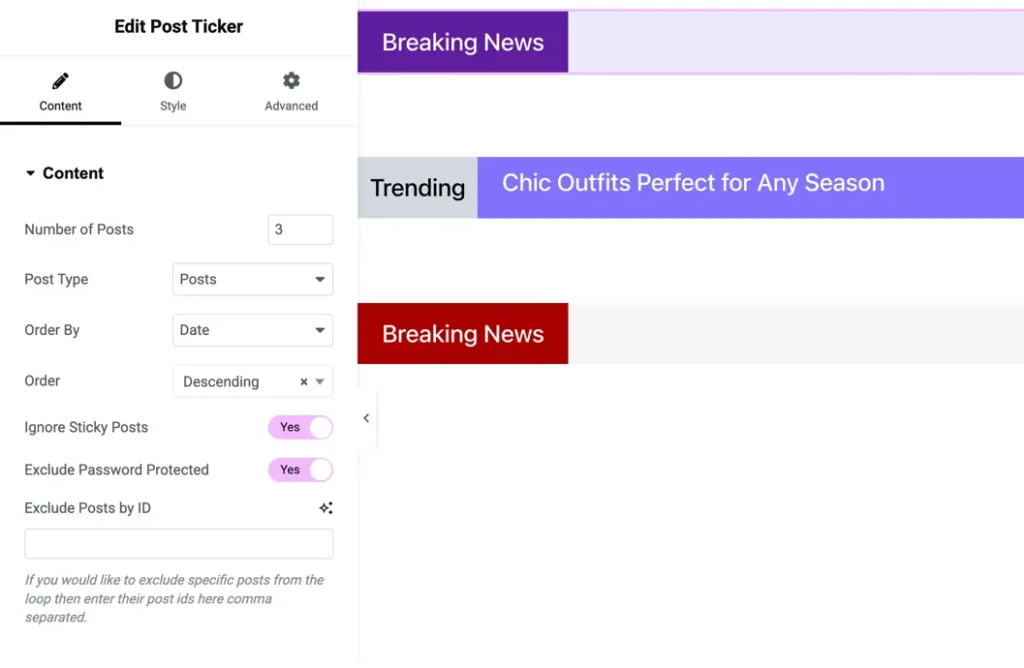
• Number of posts
Set how many posts you want to display in the ticker.
Default: 3
• Post type
Choose the post source from:
- Posts
- Pages
- Media
- Custom post types
• Order by
Sort posts using multiple options:
- Post ID
- Post Author
- Title
- Date
- Last Modified Date
- Parent ID
- Random
- Comment Count
- Menu Order
• Order
Choose:
- Ascending
- Descending
• Ignore sticky posts
Enable to exclude sticky posts.
• Exclude password-protected posts
Enable to avoid showing locked content.
• Exclude posts by ID
Enter specific post IDs (comma-separated) to exclude them from the ticker loop.
Display settings
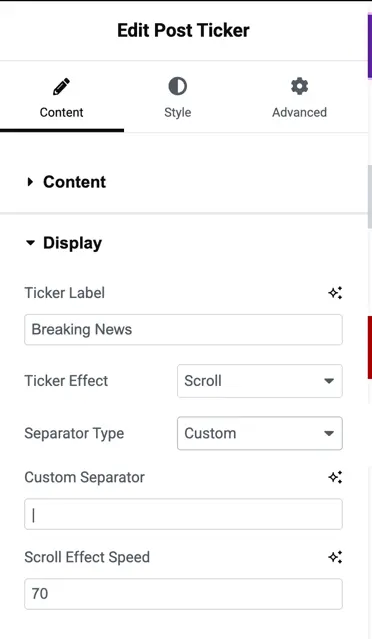
• Ticker label
Set the label text that appears before the ticker.
Example: Breaking News
• Ticker effect
Choose how posts animate:
- Scroll
- Fade
- Slide
• Separator type
Choose the separation style between each post:
- Custom Icon
- Default options
• Custom separator
Upload an icon or choose from the icon library.
• Scroll effect Speed
Adjust ticker speed.
Default: 70
Style settings
Normal & Hover
Customize styles for both states.
Available Options
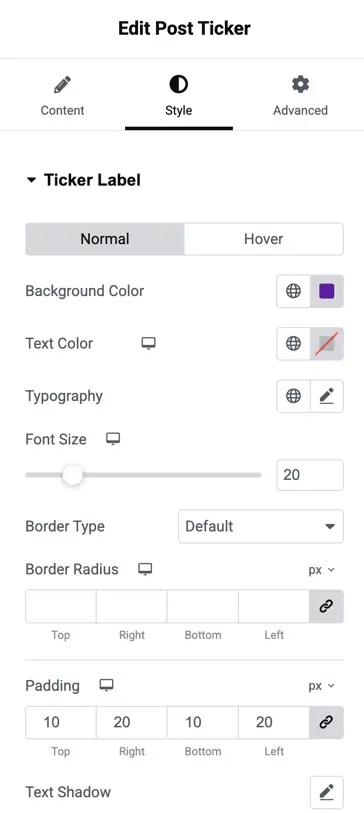
The Post Ticker widget includes a variety of styling options that allow you to customize both the ticker label and post items to match your site design.
You can set the background color and text color to define the visual appearance, while the typography controls let you choose the font family, weight, and text transform for a polished look.
The font size option helps you adjust text readability. You can further enhance the design by selecting a border type, customizing border radius individually for the top, right, bottom, and left sides, and adding padding with full individual control to refine spacing inside the label.
Additionally, the text shadow option enables you to create depth and emphasis, making the ticker content more visually appealing. These options together provide full flexibility for personalizing the ticker’s appearance.
Post item styling
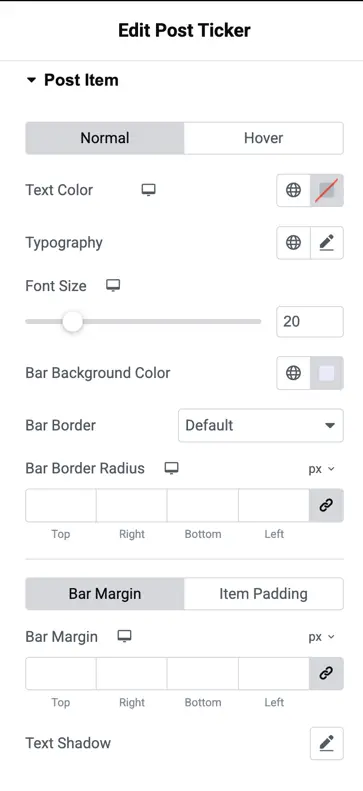
• Normal & hover
Set styles for post text appearance.
Available options
- Text Color
- Typography
- Font Size
- Bar Background Color
- Bar Border (type, width, color)
- Bar Border Radius (individual control)
- Bar Margin
- Item Padding
- Text Shadow
Separator styling
Customize the separator between posts:
- Font Size
- Color
- Padding