
Scrolling Zoom Gallery
The Scrolling Zoom Gallery is a free Gutenberg block from WPMozo Blocks & Addons that lets you display images with a smooth zoom-in effect as users scroll the page. This block helps you create engaging and visually appealing sections using scroll-based animations.

Adding the block
To add the block:
- Click the “+” button to add a new block.
- Search for “Scrolling Zoom Gallery” and select it.
Add images
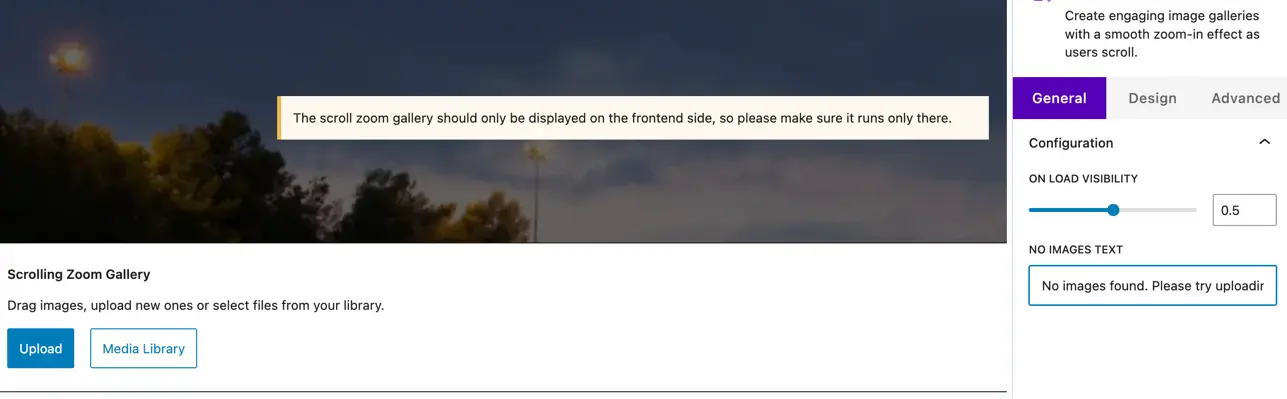
After adding the block, you can include images using the following options:
- Upload New Images – Upload images directly from your device.
- Media Library – Select images from your existing WordPress media library.
Once added, the images will automatically appear in the gallery with a smooth scrolling zoom effect.
General settings
The General Settings panel allows you to control the basic behavior and appearance of the gallery.
Configuration
On load visibility
This setting controls how much of the image is visible when the page first loads.
- The default value is 0.5.
- Lower values increase the zoom-in effect.
- Higher values display more of the image initially.
No images text
This option lets you set placeholder text that appears when no images are added to the gallery.
It helps indicate that images need to be uploaded or selected.
Design settings
Image styling
The Image Styling section allows you to control the appearance of images in both normal and hover states. These settings help you maintain visual consistency and add interactive effects to your gallery images.
Normal and hover settings
You can style images separately for their default (Normal) state and when users hover over them (Hover). This allows you to add subtle or noticeable design changes on interaction.
Border
- Border – Set the border thickness around each image (in px).
- Radius – Adjust the corner roundness of images to create sharp or rounded edges.
Background
- Background Type – Choose how the image background is applied:
- Classic – Apply a solid background color.
- Gradient – Apply a gradient background for a more dynamic look.
- Background Color – Select the background color displayed behind the image. This is useful when images have transparent areas or spacing around them.
